
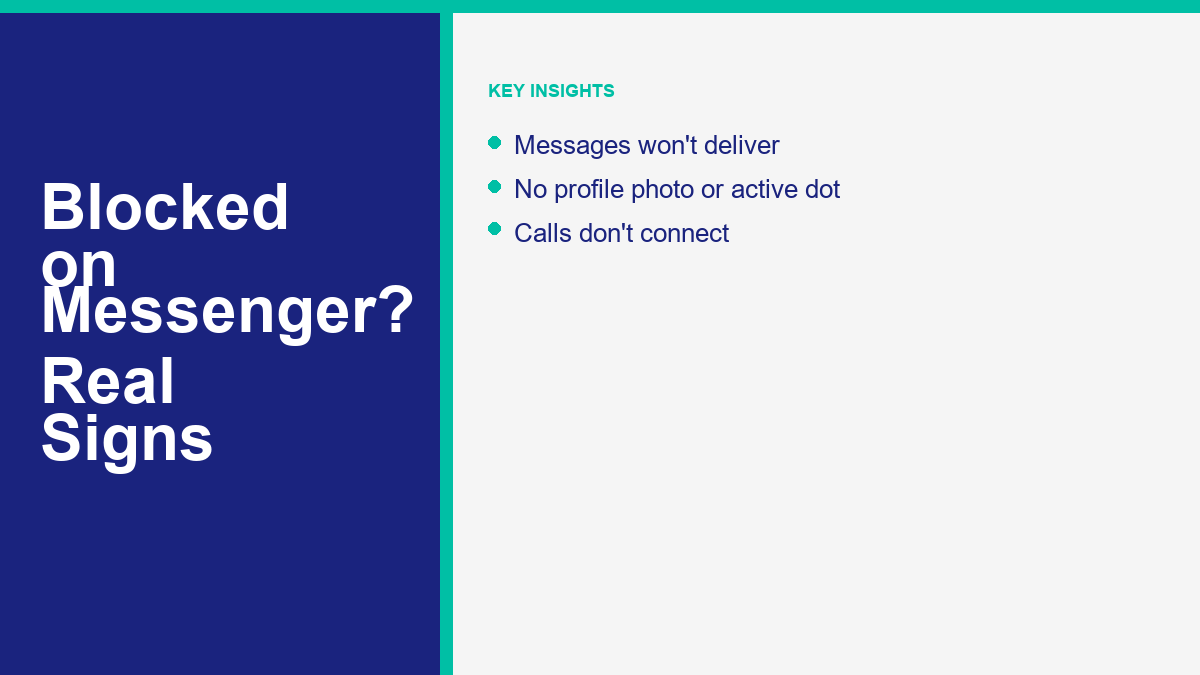
Have you ever sent a chat message, only to watch it sit there with a hollow checkmark icon for days on end? It is a frustrating experience. You start wondering if the recipient is simply busy, if they have deleted their account, or if they have blocked your profile. The Messenger app does not send a notification when someone blocks you. This is intentional from Meta’s standpoint to protect user privacy. But by paying close attention to specific features, icons, and interface behaviors, you can figure out the truth.
Messenger received several interface updates. Some classic signals have changed, while other security settings like restrictions and active status display have become more complex. You need to look at a combination of factors rather than relying on a single indicator. A single white checkmark in a hollow circle can mean many things, but when it is combined with a missing profile photo and failed audio calls, the picture becomes clear.
This guide will show you how to read the interface signals to determine if a block has actually occurred. We will look at what happens behind the scenes, how to distinguish a block from account deactivation, and how to verify your status using a simple group chat test. We will also discuss the differences between being restricted, ignored, or blocked, so you can avoid making incorrect assumptions.
What Blocking on Messenger Actually Does
When someone decides to block you, they have two distinct options on Meta’s platform. They can either block you specifically on Messenger, or they can perform a complete block on Facebook. Understanding the difference between these two actions is vital for diagnosing your chat status.
If they block you only on Messenger, the restrictions are limited to communication. You will no longer be able to send them messages, call them, or see their active status. However, your Facebook connection remains intact. You can still see their Facebook profile, view their public posts, see their comments on mutual friends’ updates, and even view their reactions. If you are both in the same group, your posts there will still be visible to them, and theirs will be visible to you, though Messenger will warn you before you enter a shared group chat.
On the other hand, if they block you on Facebook, the separation is absolute. This action automatically blocks you on Messenger as well. When this happens, their profile page will seem to have vanished. You cannot search for their name, tag them in photos, view their posts, or see their comments. In your chat history, their name may change to “Facebook User” or their profile photo may disappear, and the text input field at the bottom of the conversation will be completely blocked, preventing you from typing anything.
Meta implemented these choices to give users control over their interactions. Someone might want to stop receiving direct chat alerts from you while still allowing you to view their public social media posts. Or they might want a complete digital break. Knowing which level of block has been applied helps you understand the specific symptoms you are seeing in your chat screen.
The Real Signs Someone Blocked You
Let’s analyze the technical indicators that appear when a block is in place. Because Meta does not notify you directly, you must observe these indicators together to make an accurate assessment.
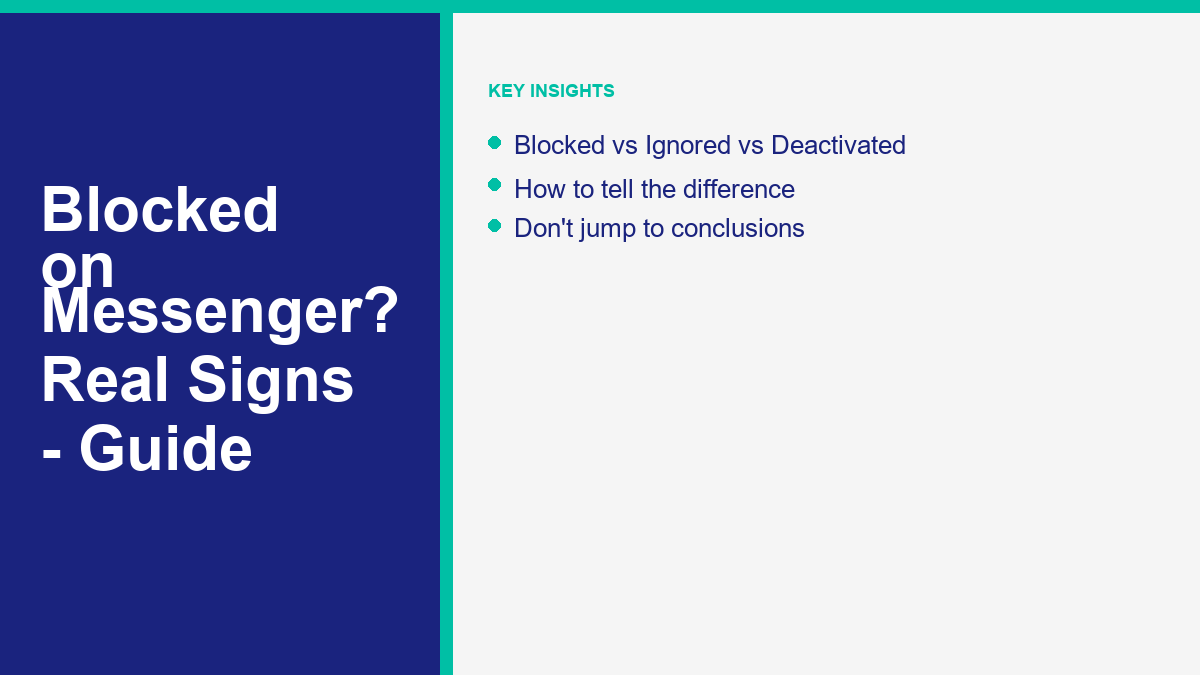
We will examine the three main signs: the delivery status of your messages, the visibility of their profile photo and active status, and the behavior of Messenger calls. If you observe all three signs simultaneously, it is highly likely that a block has been established.
Messages Remain Sent Instead of Delivered
The most common indicator of a potential block is the persistent status of your sent messages. Messenger uses a set of simple circular icons to represent the status of every message you transmit.
First, an open, empty blue circle indicates that the message is in the process of sending. Second, a hollow blue circle with a checkmark means the message has been successfully sent from your device and registered on Meta’s servers. Third, a filled blue circle with a checkmark means the message has been successfully delivered to the recipient’s phone or active device. Finally, when the recipient reads the message, the circle is replaced by a miniature version of their profile picture.
When you are blocked, any new message you send will show the hollow blue circle with a checkmark (Sent status). It will remain in this state indefinitely. It will never transition to the filled blue circle (Delivered status), because Messenger’s server refuses to push the message to their device.
How does this compare to a normal chat? If a user is simply offline, their phone is turned off, or they are out of cellular range, your message will display as Sent (hollow checkmark) until they connect to the internet. Once their device registers a connection, the icon will update to Delivered (filled checkmark). If days or weeks pass and the icon remains hollow, it suggests their device is either permanently offline or they have blocked your communication.
This indicator is crucial, but it is not definitive on its own. The recipient might have uninstalled the Messenger app, or their account might be dormant. To determine if they are ignoring you rather than blocking you, you must consider other signals. For example, if you want to understand how delivery icons change when a message is ignored or restricted, read our guide on how to tell if someone read your message on Messenger. This will help you see the difference between a read receipt delay and an active block. If the message fails to deliver entirely, it might not be a block at all; use the message could not be sent on Messenger guide to check delivery, connection, recipient, and account causes.
Profile Photo and Active Status Disappear
Another telling sign is the sudden disappearance of the person’s profile information and active status. Under normal conditions, Messenger shows when your contacts are online or when they were last active.
If someone blocks you, you will no longer see their active status. The green dot that usually appears next to their profile picture will be gone. You will also miss the timestamp text, such as “Active 10m ago” or “Active 2h ago.” The chat header will simply display their name, with no status indicators underneath.
In addition to the status dot, their profile picture itself will often undergo a change. If they have blocked you on Facebook entirely, their profile picture in your chat list might revert to a default, blank silhouette. In some cases, the Messenger app caches the old profile picture, so you might still see it in the chat list. However, if you try to tap on their photo to open their Facebook profile, you will receive an error message stating that the content is unavailable or that the link is broken.
If they have blocked you only on Messenger, you might still see their active profile photo. However, the green active status dot and the “Active now” text will remain hidden from your view. This is because the block cuts off the real-time data connection between your profile and theirs. If you notice that you can see their active status on a friend’s phone but not on your own, you have found strong evidence of a block.
Messenger Voice and Video Calls Fail Instantly
The final direct signal is the behavior of Messenger calls. Under normal circumstances, when you tap the phone or video icon in a chat window, the app will attempt to establish a connection. You will hear a series of rings while the app alerts the other person.
If you have been blocked, the call behavior changes. When you tap the call icon, the screen might display “Calling” for a split second, but it will immediately transition to “Call failed” or “User unavailable” without ringing. In some versions of the app, the call might appear to ring on your end, but the recipient will never receive a notification, and the call will eventually time out without any response.
This instant failure occurs because Meta’s servers block the connection request before it ever reaches the recipient’s device. The system does not allow a blocked profile to initiate a call pathway.
A failed call can also occur if the recipient has their phone on “Do Not Disturb” mode or if they are currently on another call. However, in those situations, the call will usually ring for a longer duration before failing, or it will redirect you to leave a message. An immediate, silent failure that happens every time you try is a strong indicator of a block.
Blocked vs Deactivated vs Ignored vs Restricted
It is easy to confuse a block with other Messenger features. Meta provides several tools for managing unwanted contact, including deactivation, ignoring, and restricting. Let’s compare these states to help you understand what is actually happening with your chat.
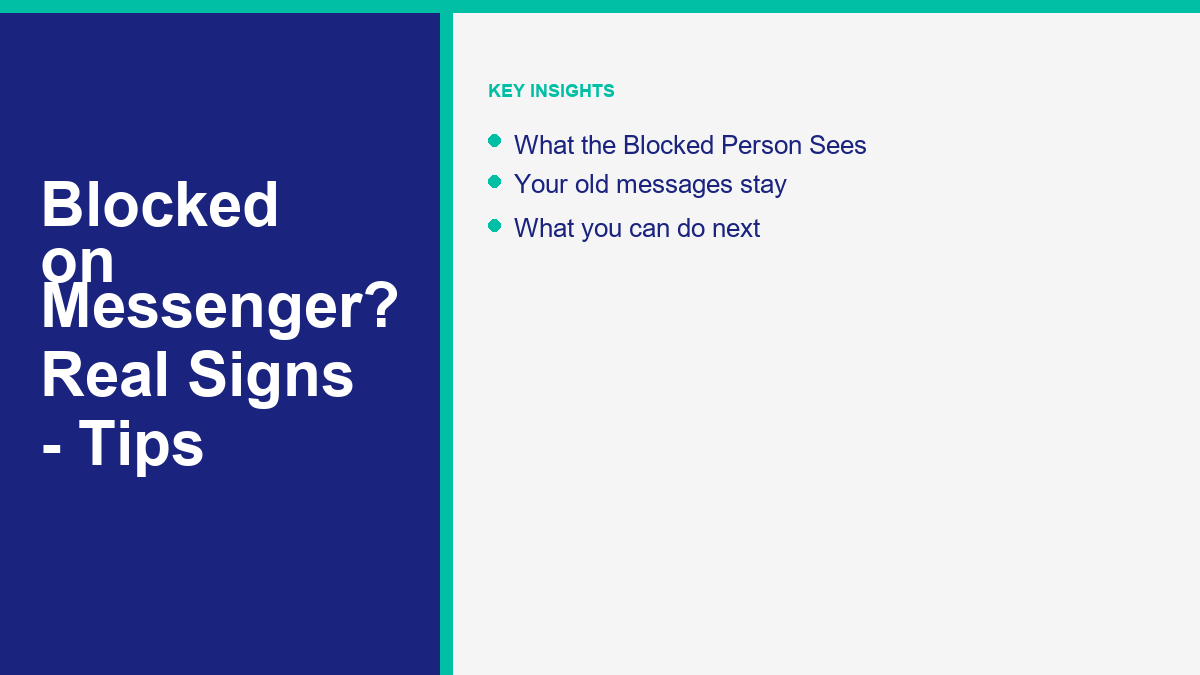
We will examine how deactivated accounts appear in your chat list, and how the restriction and ignore features affect your message delivery indicators.
Deactivated Accounts
A deactivated account is not the same as a block. When a user deactivates their Facebook account, they can choose to keep Messenger active, or they can deactivate both.
If they deactivate both Facebook and Messenger, their profile will disappear from search results, and their name in your chat list will change to “Facebook User.” Their profile photo will be replaced by the default gray silhouette. In the chat window, you will see a message at the bottom stating, “This person is unavailable on Messenger.” The text input box will be completely hidden, preventing you from typing or sending any new messages.
The main difference between a deactivated account and a block is that a deactivated account is unavailable to everyone. If you ask a mutual friend to search for the person’s profile, they will also be unable to find them. With a block, the profile remains visible and active for other users, but it is hidden specifically from you.
If they deactivated Facebook but kept Messenger active, you can still send them messages. The messages will behave normally, showing as Sent and then Delivered when they open the app. If you suspect their Facebook account is missing, you can check our setup instructions for Facebook profile locking to see if regional privacy settings or profile lock screens are hiding their profile instead of a deactivation or block.
Ignored and Restricted Profiles
Meta has introduced alternative options to help users limit communication without resorting to a hard block. These features are called “Ignore” and “Restrict.”
If someone restricts your profile, the chat behaves differently than a block. Your messages will still be sent, and they will display the hollow checkmark icon. However, they will never update to the read status (profile photo icon) because the recipient can read your messages within a private restriction view. The recipient does not receive notifications when you message them, and their active status is hidden from you. You can still see their profile and posts, and you can still see the message input box. This feature is designed to allow users to ignore messages without creating the social tension of a block.
If someone ignores your chat, your conversation is moved to their “Message Requests” or “Spam” folder. The message icon will remain as Sent (hollow checkmark). They will not receive alerts for your messages. If they choose to open the message request and read it, you will not receive a read receipt until they accept the request.
If you are experiencing other platform issues, such as missing features in your app, these can sometimes mimic blocking behavior. For example, if you are looking for specific Facebook features, check our Facebook Marketplace availability guide or read our guide on why Facebook Dating is not showing up. Sometimes, local account glitches or app restrictions can make it look like a contact or page is missing when it is actually an app setting issue.
How to Confirm Without Jumping to Conclusions
If you want to confirm your status without asking the person directly, you can use two main methods. These methods help you verify if the communication barrier is specific to your account.
The first method is the group chat test. This is the most reliable technical check. Create a new group chat in Messenger. Try to add a mutual friend and the person you suspect has blocked you. If they have blocked you, Messenger will display an error message when you try to add them. The app will say something like “Could not add user” or “This person cannot be added to this group.” This happens because Messenger’s system blocks you from creating new direct group connections with someone who has blocked your profile.
The second method is the mutual friend check. Ask a mutual friend to open their Messenger app and search for the contact’s name. If their profile photo, active status, and chat options are visible to your friend, but you cannot see them, you have confirmed that the account is active and that the restriction is specific to your profile.
Using these methods helps you avoid making assumptions based on message delivery delays. It ensures you have concrete evidence before concluding that you have been blocked.
What the Blocked Person Can and Cannot See
If you decide to block someone, or if you have been blocked, it is helpful to know what information remains visible.
The past chat history does not disappear when a block is created. Both parties can still open the existing chat thread and read all past messages, shared photos, and links. The historical conversation remains intact on both devices. However, neither person can type new messages in that thread.
If you are both members of a pre-existing group chat, the dynamics are different. The block does not automatically remove either person from the group. If you both remain in the group, you will still be able to see each other’s messages in that shared chat. Messenger will show a warning when you open a group chat that contains a blocked user, giving you the option to leave the group or proceed.
Shared media links and attachments inside the chat history will remain active. If you sent a document or a photo link in the past, the recipient can still download it. The block only prevents new communication and hides real-time status updates; it does not erase the historical record of your interaction.
What to Do If You Have Been Blocked on Messenger
Discovering that someone has blocked you can be disappointing. The best approach is to respect their decision and give them space. Attempting to bypass the block by creating secondary profiles or using mutual friends to relay messages is generally counterproductive and can lead to further restrictions.
If you use Messenger for professional communication or business marketing, managing client interactions and avoiding spam flags is crucial. If you run a business page, you might want to automate your customer service to prevent communication gaps. You can learn more about managing Messenger interactions by looking at our tutorials. For example, you can Durchsuchen Sie unsere Tutorials to see how to structure automated responses, or Check Current Pricing for our advanced communication tools.
Automating your replies ensures that your contacts receive instant information, reducing the likelihood of communication misunderstandings that can lead to blocks. Implementing structured flows help keep your client interactions professional and clear.
Häufig gestellte Fragen
Let’s answer some common questions about how blocking works on Messenger.
Can I still call someone who blocked me on Messenger?
No. If you try to make an audio or video call to someone who has blocked you, the call will fail immediately. You will hear no ringing tone, and the app will display a “Call failed” or “User unavailable” notification.
If I am blocked on Messenger, am I also blocked on Facebook?
Not necessarily. A user can choose to block you only on Messenger. If they do, you can still view their Facebook profile and posts, but you cannot message or call them. If they block you on Facebook, you are blocked on both platforms automatically.
Why does a message show as sent but not delivered?
A message that shows as sent (hollow checkmark) but not delivered (filled checkmark) means the message has reached Meta’s servers but has not been pushed to the recipient’s device. This can happen if their phone is offline, if they have uninstalled the app, or if they have blocked you.
How does a deactivated profile look compared to a block?
If a user deactivates their account, their name changes to “Facebook User” and their photo becomes a gray silhouette. The message box will show “This person is unavailable on Messenger,” and no one can message them. If they blocked you, their profile is still active for others, but hidden from you.
Can a blocked person see when I am active?
No. Once a block is active, all active status updates, active dots, and “Last active” timestamps are hidden for both parties. You will not be able to see their online status, and they will not be able to see yours.

 Deutsch
  English
  Tagalog
  简体中文
简体中文  العربية
  हिन्दी
  Português do Brasil
  Español de México
  Français
  বাংলা
বাংলা  香港中文
香港中文  繁體中文
繁體中文  Nederlands
  Bahasa Indonesia
  日本語
日本語  한국어
한국어  Polski
  Русский
  Español
  Tiếng Việt