
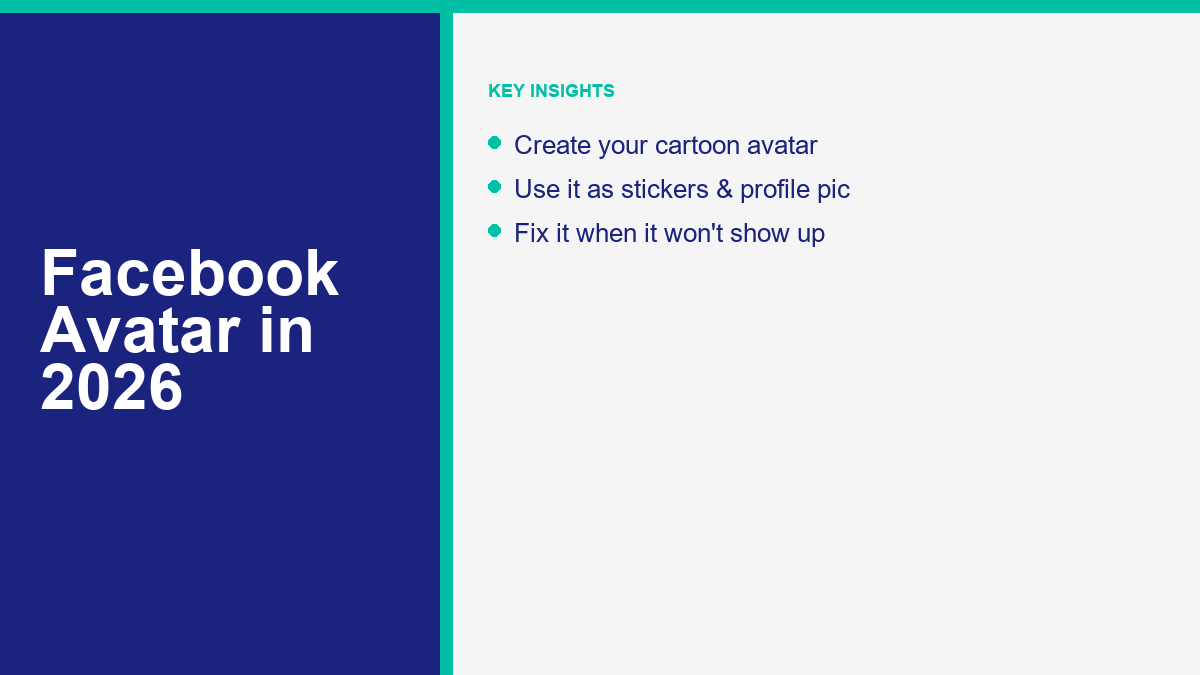
Establishing a unique online presence on social media has become essential for staying connected. One of the most popular ways to showcase your personality is by setting up a cartoon avatar on your social profiles. A Facebook Avatar allows you to interact with friends using a cartoon version of yourself in comments, messages, stories, and reactions. Unfortunately, it is common to encounter issues where the avatar shortcut or option is entirely missing from your application menu. When you want to reply to a thread with a custom sticker or edit your style but find the button gone, the experience is incredibly frustrating.
Meta has a history of rolling out interface updates in phases, meaning features do not appear for everyone simultaneously. If your menu is missing other core features, you might want to look into ¿por qué no tengo Marketplace en Facebook hoy? for solutions on enabling blocked marketplace access. Similarly, missing menu options are often tied to regional availability, app updates, or account type limits. You must diagnose the underlying cause before you can resolve the issue.
This guide provides a detailed walk-through on how to create, edit, and use your Facebook Avatar in 2026. We will also examine the common reasons why the avatar option does not show up on your device and outline the exact steps to troubleshoot and restore this feature. By understanding the profile requirements and device settings, you can bring the cartoon character back to your application menu and use it across the entire platform.
What a Facebook Avatar Is
A Facebook Avatar is a customizable, three-dimensional digital cartoon representation of yourself. It allows you to express emotions, reactions, and personal style across the social network without relying on real-world photographs. Meta introduced these avatars as part of its broader push toward creating a unified digital identity across its ecosystem. Unlike flat, two-dimensional stickers of the past, these modern avatars feature rich details, dynamic lighting, and expressive animations that closely mimic human expressions.
Once you build your avatar, the application automatically generates a complete library of custom sticker packs. These stickers feature your avatar in various poses, expressing emotions like happiness, sadness, excitement, surprise, and anger, along with popular phrases. You can use these stickers in comment threads, Messenger conversations, Facebook Stories, and as custom backgrounds for text posts. This adds a layer of personalization to your text-based interactions, letting you show feelings that words alone might fail to convey.
Furthermore, your avatar is not confined to a single application. Meta has centralized its avatar system within the Accounts Center, meaning that your creation can be synced across Facebook, Instagram, Messenger, and WhatsApp. This synchronization allows you to maintain a consistent digital identity across all of your communication channels. If you decide to update your hair style or change your outfit on Facebook, you can choose to apply those changes automatically to your Instagram and WhatsApp avatars as well, saving you the hassle of rebuilding the character on each individual service.
The avatar feature is entirely free to use and does not require any additional downloads. It is integrated directly into the main mobile application, making it accessible to any user who meets the basic profile requirements. For those concerned about privacy, using an avatar is an excellent way to maintain a recognizable presence on the platform without sharing personal photos. It provides a layer of security while still allowing you to participate in visual conversations with friends and family members.
How to Create Your Facebook Avatar
Building your cartoon avatar is a straightforward process, but you must use the official Facebook app on a compatible iOS or Android mobile device. The creation tool is not available on desktop web browsers, mobile web interfaces, or lightweight applications like Facebook Lite. To begin creating your custom persona, follow these detailed steps within the mobile application.
First, open the official Facebook application on your phone or tablet. Make sure you are logged into your primary personal account. Go to the menu interface by tapping the three horizontal lines (often called the hamburger menu) or your profile picture. On Android devices, this menu button is located in the upper-right corner of the screen. On iOS devices, you will find it in the lower-right corner of the interface.
Once you are in the menu, scroll down to see the available options. Look for the shortcut labeled "Avatars". If the option is not immediately visible, tap on "See More" to expand the list of shortcuts. When you locate "Avatars", tap on it to launch the creation interface. If you still cannot find it, you can also search for "Avatars" in the main settings search bar.
The application will present you with an initial screen prompting you to choose a starting skin tone. Select the skin tone that best represents you and tap "Next" to enter the main customization studio. From here, you can refine your character’s features in detail.
Within the customization studio, you will see a preview of your avatar in the center of the screen, with various editing categories arranged in a menu below it. You can scroll through these categories horizontally to adjust every aspect of your character. Let’s look at the options available:
- Hairstyle and Hair Color: You can choose from dozens of hairstyles, including short, medium, and long cuts. You can also customize the color, selecting from natural shades to vibrant dye colors.
- Face Shape and Facial Features: Adjust the shape of your character’s jawline, chin, and cheeks. You can also add facial lines to show age, skin texture, or specific expressions.
- Eye Shape, Color, and Makeup: Choose from different eye shapes, select an iris color, and add eyeliner or eyeshadow if desired.
- Eyebrows and Eyebrow Color: Select the thickness, shape, and placement of your character’s eyebrows.
- Eyewear: If you wear glasses, you can select from a wide range of frames and lens colors.
- Nose and Mouth Shapes: Choose from different nose structures and mouth shapes. You can also apply lipstick colors.
- Facial Hair: Add beards, mustaches, or sideburns and select a color.
- Body Shape and Outfits: Select a body structure and scroll through a wide library of outfits. The wardrobe contains casual clothes, formal attire, sportswear, and cultural outfits.
- Accessories: You can add hats, caps, head coverings, earrings, nose rings, and other jewelry.
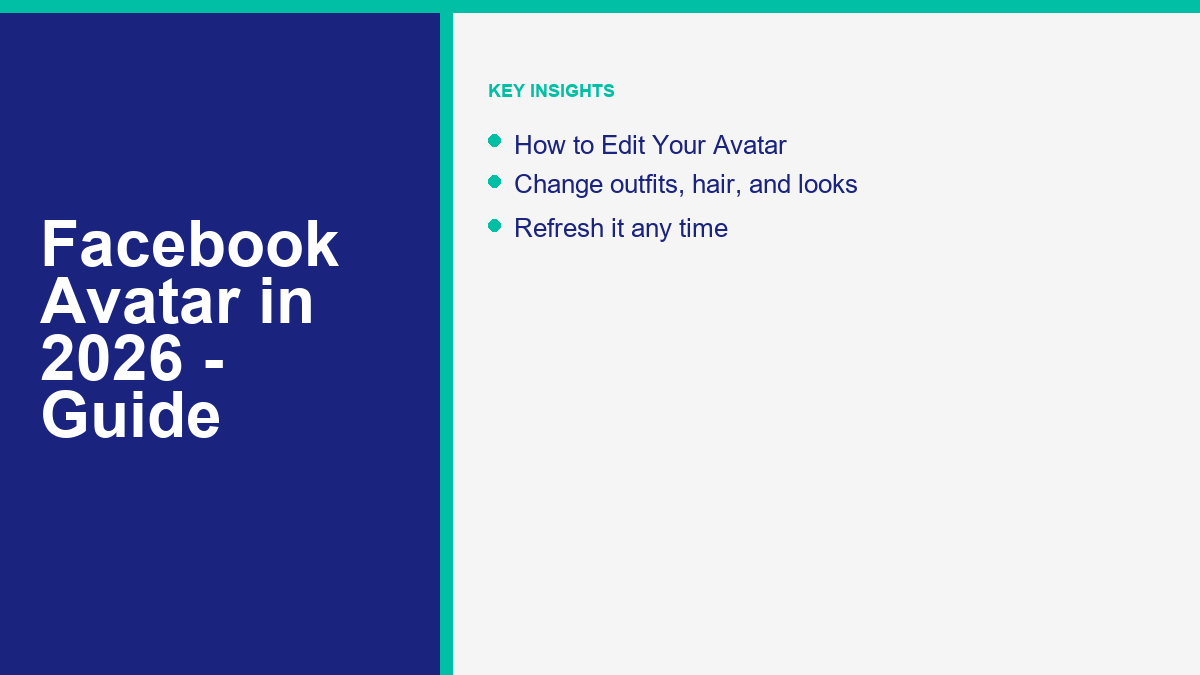
If you find it difficult to match your features manually, you can use the mirror feature. Tap the small mirror icon located in the upper-right corner of the customization screen. This will activate your device’s front-facing camera and display your live video feed in a small window next to your avatar. You can look at your real face side-by-side with your digital model to adjust the details accurately without guessing.
When you are satisfied with your custom character, tap the "Done" button in the top-right corner of the screen. The application will ask you to confirm if you want to save your changes. Tap "Save Changes". The application will take a few moments to generate your avatar and compile your personalized sticker packs. Once the process is complete, tap "Next". You will be presented with a preview of your completed avatar, along with options to set it as a temporary profile picture or share it as a post.
How to Edit or Customize Your Avatar
Your personal style and appearance can change over time, and your digital character should reflect those changes. You might get a new haircut, start wearing glasses, or want to update your wardrobe to match a season, holiday, or special event. Meta regularly updates the avatar editor with new clothing styles, hairstyles, and accessories, allowing you to refresh your look whenever you want.
To modify your existing avatar, open the Facebook mobile app and return to the main menu. Tap on the "Avatars" shortcut. If you have already created an avatar, the app will show your character standing on the screen instead of the initial creation setup. Tap on the edit icon, which looks like a pencil or a customize button.
This will bring you back into the customization studio. Here, you can change any feature you previously selected. You can scroll through the categories to modify your hair, face shape, eyes, nose, or body type. If you only want to change your clothing, you can go directly to the outfit category, which features a vast closet of shirts, pants, dresses, jackets, shoes, and complete outfits.
Meta frequently collaborates with global brands, sports leagues, and designers to offer limited-edition outfits and accessories. Many of these digital clothes are free, though some premium outfits might be offered for purchase in the Meta Avatar Store. This allows you to dress your avatar in your favorite brand’s clothing or support your favorite sports team.
Once you make your adjustments, tap "Done" and select "Save Changes". The application will update your character immediately. If your Facebook account is linked to your Instagram or Messenger profile via the Meta Accounts Center, the system will ask if you want to sync the updated avatar across all accounts. Confirming the sync ensures that your digital look remains consistent across all platforms. If you prefer to keep different looks for different networks, you can disable the synchronization option and customize each avatar individually.
This is very similar to troubleshooting other missing menu options on the platform; for instance, if you are wondering why does my Facebook not have profile locking, the issue is often tied to your account location or profile settings.
How to Use Your Avatar
Once you have created your digital character, you can begin using it to interact with others across the platform. The avatar system is designed to enhance your daily communication by offering personalized visual options that stand out in feed comments and chat windows.
Avatar Stickers in Comments and Messenger Chats
The primary way to use your character is through custom sticker packs. When your avatar is saved, the application automatically designs a wide selection of stickers showing your character in action. These stickers are categorized by theme, such as greetings, expressions of love, celebration, humor, and general reactions.
To send an avatar sticker in a comment thread on Facebook, tap the comment box under a post. Tap the sticker icon (the smiling square face) in the input bar. Tap the Avatar icon to load your personalized sticker library. Scroll through the options, find the perfect reaction, and tap it to post your comment. This allows you to respond with a cartoon version of yourself waving, crying, or celebrating.
For Messenger conversations, you can access your stickers in a similar way. Open a chat, tap the emoji/sticker icon in the message input box, select the Avatar tab, and choose your sticker. These custom reactions add a personal touch to your messages, making conversations feel more lively than standard text or emojis.
Setting Your Avatar as a Profile Picture
You can use your cartoon character as your official Facebook profile picture. This option is helpful if you want to maintain your privacy or if you simply prefer a fun, cartoon-style depiction. It can also serve as a placeholder while you update your real-world photos.
To set your avatar as your profile picture, go to the menu and open the "Avatars" section. Select the option to create a profile picture. The application will allow you to choose from several poses, such as waving, smiling, or standing. You can also select a background color or pattern to match your aesthetic. Once you select your preferences, tap "Save" to update your profile picture.
Additionally, Facebook offers a split profile picture feature. This setting allows visitors to swipe or tap your profile picture to flip between your real photograph and your custom avatar. It is a creative way to showcase both your actual appearance and your digital persona.
Sharing Avatar Posts and Stories
You can create custom text posts that feature your avatar in the background. When composing a new text post on your feed, look for the background templates. Several of these backgrounds feature your avatar performing different actions, such as sleeping, working, or celebrating. Select a template, write your text, and publish the post to make your updates more engaging.
When sharing a Facebook Story, you can also add avatar stickers as decorative elements. Open the Story creator, take a photo or choose a background, tap the stickers icon at the top, select the Avatar sticker tool, and place your character anywhere on the screen. You can pinch to resize the sticker or rotate it to fit your design perfectly.
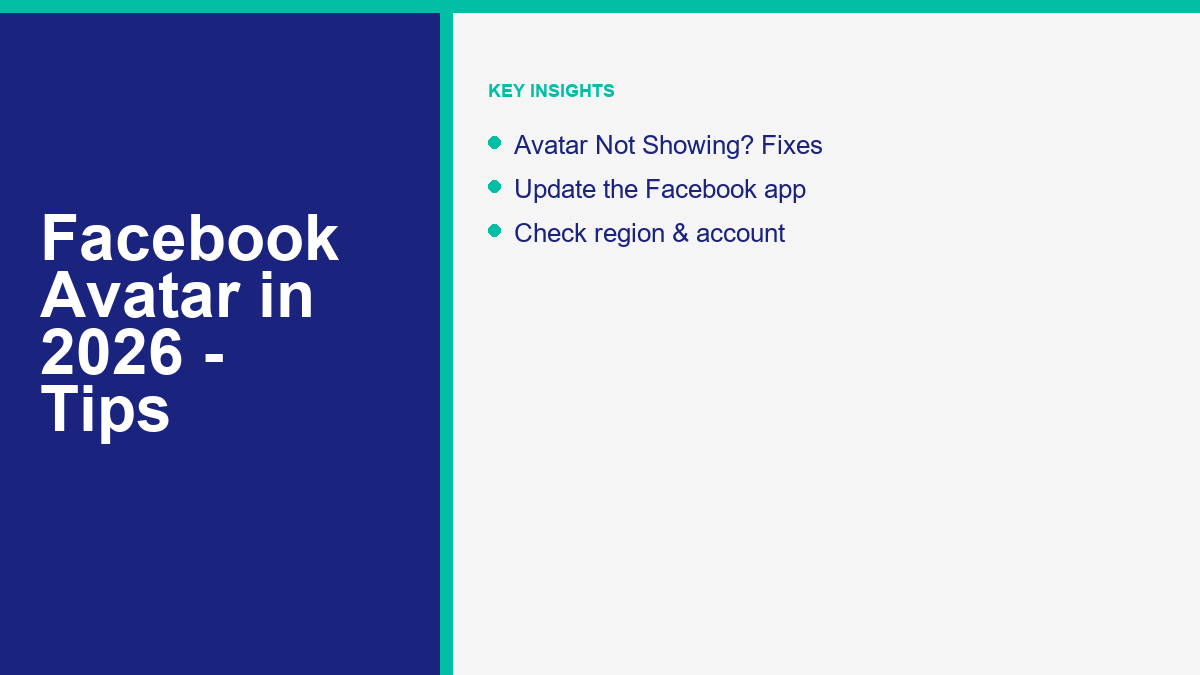
Facebook Avatar Not Showing Up: Causes and Fixes
It can be frustrating when you want to create or edit your digital character but find that the "Avatars" shortcut is completely missing from your menu. This problem can happen on both Android and iOS devices. The missing menu option is usually caused by outdated software, app cache conflicts, regional restrictions, or profile configuration settings. Fortunately, there are several troubleshooting steps you can take to fix the issue and restore the shortcut.
Clear Your App Cache and Temporary Data
A common cause of missing shortcuts is corrupted cache data. The Facebook app stores temporary files to load menus faster, but these files can become outdated and block new menu options from rendering. Clearing this cache forces the app to rebuild its menus and fetch the latest shortcuts from the servers.
If you are using an Android device, you can clear the cache through your device settings. Open your phone’s main Settings menu and navigate to "Apps" or "App Management". Find Facebook in the list of applications and tap on it. Select "Storage" or "Storage & Cache" and tap the "Clear Cache" button. Do not tap "Clear Data" unless you are prepared to log back into your account, as clearing data deletes your login credentials. After clearing the cache, force-stop the Facebook app, reopen it, and check if the Avatars option appears.
For iOS devices, the best way to clear the cache without losing your data is by offloading the app. Go to your iPhone settings, tap "General", and select "iPhone Storage". Scroll down to locate Facebook and tap on it. Select the "Offload App" option. This deletes the application files but keeps your documents and data. Once offloaded, tap "Reinstall App" to download a clean version from the App Store. Once reinstalled, open the app and check the menu again.
Update the Facebook Application
The avatar creation interface requires the latest application framework to function properly. If you are running an outdated version of Facebook, the shortcut will remain hidden, or the editor might fail to load. Keeping the application updated ensures that all menu layouts render correctly.
Go to the App Store on iOS or the Google Play Store on Android. Search for "Facebook" and check if there is an "Update" button available. If there is, tap it to download the latest updates. It is highly recommended to enable automatic updates for the app to ensure you always have access to new features. If you are using a beta version of the app, you might also want to switch to the stable release to avoid layout bugs.
Many users run into similar problems with newer features on Meta’s messaging platform. If you are struggling with missing AI options, check our guide on ¿por qué mi Messenger no tiene Meta AI? to verify your app version and account settings.
Verify Your Account Settings and Birthdate
Meta enforces an age limit on certain interactive features, including avatars. If your account profile lists your birth year incorrectly, making it seem like you are under 18 years old, the avatar feature will be blocked automatically. This is done to comply with safety guidelines for minor accounts.
To check your birthdate, open your Facebook profile and tap "See Your About Info". Scroll down to the "Basic Info" section to view your birthdate. If it is incorrect, tap "Edit" to adjust it. Keep in mind that Facebook limits how often you can change your birthdate, so make sure you enter it correctly. If you recently changed it, you might need to wait for the system to verify the change before the avatar shortcut becomes active.
Additionally, certain account types do not support avatars. If you are currently logged into a business page, a professional page, or a managed group account, you will not see the Avatars shortcut. Ensure that you switch back to your standard personal profile before attempting to access the avatar studio. The feature is restricted on professional profiles to maintain a focus on business utilities.
Log Out and Reinstall the Application
If updating and clearing cache does not restore the menu, a complete reinstall can resolve deeper software conflicts. This process removes all cached settings and forces the app to query Meta’s servers for your account’s eligible features, resetting any corrupted menu lists.
First, log out of your account by going to the Facebook menu, scrolling to the bottom, and tapping "Log Out". Next, delete the Facebook application from your device. Restart your phone to clear any remaining temporary memory. Go back to your device’s app store, download the Facebook application again, and log in. Once logged back in, wait a few minutes for the app to sync with the servers before checking the menu for the Avatars shortcut.
Similarly, if you are looking for other popular social options, you might run into the issue of Facebook Dating not showing up in 2026, which requires many of the same troubleshooting steps to fix.
Facebook Avatar vs Meta Avatar Across Apps
When exploring these customization options, you might hear the terms "Facebook Avatar" and "Meta Avatar" used interchangeably. However, there is a minor distinction between the two, primarily relating to how they are managed across different networks. Understanding this distinction can help you manage your digital appearance more effectively across the web.
Originally, Facebook Avatars were designed specifically for the Facebook main app. Over time, as Meta consolidated its platforms, the system was upgraded to the unified "Meta Avatar" standard. This change means that your digital character is now stored in your Meta Accounts Center, making it available across Facebook, Messenger, Instagram, and WhatsApp. It is a single, centralized asset that represents you across the entire Meta ecosystem.
You can manage your avatar synchronization through your Account Center settings. To do this, open the Facebook app and navigate to Settings & Privacy, then tap on Settings. Tap on the Accounts Center banner at the top of the settings page. Select "Profiles" and tap on your connected accounts. From there, select "Avatar" to customize your synchronization preferences.
From this menu, you can choose to sync your avatar. If enabled, any modification you make to your avatar’s hair, clothes, or features will automatically apply to your Instagram and WhatsApp avatars. This is highly convenient for maintaining a consistent online identity. If you prefer to keep different styles — for example, a professional look for Facebook and a creative style for Instagram — you can disable the sync option and edit each character separately, giving you full control over your digital brand.
If you run an automated chat campaign using a service like Bot de Messenger, having a complete and consistent avatar profile reinforces your brand or personal presence. You can See Our Plans for advanced Messenger tools that help automate customer replies, or Explora nuestros tutoriales to optimize your automation setups.
Managing your unified digital presence across all Meta applications is a great way to ensure your profile looks complete. As Meta continues to expand its features, the Meta Avatar will remain the central piece of your virtual identity across the social media landscape, offering new options for interaction in both chat windows and virtual reality spaces.
Frequently Asked Questions About Facebook Avatars
Here are answers to some of the most common questions users ask about creating, using, and troubleshooting their digital characters.
Can I create a Facebook Avatar on my computer?
No, you cannot create or customize your avatar using a desktop computer or web browser. The creation studio is only available within the official Facebook mobile app for Android and iOS devices. However, once you have created your avatar on your mobile device, your generated sticker packs will be available to use in comments and messages when you log into Facebook on your desktop computer.
Why are some clothing options or accessories missing from my editor?
Meta frequently updates the avatar wardrobe with new outfits, seasonal gear, and promotional items. Some clothing styles and accessories are only available for a limited time during holidays, sporting events, or brand partnerships. If you cannot see a specific item your friend is using, make sure your application is updated to the latest version to refresh the available options.
How do I delete my Facebook Avatar permanently?
To delete your digital character, open the Facebook app, tap the menu, and go to "Avatars". Tap the customize (pencil) icon to open the editor. Within the editor, look for the trash bin icon (usually located in the top-right corner or within the settings submenu). Tap the trash bin, confirm that you want to delete your avatar, and tap "Delete". This will remove your character and all associated sticker packs across all synced Meta profiles.
Can I use my Facebook Avatar on WhatsApp?
Yes, you can use your custom avatar on WhatsApp. To do this, your WhatsApp account must be linked to the same Meta Accounts Center as your Facebook profile. Once linked, you can sync your avatar, and WhatsApp will automatically generate a custom sticker pack featuring your avatar, allowing you to use it in your chats.
Why is the Avatars option missing from my Facebook menu even after updates?
If the option is still missing after updating and clearing cache, it is likely due to an account type restriction or a regional rollout delay. The avatar feature is only available for standard personal Facebook accounts. If you are using a professional page or a managed business profile, switch to your personal account. Also, double-check that your profile birthdate verifies you are 18 years or older, as the feature is blocked for minor accounts.

 Español
  English
  Tagalog
  简体中文
简体中文  العربية
  हिन्दी
  Português do Brasil
  Español de México
  Français
  বাংলা
বাংলা  香港中文
香港中文  繁體中文
繁體中文  Nederlands
  Deutsch
  Bahasa Indonesia
  日本語
日本語  한국어
한국어  Polski
  Русский
  Tiếng Việt