
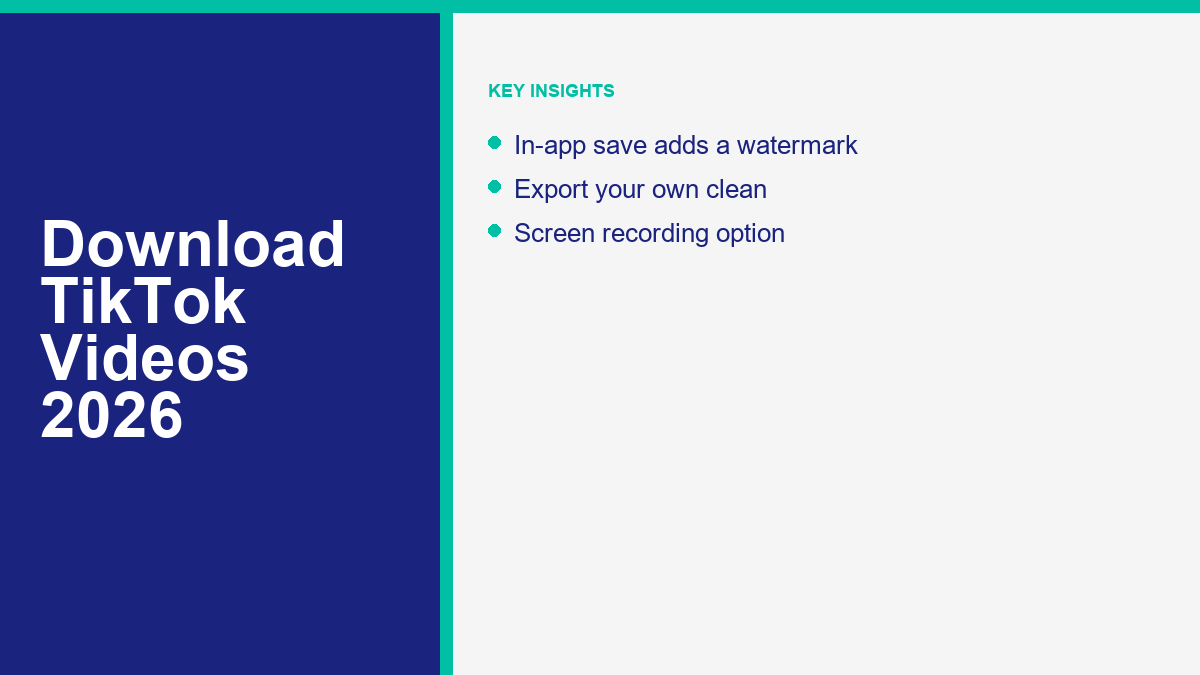
Downloading video content from social platforms is highly common. TikTok, the short-form video platform, hosts a massive community of creators sharing tutorials, skits, and guides. While browsing, you may want to save videos for offline viewing or reference. However, saving content isn’t always straightforward. TikTok’s built-in save feature adds a bouncing watermark with the creator’s username. This logo protects intellectual property, but it can be distracting for clean playback or content repurposing.
This guide examines the mechanics of downloading TikTok videos. We cover official in-app saving, exporting raw drafts without watermarks, and using screen recorders. We also dissect how third-party downloaders operate, their security and malware risks, and the ethics of copyright. Our goal is to provide a practical, brand-safe overview for managing media downloads responsibly.
Can You Download TikTok Videos?
Before examining the technical workarounds, it is important to understand what is officially possible within the application’s ecosystem. TikTok allows users to download videos directly to their device galleries, but this functionality is not universal. The ability to download a video is entirely dependent on the privacy settings configured by the creator of that video. When a creator uploads a clip, they can choose to toggle video downloads on or off. If they disable downloads, the default save button is removed for all other users, preventing standard offline saving.
This restriction is a key feature designed to give creators control over their intellectual property. However, it does not completely prevent determined individuals from finding alternative ways to capture the media. When a video is public, the video data must still be sent to your device’s screen and speakers to be played, which means the raw media data is temporarily stored in your device’s cache. This cache can be parsed, or the screen can be recorded, which we will detail later in this guide.
It is helpful to compare TikTok’s download policies with those of other social media networks. For example, if you want to save content from Instagram, you will find similar restrictions. To learn more about how to handle saving clips from that ecosystem, you can read our detailed guide on how to perform an Instagram Reels download in 2026 to save files directly to your phone or PC.
When a video is saved officially via TikTok’s built-in options, the resulting file is saved as an MP4. The video file will always include the bouncing watermark. This watermark changes its screen coordinates every few seconds to prevent easy cropping or masking. Additionally, a short end-card is appended to the video, displaying the TikTok logo and the creator’s username. If the creator has disabled downloads, you cannot save the video through the app’s native download menu, forcing you to look at alternative, non-native capture methods.
How to Save a TikTok In-App (with the watermark)
” alt=”The TikTok share menu displaying the Save Video icon”/>
If you want to save a video and do not mind the presence of the watermark, using the official in-app method is the safest and most direct path. This method does not expose your device to security vulnerabilities, does not violate the platform’s Terms of Service, and respects the creator’s download permissions.
To save a TikTok video using the official app on your iOS or Android device, follow these steps:
- First, launch the TikTok application and navigate to the video you want to save. You can do this by browsing your For You page, checking your Following feed, or searching for the specific creator’s profile.
- Second, tap the Share icon located on the right side of the screen. This icon is represented by a right-pointing arrow, though it may display as a messaging app icon (like WhatsApp or Messenger) if you frequently share videos through those platforms.
- Third, look at the bottom row of action buttons in the share sheet that appears. If the creator has permitted downloads, you will see a button labeled ‘Save video’ with a downward-pointing arrow icon. If this button is absent or greyed out, it indicates that the creator has disabled downloads for this video, and you will not be able to save it using this official channel.
- Fourth, tap the ‘Save video’ button. The app will display a circular loading indicator showing the download progress. Once the download is complete, a notification will appear confirming that the video has been saved to your camera roll or system gallery.
Using this built-in method is highly recommended because it utilizes TikTok’s secure servers directly. There are no secondary downloads, redirects, or ads. The file you receive is a clean, optimized MP4 that is ready for offline viewing. The trade-off is the watermark, which will bounce across the corners of the video. This watermark ensures that the creator receives proper attribution wherever the file is played, serving as a safeguard against content theft and unauthorized re-sharing. For general users who simply want to archive a favorite recipe, tutorial, or dance to reference later, the watermark is a minor inconvenience that supports a healthy creator ecosystem.
How to Download Your Own TikToks Without a Watermark
If you are a content creator, you may want to download your own videos without a watermark. Creators often need to repurpose their original content across multiple platforms, such as YouTube Shorts, Instagram Reels, or Pinterest. However, social media algorithms tend to penalize videos that carry watermarks from competing platforms. If you upload a video with a visible TikTok watermark to Instagram Reels, the algorithm may suppress its reach.
To save your own TikTok video without a watermark, you should ideally capture the file before it is uploaded to TikTok’s servers. The watermark is applied during the server-side publishing process, which means the draft on your device is clean.
- Record and edit your video entirely within the TikTok editor, adding any text overlays, music, or filters.
- When you reach the posting screen where you write your description and add tags, look for the ‘Save’ button in the top right or within the editing options. Tapping this will save the edited draft directly to your camera roll without a watermark.
- If you have already posted the video, or if the save option is not visible, you can use the preview feature on the posting screen. Tap the video preview to open it in full screen, then tap the small square icon in the top right to hide all editing tools and UI overlays. With the screen clean, you can use your phone’s built-in screen recorder to capture the video. Once recorded, simply trim the beginning and end of the screen recording in your phone’s gallery app.
Repurposing your original content without watermarks is a vital workflow for modern digital marketers and creators who want to build a cross-platform presence. If you are scaling your brand across networks, automating your social media channels is a powerful way to grow. For instance, you can combine your watermark-free video strategy with an automated funnel by learning to set up an Instagram chatbot to automate DMs. This allows you to automatically deliver resources, links, and products to users who comment on your Reels, converting social views into real leads and sales.
Furthermore, if you are looking to sell products directly through social commerce, you should consider expanding your storefront to TikTok. You can read our complete guide on how to set up your shop on TikTok in 2026 to start listing items and driving revenue from your video content. By combining clean, high-quality video assets with integrated storefronts and DM automation, you can maximize your marketing efficiency and expand your audience across multiple digital touchpoints.
Screen Recording on Phone and Desktop
” alt=”Cropping a screen-recorded TikTok video to remove UI elements”/>
When in-app downloads are unavailable because a creator has disabled them, or when you want to avoid third-party websites, screen recording is a reliable and safe alternative. Screen recording allows you to capture the video exactly as it plays on your screen, avoiding the need to interact with external download engines or expose your device to online threats.
To perform a screen recording on iOS devices:
- Open the Settings app, tap on Control Center, and ensure that Screen Recording is added to your active controls.
- Open TikTok and navigate to the video you wish to capture.
- Swipe down from the top right corner of the screen (or swipe up from the bottom on older devices) to open the Control Center.
- Tap the Screen Recording icon (a solid circle inside a ring) and wait for the three-second countdown to begin.
- Close the Control Center, play the TikTok video from the beginning, and let it play through to the end.
- Tap the red status bar or recording indicator at the top of your screen, then tap Stop.
- Open your Photos app, select the recorded video, and tap Edit to crop the frame and trim the start and end times, removing the phone’s UI and the TikTok interface overlays.
To perform a screen recording on Android devices:
- Swipe down twice from the top of your screen to access the Quick Settings panel.
- Locate the Screen Record tile. If it is not there, tap the edit icon to add it to your quick settings.
- Tap Screen Record, select your audio source (choose ‘Media’ to capture only the video’s audio and not your microphone), and tap Start.
- Play the TikTok video in its entirety.
- Swipe down from the top of the screen and tap the red screen recording notification to stop the recording.
- Open your Google Photos or Gallery app to trim out the menu screens and crop the video boundaries.
To record on Desktop computers (Windows and macOS):
On Windows, you can press Windows Key + G to open the Xbox Game Bar, or press Windows Key + Shift + S to use the Snipping Tool’s video recording function. Select the area of your browser window displaying the TikTok video, click record, and play the clip. On macOS, press Command + Shift + 5 to open the native screen capture toolbar, select the recording boundaries around the TikTok video player, click Record, play the video, and stop the capture when finished.
The major benefit of screen recording is that it is completely safe and requires no external software. The downside is that the raw recording will capture the creator’s username, the caption, and the interaction buttons (like, comment, and share) on the right side of the screen. You will have to crop the video to remove these overlays, which will reduce the final resolution and zoom in on the center of the video frame.
Third-Party TikTok Downloaders – How They Work and the Risks
Many users turn to third-party web tools to download TikTok videos without watermarks. These sites, which often feature names like Snaptik, SSSTik, SaveFrom, and MusicalDown, promise to fetch a high-definition, watermark-free version of any public TikTok video in seconds. While they are convenient, users must understand the underlying technology and the substantial risks they pose.
How these tools work is relatively simple. When you paste a TikTok video URL into one of these platforms, the service does not actually hack into TikTok or edit the video. Instead, it uses a web scraper or a specialized script to parse the public HTML page of that TikTok URL. Within the metadata of the page, TikTok stores the direct CDN (Content Delivery Network) URL of the source video file. Crucially, TikTok uploads two versions of the video or applies the watermark overlay on the fly when rendering it in the app. The direct link on the CDN is often a clean, unwatermarked MP4 file. The third-party downloader extracts this hidden CDN URL from the source code and redirects your browser to download the file directly from TikTok’s servers, bypassing the application interface entirely.
Although these tools deliver on their promise, using them exposes you to several critical risks:
- First, malvertising and redirects are rampant. Because these websites do not charge users directly, they rely heavily on advertising revenue. They partner with low-quality ad networks that utilize aggressive pop-unders, auto-redirects, and fake alerts. Clicking anywhere on the page can redirect you to malicious websites claiming your device is infected with viruses, or prompting you to install questionable browser extensions.
- Second, there are malware and phishing vulnerabilities. Some downloaders require you to install an app or download a helper file to complete the conversion. These executable files may contain spyware, trojans, or adware that can infect your operating system, log your keystrokes, or compromise your personal information.
- Third, data harvesting is a major concern. These sites track your IP address, browser type, location, and search history. They may also prompt you to allow push notifications, which they use to send spam advertisements directly to your system tray or mobile notification center, even when your browser is closed.
- Fourth, unofficial mobile apps in app stores often engage in deceptive practices. Searching for a TikTok downloader on the Google Play Store or Apple App Store will reveal dozens of apps. Many of these apps are free to download but contain hidden subscription charges, billing you weekly or monthly once a trial period expires.
If you are a creator worried about other users using these third-party scraping tools to download and republish your content without permission, you can take steps to secure your account. Managing your profile’s visibility and comments can help protect your work. To learn how to restrict interactions from unauthorized users, check out our guide on how to block or unblock someone on TikTok in 2026. Taking control of your privacy settings is a simple and effective way to mitigate the risks of content theft and online spam.
Copyright and Creator Credit
When you download a TikTok video and strip its watermark, you are entering a legally and ethically complex territory. The bouncing watermark is not just a branding tool; it is a built-in attribution mechanism. It ensures that no matter where a video is shared, the original creator receives recognition and traffic.
Copyright law applies to digital content just as it does to traditional media. When a creator uploads an original video, they hold the copyright to that footage, performance, and audio track. Re-uploading someone else’s copyrighted content to another platform—especially after removing the watermark—violates the terms of service of almost all major social media platforms. It can also lead to copyright takedown notices, account suspensions, or legal action from the copyright holder.
There is a common misconception that editing a video, adding music, or reacting to it constitutes ‘fair use.’ In reality, fair use is a complex legal defense that is determined on a case-by-case basis by a court of law. Simply copying a video to share it on your own channel does not qualify as fair use. If you want to use someone else’s video, the best practice is to request permission from the creator. If they agree, ensure you credit them clearly in your caption and tag their account. If you are sharing the video directly to another platform, keeping the watermark intact is the best way to respect their work and maintain ethical sharing standards.
Preguntas frecuentes
Can you download TikTok videos without a watermark officially?
No. TikTok does not provide an official, built-in option to download other users’ videos without a watermark. Any video saved directly through the app’s ‘Save video’ button will automatically include the bouncing TikTok logo and the creator’s username. To get a video without a watermark, you must either record the screen or use external workarounds, which carry their own limitations and security risks.
Are third-party TikTok downloaders legal to use?
Using a third-party website to download a video for personal, offline viewing generally falls into a legal gray area, but redistributing or republishing that downloaded content without the creator’s consent is a direct violation of copyright law and TikTok’s Terms of Service. Always obtain explicit permission from the creator before re-uploading their content.
How do I save my draft TikTok videos without a watermark?
You can save your own draft videos before posting by using the preview feature on the editing screen. Tap the preview window, enter full-screen mode, and toggle the UI overlay off. From there, use your smartphone’s built-in screen recorder to capture the clean video, then trim the recording to remove the beginning and ending screens in your photo editor.
Why is the ‘Save video’ option missing on some TikToks?
If the ‘Save video’ option is missing or greyed out, it means the creator has disabled video downloads in their privacy settings, or the video is posted by a private account. TikTok respects these settings to protect creator content, and bypassing these restrictions using external tools violates the platform’s community guidelines.
Is it safe to use third-party websites to save videos?
No, using third-party download sites carries significant risks. Many of these sites display aggressive ads, redirects, and push notifications, and some may attempt to download malware or adware onto your device. If you choose to use these sites, ensure you have an active ad blocker and a secure web browser, and never download any executable files or enter your account credentials.



 Español
  English
  Tagalog
  简体中文
简体中文  العربية
  हिन्दी
  Português do Brasil
  Español de México
  Français
  বাংলা
বাংলা  香港中文
香港中文  繁體中文
繁體中文  Nederlands
  Deutsch
  Bahasa Indonesia
  日本語
日本語  한국어
한국어  Polski
  Русский
  Tiếng Việt