
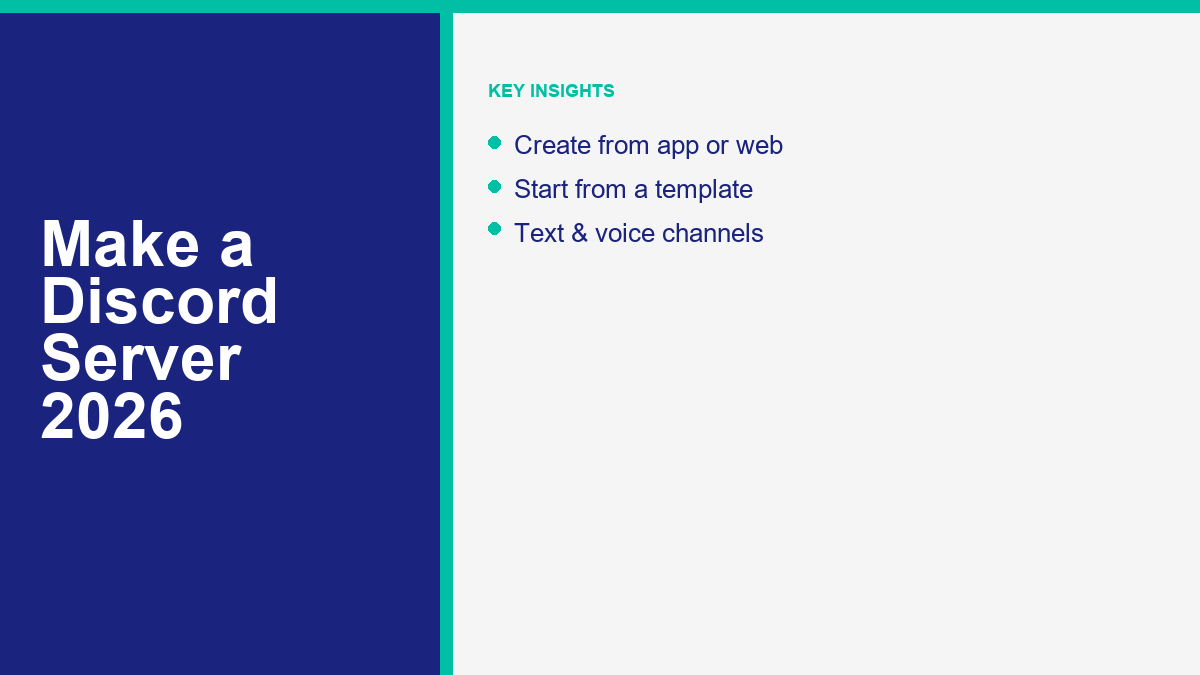
Setting up a virtual home for your community has never been more straightforward. Whether you need a small chat room for close friends, a structured environment for a school club, or a large public forum for a growing business, Discord offers the tools required to organize your interactions. In 2026, the platform remains a leading option for voice, video, and text communication, adapting to the needs of millions of active servers worldwide.
Creating a server is the first step toward building a dedicated online space. While the software provides complex features like role-based permissions, automated bots, and interactive stage channels, the initial setup takes only a few minutes. By following a structured approach, you can create a secure, well-organized server that matches your specific goals and keeps your members engaged.
What is a Discord Server?
A Discord server is a self-contained community hub composed of text and voice channels. Unlike traditional chat applications that limit you to a single continuous message stream, a server allows you to split discussions into specific topics. This design prevents large groups from overwhelming a single conversation, making it easy for members to follow the subjects they care about most.
Inside a server, the structure is organized using categories and channels. Categories act as folders, grouping related channels together under a single header. Channels are the individual rooms where communication occurs. Text channels host written messages, images, and links, while voice channels allow members to join instant audio and video calls. This hierarchical layout ensures that even a server with thousands of members remains navigable and organized.
If you are also using other messaging systems, you might want to learn how to create a Telegram group for a more traditional group chat dynamic. Unlike Discord, which focuses on multi-channel community hubs, a Telegram group keeps everything in a single conversation thread. Understanding the differences between these layouts helps you select the best platform for your community’s needs, balancing multi-topic forums with linear messaging channels.
Discord servers are hosted entirely in the cloud, meaning they remain active even when you are offline. Members can jump in and out of voice channels, read past text messages, and interact with automated features at any time. The platform does not charge hosting fees for these servers, allowing anyone to build a community without managing server hardware or paying monthly subscription fees.
How to Create a Discord Server
Creating your new online hub is a simple process that takes less than five minutes. You can start a server from the desktop app, a web browser, or the mobile application. The interface guiding you through the setup is consistent across all platforms, offering you options to start from scratch or build upon predefined templates.
” alt=”Choosing a template in the Discord server creation wizard”/>
Creating Your Server on Desktop
To begin the setup process on your desktop computer, follow these simple steps:
- Open the Discord desktop application on your computer, or open your web browser and navigate to the official Discord web interface. Log in to your account.
- Locate the server list panel on the far left side of the screen. Scroll to the bottom of the list of server icons and click the green plus symbol (labeled Add a Server).
- A window will open presenting several setup options. Select Create My Own if you want to start with a blank server that has only a few default channels. Alternatively, scroll through the templates to find a setup that matches your group’s focus.
- Discord will prompt you with a question: “Is this server for a club or community, or just for you and friends?” Select the option that matches your goals, or click skip this question at the bottom of the prompt window.
- Enter a name for your server in the text input field. The name should be clear and recognizable to your future members.
- Click the circular icon to upload an image from your computer to serve as the server’s avatar. This icon will appear in the server list on the left panel for all members.
- Click the Create button in the bottom right corner of the setup window. Discord will instantly generate your server, displaying the main screen with your new text and voice channels.
Creating Your Server on Mobile Devices
If you prefer to configure your community using a phone or tablet, the mobile application provides a similar creation wizard. Follow these instructions:
- Launch the Discord application on your Android or iOS device and ensure you are logged in to your user profile.
- Tap the menu button, represented by three horizontal lines in the top left corner, to slide open the server list on the left side of your screen.
- Scroll down to the bottom of your server list and tap the plus icon.
- Tap the Create My Own button to build a custom structure, or tap one of the template options listed under the start menu.
- Answer the prompt regarding your server’s audience (for a club/community or personal friends), or tap the skip option to proceed directly to naming your server.
- Type your chosen name into the Server Name field. Tap the camera icon to upload an image directly from your mobile device’s photo gallery.
- Tap the Create Server button located at the bottom of the display. The application will complete the setup and open your newly created server immediately.
Using Discord Server Templates
Starting from scratch is excellent for customized communities, but using a template can save significant time. Discord provides templates for various groups, including Gaming, School Clubs, Study Groups, Friends, Artists & Creators, and Local Communities. These templates pre-configure text and voice channels with logical names and set up basic role structures.
For instance, the Gaming template automatically creates text channels named #lobby, #general, and #clips, alongside voice channels dedicated to different squad sizes. The School Club template sets up channels for announcements, schedule planning, and general chat. Choosing a template does not lock you into a rigid layout; you can rename, move, or delete any of the pre-configured channels and roles at any time after the creation process is complete.
Setting Up Channels and Categories
An empty server can feel overwhelming for new members. Organizing your channels into clear categories is the key to maintaining a welcoming environment. By grouping related channels together, you help your community find where to post and reduce the clutter in the server sidebar.
For broadcasting one-way updates to an audience instead of open chat, you can read about Telegram channels. This is useful when you want to run announcements without chat clutter. Understanding how broadcast channels differ from multi-topic servers allows you to design better informational hubs for your community members.
Best Practices for Channel Organization
When organizing your server layout, aim to keep the list of channels short and intuitive. Start by creating a read-only section at the very top of your server list. This section should contain essential channels like #welcome, #rules, and #announcements. Keeping these resources isolated ensures that new members can easily find the guidelines before they begin chatting.
Create separate categories for different topics. For example, a gaming server might have a category for “General Chat” containing #general and #off-topic channels, and a separate category for “Game Discussion” containing channels for specific games. Limit the number of active channels to avoid dividing your community’s conversations too thin. It is better to have three highly active channels than twenty empty ones.
Creating Categories for Structured Navigation
To create a new category on desktop, right-click any blank space in the server sidebar or click the drop-down arrow next to your server’s name at the top of the list. Select Create Category, enter a name, and click Create. You can then drag existing channels into this category or click the plus symbol next to the category name to create a new channel directly within it.
Categories can also help you manage permissions in bulk. When you adjust the permission settings of a category, you can choose to sync all the channels inside it. This means that if you make a category private, every channel within that category instantly becomes private as well. Using category syncing saves you from manually adjusting settings for dozens of individual channels, reducing the chance of permission errors.
Roles, Permissions, and Server Moderation
Managing a growing community requires clear rules and designated moderators. Discord handles this through a robust system of roles and permissions. By assigning specific permissions to roles, you can control who can read messages, post content, speak in voice channels, or manage other members.
” alt=”Configuring roles and permissions in the server settings dashboard”/>
How Roles and Permissions Work
In Discord, a role is a set of permissions that you can assign to one or more server members. Roles can represent server staff, active contributors, or custom groups. Permissions determine what actions a user with a specific role can perform within the server. These permissions range from basic actions, like sending messages, to administrative powers, like banning members or editing the server settings.
Roles function in a strict top-down hierarchy. The role at the top of the list in your settings has authority over all the roles below it. This hierarchy is important for moderation. A moderator can only kick or ban members who hold a lower role than their own. The default role for all new members is `@everyone`. Permissions set on the `@everyone` role apply to every user in the server unless they are granted a higher role that overrides those settings.
Creating and Managing Roles
To create custom roles for your community, follow these instructions on your desktop interface:
- Click your server’s name at the top of the sidebar and select Server Settings from the drop-down menu.
- Click Roles in the left-hand navigation list.
- Click the Create Role button. A new role will appear in the list, typically named “New Role”.
- Under the Display tab, type a descriptive name for the role, such as Moderator, Admin, or Member.
- Choose a distinct color for the role. This color will be applied to the usernames of all members assigned to this role in chat lists and voice channels.
- Switch to the Permissions tab at the top of the role settings page. Scroll through the list of toggles to enable or disable specific permissions for this role.
- Click Save Changes at the bottom of the screen to apply your settings.
Once you have created your roles, you can assign them to members. Go to Server Settings, select Members, find the user you want to update, click the plus icon next to their name, and select the role you want to apply. You can also assign roles directly in the chat window by clicking a user’s avatar, clicking the plus icon under the Roles section, and choosing the appropriate role from the menu.
Configuring Base Permissions
When setting up permissions, it is best to use a principle of least privilege. Keep the `@everyone` role restricted. Turn off permissions like Mention @everyone, Manage Messages, and Embed Links for the default role. This prevents new, unverified users from spamming your community or posting malicious links. Grant these advanced capabilities only to trusted roles that members earn over time or receive upon manual verification.
For your moderation staff, create a dedicated Moderator role. Enable permissions like Kick Members, Ban Members, Manage Messages, Mute Members, and Deafen Members. Avoid granting the Administrator permission to anyone other than your absolute most trusted partners. The Administrator permission bypasses all specific channel restrictions and gives a user full control over the entire server, including the ability to delete channels or edit settings.
Inviting Members and Managing Invites
Once your server’s structure, roles, and permissions are configured, you are ready to invite members. Discord provides several ways to share access links, allowing you to control how users enter your community and monitor who joins your server.
Creating Custom Invite Links
To generate an invite link, click the drop-down arrow next to your server’s name at the top of the sidebar and select Invite People. A window will appear containing a default invite link. You can copy this link and share it directly with friends or post it on social media platforms to begin growing your community.
By default, these links are set to expire after a certain number of days to prevent unauthorized sharing. If you plan to use an invite link on a public website or social media bio, you should customize the link settings. Click the Edit Invite Link text at the bottom of the invite window to access advanced settings. Here, you can adjust the expiration time and maximum number of uses to ensure your invite link remains secure.
Setting Up Permanent vs Temporary Invites
In the Edit Invite Link settings, you can change the duration of the link. Options range from 30 minutes to 7 days, or you can select Never to make the link permanent. You can also set a limit on the number of uses, choosing options like 1 use, 5 uses, 100 uses, or No Limit. Permanent links with no limit are useful for public directories, while single-use, short-duration links are ideal for private invitations.
You can also enable the Grant Temporary Membership option. When this setting is active, users who join through the link will be automatically kicked from the server when they disconnect, unless they are assigned a role. This is useful for inviting guests to a single voice call or event without permanently adding them to your member list. To review and manage all active invite links, go to Server Settings and click Invites to view who generated each link, how many times it has been used, and when it will expire.
Adding Bots to Your Server
Automated bots are essential for running a modern Discord server. Bots can handle moderation tasks, play music in voice channels, assign roles based on reactions, and run interactive games. By integrating the right bots, you can automate repetitive tasks and keep your community engaged.
If you want to build automated assistants on other networks, this Telegram bot tutorial will guide you through the process. Bots can automate repetitive tasks, greet new members, and manage roles. Learning to build and manage bots across different platforms allows you to create cohesive automated workflows for all your communication channels.
How to Authorize and Integrate Bots
In 2026, the easiest way to add bots to your server is through Discord’s built-in App Directory. To access this feature, click your server’s name at the top of the sidebar and select Server Settings, then click App Directory in the left-hand menu. Browse the directory or search for specific bots by name. When you find a bot you want to add, click Add to Server, select your server from the list, and review the permissions the bot is requesting before clicking Authorize.
You can also add bots from external websites by clicking their invite links. This process will redirect you to the Discord authorization page in your web browser. You must have the Manage Server or Administrator permission on the target server to authorize new bots. Once authorized, the bot will join your server like a regular member and appear in the member list on the right side of the screen. You can then configure the bot’s settings using its specific text commands or web dashboard.
Essential Bots for Moderation and Engagement
To help you get started, consider adding these widely used bots to your server:
- Dyno: A comprehensive moderation bot that provides web dashboard configuration, auto-moderation filters, custom commands, and detailed logging. Dyno can automatically delete messages containing banned words and warn users who break rules.
- Carl-bot: Known for its reliable reaction roles feature, Carl-bot allows members to assign themselves roles by clicking emoji reactions on a specific message. This is perfect for setting up interest groups or region roles.
- MEE6: A popular utility bot that features custom welcome messages, automated moderation, search commands, and a leveling system that rewards active chatters with custom roles.
Keep in mind that bots must have their roles positioned correctly in your server’s role list. If a moderation bot’s role is listed below the role of a regular member, it will not be able to moderate that member. Always place your moderation bot roles near the top of the hierarchy, just below your Administrator role, to ensure they can perform their automated tasks effectively.
Tips to Grow and Keep Your Server Safe
Building a server is only half the battle; maintaining its safety and encouraging growth is the real challenge. As your server gains popularity, it will attract attention from spam bots and bad actors. Implementing security protocols and maintaining high engagement are necessary steps to ensure long-term success.
For advanced Facebook Messenger marketing and automation, exploring ManyChat alternatives can help you find platforms that match or exceed your needs. Choosing the right tool allows you to scale your business messaging across multiple social platforms. Integrating your Discord community with other automated marketing channels creates a unified funnel that keeps your audience connected across all platforms.
Ensuring Safe Spaces Through Verification
To protect your community from spam attacks, navigate to Server Settings and select Safety Setup. Set your server’s Verification Level to Medium or High. The Medium setting requires members to have a Discord account that has been registered for more than five minutes, while the High setting requires them to have been a member of the server for more than ten minutes. For maximum protection, select the Highest level, which requires a verified phone number linked to the Discord account.
You can also set up a manual verification gate. Create a read-only channel named #verification containing a single message explaining your server’s rules. Use a bot like Carl-bot to assign a “Verified” role to members who click a specific emoji reaction on your rules message. Configure your other text channels so they are only visible to users who hold the “Verified” role. This simple setup blocks automated spam scripts from accessing your main discussion channels.
Maintaining Long-Term Community Growth
To keep your community active, focus on creating value for your members. Host regular events, such as gaming nights, voice channel Q&A sessions, or watch parties. Keep your channel list clean by archiving inactive rooms. A server with five active channels feels much livelier than one with fifty dead channels. Ask for feedback from your community using polls to learn what channels, topics, or events they want to see next.
Promote your server on public directories if you want to attract new members. Websites like top.gg and discord.me list public servers by category, making it easy for users with shared interests to find your community. Ensure your server description is clear, accurate, and outlines the benefits of joining. If you run a business, promote your Discord link in your email newsletters, social media bios, and on your website to convert customers into active community members.
If you need to optimize your digital marketing automation further or want to explore advanced messaging structures, you can Lihat Harga MessengerBot to see how our platforms can support your business outreach. Utilizing professional automation tools alongside a dedicated community server allows you to manage customer relationships, handle support queries, and drive engagement efficiently. You can also explore Fitur MessengerBot Pro to discover advanced features that streamline your social media automation workflows, sync data between chat networks, and scale your brand presence in 2026.
Frequently Asked Questions About Discord Servers
Here are answers to some of the most common questions about creating and managing Discord servers in 2026:
How much does it cost to make a Discord server in 2026?
Creating and hosting a Discord server is completely free. There are no monthly hosting fees or setup costs. You can optionally purchase Server Boosts to unlock cosmetic upgrades, higher audio quality, and more custom emoji slots, but the core features of text, voice, and moderation are entirely free.
What is the difference between a Discord server and a Telegram group?
A Discord server is organized into multiple channels and categories, allowing for segmented conversations, voice lounges, and bot integrations. A Telegram group is typically a single continuous chat thread, although supergroups can support topics. Discord is designed for community hubs, while Telegram groups focus on streamlined messaging.
How many channels can a Discord server have?
A single Discord server can support up to 500 channels and categories combined. This gives you ample room to set up structured text rooms, voice lounges, announcement channels, and forums for community organization.
Can I transfer ownership of a Discord server later?
Yes, transferring server ownership is simple. Go to Server Settings, select Members under the User Management section, find the member you want to transfer ownership to, click the three dots next to their name, and select Transfer Ownership.
How do you add bots to a Discord server in 2026?
You can add bots through the built-in App Directory in your Server Settings or by inviting them from external developer pages. Search for the bot, click Add to Server, select your server, and authorize the requested permissions.


 Bahasa Indonesia
  English
  Tagalog
  简体中文
简体中文  العربية
  हिन्दी
  Português do Brasil
  Español de México
  Français
  বাংলা
বাংলা  香港中文
香港中文  繁體中文
繁體中文  Nederlands
  Deutsch
  日本語
日本語  한국어
한국어  Polski
  Русский
  Español
  Tiếng Việt