
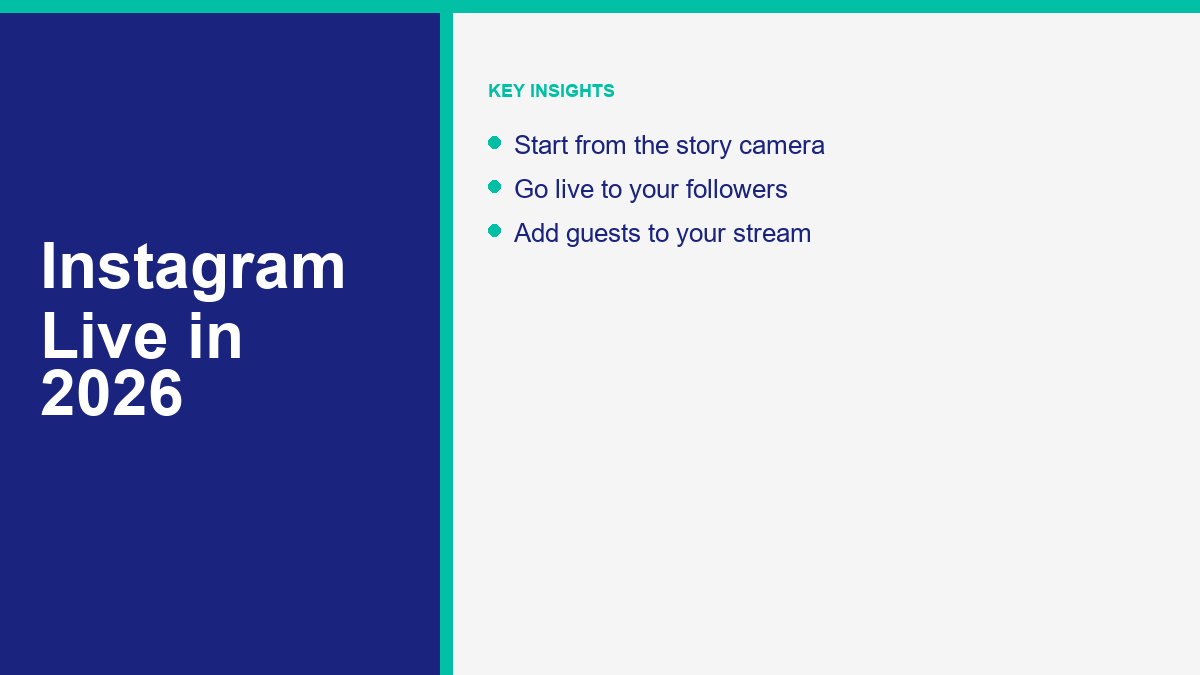
Live broadcasting on Instagram remains one of the most direct ways to connect with your audience, build brand trust, and drive immediate interactions. Unlike pre-recorded Reels or edited static grid posts, a live broadcast offers real-time engagement that cannot be faked. Followers see you as you are, ask questions in real time, and receive instant feedback. This immediacy builds a unique connection that standard feed updates cannot match.
In 2026, the mechanics of starting, running, and preserving an Instagram Live broadcast have become more structured. The platform has expanded its moderation tools, added co-hosting capabilities, and integrated desktop streaming options to support professional setups. However, the core experience still relies on the mobile application, where you can quickly go live from the story camera with a few taps. If you are looking to expand your live streaming strategy across other channels, you can also learn how to go live on Facebook to reach a broader audience database.
This guide walks you through the entire process of broadcasting on Instagram. You will learn how to access the live interface, set up your camera options, moderate chat messages, invite guests to join your split-screen stream, and save your video replays for future content reuse. Every step is explained with practical instructions so you can start your next live broadcast with confidence.
What Instagram Live Is
Instagram Live is a feature within the Instagram application that allows you to broadcast real-time video to your followers. When you start a live broadcast, Instagram notifies your active followers via push notifications and moves your profile icon to the front of the Stories tray at the top of the feed. The icon is highlighted with a colorful gradient ring and a prominent Live badge, letting app users know that they can tune in immediately.
This feature is designed for direct, two-way communication. Unlike standard stories that disappear after 24 hours or Reels that live on your profile grid, a live broadcast is interactive by default. Viewers can type comments, submit questions through a dedicated Q&A portal, buy badges to show financial support, and request to join the screen as guests. The live format is ideal for product launches, behind-the-scenes walkthroughs, Q&A sessions, tutorials, and interviews.
Technically, Instagram Live operates within a vertical 9:16 aspect ratio, optimized for mobile phone screens. While you can view live streams on desktop web browsers, the creation side is heavily centered around the mobile application. For advanced creators, Instagram provides a desktop interface called Live Producer, which allows streaming via external software like OBS or Streamlabs using a stream key. However, for most businesses and creators, the built-in mobile camera interface remains the fastest and most popular route.
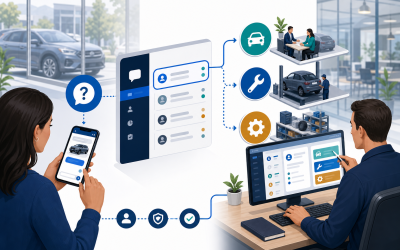
Understanding how this live tool fits into your overall marketing plan is essential. Because live video requires real-time presence, it works best when combined with automated messaging systems to handle viewer requests. When a viewer comments during a live stream, they expect quick answers. Connecting your live events to an Instagram chatbot integration allows you to automatically send direct messages containing resource links, promo codes, or registration forms to anyone who comments a specific keyword during your broadcast, ensuring you do not lose warm leads when you are busy speaking.
How to Go Live on Instagram
Starting an Instagram Live broadcast is straightforward, but taking a few minutes to check your settings before tapping the start button prevents technical issues and helps ensure a professional broadcast.
To begin, open the Instagram application on your mobile device. Make sure you are logged into the correct profile. Swipe right from any location on your main home feed to open the camera interface. Alternatively, you can tap the plus (+) icon located in the navigation bar at the top or bottom of your screen and select Live from the scrolling options at the bottom of the camera view.
Once you are on the Live screen, you will see a circular broadcast button at the bottom center and a menu of icons on the left side of the display. Before you start broadcasting, configure these essential options:
- Title: Tap the icon with four horizontal lines on the left side of the screen. Type a descriptive title for your broadcast. This title helps viewers understand what your video is about when they join the stream. Tap Add Title to save it.
- Audience: Tap the eye icon or audience selector. Here, you can choose between a Public broadcast and a Practice broadcast. Selecting Practice allows you to test your camera, audio, lighting, and connection alone or with scheduled guests without notifying your followers. This is highly useful for checking settings before a major event.
- Harmonogram: Tap the calendar icon on the left menu. You can enter a video title, select a start date, and schedule the broadcast in advance. Scheduling creates a post or story sticker that your followers can tap to set reminders. To coordinate this with your broader social campaigns, you can also check our guide to schedule Facebook posts to coordinate updates across networks.
- Camera Control: Use the camera flip icon at the bottom right to switch between your front-facing selfie camera and the rear-facing lens.
- Filters and Effects: You can swipe through the circular effects at the bottom of the screen to apply color filters or camera styles to your video feed.
When your pre-live configuration is ready, tap the circular broadcast button. The application will display a brief “Checking connection…” screen. Once a stable connection is verified, the interface will show a red Live label in the top left corner, along with a viewer counter showing how many people are currently watching your stream.
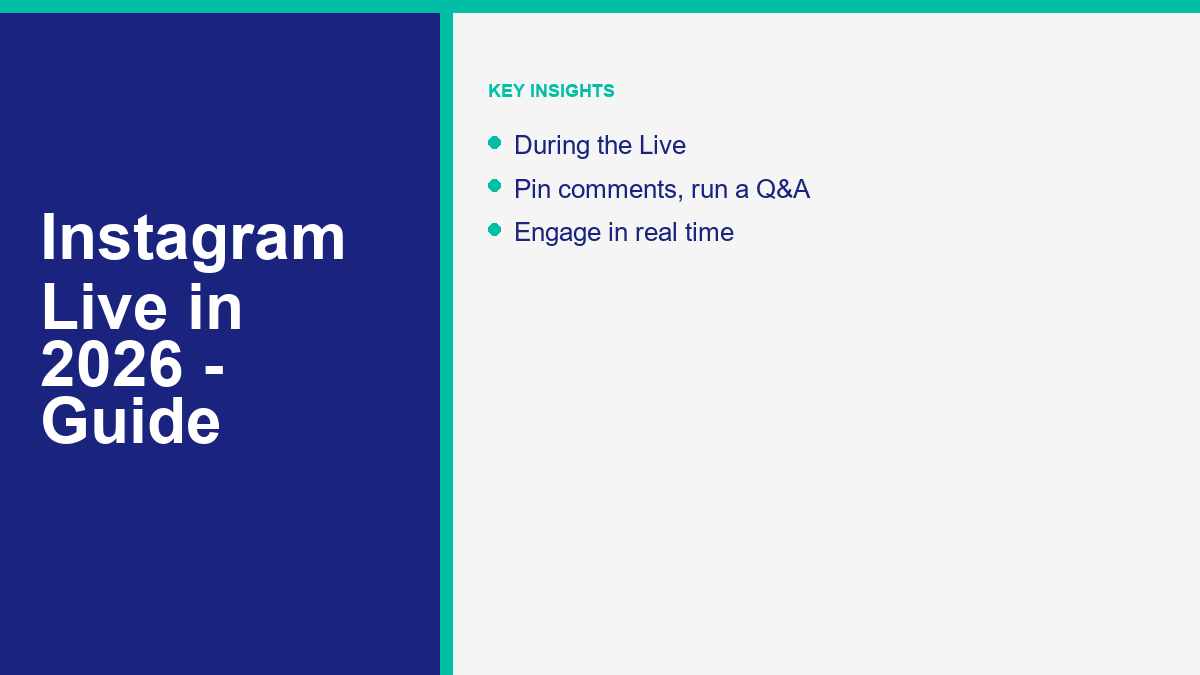
Ensure that you have a strong internet connection before going live. A fast Wi-Fi connection is preferred, but a reliable cellular data connection with high upload speeds also works. If your connection drops during the stream, Instagram will attempt to pause the broadcast and reconnect you. If the connection cannot be re-established within a short period, the broadcast will end automatically, and you will have to start a new session.
Inviting Guests and Going Live With Others
Co-hosting is a highly effective way to double your potential audience. When you invite another account to join your broadcast, the screen splits horizontally, displaying both video feeds simultaneously. The followers of both accounts receive notifications, bringing two distinct audiences together into one shared space.
Instagram allows you to go live with up to three additional guests at the same time, using a feature known as Live Rooms. This means up to four creators can share the screen in a grid layout, which is perfect for round-table discussions, panel interviews, or group tutorials.
You can invite guests in two different ways:
First, you can invite a co-host before you tap the broadcast button. If you scheduled your live video in advance, you can select guests from your contact list and send them invitation links. They can tap these links to join the broadcast space as soon as you start streaming.
Second, you can invite guests during an active broadcast. While streaming, tap the Live Room icon at the bottom of the screen (it looks like a video camera or a person silhouette with a plus sign). Search for the username of the person you want to invite and tap their name to send a request. They will receive a pop-up notification on their device. Once they accept the request, their video feed will appear on the split-screen view.
Alternatively, viewers can request to join your broadcast. If you have allowed viewer requests in your stream settings, viewers will see a Request to Join button in their comment bar. When a viewer taps this, you will receive a notification in your host panel. You can review the list of pending requests and choose to accept them, adding the viewer directly to your live broadcast.
When managing multi-guest streams, keep these technical details in mind. Every participant needs a stable internet connection; if one guest has a slow connection, their video feed may lag, freeze, or display in low resolution, which can degrade the quality of the entire broadcast. Additionally, guests should use headphones to prevent audio feedback or echo, as mobile microphones can easily pick up sound from the device’s speakers and create a high-pitched loop. As the host, you retain full control over the Live Room, meaning you can remove any guest at any time by tapping the “X” on their split-screen window, returning the display to a single or reduced-grid view.
Tools During a Live
Once you are live, Instagram provides several tools to help you manage the broadcast, interact with viewers, and moderate the conversation in real time.
The comment section is the main channel for interaction. By default, comments scroll upward from the bottom of the screen. If you want to highlight a specific message, tap and hold the comment, then select Pin Comment from the pop-up menu. Pinned comments remain static at the very bottom of the feed, making them visible to every new viewer who joins the stream. This is a great way to display the broadcast topic, share a promotional code, or instruct viewers to comment a specific keyword to trigger automated direct messages.
For more structured interactions, use the Q&A tool. When viewers want to ask a question, they can tap the question mark bubble icon at the bottom of their screens and type their query. This action separates questions from the fast-moving chat feed. As the host, you can tap the Q&A icon on your screen to open a list of submitted questions. Selecting a question displays it in a clean card at the bottom of the broadcast screen, allowing you to answer it clearly while everyone knows what topic you are addressing.
Moderation is critical for maintaining a positive environment. You can access comment settings directly from the comment box to manage chat safety:
- Hide Offensive Comments: Turn this toggle on to automatically filter out comments that violate platform guidelines or contain common offensive terms.
- Custom Keyword Filter: Enter specific words, phrases, or emojis that you want to block. Any comment containing these terms will be hidden from the broadcast automatically.
- Designate a Moderator: Tap the three dots next to a user’s comment or access your settings to designate a viewer as a moderator. Moderators can pin comments, report spam, and block disruptive users on your behalf, leaving you free to focus on your presentation.
For monetization, creator accounts can enable Live Badges. Badges allow viewers to purchase virtual tokens in tiers ($0.99, $1.99, or $4.99) during the broadcast. When a viewer buys a badge, a heart icon appears next to their username in the chat, and their name is highlighted, letting you acknowledge their support. You can see your total badge earnings in real time at the top of your host screen.
To help you track performance, Instagram provides live insights. You can tap the view counter to see the usernames of active viewers, or view a summary of metrics like total reach, peak concurrent viewers, and comments once the broadcast ends. These tools help you understand what content resonates with your audience so you can adjust your strategy for future broadcasts.
How to Save or Share Your Instagram Live Replay
Your content’s value does not end when you tap the button to stop streaming. In 2026, saving and repurposing your live broadcasts is a key step in maximizing the reach of your video content.
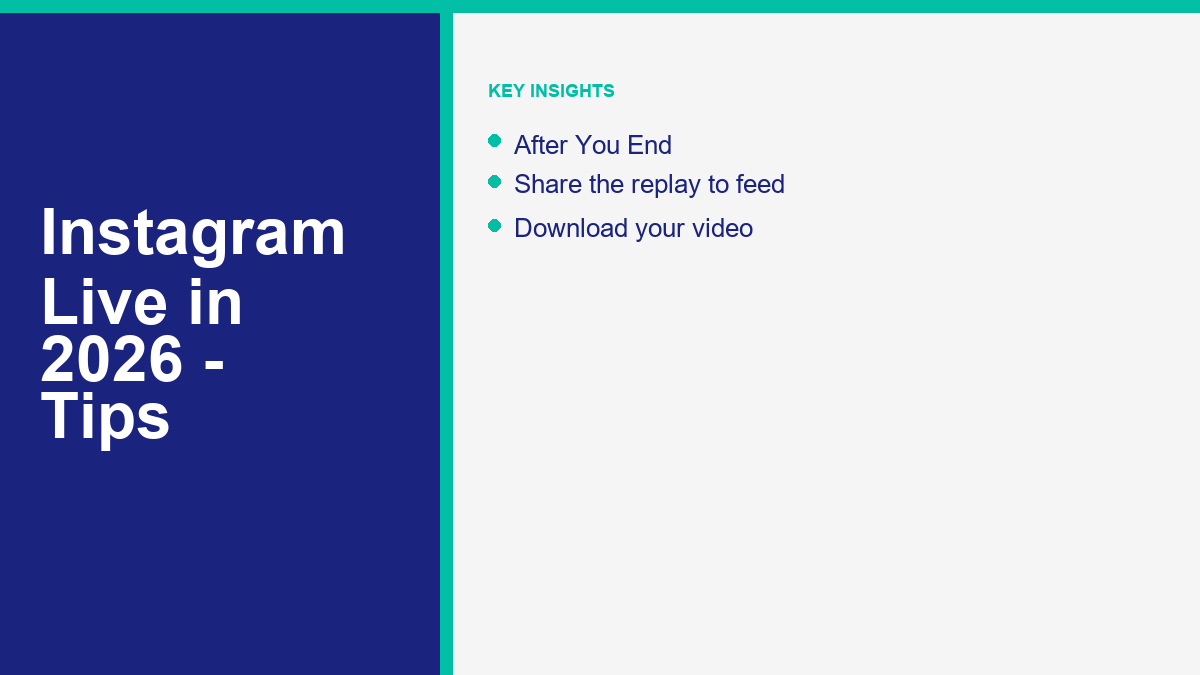
To end your broadcast, tap the “X” icon in the top right corner of the screen. A prompt will appear asking you to confirm that you want to end the video. Tap End Video. Once the stream is finalized, Instagram will display a summary screen showing your broadcast metrics, including peak viewers and total interactions. Below these stats, you will see options for saving and sharing the video:
First, you can share the broadcast replay directly to your profile. Tap the Share to Reel button at the bottom of the summary screen. This action opens the standard Reel editing interface, where you can select a cover image, write a caption, add hashtags, and publish the video. The live replay will live on your profile grid and under the Reels tab, allowing users who missed the live event to watch the full recording at their convenience.
Second, you can download the video file directly to your mobile device’s camera roll. Tap the Download Video button on the summary screen. Downloading the file allows you to edit the footage using desktop software, slice it into shorter video clips for Stories or YouTube Shorts, or archive it in your cloud storage. Note that the downloaded file only saves the raw video and audio feeds; it does not include the chat overlay, pinned comments, or badge notifications.
If you close the application without sharing or downloading the video, Instagram still preserves the file in your Live Archive. To access your archive, go to your Instagram profile, tap the menu icon (three horizontal lines) in the top right corner, select Archive, and switch the drop-down menu at the top from Stories Archive to Live Archive. Instagram saves all broadcasts here for 30 days. You can view, download, or share any archived broadcast during this window. After 30 days, the files are deleted permanently from Instagram’s servers, so downloading your videos promptly is highly recommended.
Repurposing live videos helps you maintain a consistent posting schedule without constantly filming new material. A one-hour live broadcast can easily be edited into ten short Reels, used as a video reference in a blog post, or uploaded to a resource directory. If you are building a library of instructional videos, you can use our Przeglądaj nasze samouczki section to see how structured guides are presented to keep users engaged and learning.
Tips to Get More Viewers
Getting people to tune in to a live stream requires preparation. Because viewers have busy schedules, you cannot rely solely on the push notification sent when you tap the start button. A successful live event requires promotion, timing, and engagement planning.
First, promote your scheduled broadcast across your marketing channels in advance. Use the built-in scheduling tool on Instagram to set a date and time. Once scheduled, share the event sticker in your Stories daily, encouraging followers to tap the sticker and opt in to reminders. Create grid posts announcing the topics you will cover and the guests who will join you. You can also send email updates to your subscriber list with direct links to your profile, prompting them to set calendar alerts.
Second, plan a strong opening hook. Many creators make the mistake of spending the first five minutes of a broadcast silent, waiting for more viewers to join the room. This approach causes the early arrivals to leave due to boredom. Instead, start speaking immediately. State the purpose of the broadcast, outline the key insights you will share, and pin a comment with the main topic. This immediate activity hooks viewers the moment they enter, encouraging them to stay longer.
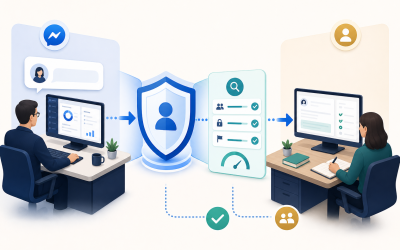
Third, use messaging automation to drive attendance and capture leads during the event. By combining your live stream with a professional messaging service, you can run interactive marketing campaigns. For example, tell your viewers to comment a specific keyword—such as GUIDE or CODE—to receive a resource link. When they comment, a connected Messenger Bot for Business workflow can automatically send the link to their direct message inbox. This automation keeps viewers engaged, turns anonymous viewers into leads, and helps ensure your audience gets the resources they need without you having to stop speaking to type links in the chat.
Additionally, pay attention to the time of day you broadcast. Check your professional account insights to see when your followers are most active online. If your audience is primarily active during evening hours, scheduling a live stream during the workday will result in low attendance. Run test broadcasts at different times of the week to see when you receive the highest concurrent viewership and engagement rates, then build a consistent schedule so your audience knows when to expect you.
Najczęściej Zadawane Pytania
Can you go live on Instagram from a desktop computer?
Yes, in 2026, Instagram supports broadcasting from a desktop computer using Instagram Live Producer. This tool allows creators to stream high-definition video directly from broadcasting software like OBS or Streamlabs using a stream key and stream URL provided by Instagram.
Where do saved Instagram Live replays go?
When you end an Instagram Live, you can download the video file directly to your phone’s camera roll. Additionally, Instagram automatically saves all broadcasts to your Live Archive in settings for up to 30 days. From there, you can choose to download the video or share it as a Reel to your feed.
Why can’t I see the option to add guests to my Instagram Live?
If you cannot add guests, ensure that your Instagram app is updated to the latest version. Additionally, check that your co-hosts have public accounts or are following you, and that their accounts have not faced policy restrictions. Sometimes, slow network connections can also temporarily disable multi-guest streaming features.
Do your followers get notified when you go live on Instagram?
Yes, by default, Instagram sends a push notification to your active followers when you start a live broadcast. Your profile picture will also appear at the front of the Stories tray at the top of the feed with a colorful ring and a ‘Live’ label.
Is there a limit to how long you can go live on Instagram?
Yes, for most accounts, the maximum duration for a single Instagram Live session is four hours. If your account has a history of policy violations or low trust scores, Instagram may restrict your live streaming limit to 60 minutes.
 Polski
  English
  Tagalog
  简体中文
简体中文  العربية
  हिन्दी
  Português do Brasil
  Español de México
  Français
  বাংলা
বাংলা  香港中文
香港中文  繁體中文
繁體中文  Nederlands
  Deutsch
  Bahasa Indonesia
  日本語
日本語  한국어
한국어  Русский
  Español
  Tiếng Việt