
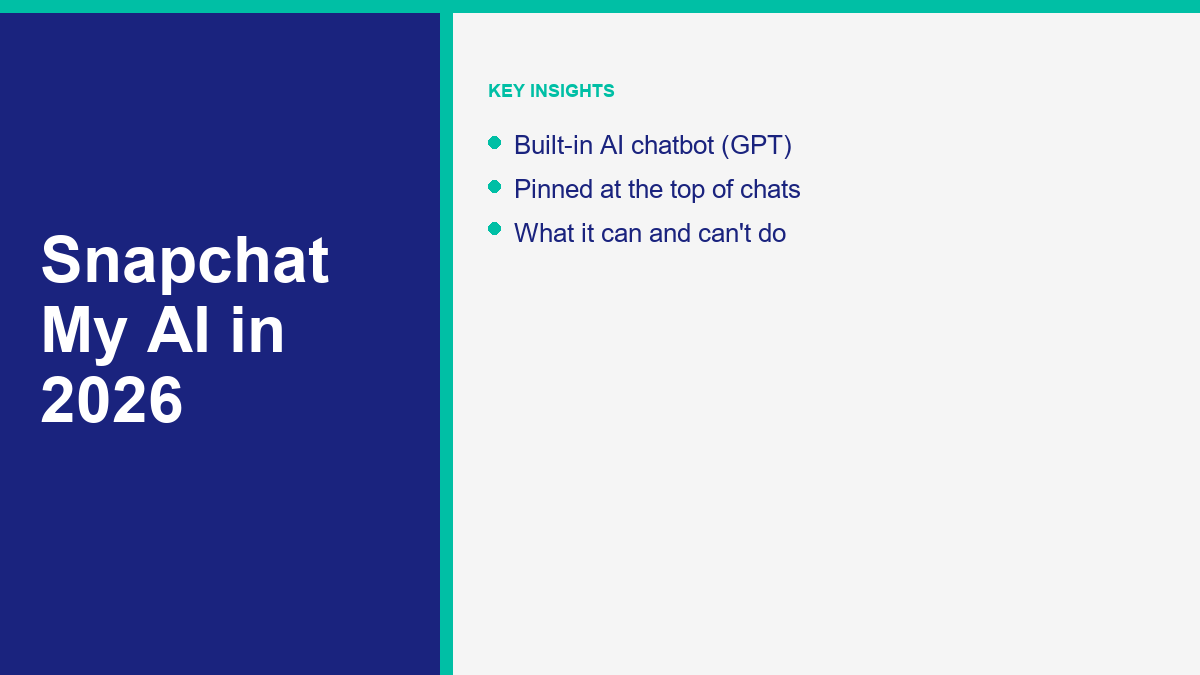
Managing mobile communication platforms has evolved dramatically as artificial intelligence becomes deeply embedded in everyday apps. Among the most widely discussed integrations is Snapchat’s built-in conversational partner, known as My AI. Pinned directly to the top of your chat feed when first activated, this virtual assistant serves as a quick conversational tool, helper, and recommendation engine. However, its prominent placement and persistent nature have sparked ongoing debates. While some users find value in its immediate replies and customized avatars, others prefer a clean, distraction-free inbox. You might want to understand what this tool is capable of, how to make the most of it, or how to get it out of your chat list. This guide outlines everything you need to know about My AI, including its features, privacy settings, and the exact steps required to unpin or remove it in 2026.
What Snapchat My AI Is: The Built-In AI Chatbot
My AI is a conversational chatbot integrated directly into the Snapchat application. It is powered by customized models based on OpenAI’s GPT technology, specifically optimized for safety, quick interactions, and mobile environments. When you open your chat list, My AI appears as a pinned friend by default, ready to answer questions, suggest gift ideas, plan trips, or engage in casual conversation. Unlike standalone virtual assistants that require a separate app or browser tab, this chatbot is woven directly into your existing social thread, treating the conversation similar to a chat with a real contact.
From a technical standpoint, the chatbot functions by receiving your text input, parsing it through large language models hosted on remote servers, and generating a context-aware response in real time. Because it is customized for Snapchat, its tone is generally friendly, informal, and supportive. It can access your customized 3D Bitmoji profile, customize its own appearance, and interact with features such as Snapchat Maps to suggest nearby locations. This custom integration makes it different from other platforms. For example, comparing it to the Claude AI chatbot in 2026 shows that while Claude excels at high-level reasoning and workspace productivity, Snapchat’s tool is tailored for quick social suggestions and casual chat. Similarly, users looking for immersive roleplay might explore various Character AI alternatives in 2026, which offer a broader array of fictional personas and avatars, whereas My AI acts as a single, friendly assistant.
The chatbot is designed to learn from your conversations to provide more relevant answers over time, though it lacks long-term persistent memory across separate database clear-outs. It is programmed to follow strict safety guidelines to prevent the generation of harmful, graphic, or policy-violating content. This makes it safer for a younger demographic compared to open-ended web interfaces. However, because it is powered by generative algorithms, it can still experience hallucinations, which are instances where the AI confidently provides incorrect or fictional information. Users should treat its recommendations as starting points rather than absolute facts, especially when dealing with safety, health, or financial decisions.
How to Use Snapchat My AI: Features and Conversation Basics
Interacting with My AI is designed to feel as natural as messaging a friend. To start, open the Snapchat application and swipe right from the camera screen to access your Chat feed. You will see My AI pinned at the top of the list, marked by a default avatar icon. Tap the conversation thread to open the chat window, where you can type messages, ask questions, or send emojis. The assistant replies within seconds, displaying a typing indicator just like a human contact would.
Beyond basic text conversations, the chatbot offers several interactive features designed to enhance your daily routines. You can ask for dinner recipes based on ingredients you have in your pantry, request a summary of historical events, ask for gift suggestions for a family member, or receive travel itineraries for specific cities. If you grant the application location permissions, the assistant can query local geographical databases to suggest popular hiking trails, local coffee shops, or nearby restaurants. You can also customize the chatbot’s identity. By tapping its profile avatar within the chat window, you can change its name to whatever you prefer and customize its 3D Bitmoji outfit, skin tone, hair, and accessories, giving it a unique presence in your inbox.
Another popular feature is bringing My AI into group chats with your friends. If you are planning an event or debating a topic in a group message, you can mention the chatbot by typing “@MyAI” followed by your query. The assistant will join the thread and provide an answer visible to everyone in the group. This helps settle trivia debates or coordinate plans without requiring anyone to leave the app to search the web. Additionally, you can send photo snaps to My AI. While standard users receive text replies describing the image or reacting to it, the assistant can also generate its own image snaps in response, creating a dynamic, visual dialogue. Understanding these features helps you decide whether to keep the assistant active or remove it to save space.
What Snapchat My AI Can and Cannot Do
To get the most out of the chatbot, it is helpful to establish clear boundaries regarding its operational capabilities. The assistant is highly capable when handling language-based tasks, creative brainstorming, and basic information retrieval, but it is limited by sandboxed app architecture and security restrictions. It does not have access to real-time information outside its designated APIs, nor can it execute system-level commands on your mobile device.
For instance, the chatbot can translate text between dozens of languages, help format simple cover letters, check your math homework steps, and write customized poems or short stories based on prompts you provide. It is also useful for planning, as it can organize daily schedules or suggest workout routines. However, the assistant cannot access your private Snapchat account details, read chats you have with other friends, post snaps to your public Story, or send direct messages to your contacts. It cannot perform actions on other applications or make purchases on your behalf. If you ask it to buy a product or book a flight, it will explain that it cannot execute physical or financial transactions. To see how these features compare to other tools, you can review the лучших бесплатных AI-чатов в 2026 году to evaluate standalone web platforms that might offer integrations with external productivity tools.
The table below provides a side-by-side comparison of My AI against other common chatbot options to help clarify where it fits in the current technology ecosystem:
| Функция | Snapchat My AI | Claude AI | Персонаж ИИ | MessengerBot.app |
|---|---|---|---|---|
| Primary Intent | Casual Chat & Local Recommendations | Workplace Productivity & Analysis | Roleplay & Creative Personas | Business Automation & Lead Capture |
| Пользовательский интерфейс | Mobile Chat Thread (Snapchat) | Web Console & Mobile App | Character Directory & Chat Bubbles | Omnichannel Dashboard & Builder |
| Location Awareness | Yes (via Snapchat Maps API) | No (IP-based only) | Нет | No (User-input dependent) |
| Avatar Customization | High (Full 3D Bitmoji engine) | Нет | High (Custom 2D avatars) | Medium (Branded profile icons) |
| API Integrations | Internal Snapchat APIs only | Developer Console APIs | Limited developer access | Rich (Webhooks, CRM, Zapier) |
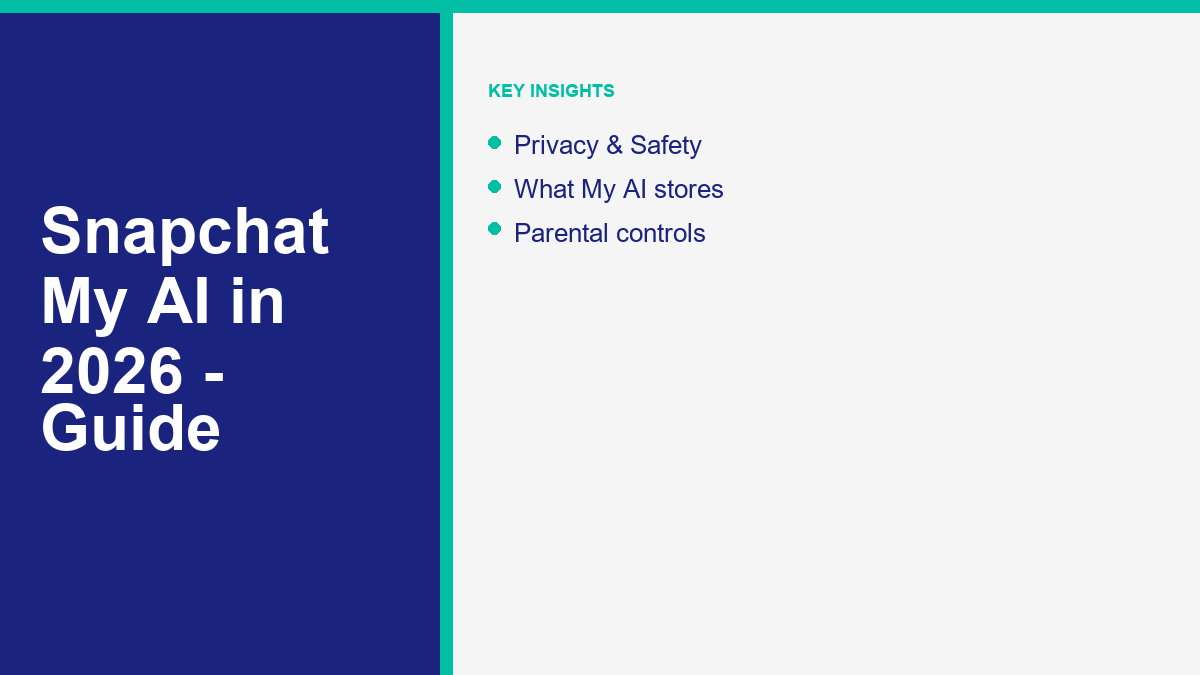
Privacy Check: What My AI Knows and Stores
Privacy is a key consideration for anyone using integrated chatbots. Because My AI runs within the Snapchat application, it operates under Snapchat’s privacy framework, but its server-side processing requires sharing data with external LLM API providers. Every message you send to the chatbot is transmitted to remote cloud databases to generate a response. These logs are stored by Snapchat to help refine the conversation history, analyze app performance, and improve safety moderation guidelines.
If you have enabled location services for Snapchat in your device’s operating system settings, the chatbot can access your physical coordinates. It uses this information to answer queries such as “find a coffee shop near me” or “what is the weather like today.” While the app uses this coordinate data to provide localized answers, some users feel uncomfortable having their real-time location parsed by conversational algorithms. Fortunately, you can restrict this access. If you disable the general location permission for Snapchat in your iOS or Android settings menu, the chatbot will no longer have access to your coordinates and will instead ask you to input a city or postal code manually whenever you request localized recommendations.
Fortunately, Snapchat provides built-in tools to manage the chat history stored on their servers. If you want to erase your previous interactions, you can clear the data from your profile settings. Open your Snapchat Profile, tap the gear icon to access Settings, scroll down to the “Privacy Controls” heading, select “Clear Data,” and tap “Clear My AI Data.” Confirming this action deletes the conversation log from Snapchat’s active servers, resetting the chatbot’s memory of your previous queries. This step is highly recommended if you want to maintain a clean privacy profile while using the app.
How to Remove or Unpin My AI from Your Chat Feed
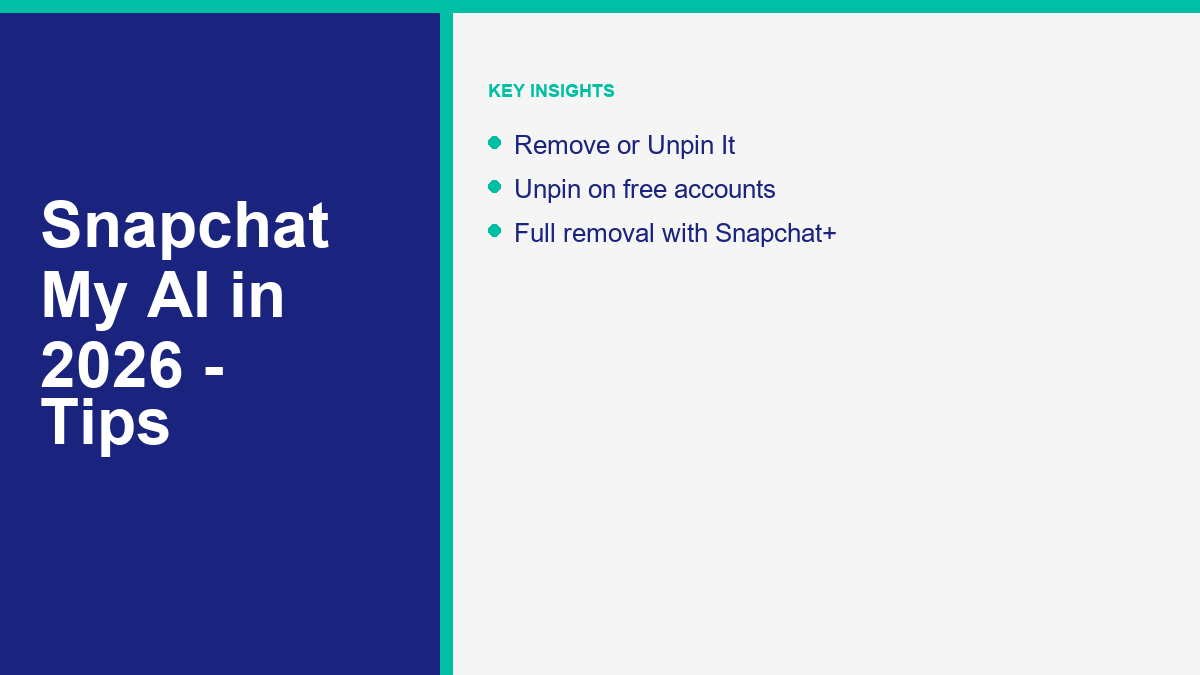
The permanent placement of My AI at the top of the chat feed has led many users to seek ways to remove or unpin the conversation thread. Depending on your subscription status, the steps and accessibility of these options can vary. Snapchat officially limits direct, seamless unpinning and feed removal to paid Snapchat+ subscribers, though there are steps standard users can take to minimize its presence.
If you are a Snapchat+ subscriber, managing the chatbot is simple. You can unpin or clear it from your feed using the chat settings menu. Follow these steps on your mobile device:
- Open the Snapchat application and swipe right to access the Chat screen.
- Press and hold on the “My AI” chat thread to open the options pop-up.
- Tap on “Chat and Notification Settings” from the list of options.
- Tap “Clear from Chat Feed” to remove the conversation from your active directory, or tap “Unpin Conversation” if you only want to move it down the list.
- Confirm the prompt by tapping “Clear.”
Alternatively, subscribers can manage My AI settings directly through the Snapchat+ dashboard. To access this, tap your Profile icon in the upper-left corner of the camera screen, select the Snapchat+ membership banner, and locate the toggle option for My AI. Switching this toggle off will immediately remove the chatbot from your Chat feed. If you want to chat with it again in the future, you can search for “My AI” in the search bar and send a message, which will return the thread to your feed.
For free users, the process is different. In the standard, non-paying version of the app, there is no official “Clear from Chat Feed” button or “Unpin” toggle for My AI. It is designed to remain anchored at the very top of your inbox. However, you can manage its impact by adjusting notifications. Press and hold on the My AI thread, select “Chat and Notification Settings,” choose “Notification Settings,” and toggle off all notifications, including message sounds, banners, and vibrations. This ensures that even if the chatbot is present, it will never interrupt you with alerts. You can also regularly clear its memory using the “Clear My AI Data” option in your account settings to ensure no conversation history remains stored on the servers. This is similar to troubleshooting other platforms, such as when resolving issues like почему в моем Messenger нет Meta AI, where system-wide updates or account configurations dictate feature availability.
We recommend avoiding third-party applications, browser extensions, or device modifications that claim to delete the chatbot for free. These tools are often malicious scripts designed to compromise your account security or harvest your login credentials. Attempting to bypass Snapchat’s interface rules using unapproved software violates the platform’s terms of service and can lead to a permanent ban of your account. Stick to the official settings and notification blocks to keep your profile secure.
For businesses seeking more control over customer communications, relying on rigid, unalterable chat interfaces is not ideal. If you want to build highly customizable chat scripts, automate your customer service, and control exactly where your chat bubbles appear, you can check out the options to See Our Plans at MessengerBot.app. If you require advanced automation pipelines across multiple social profiles, the Upgrade to Pro option provides the tools needed to scale. If you are new to conversational marketing, you can Просмотрите наши учебные пособия for step-by-step guidance. Finally, if you want to promote these customized chatbot solutions to other business owners, you can Присоединяйтесь к нашей партнерской программе to begin earning commissions on referrals.
Parental Controls, Safety, and Custom Settings
Because Snapchat has a massive user base of teenagers and young adults, safety guardrails are a top priority for the development teams. The app has integrated safety features that prevent My AI from answering inappropriate questions, generating harmful media, or providing advice on restricted topics. Additionally, parents can monitor and manage their teenager’s interactions with the assistant using Snapchat’s Family Center tools.
The Family Center is an in-app parental control hub that allows parents to see who their teens are communicating with on the platform. Once configured, parents can view whether their teenager has interacted with My AI over the past seven days, though they cannot read the actual content of the messages sent back and forth. If a parent determines that the chatbot is not suitable for their teen, they can use the Family Center settings to restrict its access or disable the feature on their teen’s account entirely. This provides an important layer of supervision for families managing digital safety.
Snapchat also runs automated moderation filters in the background of every My AI conversation. If you send a message containing restricted keywords or asking for unsafe advice, the assistant will automatically decline to answer and will remind you of the community safety rules. Frequent violations of these safety filters can trigger an internal review, leading to temporary restrictions on your account. Understanding these safety mechanisms is essential for maintaining a healthy and secure presence on the app.
Snapchat My AI: Frequently Asked Questions
Can you remove My AI on Snapchat without Snapchat Plus?
No, there is currently no official option to unpin or remove My AI from the top of the chat feed for free, non-paying users. The “Clear from Chat Feed” and “Unpin Conversation” options are premium features reserved for Snapchat+ subscribers. Standard users can only manage the assistant’s impact by disabling all chat notifications for the thread, ignoring the conversation, and clearing My AI data regularly within their profile privacy settings to remove historical logs from the servers.
Does My AI track your location?
My AI can access your device’s physical coordinates only if you have granted general location permissions to the Snapchat application in your mobile phone’s operating system settings. The chatbot uses this coordinate data to provide localized recommendations for restaurants, shops, and attractions. If you do not want the assistant to know your location, you can revoke Snapchat’s location access in your device’s settings menu, which forces the chatbot to ask for a city name manually when suggesting local spots.
How do you customize your My AI avatar and name?
You can customize the chatbot’s name and appearance by opening the My AI chat thread and tapping its profile avatar in the upper-left corner of the screen to open its profile card. To change its name, tap the existing name and type your preferred label. To customize its appearance, tap “Customize” or select its Bitmoji card. This opens the character editor, where you can modify its 3D Bitmoji outfit, hairstyle, skin tone, eye color, accessories, and background theme.
Is My AI a real person?
No, My AI is not a real person. It is an automated computer program, or virtual assistant, powered by generative artificial intelligence algorithms. It uses customized models based on OpenAI’s GPT technology to parse incoming text messages and generate responsive replies in real time. Although it uses a friendly, conversational tone and has a customized Bitmoji avatar that mimics a human contact, it is entirely digital and does not have feelings, thoughts, or a physical presence.
Can My AI see your snaps and photos?
Yes, My AI can receive and analyze the photo snaps you send to it in the chat thread. It uses computer vision models to identify objects, scenes, and text within the images, allowing it to reply with descriptive text or comment on the photo. However, the chatbot cannot access your camera roll, see snaps you send to other contacts, view snaps posted to your public Story, or access private photos stored on your device without your direct permission and action.



 Русский
  English
  Tagalog
  简体中文
简体中文  العربية
  हिन्दी
  Português do Brasil
  Español de México
  Français
  বাংলা
বাংলা  香港中文
香港中文  繁體中文
繁體中文  Nederlands
  Deutsch
  Bahasa Indonesia
  日本語
日本語  한국어
한국어  Polski
  Español
  Tiếng Việt