
Managing an online presence means cleaning up stale profiles and pages that no longer serve your business goals. Over time, brands change direction, projects wrap up, or administrative roles shift. Leaving an inactive page online can dilute your brand voice, confuse potential customers, and create security vulnerabilities if the page is neglected. Removing these pages ensures your audience finds only your active channels, helping you maintain a sharp and effective digital profile.
Deleting a Facebook Page is straightforward, but the process has evolved with recent updates to the Meta interface. In 2026, the steps depend heavily on the new Pages experience, which treats Facebook Pages as independent profiles. You cannot delete a page unless you log in with full administrative privileges. Understanding the settings menu layout and knowing the difference between permanent deletion and deactivation can save you from losing valuable data or accidentally removing a page you still need.
This guide explains how to delete a Facebook Page using a desktop web browser or the mobile application. You will learn the requirements for deletion, what happens during the transition period, and how to reactivate a page if you change your mind. We will also cover practical alternatives to deletion, such as unpublishing your page, merging it with another, or transferring ownership to a new administrator.
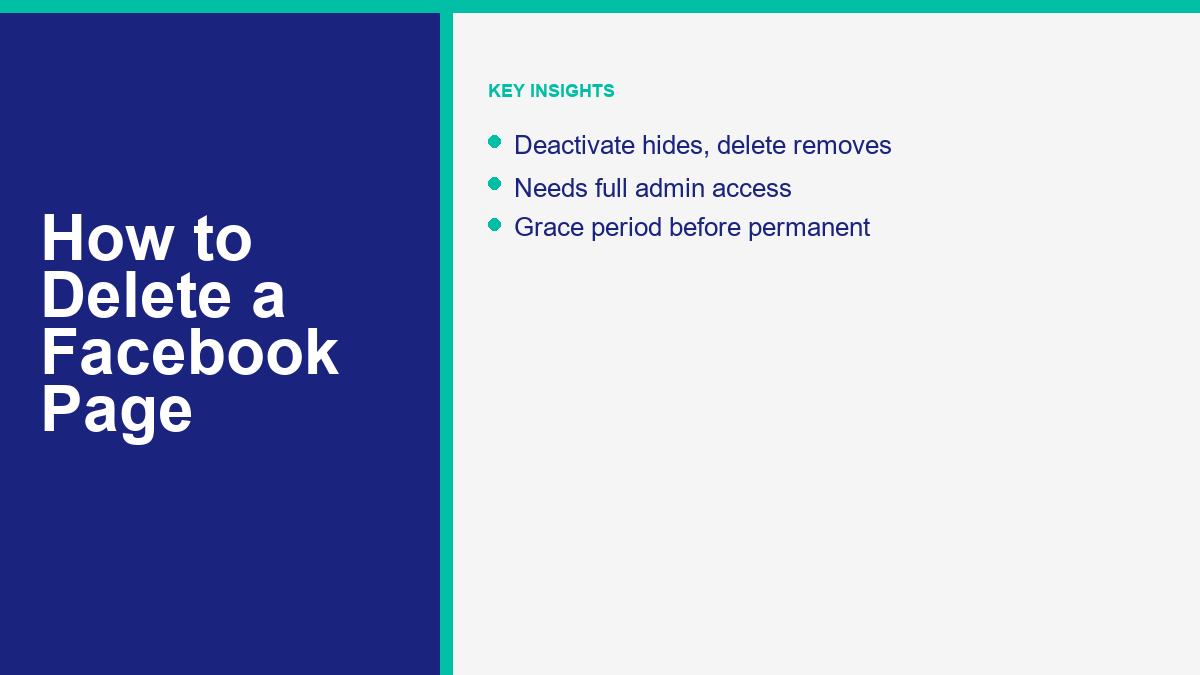
Deactivating vs. Deleting a Facebook Page: What is the Difference?
Before you begin the removal process, you must decide whether to deactivate or delete your page. These two options serve distinct purposes, and choosing the wrong one can lead to unwanted results. If you are instead looking to manage your personal profile, you can learn how to deactivate your personal Facebook account in 2026 vs deleting it entirely. Let’s examine how these options work for business pages.
Page deactivation is a temporary measure. When you deactivate a Facebook Page, the content remains intact on Meta’s servers, but the page is hidden from the public. Visitors will not be able to search for the page, view your posts, or send messages. However, your likes, comments, reviews, and configurations are preserved. Deactivation is ideal if you are taking a seasonal break, rebranding, or restructuring your business and plan to return to the page later. You can reactivate the page at any time to restore your public presence instantly.
Page deletion is permanent. When you delete a page, you request that Meta permanently erase the page, its content, its followers, and all associated engagement history. This process cannot be undone once the final cleanup window closes. While Meta provides a temporary grace period where you can cancel the request, the page is gone forever once that period expires. You will lose your username, custom settings, and any customer reviews you have gathered over the years.
The choice depends on your long-term plans. If you are certain that the brand or project is finished and you will never need the page again, deletion is the cleanest choice. If you want to keep your options open or preserve your content library for future reference, deactivation is much safer. Taking a moment to assess your goals prevents the accidental loss of valuable business assets.
What You Must Verify Before Starting the Deletion Process
Initiating a page deletion requires careful preparation. You cannot simply log in and hit delete; you must meet specific administrative criteria and consider how the deletion affects your connected business tools. Checking these prerequisites beforehand ensures a smooth process and protects your other assets.
First, you must have Full Control or admin access under the new Pages experience. Meta has migrated pages away from traditional admin roles to a system called Facebook Access. To delete a page, you must have “People with Facebook access (with full control)” permissions. If you only have task access (such as permissions to create ads, post content, or respond to messages), the option to delete the page will be grayed out or completely missing from your settings dashboard. If you do not have full control, you must ask the owner or a primary admin to grant you access or perform the deletion themselves.
Second, review all connected integrations. Many business pages are linked to other platforms. For example, if your page is connected to an Instagram Professional account or a WhatsApp Business account, deleting the Facebook Page can disrupt those profiles. Sometimes, deleting the page can disconnect your Instagram shop or stop your automated message flows. Make sure to unlink these accounts in your Meta Business Suite settings before deleting the page if you intend to keep using the Instagram or WhatsApp profiles independently.
Third, check your Meta Ads Manager accounts, pixels, and outstanding billing. Facebook Pages are often linked to active ad accounts. If you have active ad campaigns running, deleting the page will cause those ads to pause, but it will not close your ad account or stop ongoing billing cycles. Verify that all outstanding balances are paid and that your Meta Pixel is not solely tied to the page you are deleting. If your pixel data is shared across multiple pages, ensure the deletion does not disrupt tracking on your active websites.
Finally, download a copy of your page data. Meta allows you to download a zip file containing all your posts, photos, videos, messages, and page settings. This is highly recommended before permanent deletion. If you ever need to reference old customer interactions or reuse media assets, having this backup is invalid. You can request this download directly from the page settings dashboard, and Meta will notify you when the file is ready to save to your computer.
How to Delete a Facebook Page on a Desktop Browser (2026 Guide)
Using a desktop web browser is the most reliable way to navigate Meta’s settings. The desktop interface provides a clear view of your account options and makes it easier to download data or adjust permissions. Follow these steps to submit your page for deletion on a desktop computer.
Switch Profiles to Your Target Facebook Page
To begin, open your preferred web browser, navigate to Facebook, and log in to your personal account. In the new Pages experience, you must switch your active profile from your personal account to the page you want to delete. To do this, click on your profile picture in the top-right corner of the Facebook homepage. A dropdown menu will appear. Click on “See all profiles,” then select the specific page you want to delete from the list. The screen will refresh, and you will now be operating Facebook as your page profile.
Navigate to the Settings and Privacy Dashboard
Once you are acting as your page profile, click on the page’s profile picture in the top-right corner. From the dropdown menu, select “Settings & privacy,” then click on “Settings.” This action opens the main administration page for your page. The left-hand sidebar will display a list of settings categories tailored to page management, including options for privacy, linked accounts, and page access.
Open Your Meta Page Information Menu
In the left-hand sidebar of the settings page, look for the “Privacy” section. Under Privacy, click on “Facebook Page information.” This menu controls your data downloads, activity logs, access permissions, and page status. Here, you will see options to view your page information, transfer a copy of your information, download your profile details, and manage page access.
Select Deactivation and Deletion
Scroll down the Facebook Page information page until you find the section labeled “Deactivation and deletion.” This option is typically located at the bottom of the list. Click the “View” link next to it. You will be presented with two choices: “Deactivate page” or “Delete page.” Select the radio button next to “Delete page” to proceed with permanent removal. Click the “Continue” button to move to the next step.
Confirm Your Password and Deletion Request
Facebook will display a screen offering options to download your info or transfer a copy of your information before deleting. If you have already done this, click “Continue.” Next, you will be prompted to enter your personal Facebook password. This security check ensures that only authorized administrators can remove the page. Enter your password and click “Continue.” Finally, a confirmation screen will appear warning you about the permanent nature of deletion. Click “Delete Page” to submit your request. The browser will automatically switch you back to your personal profile.
How to Delete a Facebook Page Using the Mobile App (iOS and Android)
If you prefer using your mobile phone or tablet, you can complete the deletion process directly within the official Facebook mobile app. The steps are similar to the desktop version, though the menus are consolidated to fit mobile screens. Ensure your app is updated to the latest version to match the current menu layout.
Switch to the Page Profile in the Mobile App
Open the Facebook app on your iOS or Android device. Tap the menu icon, which is represented by three horizontal lines or your profile picture, located in the bottom-right corner on iOS or the top-right corner on Android. At the top of the menu screen, tap your personal profile name or the switcher icon next to it. Select the Facebook Page you want to manage. The app will switch profiles, showing your page’s home feed and navigation options.
Locate Settings and Privacy
Tap the menu icon again (now showing your page’s profile picture). Scroll down to the bottom of the page and tap “Settings & privacy.” A sub-menu will expand. Tap “Settings” to enter the page’s settings directory. You will see sections for Page settings, account options, and preferences.
Access Page Settings and Personal Information
At the top of the settings screen, tap “Page Settings” next to your page’s name and icon. This menu contains detailed controls for your public presence. Scroll down to the section labeled “Facebook Page Information.” Within this section, look for “Access and control.” Tap this option to open the page status controls.
Confirm Deletion in the Mobile App
On the Access and control screen, tap “Deactivation and deletion.” Choose the “Delete page” option by tapping the checkbox next to it, then tap “Continue.” The app will ask you to select a reason for deleting your page. You can choose a reason or skip this by tapping “Continue.” You will then see the option to download your information. Tap “Continue,” enter your personal account password to verify your identity, and tap “Continue” once more. Finally, tap “Delete page” to confirm. The app will log you out of the page and switch you back to your personal account.
Understanding the Deletion Grace Period and Account Invisibility
The moment you submit your Facebook Page for deletion, it does not vanish from Meta’s servers instantly. Instead, it enters a pending deletion phase. During this time, the page is immediately unpublished. This means it becomes completely invisible to the public, including your followers, competitors, and general search queries. Anyone attempting to visit the page’s direct URL will see a message stating that the content is unavailable.
Meta enforces a grace period to prevent permanent data loss due to accidental clicks, account hijacking, or impulsive decisions. This grace period commonly lasts between 14 to 30 days, though Meta typically sets it to 30 days for pages in 2026. During this window, all your page data is preserved in a dormant state. If you change your mind or realize that a critical integration was broken by the page’s absence, you can stop the deletion process. While page recovery is simple during this time, recovering personal profiles is a different process; you can read how to recover a deleted Facebook account in 2026 step-by-step if your personal profile was removed.
If you take no action during the grace period, the deletion process runs automatically when the countdown ends. At that point, the page, posts, media, settings, and subscriber lists are permanently purged. This action is irreversible. The custom URL slug you used for the page will eventually become available for other users to claim, and you will not be able to retrieve any messages or comments associated with the profile.
How to Cancel Your Facebook Page Deletion Request
If you decide to keep your page, you must cancel the deletion request before the grace period expires. Missing this deadline means the page is lost forever. The reactivation process is simple but must be done using the administrator account that initiated the deletion.
To cancel the deletion, log in to your personal Facebook account on a desktop browser or the mobile app. Click or tap your profile picture in the top-right corner to open the profile switcher. You will see the page scheduled for deletion listed in your profiles, often with a note indicating how many days remain before permanent removal. Select the page profile. A prompt will appear on the screen stating that your page is scheduled for deletion and asking if you want to cancel the request. Click “Cancel Deletion” or “Reactivate” to restore your page. The page will immediately return to its previous status, and you can make it public again by publishing it if it remains hidden.
If the page does not appear in your quick-switch menu, navigate to your personal account settings. Go to “Settings & privacy,” then “Settings,” and click on “Reactivation” in the left-hand menu. Here, you will see a list of pages you have deactivated or scheduled for deletion. Click the “Reactivate” button next to your page to restore access. Ensure you verify the page settings after reactivation to confirm that your linked accounts and messaging tools are functioning correctly.
Smart Alternatives to Deleting Your Facebook Page
Deleting a page is a final step that might not always be necessary. If you are struggling with low engagement, high management overhead, or brand changes, other strategies can help you pivot without losing the audience you have built. Exploring these options can save you the effort of building a new presence from scratch later.
Temporarily Unpublishing Your Facebook Page
If you need to update your branding, rewrite your page details, or resolve internal business issues, you can unpublish your page. Unpublishing makes the page invisible to the general public, but keeps it active for administrators. You can edit content, reply to existing messages, and change settings behind the scenes. Once your updates are complete, you can republish the page with a single click. This keeps your follower count, reviews, and custom username intact while giving you the privacy needed to make adjustments.
Transferring Ownership or Admin Roles
If you no longer want to manage a business page but the brand itself is still active, you can hand it off to someone else. Instead of deleting the page and discarding your community, you can add a new administrator with Full Control. Once the new admin accepts the invitation, they can remove you from the page. This is a common practice during business acquisitions, staffing changes, or when outsourcing social media management. It preserves the customer touchpoint and ensures your audience continues to receive updates.
Merging Similar Facebook Pages
If you have multiple pages representing the same business (for example, duplicates created by different team members or location-specific pages you want to consolidate), you can merge them. Merging allows you to combine the followers and check-ins from both pages into a single profile. The duplicate page is deleted, but its audience is transferred to the main page. To merge pages, both profiles must represent the same entity, have similar names, and be managed by the same administrator. This cleans up your brand presence without throwing away hard-earned likes and engagement.
If your brand changes direction completely, you can always create a Facebook business page in 2026 step-by-step to build a fresh, optimized presence from scratch. For instance, if your page or account is experiencing access restrictions or you are wondering why your Facebook does not have Marketplace today, it is often due to profile type settings or regional availability rather than a need to delete and start over. Before you permanently erase your customer touchpoints, check out how chatbot automation can streamline customer support. See Our Plans to discover how easy it is to automate replies. If you manage multiple client pages, our automation toolkit provides Mga Tampok ng MessengerBot Pro to keep your audience engaged automatically. To master social media management, you can Tingnan ang Aming Mga Tutorial for expert guidance.
Frequently Asked Questions About Deleting Facebook Pages
Can I delete a Facebook Page without admin access?
No. You cannot delete a Facebook Page unless you have Full Control or administrator access under Meta’s permission system. People with task-only access, such as moderators, editors, or advertisers, do not have the authorization to delete a page. If you need to remove a page, you must request that a primary administrator grant you Full Control or perform the deletion themselves.
What happens to my Facebook Ads account if I delete my Page?
Your Meta Ads Manager account and outstanding balances will remain active if you delete your page. However, you will no longer be able to run ads that list the deleted page as the destination or use its name. Any active campaigns promoting the deleted page will pause automatically. Make sure to settle any unpaid ad charges and adjust your campaigns to target an active page before initiating deletion.
How long do I have to cancel a Facebook Page deletion?
Meta provides a grace period, which is commonly 14 to 30 days, during which you can cancel your deletion request. In 2026, the standard window for page recovery is 30 days. During this time, the page is unpublished and hidden from the public, but all data is saved. If you do not reactivate the page within this timeframe, it will be permanently deleted and cannot be recovered.
Will deleting my Facebook Page delete my personal account?
No. Your personal Facebook account and your Facebook Pages are treated as separate profiles. While you use your personal account credentials to manage and switch to your page, deleting the page will have no effect on your personal profile, pictures, messages, or friends list. Only the page profile and its associated data will be removed.
Can I merge two Facebook Pages instead of deleting one?
Yes. If you manage two pages with similar names representing the same business, you can request to merge them through your Meta Business Suite settings. Merging combines the likes, followers, and check-ins from both pages onto one main page, while deleting the secondary profile. This allows you to consolidate your audience without losing followers.


 Tagalog
  English
  简体中文
简体中文  العربية
  हिन्दी
  Português do Brasil
  Español de México
  Français
  বাংলা
বাংলা  香港中文
香港中文  繁體中文
繁體中文  Nederlands
  Deutsch
  Bahasa Indonesia
  日本語
日本語  한국어
한국어  Polski
  Русский
  Español
  Tiếng Việt