
A single screen notification or a quiet vibratory buzz can instantly shift the dynamics of a professional or personal relationship. When you send a message on WhatsApp, those tiny check marks at the bottom of the chat bubble carry immediate social weight. If you see two blue symbols, you know the recipient has opened your message—but they also know you know. This instant feedback loop is designed to make conversation fluid, yet it often creates pressure to reply immediately, leading to digital fatigue and misunderstandings. Managing your privacy boundaries while staying connected requires understanding how these tracking mechanisms function under the hood.
WhatsApp uses a series of check marks to indicate the delivery and read status of every text, image, video, and audio file you transmit. Knowing what these indicators mean, how they interact with your device settings, and how to control them is essential for maintaining control over your digital footprint. This guide provides a detailed breakdown of WhatsApp check marks, instructions on disabling read receipts, and methods for previewing messages discreetly. By taking control of these settings, you can customize your chat experience to match your personal privacy preferences.
Decoding the Lifecycle of a WhatsApp Message
When you press the send button in a WhatsApp chat, the message goes through a multi-stage delivery process. Each step of this journey is represented by a specific icon or check mark next to the message bubble. Understanding this technical sequence helps you diagnose connectivity issues, verify delivery, and manage communication expectations. The system is designed to provide real-time updates as your message moves from your phone to the recipient’s screen.
The process begins with the clock icon, which indicates that the message has not left your device. It usually appears when your phone has a weak network signal, is in airplane mode, or is experiencing temporary connection dropouts. The message remains queued locally until a stable internet connection is established. If this icon persists, the issue lies with your local network settings or mobile data service rather than the recipient’s status.
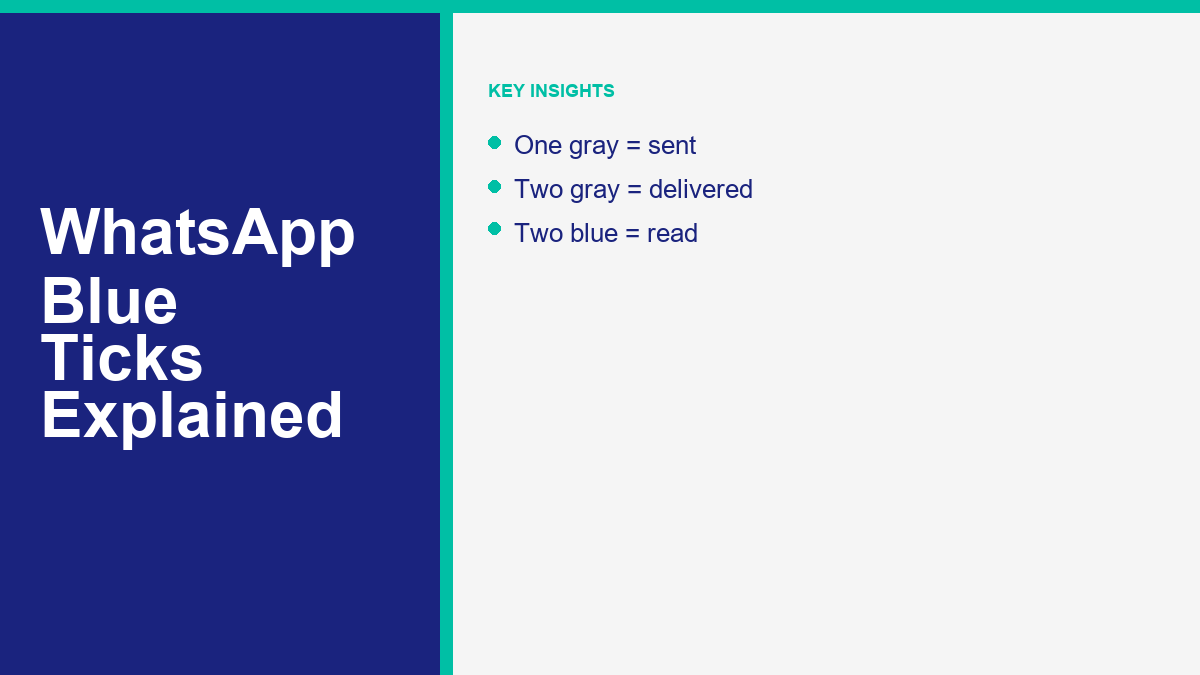
Once the message successfully transmits from your phone to WhatsApp’s global servers, the clock icon changes to a single gray check mark. This means the message has been sent, but it has not yet reached the recipient’s device. Common reasons for a message staying in this state include the recipient’s phone being powered off, their device being out of cellular or Wi-Fi range, or their data connection being disabled. It can also indicate that the recipient has blocked your number, though this cannot be confirmed by the check mark alone. The single gray mark confirms that WhatsApp’s servers have accepted the transmission and are ready to deliver it as soon as the recipient’s device connects to the internet.
The double gray check marks confirm that the message has been delivered to the recipient’s phone or connected devices, such as WhatsApp Web or Desktop. At this point, the recipient has received a notification, and the message is stored locally on their device, waiting to be read. It is important to distinguish between delivery and reading; a double gray check mark does not mean the recipient has viewed the content, only that their phone was online and successfully retrieved the data from the server. The message might remain unread in their notifications panel for hours or days.
When the recipient opens the specific chat conversation containing your message, the double gray check marks turn blue. This transition indicates a read receipt. In 2026, with the integration of multi-device support, these check marks turn blue if the message is viewed on any linked device, including a tablet, computer, or smart wearable. If the recipient has opened the chat, even for a split second, the status updates to read, signaling that the communication cycle is complete.
| Status Icon | Technical Meaning | Recipient Condition | Typical Action Required |
|---|---|---|---|
| Clock Symbol | Message queued locally on your device | Disconnected or unaware of the message | Check your Wi-Fi or cellular network connection |
| Single Gray Tick | Message received by WhatsApp servers | Device offline, powered off, or network disabled | Wait for the recipient to establish internet connection |
| Double Gray Ticks | Message delivered to recipient’s device | Device online, notification received, chat unopened | No action; message is ready for the reader |
| Double Blue Ticks | Message read or opened by the recipient | Active chat window opened on primary or linked device | Conversation complete; reply can be expected |
WhatsApp operates on a modified version of the Extensible Messaging and Presence Protocol (XMPP). When a client sends a message, it is structured as a stanza and sent to the server. The server acknowledges receipt by sending a response stanza, which triggers the single gray tick on the sender’s device. When the recipient’s device connects to the server, the server delivers the message and receives a delivery receipt, which is then routed back to the sender to generate the double gray tick. Finally, when the recipient UI displays the message bubble, a read receipt stanza is sent to the server and forwarded to the sender, turning the ticks blue. This automated feedback system relies on constant, low-latency communication between clients and servers, making it one of the most reliable delivery tracking networks in use today.
How to Disable Read Receipts on Android and iOS Devices
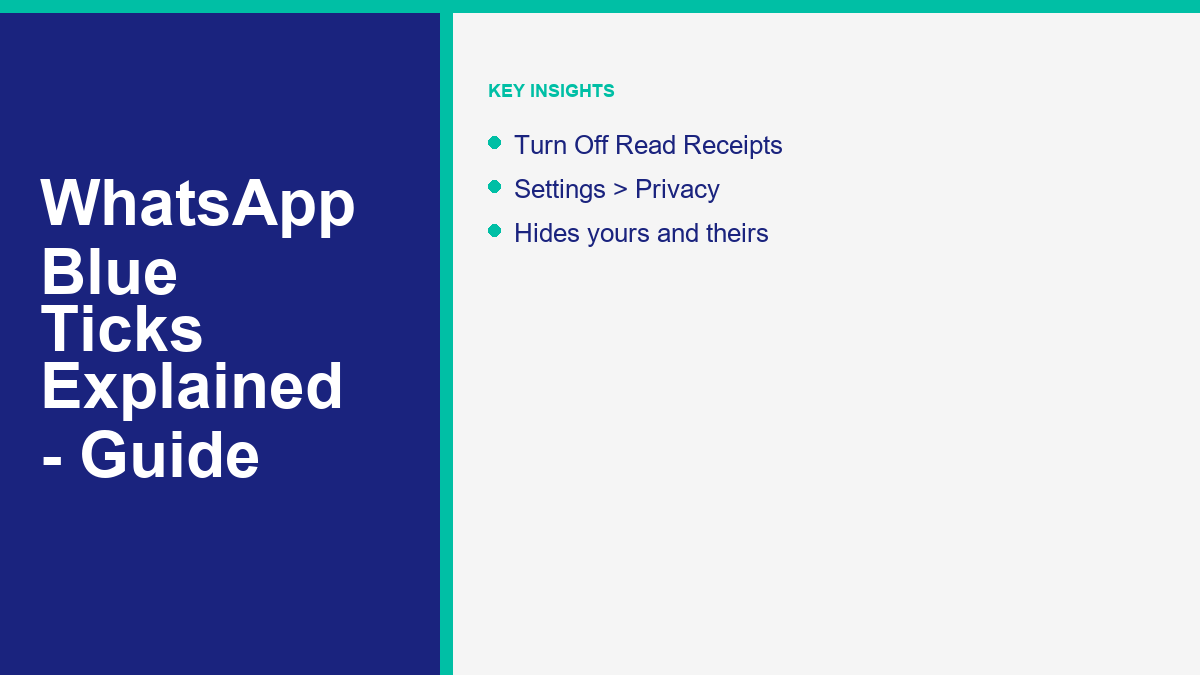
If you prefer to read messages without notifying the sender, you can disable read receipts. Doing so prevents others from seeing when you have viewed their messages, but it also means you will no longer see blue check marks when they read yours. This reciprocal policy is a core aspect of WhatsApp’s privacy architecture, encouraging a fair exchange of status information among users.
To disable this tracking feature on an Android device, follow these instructions:
- Open WhatsApp on your Android device.
- Tap the three dots (More options icon) in the upper-right corner of the screen to open the main menu.
- Select Settings from the dropdown menu.
- Tap on Privacy to access your personal data and visibility settings.
- Locate the Read Receipts toggle in the list.
- Switch the toggle off to disable the feature.
For iOS users, the process is slightly different but follows a similar path:
- Launch WhatsApp on your iPhone.
- Tap Settings in the navigation bar at the bottom-right corner of the screen.
- Select Privacy from the options list.
- Scroll down to find the Read Receipts toggle.
- Tap the switch to turn it off.
Once you toggle this setting off, the change takes effect immediately. Any individual messages you receive will only show double gray check marks to the sender, even after you open the chat and read the text. Similarly, any individual messages you send will only show double gray check marks to you, even after the recipient has read them. This setting applies across all your active individual conversations, but it does not affect group chats or voice notes, which operate under different delivery rules. Hiding read receipts is an all-or-nothing setting; you cannot disable it for specific individual contacts while keeping it active for others. If you want to hide your read status from a single person without affecting your settings for everyone else, you must use alternative previewing methods or block the contact entirely.
When read receipts are disabled, the WhatsApp app locally flags incoming messages as read, but it suppresses the outbound read-receipt XMPP stanza that would normally update the sender’s status. This ensures that the recipient’s local database marks the messages as read—so notifications disappear and the chat counter is cleared—while the sender’s device remains in the delivered (double gray check mark) state indefinitely. This software design protects your privacy by ensuring that your reading habits are not shared with the server, while still allowing the app to manage your notifications correctly on your device.
Exceptions and Edge Cases Where Blue Ticks Still Appear
Even when you have disabled read receipts in your privacy settings, there are specific scenarios where blue ticks will still appear. Understanding these exceptions is crucial if you rely on read receipts being turned off to maintain absolute privacy. WhatsApp treats group conversations and audio recordings differently from standard text messages, meaning your read status may still be shared in these situations.
In group conversations, read receipts are always active. This is hard-coded into the application to ensure that group participants can track the reach of their shared updates. When you send a message to a WhatsApp group, the check marks follow a collective lifecycle. A single gray tick appears when the message is sent. Double gray ticks appear when the message is delivered to all group members. Double blue ticks appear only when every single member of the group has opened the chat and viewed the message. If you want to check the individual status of your message in a group, you can perform the following steps:
- Long-press your sent message in the group chat to highlight it.
- Tap the Info icon (a circle with an “i” inside) or select Info from the three-dot menu at the top of the screen.
- The screen will display a list of group members divided into two categories: “Read by” (with blue check marks showing when each member opened the message) and “Delivered to” (showing who received it but has not yet read it).
If you are a recipient in a group chat, opening that group chat will immediately send a read receipt to the sender of any unread message, showing a blue tick next to your name in their message info screen, even if you have disabled global read receipts on your device.
Voice messages represent another major exception to the privacy rules. WhatsApp has treated audio recordings differently from text messages and media files to ensure that senders know their spoken messages have been heard. When you receive a voice note and press the play button, WhatsApp transmits a play receipt to the sender. This turns the microphone icon and the check marks next to the voice note blue, indicating that the audio has been played. This occurs even if read receipts are toggled off in your privacy settings. Many users are caught off guard by this behavior, assuming that disabling read receipts covers all forms of communication. If you play an audio note, the sender will know you listened to it. To avoid this, you can use workarounds like forwarding the audio note to a private chat or a personal space before playing it, which prevents the play receipt from being sent back to the original conversation.
Methods to Preview Messages Without Triggering Read Status
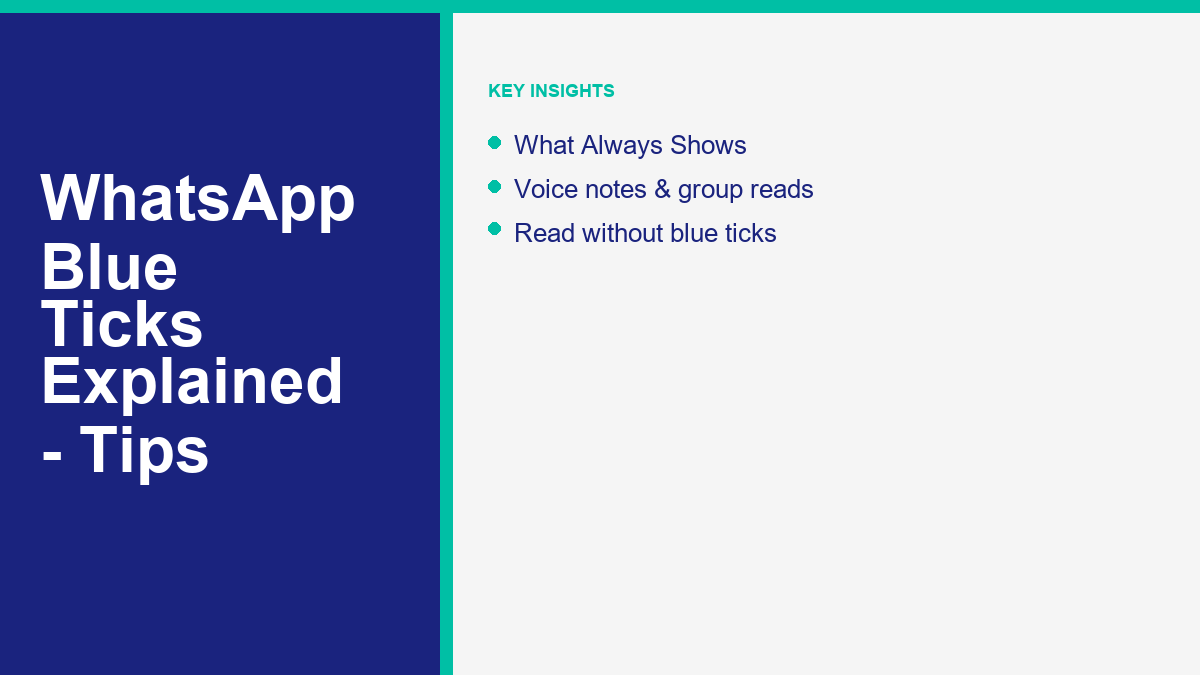
For times when you want to read a message but do not want to change your settings or alert the sender, several practical workarounds exist. These methods allow you to preview message content without triggering the read receipt flow on WhatsApp’s servers, letting you stay informed while maintaining your privacy boundaries.
Android users can add a WhatsApp widget to their home screen, which displays a scrollable preview of all unread messages. To set this up, long-press any empty space on your home screen, select Widgets from the pop-up menu, scroll down to find WhatsApp, and select the 4×2 widget. Drag the widget to your home screen and resize it as needed. The widget allows you to read entire text messages without opening the application. Since you are viewing the text from a home screen widget rather than launching the chat interface, the application does not trigger the read receipt stanza, and the sender’s device will continue to show double gray ticks. Be careful not to tap on the message within the widget, as doing so will open the app and immediately send the blue ticks.
Both Android and iOS platforms support interactive notifications. When a message arrives, you can expand the notification banner to read the text. On iOS, long-press the notification on the lock screen or in the Notification Center to view the full message. On Android, tap the downward arrow on the notification card to expand the text. As long as you do not tap the notification to open the app or tap the “Reply” button, the message remains unread in the app’s database. This method is highly effective for shorter messages, though longer texts may be truncated in the notification preview. Additionally, iOS users can utilize Haptic Touch to peek into a conversation. By long-pressing a chat in the main chat list, a pop-up window appears showing the latest messages without opening the conversation fully. As long as you do not tap the pop-up to enter the chat, the read receipt is not sent.
A common trick involves turning on airplane mode before opening a message. To use this method, wait for the message notification to arrive on your phone, then swipe down to access your quick settings and enable Airplane Mode, which disables Wi-Fi and mobile data. Once offline, open WhatsApp and read the message at your convenience. After reading, close the application completely, ensuring it is not running in the background by force-closing it from your recent apps screen. Finally, disable Airplane Mode to restore your network connection. While this method works temporarily, it has a significant limitation. Once WhatsApp reconnects to the network—even if the app is closed—the background sync service may transmit the read receipt to the server. Therefore, this trick is best used to delay the blue ticks rather than preventing them entirely, and you should use it with caution.
Comparing WhatsApp Check Marks and Facebook Messenger Read Status
WhatsApp’s check mark system is part of a larger ecosystem of communication tools owned by Meta. If you use other messaging services, you will notice different approaches to read indicators. For instance, if you are also active on other Meta platforms, you might wonder how read receipts function on Facebook Messenger compared to WhatsApp. The mechanics differ slightly, especially when dealing with marketplace inquiries or filtered requests.
While WhatsApp uses clear, uniform check marks (single gray, double gray, double blue) to convey status, Facebook Messenger uses the recipient’s profile picture. In Messenger, a simple blue circle means the message is sending, a blue circle with a check mark inside means the message has been sent, and a filled blue circle with a check mark inside means the message has been delivered. The recipient’s small profile icon appearing next to the message bubble indicates that they have read it. Unlike WhatsApp, where disabling read receipts is a straightforward toggle in the settings menu, Facebook Messenger has historically made it more difficult to hide your read status, though privacy updates in recent years have introduced similar controls. Furthermore, WhatsApp’s end-to-end encryption limits how messages are stored and sync’d, whereas Messenger’s hybrid infrastructure handles delivery receipts across multiple web and mobile layouts differently. Understanding these platform-specific variations prevents confusion when switching between different apps.
Automating WhatsApp for Business Communication
For businesses managing customer service on WhatsApp, tracking blue ticks manually is impossible. That is where automated messaging comes in. If you want to scale your operations, you can follow our free WhatsApp chatbot setup guide to automate responses. Additionally, you should review the guide on WhatsApp chatbot legality and safety to ensure your automated campaigns remain fully compliant with official platform policies.
Using automated tools removes the personal friction associated with read receipts. A business profile handles hundreds of conversations simultaneously, employing automated rules to trigger instant replies based on customer actions. When a customer sends an inquiry, the automated system processes the message and responds within seconds, bypassing the need for manual monitoring of double blue ticks. This rapid turnaround time increases customer satisfaction while reducing the workload on your support agents. If you are exploring different software solutions to handle these automations, you may want to compare the top ManyChat alternatives for 2026. Selecting a platform that matches your specific business demands ensures smoother communication without triggering spam filters. By integrating advanced automation with a custom messaging strategy, you can deliver high-quality support, answer FAQs instantly, and drive sales without exposing your team to the pressure of manual chat tracking.
Through platforms like Messenger Bot, businesses can implement Bring Your Own Key (BYOK) configurations to connect advanced AI models directly to their messaging channels. This allows for natural, contextual support that goes far beyond standard rule-based responses. Instead of worrying about read receipts, your brand can focus on response speed, customer satisfaction, and conversion rates across WhatsApp, Facebook, and Instagram. Modern consumers expect immediate answers, and automation tools allow you to meet these expectations consistently, turning messaging from a source of anxiety into a powerful driver of business growth.
Frequently Asked Questions About WhatsApp Read Receipts
Understanding the details of WhatsApp’s read status features can help you navigate your messaging interactions more effectively. Below are answers to some of the most common questions regarding read receipts, settings, and workarounds.
Can you turn off blue ticks for group chats in WhatsApp?
No, you cannot disable read receipts for group chats. The global read receipts setting in WhatsApp’s privacy menu only applies to individual, one-on-one conversations. In group chats, delivery and read indicators are always active to help group members keep track of message reach. When you view a message in a group chat, a read receipt is sent to the sender, and your name will appear under the “Read by” section of the message info screen, regardless of your personal privacy settings.
Do voice messages always show blue ticks when played?
Yes, voice messages generally show blue ticks once they are played, even if you have disabled read receipts in your privacy settings. WhatsApp handles audio recordings differently from text messages to confirm that the recipient has heard the audio content. When you tap play, the microphone icon next to the voice note and the message check marks will turn blue. To preview a voice note without sending a play receipt, you can forward it to a private chat or a personal space before playing it.
If I delete a message, will the recipient still see that I read it?
If you read a message and then delete it from your device, the read receipt has already been sent to WhatsApp’s servers and the sender’s screen will show double blue check marks. Deleting a message locally only removes it from your phone and does not recall the status update. If you use the “Delete for Everyone” feature within the allowed time window, the message content will be replaced by a placeholder, but if the recipient had already opened the chat, they will have already seen the blue ticks.
Why are my double check marks not turning blue even when the recipient is online?
There are several reasons why double check marks might not turn blue even if the recipient is online. The recipient may have disabled read receipts in their privacy settings, meaning their device will never send read status updates to your screen. Alternatively, they may be viewing your messages from their notification panel or home screen widget without opening the actual chat window. Finally, they might be online in a different conversation while leaving your chat unopened.
Can I see who read my message in a WhatsApp group?
Yes, you can check who has read your message in a group chat by viewing the message details. To do this, long-press the message you sent, then tap the “Info” icon (represented by an “i” inside a circle) or select “Info” from the options menu. This will display a detailed breakdown showing exactly who has read the message (under “Read by”) and who has received it but not yet opened the conversation (under “Delivered to”).


 Tagalog
  English
  简体中文
简体中文  العربية
  हिन्दी
  Português do Brasil
  Español de México
  Français
  বাংলা
বাংলা  香港中文
香港中文  繁體中文
繁體中文  Nederlands
  Deutsch
  Bahasa Indonesia
  日本語
日本語  한국어
한국어  Polski
  Русский
  Español
  Tiếng Việt