
Taking a break from social media has become a common necessity. You might want to disconnect for a few weeks to focus on a major project, reduce your daily screen time, or simply step away from the constant noise of notifications. Fortunately, you do not have to permanently destroy your profile, lose your photo archive, or discard years of messaging history just to get some peace and quiet. Meta offers a temporary option that hides your presence while keeping all your personal data safe on their servers. This option is account deactivation.
Finding the deactivation setting can feel like a chore. Meta frequently updates its interface, moving privacy settings and account options behind different menus. In 2026, all these settings are managed through the centralized Accounts Center. This hub handles your settings for Facebook, Instagram, and Horizon profiles in one place. Whether you are using a desktop browser or a mobile device, this guide walks you through the exact steps required to temporarily deactivate your account, explains how it differs from permanent deletion, and highlights what stays visible while your profile is asleep.
Deactivating vs Deleting: What is the Real Difference?
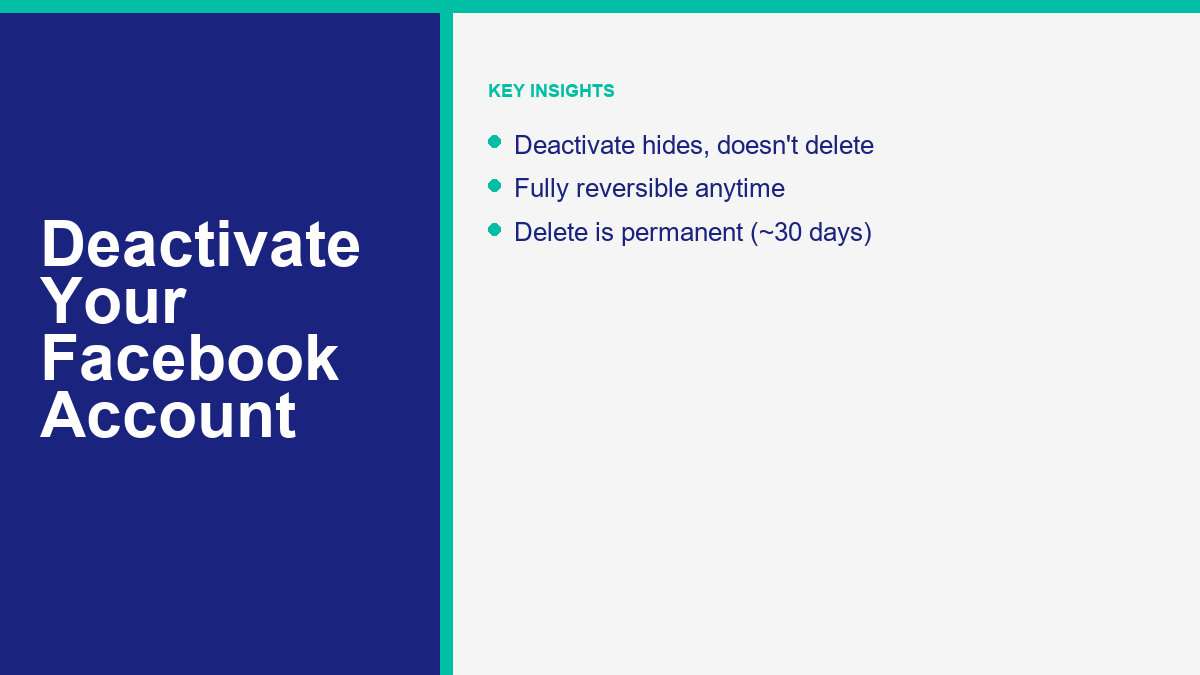
Before proceeding, you need to understand the distinct paths Meta provides. Choosing the wrong option can result in losing your account forever. Deactivation is a temporary action. When you deactivate, your profile, photos, posts, and videos are hidden from public view. Other users cannot search for your profile, view your timeline, or see your friends list. However, Meta retains all your data safely. The moment you decide to return, you can reactivate your account simply by logging back in with your username and password. Everything will appear exactly as you left it.
Deletion is permanent. Once you request deletion, Meta schedules your account for removal. There is a short grace period where you can cancel the request, but once that window closes, your photos, posts, messages, and linked pages are deleted from the database. If you are trying to restore access to an account you already scheduled for removal, you must act quickly. If you have already deleted your account and changed your mind, you might want to read our guide on how to recover a deleted Facebook account in 2026 step-by-step to see if your data can still be saved. Knowing the difference between these two options ensures you do not make a mistake you cannot undo.
For most users looking for a temporary digital detox, deactivation is the recommended choice. It acts as a safety net. You get all the benefits of disappearing from the platform without the anxiety of losing your digital history. If you are running an online business or managing pages, deactivation also gives you time to delegate control. If you choose deletion, you lose everything. With deactivation, your data remains intact, waiting for your return.
Another key distinction lies in how your connected applications behave. Many websites and mobile apps use Facebook Login for authentication. If you deactivate your Facebook account, you can still use it to log into these third-party platforms. However, doing so might automatically reactivate your Facebook profile. In contrast, permanently deleting your account completely severs these login credentials, meaning you will lose access to any external services linked to your Facebook credentials. You would need to contact the support teams of those external services to recover your logins.
What Happens When You Deactivate Your Facebook Profile
Deactivating your profile has specific consequences across the platform. First, your profile picture and name are removed from most things you have shared. If friends look for you in their friend lists, your name might still appear, but your profile picture will be replaced with a default gray silhouette. Your name will also be unclickable, meaning no one can visit your page. For all practical purposes, you will look like a ghost on the platform.
Second, your messages to friends remain visible in their chat histories. Even though your profile is deactivated, your past conversations are not deleted from your friends’ inboxes. Your name in their inbox might show up as “Facebook User” instead of your actual name, and they will not be able to click on your name to view your profile. If you have sent photos or documents in these chats, those files remain accessible to the recipients.
Third, your administrative roles on Facebook Pages are affected. If you are the only administrator of a Facebook Page, that Page will be deactivated alongside your personal account. It will disappear from public search results and will not be accessible to visitors. If you want the Page to remain online while your personal profile is deactivated, you must add another trusted user as an administrator and assign them full control before you begin the deactivation process. Once they accept the role, the Page will stay live under their management while you are away.
Fourth, group posts and comments require attention. Your posts, comments, and reactions inside Facebook Groups do not disappear. Group administrators and members can still see them. However, your name will not link back to any active profile. If you are a group moderator or administrator, your group status might be paused or transferred depending on how the group settings are configured. If you manage active online communities, make sure to set up co-admins to keep the group running smoothly.
How to Deactivate Facebook on Desktop (Step-by-Step)
Deactivating your account on a desktop computer requires navigating the Meta Accounts Center. Follow these steps to complete the process on your web browser:
First, open your preferred web browser, navigate to the Facebook website, and ensure you are logged into the profile you wish to deactivate. In the top right corner of the homepage, click on your profile picture. A dropdown menu will appear. Select “Settings & privacy” from this list, and then click on “Settings” in the submenu that follows.
Second, locate the Accounts Center panel. In the left-hand column of the Settings screen, you will see a box labeled “Accounts Center” containing your profile icon and name. Click on this box to open the full Accounts Center dashboard. This dashboard is where Meta groups your settings for Facebook, Instagram, and connected VR accounts.
Third, navigate to your personal settings. Inside the Accounts Center dashboard, look under the “Account settings” section on the left-hand menu and click on “Personal details.” This section contains your contact information, birthday, identity confirmation settings, and account management tools.
Fourth, open the ownership controls. On the main “Personal details” screen, click on the option labeled “Account ownership and control.” A popup menu will offer options for memorialization or deactivation/deletion. Click on “Deactivation or deletion.”
Fifth, select your account. You will see a list of profiles linked to your Accounts Center. Select the Facebook profile you want to temporarily deactivate. This will open the deactivation and deletion settings screen.
Sixth, choose the deactivation option. The screen will display two choices: “Deactivate account” and “Delete account.” The deactivation option is selected by default. Make sure this option is checked, then click the blue “Continue” button at the bottom of the screen.
Seventh, enter your security credentials. For security reasons, Meta requires you to enter your password before making changes to your account status. Type your password into the input field and click “Continue.”
Eighth, provide a reason. Facebook will ask you to select a reason for leaving, such as “This is temporary, I’ll be back” or “I have privacy concerns.” Select the option that matches your situation and click “Continue.” If you choose the temporary option, Facebook might offer you a setting to automatically reactivate your account after a set number of days (from 1 to 7 days). You can also choose to reactivate only when you log back in manually.
Ninth, review the final confirmation. The final screen warns you about what will happen to your Pages, Messenger access, and application logins. Review this information carefully. When you are ready, click the “Deactivate My Account” button to finalize the process. Your browser will log you out, and your profile will be hidden immediately.
If you are only deactivating because of privacy concerns, you should check why does my Facebook not have profile locking to see if you can secure your profile without hiding it completely. Profile locking is a useful privacy tool that limits who can view your posts and photos without requiring you to deactivate your entire account. Checking your region’s settings might help you find a simpler alternative to a complete account pause.
How to Deactivate Facebook on Mobile (Android & iPhone)
If you prefer to use your mobile device, you can deactivate your account directly through the official Facebook mobile app for Android or iOS. The interface is similar to the desktop version but optimized for smaller screens. Follow these instructions to deactivate on mobile:
First, open the Facebook app on your mobile phone or tablet and verify that you are logged into the correct account. Tap the menu button, which is represented by three horizontal lines and your profile picture. On iPhones, this menu icon is located in the bottom right corner of the navigation bar. On Android devices, you will find this icon in the top right corner of the screen.
Second, access the settings menu. Scroll down the menu screen and tap on “Settings & privacy” to expand the options. Select “Settings” from this dropdown. Alternatively, you can tap the small gear icon located in the top right corner of the menu screen for a faster shortcut.
Third, open the Accounts Center. At the very top of the Settings menu, you will see a card labeled “Accounts Center” with a link that says “See more in Accounts Center.” Tap this card to open the Meta Accounts Center dashboard.
Fourth, select your personal details. In the Accounts Center menu, scroll down to the “Account settings” header and tap on “Personal details.” This will bring up your private contact information and management options.
Fifth, open the ownership settings. Tap on “Account ownership and control” at the bottom of the Personal details menu. Next, tap on the “Deactivation or deletion” option.
Sixth, select the correct profile. Choose your Facebook account from the list of profiles displayed. If you have Instagram accounts linked, they will also appear here, but you must select the Facebook profile specifically.
Seventh, confirm deactivation selection. Select the radio button next to “Deactivate account” and tap the blue “Continue” button. You will be redirected to the security verification screen.
Eighth, complete security verification. Enter your Facebook password when prompted and tap “Continue.” Select your reason for deactivating from the list of options provided and tap “Continue.”
Ninth, finalize your account deactivation. Review the warning screen about your Messenger status and Page administration. Scroll to the bottom and tap “Deactivate my account” to complete the process. The app will log you out, returning you to the initial login screen.
What People Can Still See After Your Profile is Deactivated
A common concern is whether deactivation truly hides your presence on the platform. The answer is that while it hides your active profile, it does not wipe your historical interactions clean. Understanding what remains visible helps you manage your privacy expectations during your break.
First, your private messages in Facebook Messenger remain fully visible to the people you chatted with. Because Messenger can be kept active independently, your friends can still search for you in their Messenger contacts, send you new messages, and read through old chats. If you did not deactivate Messenger separately, your profile photo will still appear in their chat threads, and they will see when you were last active.
Second, your comments and posts on public pages or within active groups do not disappear. If you commented on a news post or asked a question in a neighborhood group, that comment remains visible. However, your name will appear as plain text instead of a clickable hyperlink, and your profile picture next to the comment will be replaced by the default gray silhouette. Group members can read your past contributions, but they cannot click through to view your profile or send you a friend request.
Third, photo tags might behave differently. If friends have tagged you in their photos, the tag might remain, but the link to your profile will be broken. In some cases, the tag itself might disappear or revert to plain text. If you are tagged in comments, your name will appear, but it will not link back to anything. Once you reactivate your account, all these links and tags will be restored automatically.
Fourth, Marketplace messages deserve attention. If you have been buying or selling items on Facebook Marketplace, your active listings will be paused and hidden from buyers. However, your past chat conversations with buyers or sellers will remain in their inboxes. If you notice that your Marketplace listings are missing or you are having trouble with access, read why does my Facebook not have marketplace today for troubleshooting tips. Keeping your Marketplace chats clear is important if you plan on returning to sell items later.
Keeping Messenger Active While Deactivating Facebook
One of the best features of Meta’s account management is the ability to deactivate your Facebook account while keeping your Messenger account fully active. This allows you to step away from the social feed, status updates, and public comments without losing touch with your friends, family, or business contacts.
During the deactivation process, Facebook will ask you if you want to continue using Messenger. If you check this option, your Messenger account will remain active. You can continue to use the Messenger app on your mobile device, log into the web version of Messenger on your desktop, and chat with your contacts. Your profile picture will remain visible in Messenger, and people can still search for you by name within the Messenger application.
If you decide later that you want to deactivate Messenger as well, you must do so separately. You cannot deactivate Messenger without first deactivating your Facebook account. Once your Facebook profile is deactivated, you can open the Messenger app, go to your settings, navigate to the Accounts Center, and follow the deactivation steps for Messenger specifically. This two-step process ensures you have granular control over your digital communication channels.
For business owners who want to automate their client outreach or support during their personal account breaks, exploring a messenger bot for business is a smart way to keep your page active and responsive. Even if you are taking a break from your personal feed, your business pages can continue to capture leads, answer customer questions, and deliver resources automatically. You can Xem giá cả của MessengerBot to find a plan that works, or read about Các tính năng của MessengerBot Pro to see how automation saves time.
How to Reactivate Your Facebook Account
Reactivating your Facebook account is designed to be as frictionless as possible. Unlike permanent deletion, which requires you to act within a strict time limit, there is no expiration date on account deactivation. Your profile can remain deactivated for months or even years, and your data will remain stored on Meta’s servers.
To reactivate your account, follow these simple steps:
First, open the Facebook homepage on a desktop browser or launch the Facebook mobile app on your phone or tablet. Enter the email address or mobile phone number associated with your deactivated account, along with your password. Click the “Log In” button.
Second, complete any security prompts. If you have two-factor authentication enabled, you will need to enter the verification code sent to your phone or authentication app. Once you complete this step, your account will be fully reactivated instantly.
Third, check your settings. Your friends list, photos, posts, and page admin roles will be restored immediately. In some cases, it might take a few hours for all your old posts and search history index items to reappear fully across the platform, but you can begin using the site right away.
If you have forgotten your password during your break, you can use the “Forgot password?” link on the login screen. Facebook will send a password reset link to your registered email address or phone number, allowing you to create a new password and reactivate your profile. If you have deactivated your account and lost access to your recovery email, you may need to submit identity documentation to Meta’s support team to regain access.
If You Want to Permanently Delete Your Account Instead
If you decide that you are finished with Facebook forever and do not want to return, you can opt for permanent deletion. This is a irreversible action that completely deletes your digital footprint from the platform. Once the process is complete, you cannot retrieve your photos, posts, or messages.
To delete your account, follow the same initial steps as deactivation. Navigate to the Accounts Center, click on “Personal details,” select “Account ownership and control,” and click on “Deactivation or deletion.” Choose your Facebook account, but instead of deactivating, select the radio button next to “Delete account” and click “Continue.”
Before confirming the deletion, Facebook will offer you several tools to manage your information. We highly recommend downloading a copy of your Facebook data. This tool packages your photos, videos, posts, messages, and settings into a downloadable archive file. You can save this file to your computer or transfer it to another cloud storage service before your account is removed.
Once you click the final “Delete Account” button, your account will immediately become inaccessible. However, Meta does not delete your data instantly. They provide a 30-day grace period. If you change your mind within this time, you can log back in and cancel the deletion request. After the 30 days have passed, the deletion process begins, and it can take up to 90 days for Meta to completely remove all your data from their backup systems.
Câu hỏi Thường gặp
Can I deactivate my Facebook but keep Messenger?
Yes. You can deactivate your main Facebook profile and choose to keep using Messenger. During the deactivation settings flow in the Accounts Center, you will be prompted with options regarding your connected apps. Ensure that you do not select the option to deactivate Messenger as well. This settings control allows your contacts to search for you and message you, and your chat threads will remain active in the Messenger application.
How long can my Facebook account remain deactivated?
There is no time limit for account deactivation. Your account will remain deactivated indefinitely until you decide to log back in. Meta does not delete deactivated accounts for inactivity, meaning your photos, posts, and friend lists will be preserved until you decide to return. This makes deactivation a safe option for long-term breaks.
Will my friends be notified if I deactivate my account?
No. Facebook does not send notifications or alerts to your friends when you deactivate your account. Your profile will simply disappear from their friends lists, and your name will no longer appear in search results. Your past comments and messages will remain visible, but your name will be displayed as unclickable text.
What happens to my Facebook Pages if I deactivate my personal account?
If you are the sole administrator of a Facebook Page, that Page will be deactivated and hidden from public view alongside your personal profile. If you want the Page to remain active, you must add another user as an administrator and assign them full control before deactivating your personal account. This ensures the Page remains accessible and active under their management.
Can people search for me when my account is deactivated?
No. When your Facebook account is deactivated, your profile is hidden from the public. If someone searches for your name in the Facebook search bar, your profile will not appear in the results. Even your friends will not be able to find your profile page through search or by clicking on historical tags on their timelines.


 Tiếng Việt
  English
  Tagalog
  简体中文
简体中文  العربية
  हिन्दी
  Português do Brasil
  Español de México
  Français
  বাংলা
বাংলা  香港中文
香港中文  繁體中文
繁體中文  Nederlands
  Deutsch
  Bahasa Indonesia
  日本語
日本語  한국어
한국어  Polski
  Русский
  Español