
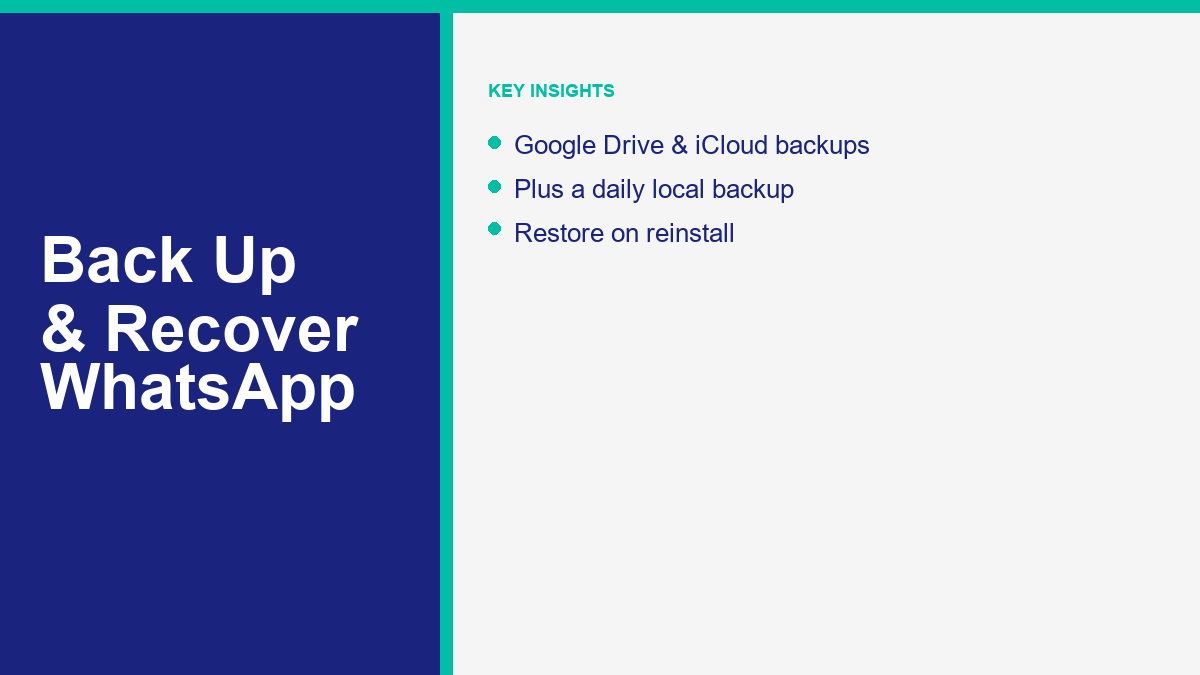
Losing your chat history can disrupt your personal connections, professional networking, and business operations. Whether you dropped your mobile device in water, upgraded to a new smartphone, or accidentally cleared an important conversation, the urgency to restore your data is immediate. The process of backing up and recovering WhatsApp messages in 2026 relies on understanding how the application manages database records, cloud storage integrations, and local hardware directories. Unlike traditional social media platforms that keep all your messages on a central cloud server, WhatsApp prioritizes user privacy. It stores your chats directly on your device using end-to-end encryption. Consequently, without a proactive backup strategy, recovering lost chats can become an extremely difficult or impossible task.
Many users confuse chat deactivation or archiving with actual account deletion, which can lead to unnecessary confusion. When you delete a message or uninstall the application, the database pointers to that specific text are removed. Since the data is encrypted on your device using local key configurations, WhatsApp support teams do not have access to your chat logs and cannot restore them for you. This makes it vital to understand the native backup mechanisms built into the application. By utilizing cloud systems like Google Drive on Android or iCloud on iOS, alongside the automatic local backup files generated by the application, you can safeguard your conversations against hardware failure or accidental loss.
This guide provides a detailed, practical walkthrough of how WhatsApp backups work, step-by-step instructions for configuring cloud and local backups, and clear guidelines for restoring your chats on a new phone or the same device. We will also address what steps you can take to recover deleted messages if you do not have a backup, how to recover recently deleted chats, and how to troubleshoot common backup errors. By implementing these practices, you can ensure your communication histories remain intact and accessible whenever you need them.
Understanding How WhatsApp Backups Function Across Devices
Before you can recover a deleted chat thread, you must understand the underlying database structure and storage methods utilized by WhatsApp. Because the platform uses secure, device-side encryption, your chats are stored in a database file format on your phone’s storage. To protect this data against device loss, WhatsApp has built integrations with the two major mobile operating systems to sync these databases with external cloud servers. It also creates a local backup database directly on your phone’s memory cards or internal flash storage.
On Android devices, WhatsApp integrates with your Google account to perform cloud backups to Google Drive. When this feature is active, the app packages your chat databases, including text records, contact associations, settings, and media files, into a secure container. It then uploads this container to a hidden application folder within your Google Drive storage. This hidden folder is managed automatically by the application, meaning you cannot browse the raw database files directly through the Google Drive web interface. The backup script runs in the background at designated intervals, usually when your phone is connected to Wi-Fi and plugged into a power outlet. It is linked directly to the specific phone number and Google account used during setup. If you change phone numbers without using the official transition tools, or if you lose access to your Google account, you will not be able to retrieve this backup database.
For iPhone users, WhatsApp utilizes Apple’s iCloud infrastructure. When you enable chat backups on iOS, your chat history and photos are packaged and sent to your iCloud Drive storage. Unlike Android, iCloud backup sizes can quickly reach the free storage limits set by Apple, which is currently capped at 5GB for free iCloud accounts. Because of this, WhatsApp disables video backups by default on iOS, though you can manually toggle this setting if you have sufficient cloud space. The iCloud sync occurs in the background when your phone is locked, connected to a stable Wi-Fi network, and connected to power. The backup is linked to your active Apple ID and the specific phone number verified on the account. To maintain privacy, you can also enable password-protected end-to-end encrypted backups, which encrypts your cloud backup with a unique security key that Apple cannot access or reset.
In addition to cloud backups, Android users benefit from an automatic local backup system that runs directly on the device. Every single day at 2:00 AM, WhatsApp’s database manager runs a script that creates a snapshot of your chat history. It saves this snapshot on your device’s internal storage. On modern Android versions, these files are saved in the directory Android/media/com.whatsapp/WhatsApp/Databases, while older versions store them in /sdcard/WhatsApp/Databases or Internal Storage/WhatsApp/Databases. WhatsApp maintains a rolling archive of these local database files for the last seven days. The primary database is named msgstore.db.crypt14 (or a newer crypt standard like crypt15 depending on current software updates), while the older database snapshots are timestamped, such as msgstore-YYYY-MM-DD.1.db.crypt14. These local database backups act as a secondary recovery route if you need to restore your chats without an active internet connection or a Google Drive backup.
Step-by-Step Setup: How to Back Up Your Chats Manually
Configuring your backup settings before you face an emergency is the most effective way to prevent permanent data loss. If you plan to reset your device, update your operating system, or switch to a new phone, you should trigger a manual backup immediately prior to making the change. This ensures that even your most recent conversations are uploaded to the cloud.
To configure and run a manual backup on an Android phone, open the WhatsApp application on your device. Tap the three vertical dots located in the top-right corner of the main screen to open the options menu. Tap “Settings” at the bottom of this menu, and then select “Chats”. From the Chats menu, scroll down to find and select “Chat backup”. Here, you will see details about your last backup, including the size and date. Tap the green “Back Up” button to start an immediate backup to Google Drive. To automate this process, look at the “Google Drive settings” section below the button. Tap “Back up to Google Drive” and select your preferred frequency. Choosing a daily backup schedule is highly recommended for active users. Next, select the correct Google Account where the files should be saved. Tap “Back up over” and select “Wi-Fi” to avoid using your cellular data plan, or choose “Wi-Fi or cellular” if you have an unlimited data plan. Finally, you can toggle the “Include videos” switch on if you wish to back up video clips, although this will increase the size of your backup files.
To set up and execute a backup on an iPhone, open WhatsApp and tap the “Settings” gear icon situated in the bottom-right corner of the navigation bar. Tap “Chats” and then select “Chat Backup”. The screen will display the details of your previous iCloud backup. Tap the “Back Up Now” button to start a manual upload to your iCloud Drive. To schedule automated backups, tap “Auto Backup” and select your frequency (Daily, Weekly, or Monthly). You can toggle the “Include Videos” switch to control whether video attachments are uploaded to iCloud. If you require enhanced security, tap “End-to-end Encrypted Backup” and follow the onscreen instructions to establish a custom password or generate a 64-digit encryption key. Store this password in a secure password manager, as WhatsApp support cannot recover it for you if you forget it during restoration.
Keeping your communication backups secure is crucial when managing multiple platforms. If you are developing customer service channels or automating business interactions, you can use our Telegram bot tutorial to build automated responses and structure conversations across alternative messaging systems, helping you protect your customer histories.
How to Restore WhatsApp Chat History on Same or New Devices
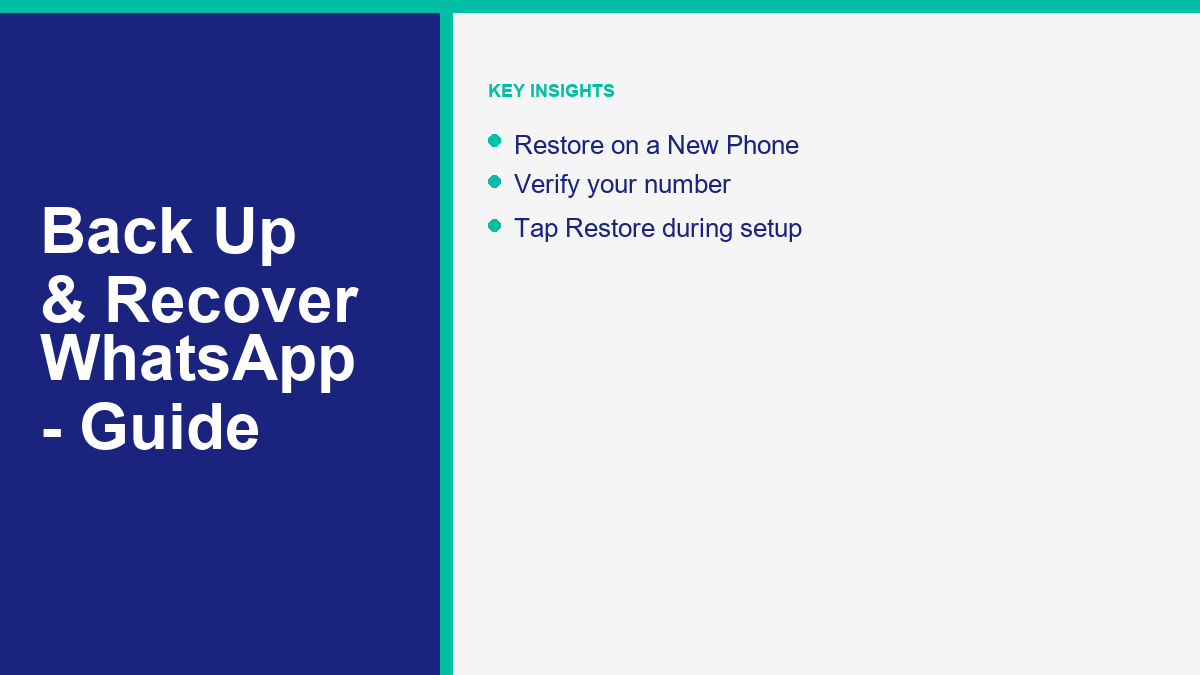
Once you have configured and verified your cloud backups, restoring your chat history onto a new smartphone or a reinstalled application is simple. The restoration process is built into the initial setup and number verification phase of the WhatsApp installation.
To restore your chat history from a Google Drive or iCloud backup, first download and install the official WhatsApp application from the Google Play Store or Apple App Store. Open the app on your device, choose your language, and agree to the terms of service. The application will prompt you to enter your mobile phone number. You must input the exact same phone number that was used to create your backup. Complete the verification process by entering the six-digit SMS code sent to your device. Once your phone number is verified, WhatsApp will scan your cloud account (Google Drive on Android or iCloud on iOS) to find any existing backup file associated with that number.
When the application locates the backup, it will display a recovery screen indicating the date the backup was created, the account name, and the total file size. Tap the “Restore” button to initiate the recovery. It is critical that you do not tap the “Skip” option, as you cannot run the restore process later without uninstalling the app and starting the setup steps from the beginning. The restoration utility will download and reconstruct your chat databases. A progress bar will show the percentage completed. Once the database is restored, tap “Next” to set up your profile name and picture. You can begin reading and sending messages immediately, while your photos, voice notes, and videos will continue downloading in the background. Ensure your phone remains connected to Wi-Fi to allow media files to download without interruption.
If you are using an Android phone and do not have a cloud backup, or if you need to restore your chat history to an older state, you can restore from a local backup file. Start by downloading a file explorer application from the Play Store to access your phone’s storage directories. Open the file manager and navigate to the directory: Android/media/com.whatsapp/WhatsApp/Databases or Internal Storage/WhatsApp/Databases. In this folder, look at the database files. The latest backup is named msgstore.db.crypt14 (or similar crypt extension), while older backups are named msgstore-YYYY-MM-DD.1.db.crypt14. Select the database file from the date you wish to restore. Rename it from its timestamped name to msgstore.db.crypt14 by removing the date prefix.
Next, uninstall WhatsApp from your Android device. Before reinstalling, you must prevent WhatsApp from searching Google Drive, which would bypass the local file. You can do this by logging out of your Google account in your phone’s settings or temporarily turning off Wi-Fi and mobile data so your device is offline. Reinstall WhatsApp from the Play Store, open the application, and verify your phone number. Because the device cannot access Google Drive, WhatsApp’s setup script will scan your local storage directories and locate the renamed msgstore.db.crypt14 file. Tap “Restore” and wait for the local database to load. Once the process is complete, turn your internet connection back on and log back into your Google account.
Recovering Deleted WhatsApp Messages Without a Backup
If you have accidentally deleted a chat history and discover that you have no Google Drive or iCloud backup, and your local database files have already rotated past the seven-day retention limit, your recovery options are severely restricted. In this scenario, you must understand the technical architecture of WhatsApp and avoid common security pitfalls.
WhatsApp is designed with privacy as a core principle. Because of end-to-end encryption, conversations are decrypted only when they reach the recipient’s or sender’s device. WhatsApp’s company servers do not store your chat logs once they are delivered. When you delete a message on your device, the pointers within your phone’s SQLite database are marked as deleted, and the physical memory storage blocks are flagged as reusable space. There is no central server, archive, or database administrator that can retrieve these deleted records.
You should be highly skeptical of online advertisements promoting “WhatsApp recovery software” or data retrieval tools. Many of these programs make unrealistic promises, claiming they can scan your device’s memory chips and recover deleted databases without a backup. In practice, these tools are often ineffective, and some require you to root your Android device or jailbreak your iPhone. Performing these actions bypasses your phone’s built-in operating system security, voiding your warranty and exposing your personal data to malware. Some recovery utilities are simple scams designed to charge subscription fees or steal your login credentials. Do not install unverified software or grant administrative permissions to applications promising instant message recovery.
The most reliable and safe method to recover your missing chats without a backup is to ask the person you were messaging to export the chat history from their device. Since you only deleted the conversation on your phone, the chat log remains completely intact on the recipient’s phone.
They can export the conversation by following these steps:
1. Open WhatsApp and tap on the chat thread they shared with you.
2. Tap the contact’s name at the top of the chat (iOS) or tap the three dots in the top-right corner (Android).
3. Select “More” and then tap “Export Chat”.
4. Select “Without Media” to generate a lightweight text document, or select “Include Media” to package all shared photos and files.
5. Send the generated ZIP folder or .txt file to your email, Google Drive, or share it via another communication platform.
Once you receive the file, you can open the text document on your computer or phone to read the chat history.
Securing data flow is crucial when implementing messaging systems for business client outreach. If you want to build automated communication channels without complex coding, you can use a 免費的 WhatsApp 聊天機器人 setup to configure structured messaging templates and maintain reliable database records of customer interactions, reducing the risk of data loss.
Recovering Recently Deleted Chats and Disappearing Messages
Sometimes, chats that seem to have been deleted have actually just been hidden from view due to user error or specific chat settings. Before attempting complex database restores, check these common settings to see if your chats are still accessible on your device.
The most frequent mistake is accidentally archiving a chat instead of deleting it. The “Archive” feature allows you to hide conversations from your main chat list to keep your inbox organized, but it does not delete any of the messages.
To check if your missing conversations are archived:
1. Open WhatsApp on your device and scroll to the very top of your inbox list.
2. Swipe down on the screen (iOS) or look at the top of the chat list (Android) to locate the “Archived” folder.
3. Tap “Archived” to view the list of hidden chats.
4. If you see the chat thread you were looking for, press and hold the conversation (Android) or swipe left (iOS) and select the “Unarchive” option. The conversation will immediately return to your primary chat list.
If you notice that messages are missing from a specific contact, check if “Disappearing Messages” is enabled for that chat. This feature automatically deletes messages after a set period, which can be 24 hours, 7 days, or 90 days.
To check this setting:
1. Open the chat thread with the contact in question.
2. Tap their profile name at the top of the screen to open the contact details.
3. Scroll down and look for “Disappearing messages”.
4. If it is enabled, you will see the active duration. Any messages sent or received while this feature was active are automatically deleted by the app’s script once the timer expires. These messages cannot be recovered.
5. Turn the setting off to ensure that future conversations are saved permanently.
On Android devices, you can utilize a built-in operating system tool to retrieve recently received messages, even if the sender has deleted them using the “Delete for Everyone” feature. Android’s notification log keeps a record of all incoming alerts.
To enable and check this log:
1. Open your Android phone’s main “Settings” app.
2. Select “Notifications” and then tap “Advanced settings”.
3. Tap “Notification history” and ensure the toggle is turned on.
4. If it was active when the message was received, you can scroll through the history log to read the text content of the message exactly as it appeared in the original notification.
Understanding how message delivery, read status, and sender deletion are managed across different networks helps you manage your communication privacy. If you want to understand read indicators on other messaging apps, you can check our analysis of can you tell if someone read your message on Messenger to learn how read receipts and Ignored message flags operate, and how they impact user interactions.
Troubleshooting WhatsApp Chat Backups and Restores
When performing backups or attempting to restore your chat databases, you may encounter system errors or stalled progress bars. Most troubleshooting issues relate to network instability, account permissions, or storage space limits.
If your Google Drive backup on Android is stuck or failing:
– Verify Cloud Storage: Log in to your Google Account and check your storage limit. Google sharing storage is capped at 15GB across Gmail, Google Photos, and Google Drive for free accounts. If your space is full, WhatsApp cannot upload the backup database.
– Update Google Services: Make sure that both WhatsApp and Google Play Services are updated to the latest versions from the Play Store.
– Refresh Google Account Link: Go to WhatsApp Settings > Chats > Chat Backup. Under Google Drive settings, tap “Google Account” and select a different account, then switch back to your primary account to re-authorize the sync.
– Disable Video Uploads: If your backup file is extremely large, open your chat backup settings and toggle off “Include videos” to reduce the file size and prevent the upload from hanging.
If your iCloud backup on iOS fails or hangs:
– Check iCloud Drive Permissions: Open your iPhone’s main Settings app, tap your name at the top, and select “iCloud”. Ensure that “iCloud Drive” is toggled on, and scroll down to verify that the toggle for WhatsApp is active.
– Verify iCloud Storage Space: iCloud free accounts only provide 5GB of storage. If your WhatsApp backup exceeds this limit, the backup will fail. You must upgrade your iCloud storage plan or disable video backups in your WhatsApp Chats settings.
– Connect to Wi-Fi and Power: iOS background backups are highly sensitive to device state. Ensure your phone is connected to a stable Wi-Fi network, plugged into a charger, and that the screen is locked to allow the background process to execute.
For business developers, maintaining clean database logs is essential for client stability. If you are automating chats across multiple messengers, check our comprehensive guide to WhatsApp bots to verify compliance with privacy rules and legal standards. If you want to review our pricing structures or see what automated platforms we offer, browse our site or click to See Our Plans to find the best chatbot solutions for your business.
Frequently Asked Questions About WhatsApp Backups and Recovery
Can I recover my WhatsApp chats if I changed my phone number?
No, you cannot directly restore a backup made under a different phone number. WhatsApp backups are linked to the specific phone number used to create them. If you plan to change your number, you must use WhatsApp’s built-in “Change Number” feature before setting up the new device. Go to Settings > Account > Change number. This migrates your chat history, groups, and backup settings to your new number, allowing you to back up and restore normally on your new device.
How can I recover WhatsApp messages deleted long ago without a backup?
If the messages were deleted long ago and you do not have a cloud or local backup, they cannot be recovered. WhatsApp does not store your chat logs on its servers due to end-to-end encryption. Once the local database rotates past its 7-day retention limit and the storage sectors on your phone are overwritten, the data is gone forever. Your only option is to ask the chat recipient to export and share the conversation with you as a text file.
Why is my WhatsApp backup stuck at 99% on Google Drive?
A backup stuck at 99% is usually caused by network issues or corrupted media files in your chat history. To resolve this, restart your device, update WhatsApp and Google Play Services, and verify your Wi-Fi connection. If the issue persists, go to WhatsApp Settings > Chats > Chat Backup, toggle off “Include Videos”, and try backing up again. Removing large videos often resolves the upload hang.
Does uninstalling WhatsApp delete my backups?
Uninstalling the application from your phone does not delete your cloud backups on Google Drive or iCloud. They remain secure in your cloud account. However, on Android, uninstalling WhatsApp will delete your local backup files stored in the internal memory unless you manually copy the “Databases” folder to another location before deleting the app. When you reinstall WhatsApp, you can restore your chat history from your cloud backup.
Can I transfer WhatsApp backups from Android to iPhone for free?
Yes, you can transfer your chat history from Android to iPhone using Apple’s official “Move to iOS” app during the initial setup of your iPhone. Both devices must be connected to the same Wi-Fi network, and the iPhone must be brand new or factory reset. During the setup process, choose “Move Data from Android” and select WhatsApp. This transfers your chat history safely without requiring third-party paid transfer software.


 香港中文
香港中文  English
  Tagalog
  简体中文
简体中文  العربية
  हिन्दी
  Português do Brasil
  Español de México
  Français
  বাংলা
বাংলা  繁體中文
繁體中文  Nederlands
  Deutsch
  Bahasa Indonesia
  日本語
日本語  한국어
한국어  Polski
  Русский
  Español
  Tiếng Việt