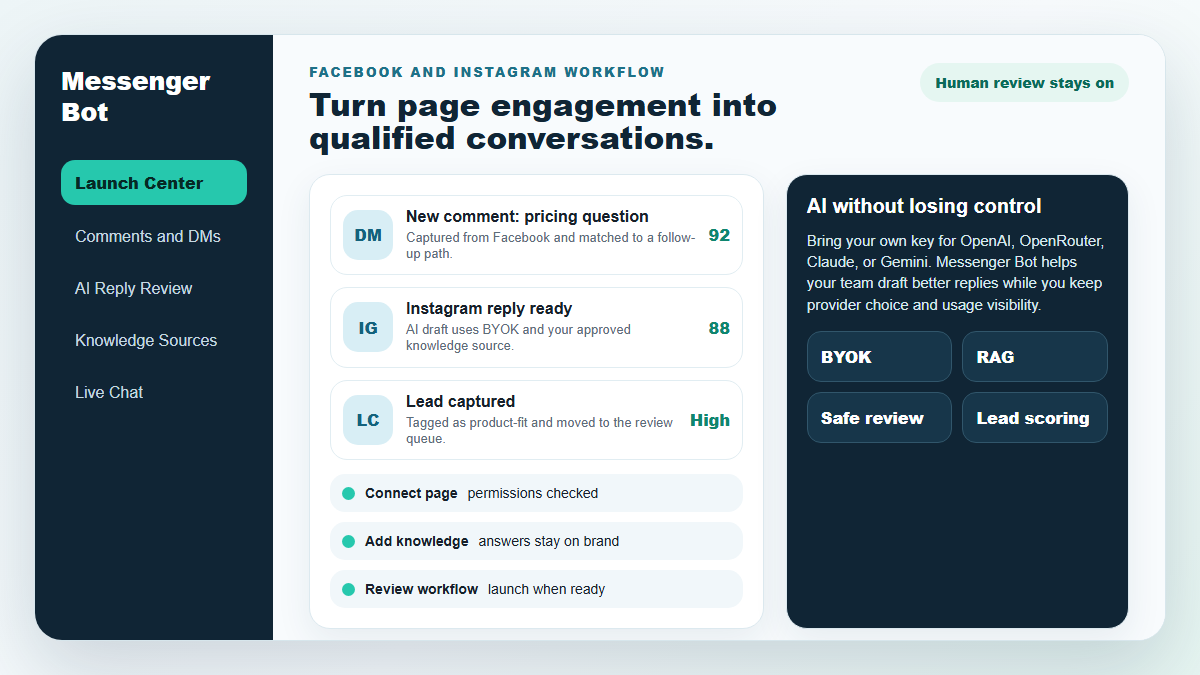
Facebook and Instagram follow-up
Turn more comments and DMs into conversations your team can close.
Start with one proven workflow, capture higher-intent leads, and use BYOK (Bring Your Own Key) AI drafts with human review before anything reaches a customer.
- Comment and DM capture
- BYOK AI reply drafts
- Human review controls
روبوت المراسلة
ستقوم الذكاء الاصطناعي لدينا بالرد تلقائيًا بذكاء على أي تعليق أو رسالة من المستخدم بناءً على ما يقولونه!
ابدأ في الرد و إرسال تعليقات ورسائل مباشرة آلية على فيسبوك، إنستغرام، أو أي موقع في بضع نقرات فقط مع قوالب جاهزة!
أنشئ تدفقات آلية تتفاعل مع المستخدمين بناءً على سلوكياتهم واحصل على المزيد من المبيعات.
احصل على مشتركين مقابل أقل من 0.25 دولار مع أدوات جذب التسويق عبر المراسلة!
مشتركون غير محدودون
جلسات دردشة غير محدودة
حملات تسلسل غير محدودة
تدفقات غير محدودة
علامات عملاء غير محدودة
متعددة اللغات وتبدو
رائعة على أي جهاز
قدم ردودًا مثالية باللغة التي تختارها! بغض النظر عن رد المستخدم، بوت ماسنجر سيتأكد من أنها مثالية!
متوافق مع فيسبوك 100%
روبوت المراسلة يخضع بانتظام لمراجعات من فيسبوك وهو تطبيق معتمد ومتوافق مع فيسبوك 100%.
يعمل مع جميع المتصفحات الرئيسية
يعمل بشكل جيد مع كروم، فايرفوكس، إيدج، وسفاري! لا حاجة لتنزيل أي مكون إضافي أو تطبيق لاستخدام بوت المراسلة، كل شيء موجود في السحابة.
مثالي لأي جهاز
تم تصميم بوت المراسلة ليبدو رائعًا على كل جهاز بما في ذلك الهواتف المحمولة، وأجهزة الكمبيوتر المكتبية، والأجهزة اللوحية!
شامل
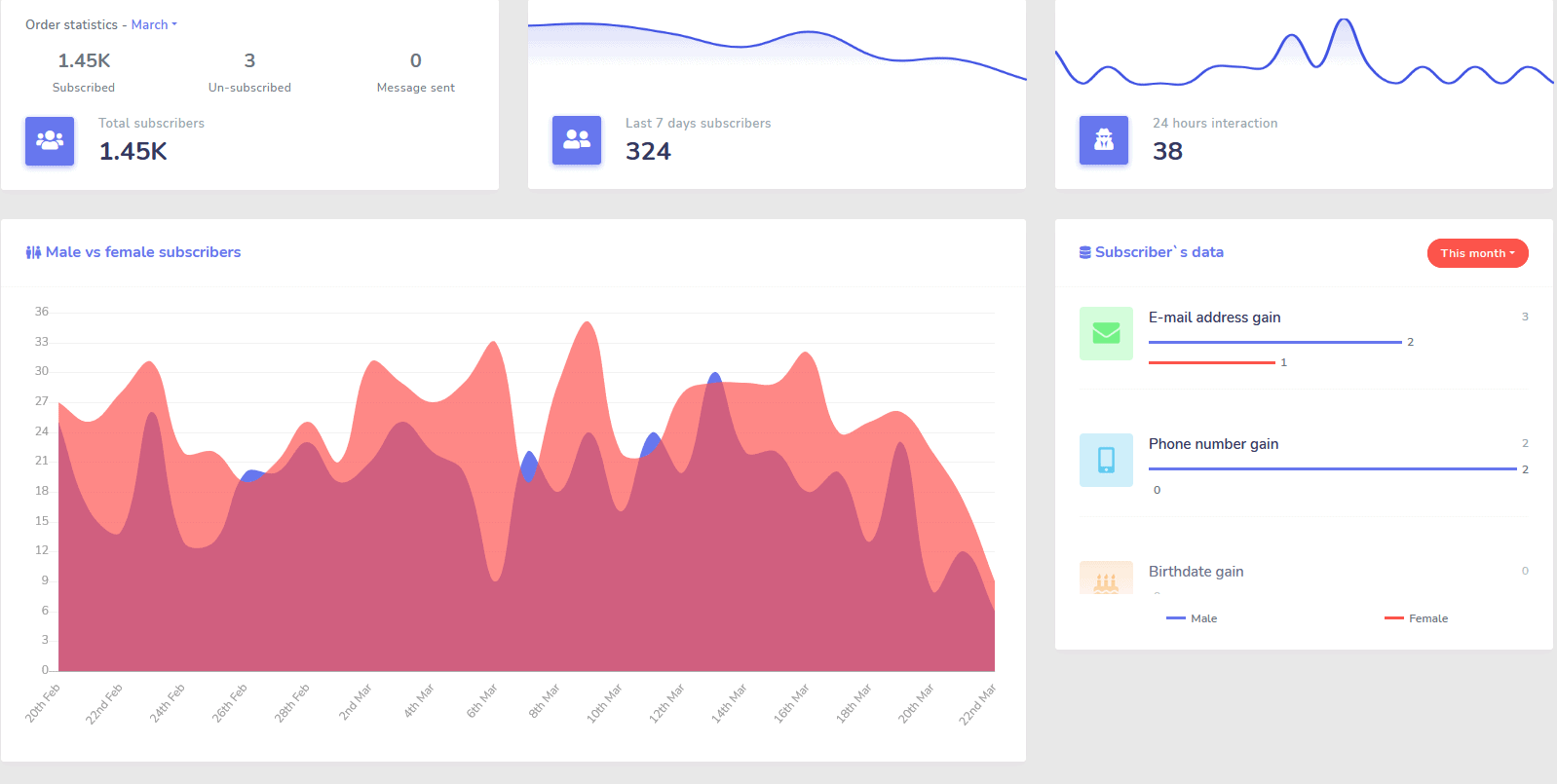
التحليلات
تحديد قنوات الأداء الأفضل لديك بسهولة والحصول على نظرة عامة واضحة عن المشتركين لديك، وكيفية أدائك، بالإضافة إلى الأماكن التي تحقق فيها أفضل/أسوأ أداء.
تتبع المشتركين، وآخر التعليقات، والحملات الأخرى بسهولة من لوحة التحكم الخاصة بك.
خفض بشكل كبير
تكلفة كل عميل ومبيعاته
مع بوت ماسنجر يمكنك أن تكون متاحًا على مدار الساعة وتقليل تكلفة كل عميل ومبيعاته من خلال تقديم المعلومات التي يبحث عنها المستخدمون على الفور!
بالإضافة إلى استخدام بوت المراسلة للغوص في واجهة برمجة تطبيقات اهتمامات فيسبوك واكتشاف جماهير لم تُكشف للمعلنين الآخرين على فيسبوك!
من خلال استهداف هذه الجماهير المخفية بإعلانات فيسبوك، يمكنك تقليل تكلفة كل عميل وتكلفة كل عملية بيع بشكل كبير على الفور.
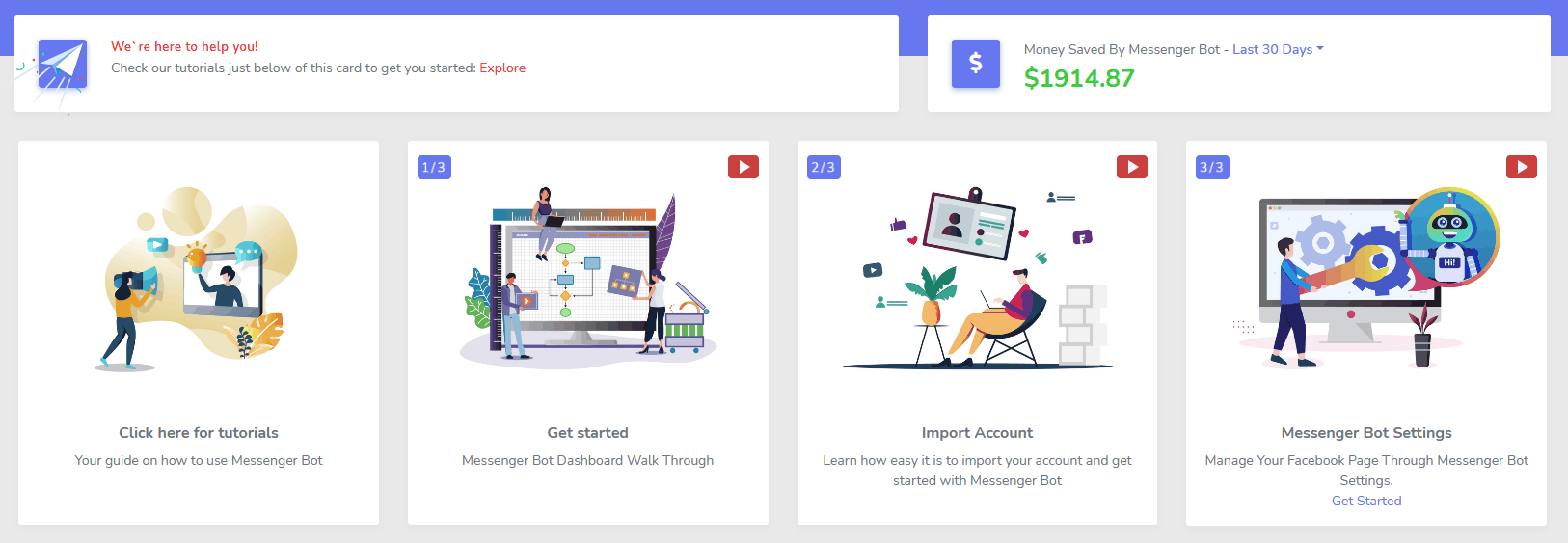
رسول
متجر التجارة الإلكترونية
ابدأ في البيع مباشرة عبر المراسلة وفي أي مكان آخر مع متجرك الإلكتروني القابل للتخصيص!
احتفظ بـ 100% من الإيرادات، مع مشاركة إيرادات 0% والعديد من معالجات الدفع للاختيار من بينها مثل باي بال، سترايب، ورايزر باي!
مضمن في جميع اشتراكات بوت المراسلة لدينا.
غير محدود
رسائل متسلسلة وإرسال جماعي
لفترة محدودة عند الطلب اليوم، ستحصل على غير محدود حملات رسائل متسلسلة وإرسال رسائل جماعي!
كن دائمًا في الوقت المحدد مع الرسائل المتسلسلة التي ترسل رسائلك المرغوبة إلى المستخدم بناءً على تأخير زمني تحدده.
وصل إلى عملائك بشكل جماعي في الوقت المناسب مع إرسال الرسائل الجماعية.
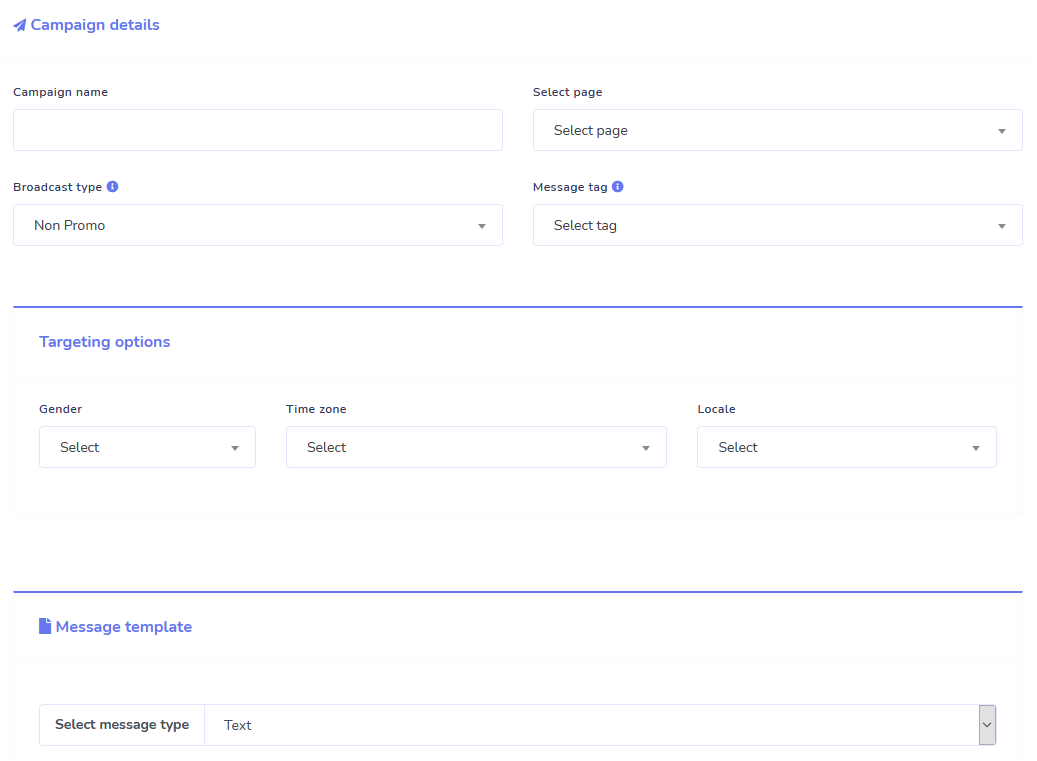
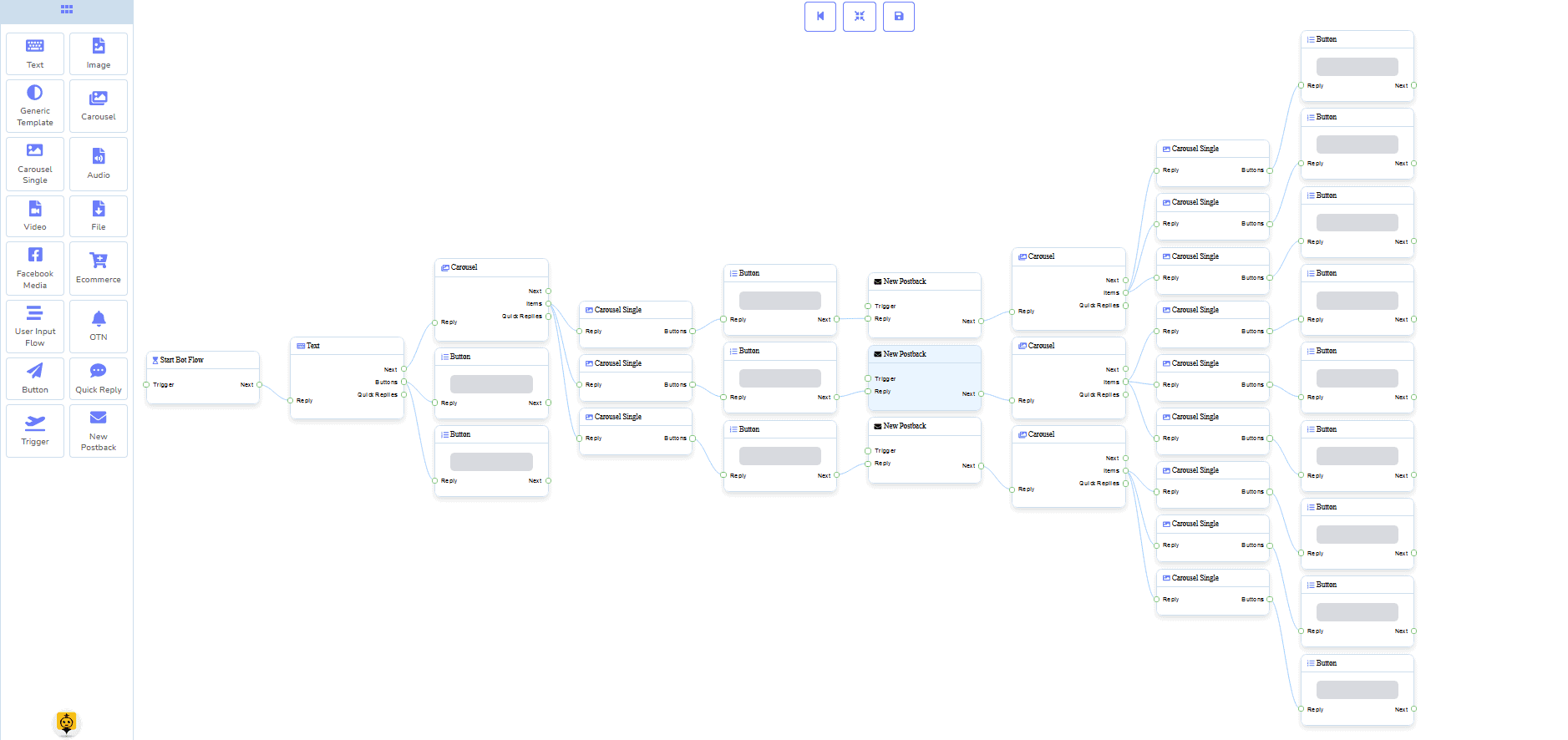
0 كود منشئ التدفقات
+ تم إنجازه من أجلك قوالب
اذهب مباشرة في بضع نقرات فقط مع قوالبنا المنجزة من أجلك!
قم بإنشاء سير العمل الآلي الخاص بك بدون الحاجة لأي برمجة باستخدام منشئنا البصري بدون كود!
هل لا يزال الأمر تقنيًا جدًا؟ دعم العملاء لدينا جاهز و مستعد لمساعدتك في بنائه!
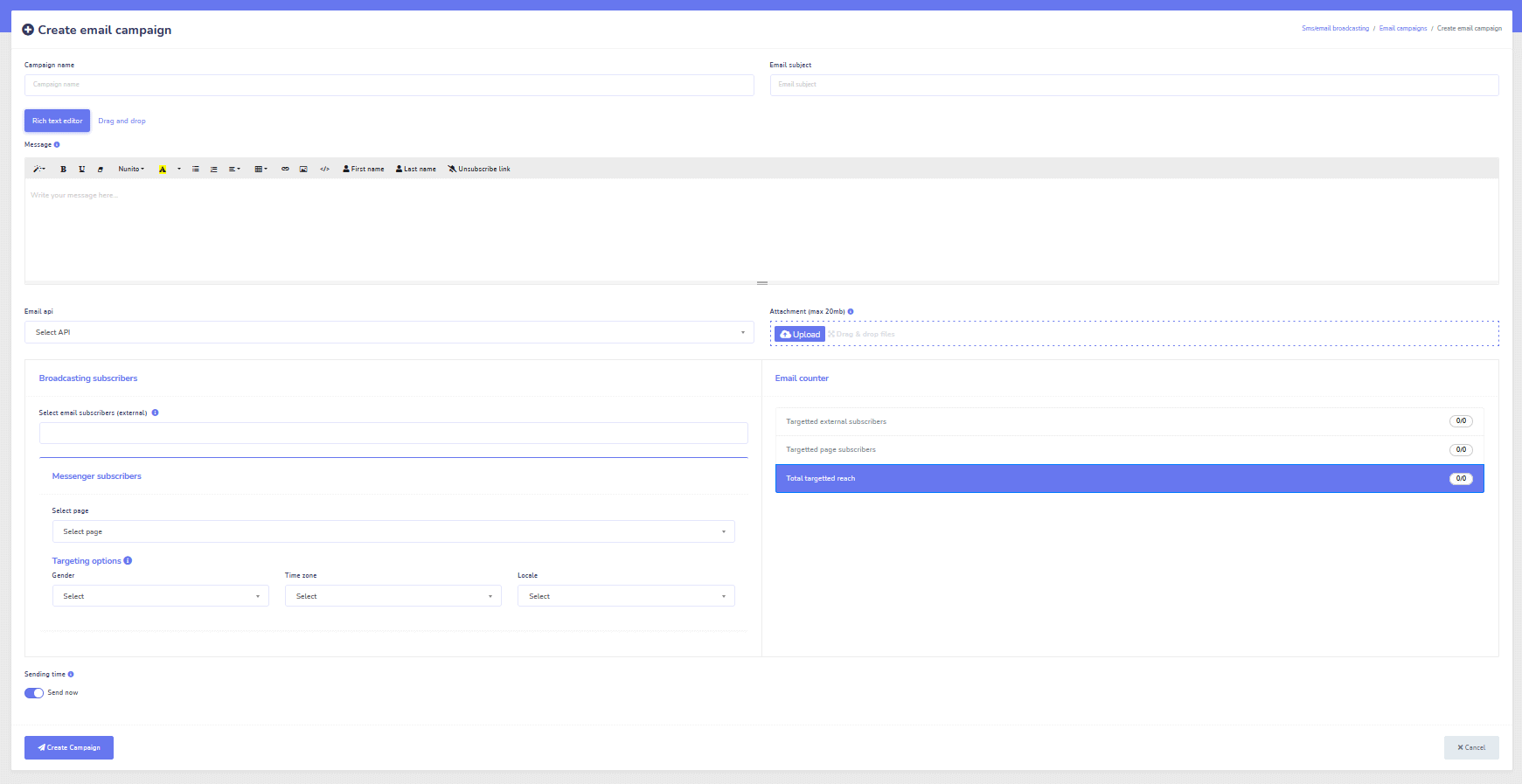
البريد الإلكتروني
الرد التلقائي، البث، التسلسل، الاشتراك، والقوالب
استجب لأي بريد إلكتروني وجميعها تلقائيًا!
أرسل بثوث البريد الإلكتروني وحملات التغذية المتقطعة.
قم ببناء قوائم المشتركين الخاصة بك وأنشئ قوالب حملات البريد الإلكتروني باستخدام منشئنا البصري!
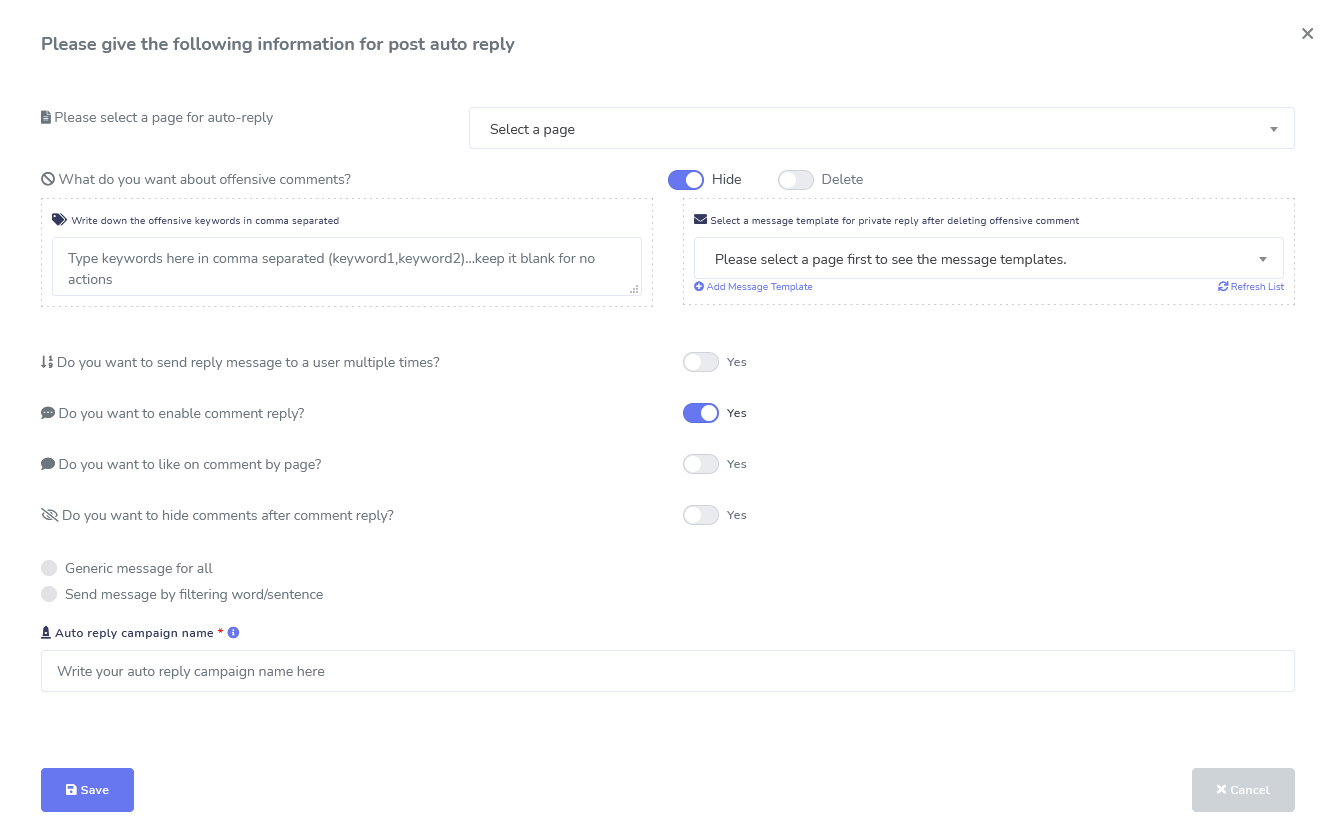
فيسبوك وإنستغرام
أدوات إدارة التعليقات، الأتمتة، النشر، والردود
مجموعة كاملة من ميزات أتمتة فيسبوك مصممة لمساعدتك في إنشاء المنشورات، جدولة المنشورات، إدارة المنشورات، والرد تلقائيًا على المنشورات، بالإضافة إلى إرسال رسائل متابعة!
مباشر أو تلقائي
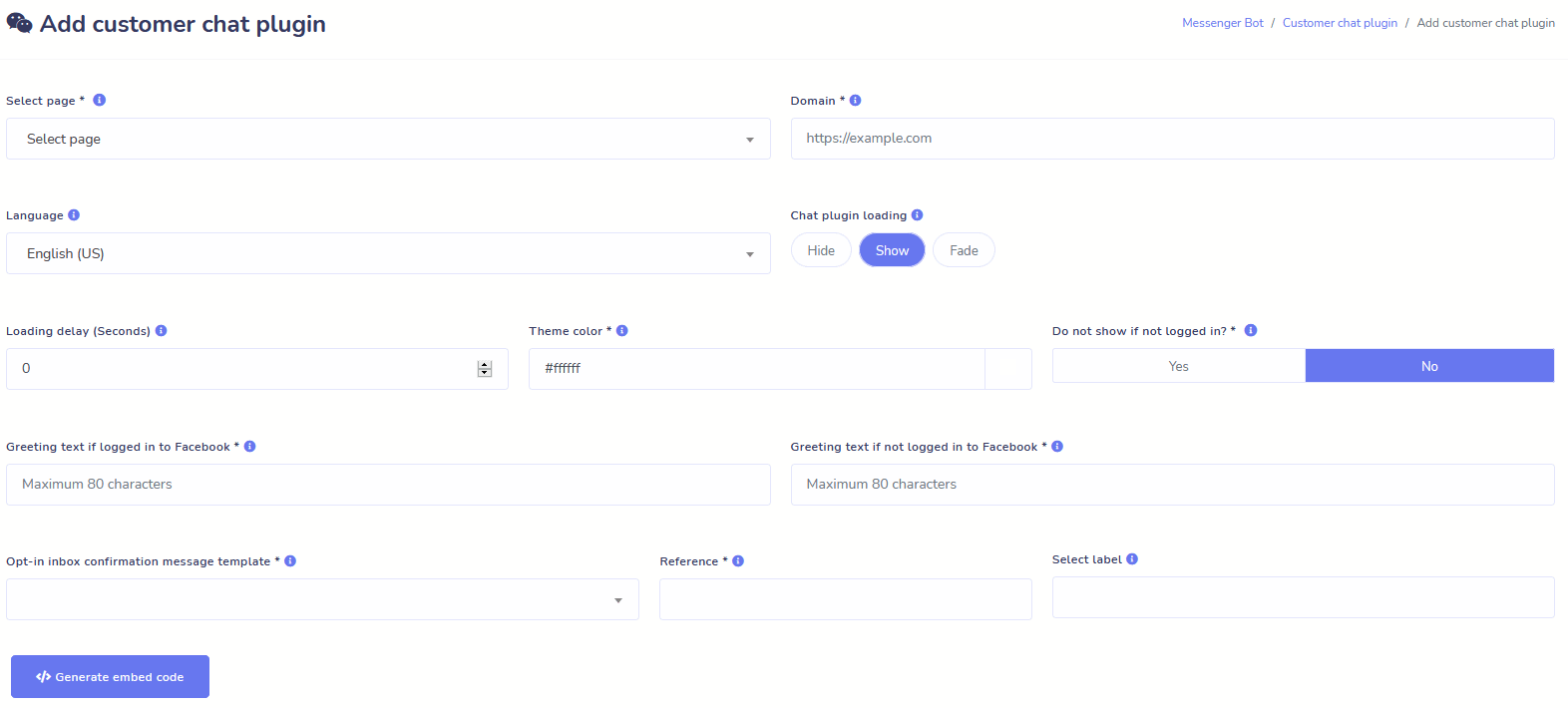
دردشة الموقع
قم بأتمتة دردشتك بالإضافة إلى السماح بالمساعدة البشرية المباشرة للزوار الذين يطلبون ذلك.
اسمح للمستخدمين بالحصول على المعلومات التي يحتاجونها عند الطلب وشاهد عملك يزدهر!
قدم لمستخدميك التجربة التي يرغبون بها في بضع نقرات فقط.
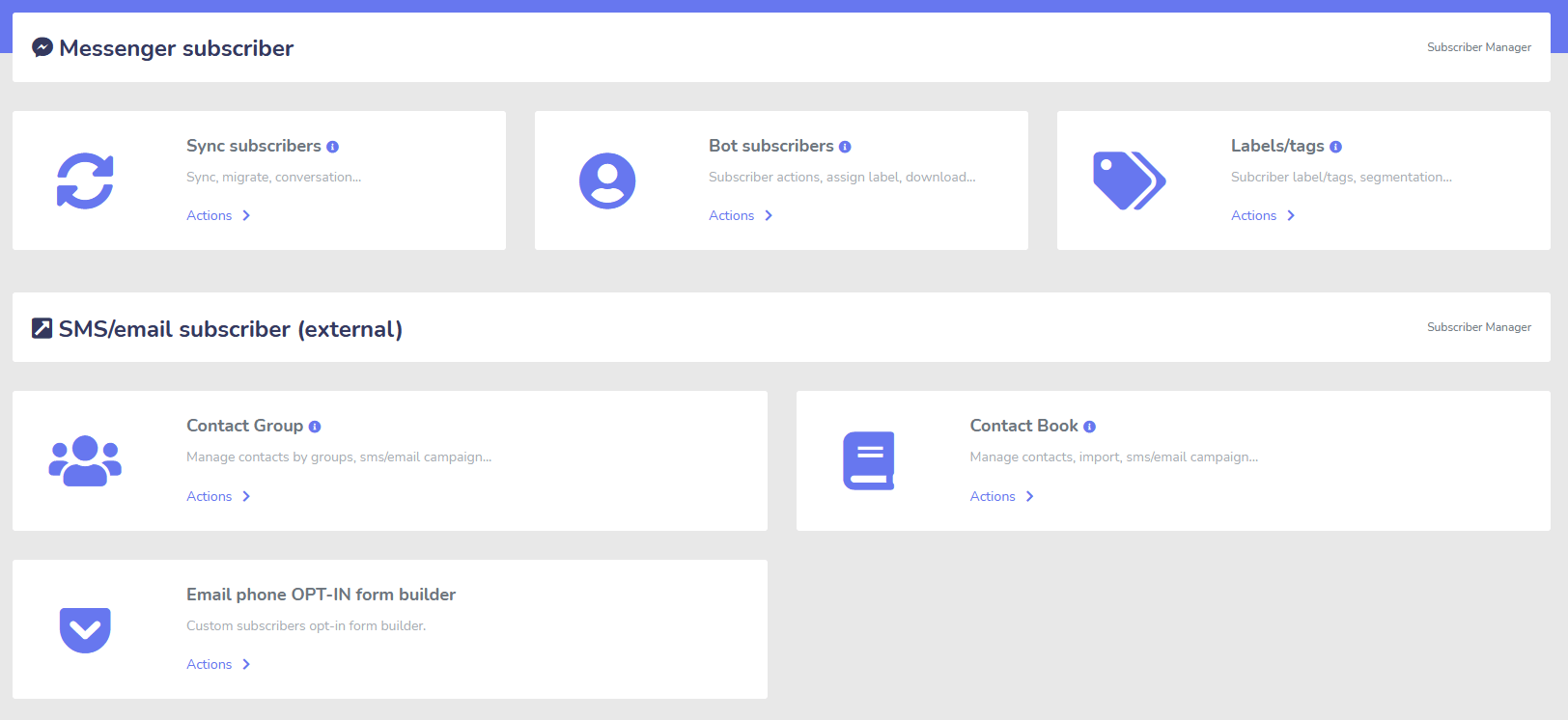
المشترك
البناء، الاستيراد، الإدارة، والمزامنة
هل تنتقل من ManyChat أو ChatFuel أو من مكان آخر؟ قم بمزامنة مشتركينك بسهولة مع بوت Messenger!
قم ببناء قوائم المشتركين الخاصة بك بسهولة باستخدام روابط M.Me، خيارات الاشتراك في Messenger، والمزيد!
يتيح لك مدير المشتركين الحصول على مزامنة المشتركين، وعرض مشتركي الروبوت، وعرض العلامات، وإدارة أنشطة المراسلة/البريد الإلكتروني في مجموعات جهات اتصال مختلفة.
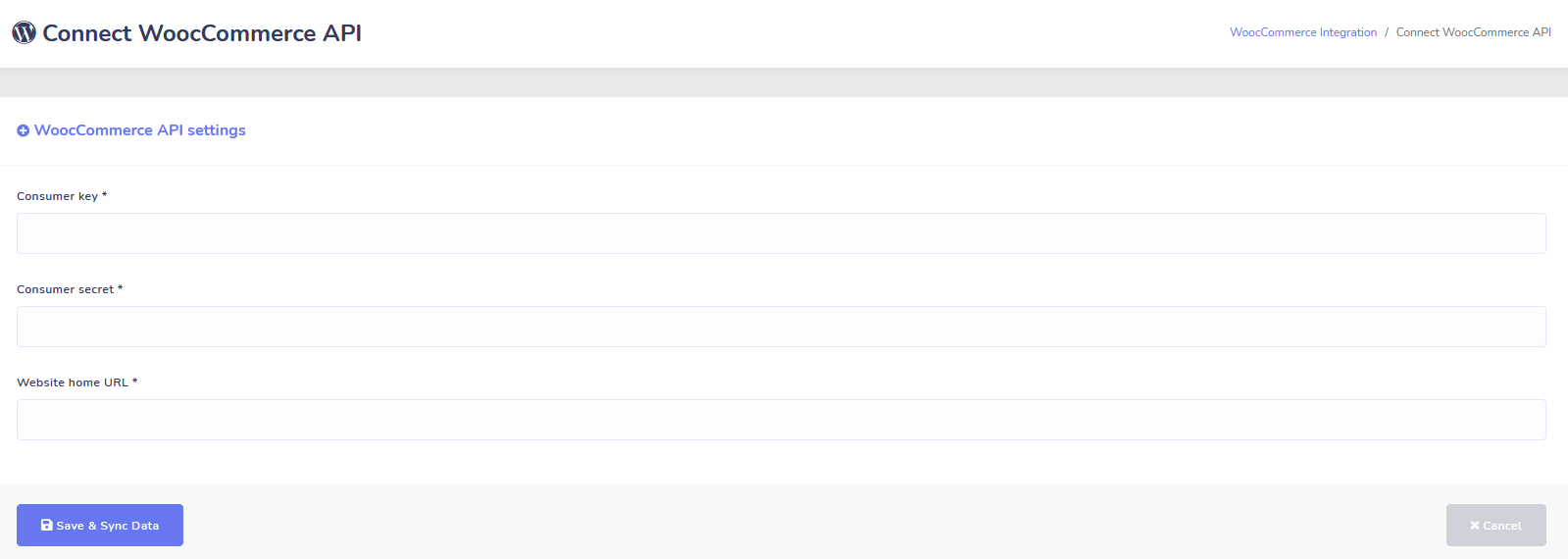
ووكومرس
المزامنة واستعادة السلة المهجورة
قم بمزامنة متجر WooCommerce الخاص بك بنقرة واحدة.
احصل على المزيد من المبيعات من خلال استعادة المستخدمين الذين تخلفوا عن سلاتهم!
تكاملات Shopify + Wix قادمة قريبًا!
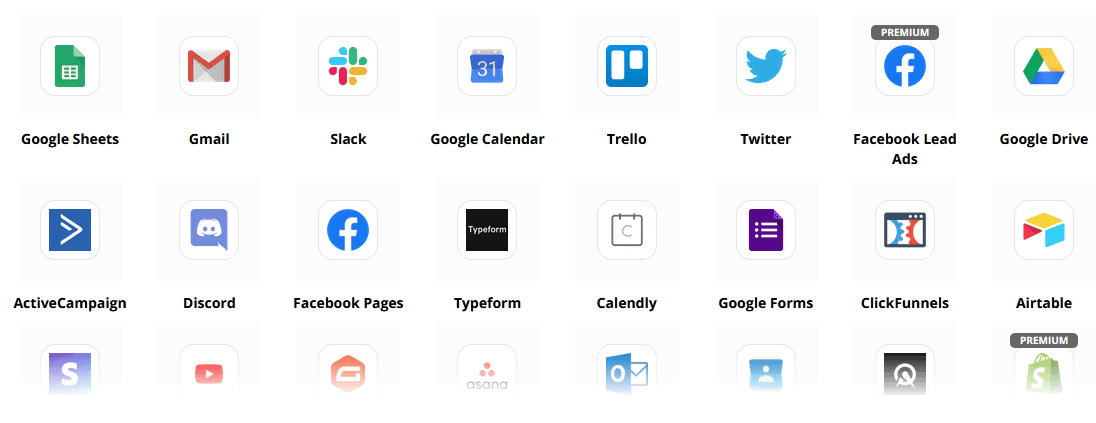
Zapier + JSON API + Google Sheets
التكاملات
قم بالتوصيل بأكثر من 3000 تطبيق مع تكامل Zapier الخاص بنا أو استخدم JSON API لإنشاء تخصيصاتك الخاصة!
نقل بيانات المشتركين إلى جداول بيانات Google تلقائيًا.
بالإضافة إلى ذلك
الكثير من الميزات الأخرى!
استخدم محررات الصور المدمجة لإنشاء الصور والمنشورات داخل لوحة التحكم الخاصة بك.
قم بالنشر تلقائيًا من خلاصة RSS!
أنشئ قائمة دائمة خاصة بك في ماسنجر
و الكثير من الأمور الأخرى….

إليك طرق أخرى لاستخدام بوت ماسنجر
يتم استخدام بوت ماسنجر بطرق عديدة. إليك قائمة صغيرة بكيفية استخدام الناس لنا في الوقت الحالي.
دعم العملاء
توجيه العملاء بذكاء إلى وجهتهم المرغوبة بناءً على أفعالهم وسلوكياتهم.
جمع المعلومات من العملاء
الحصول على جميع المعلومات المهمة المطلوبة من العملاء.
الأسئلة الشائعة
تقديم الإجابات التي يحتاجها المستخدمون على الفور مع تحرير موظفي الدعم في الوقت نفسه.
التجارة الإلكترونية
بيع مباشرة في ماسنجر من خلال متجر جديد أو موجود!
توليد العملاء المحتملين
التفاعل مع المستخدمين وتوليد العملاء المحتملين تلقائيًا!
نماذج قابلة للتخصيص بالكامل
إنشاء نماذج قابلة للتخصيص بالكامل وحوارية في ماسنجر + موقعك!
العقارات
عرض العقارات وتوليد العملاء المؤهلين تلقائيًا على مدار الساعة طوال أيام الأسبوع.
المطاعم
تشغيل العروض الترويجية، أخذ الحجوزات والمدفوعات!
Travel & Tours
احصل على المزيد من حجوزات السفر والسياحة، وعرض رحلاتك الفريدة.
معرض السيارات
عرض وبيع السيارات من خلال ماسنجر + موقعك!
التعليقات والاستطلاعات
أنشئ استطلاعات وآراء آلية قابلة للتخصيص بالكامل!
التأمين
ساعد في تقديم واختيار السياسات + تقديم الاقتباسات بالإضافة إلى تحديد المواعيد.
بسعر منخفض لفترة محدودة
تصرف الآن وضمن هذا العرض الخاص لروبوت المراسلة قبل زيادة السعر!
مع بوت ماسنجر, ستوفر على الدعم والمبيعات وتكاليف الاشتراك للخدمات الأخرى التي لن تستخدمها بعد الآن!
شاهد بوت ماسنجر في العمل!
أكثر من 40,000 مستخدم
دعم على مدار الساعة طوال أيام الأسبوع
رضا 100%

مستخدم وموثوق به من قبل أكثر من 40,000 مستخدم
انضم إلى أكثر من أربعين ألف صاحب عمل يستخدمون ويعتمدون على روبوت المراسلة كحل تسويقي شامل!
Practical follow-up resources
Turn more customer conversations into clear next steps.
Use these practical guides to strengthen response speed, lead qualification, and follow-up while your team keeps ownership of every customer decision.
- missed-call text-back guide — Keep high-intent callers moving with a clear, consent-aware follow-up path.
- lead-scoring workflow — Give your team a practical way to prioritize better-fit opportunities.
- speed-to-lead guide — Shorten the gap between a new inquiry and a useful first response.
Pick the right starting point
Choose the Messenger Bot plan that matches the conversations you want to win.
Start with the workflow you need now, then upgrade when your page, team, or client load grows.
Starter
$29 /mo
For one focused page getting its first automated comment and DM follow-up live.
- Launch a guided lead-capture workflow.
- Reply faster without adding another daily dashboard.
- Keep setup simple while you prove the channel.
محترف
$99 /mo
For growing businesses that want BYOK (Bring Your Own Key), business knowledge, and better lead sorting.
- Use AI-assisted drafts with human review.
- Qualify replies before your team spends time on them.
- Keep follow-up consistent across busy launches.
وكالة
$299 /mo
For teams managing multiple brands, clients, assets, and approval workflows.
- Organize client conversations by page and priority.
- Give teams cleaner review paths before replies go out.
- Scale repeatable workflows without adding extra manual work.
A payment card keeps trials focused. You stay in control of the plan before billing starts.
أسئلة متكررة مطلوبة أسئلة
ما هو بوت فيسبوك ماسنجر؟
روبوت فيسبوك ماسنجر هو برنامج دردشة آلي يمكن استخدامه لتعزيز تجربة الماسنجر بالإضافة إلى تجربة الدردشة على موقعك الإلكتروني.
ماذا يمكن أن يفعل روبوت المراسلة لعملي؟
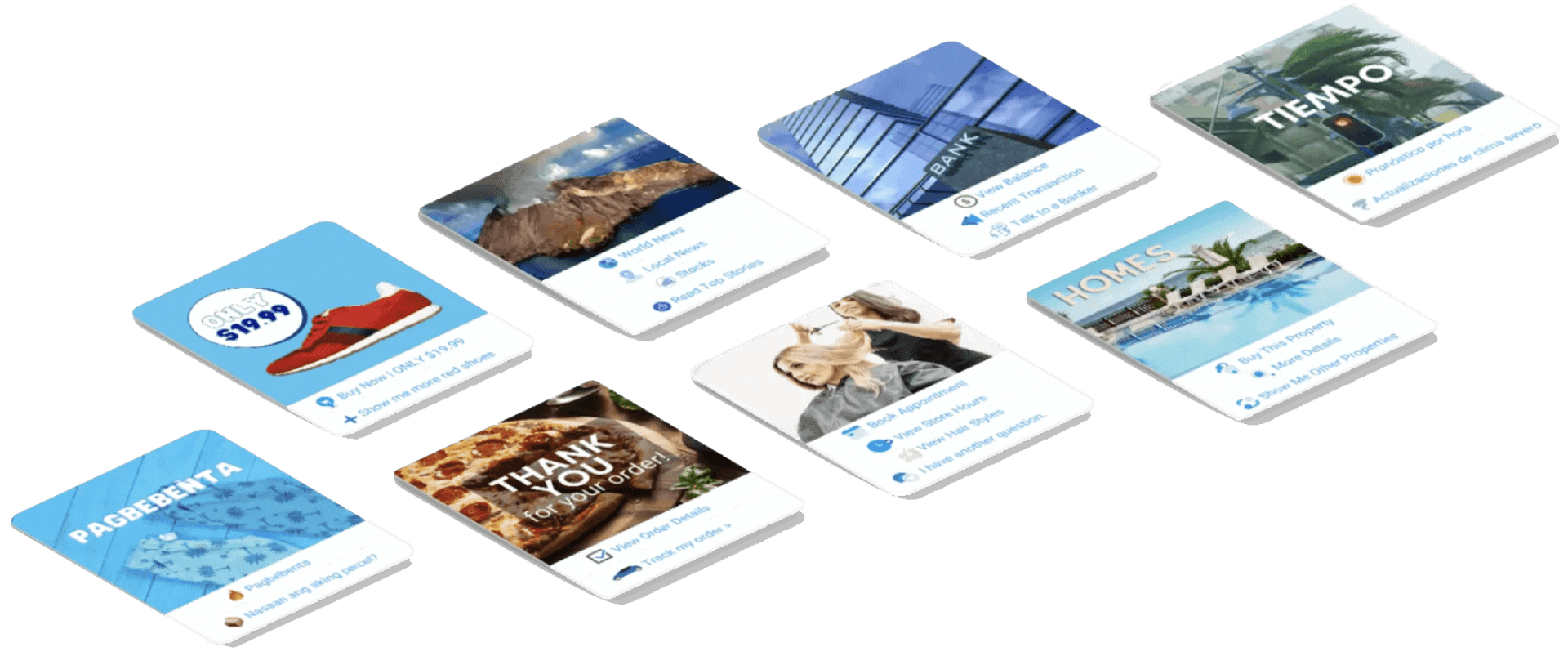
سيمكنك روبوت المراسلة من الترحيب تلقائيًا بالمستخدمين الجدد، والرد على كلمات أو عبارات محددة، وتوزيع المحتوى، وتوليد العملاء المحتملين، وإجراء المبيعات، وأكثر من ذلك!
لماذا أحتاج إلى روبوت المراسلة؟
مع مرور كل يوم، يصبح من الصعب بشكل متزايد الوصول إلى جمهورك المستهدف. من الحقائق أن العديد من طرق التسويق التقليدية لم تعد تحقق نفس النتائج كما كانت قبل سنوات.
يحل روبوت فيسبوك ماسنجر هذه المشكلة من خلال السماح لك بتحقيق معدلات فتح تزيد عن 80% مع رسائل تفاعلية في الوقت الحقيقي وتسلسلات حملات دردشة.
كيف يمكنني إنشاء روبوت فيسبوك ماسنجر؟
أولاً، ستحتاج إلى حساب فيسبوك وصفحة فيسبوك مع حقوق إدارية لإدارتها.
بعد ذلك، يمكنك شراء صفقتك (أو التسجيل للحصول على تجربة مجانية) ثم اختيار "استيراد الحساب".
من هناك، استخدم منشئ التدفق المرئي لدينا لإنشاء ونشر الروبوت الخاص بك في دقائق، وليس أيامًا! الآن يمكنك بدء محادثات حقيقية مع عملائك، في أي وقت.
هل هناك تجربة مجانية؟
نعم، يمكنك الحصول على تجربتك المجانية قبل الشراء دون الحاجة إلى بطاقات ائتمان. هنا.
متى تنتهي هذه العرض؟
ستنتهي هذه العرض قريبًا، لذا إذا كنت ترغب في الاستفادة من أفضل خصم، عليك الطلب الآن.
هل أنت مستعد لإحداث تغيير حقيقي؟ دعنا نبني هذا معًا!
تعرف على روبوت المراسلة دون أي قيود وابدأ في استخدامه بالكامل فقط عندما تحبه. سنكون في انتظارك.
روبوت المراسلة هو أكثر بكثير من مجرد روبوت دردشة بسيط!
الآن أصبح من الممكن إجراء محادثات معقدة تلقائيًا!
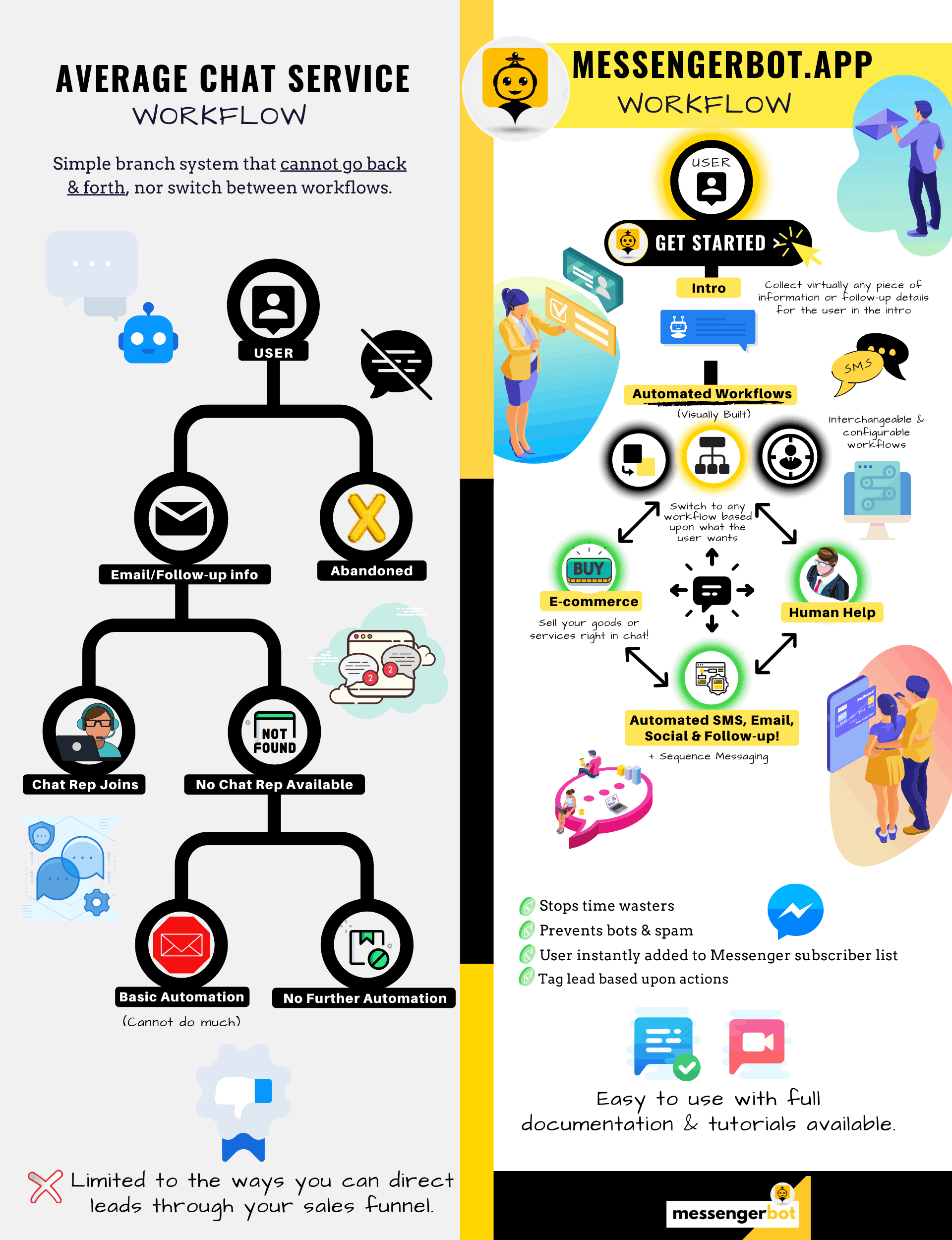
لماذا تحتاج إلى روبوت المراسلة
لزيادة المبيعات في عملك
بالنسبة للمسوقين، أصبح فيسبوك ماسنجر الآن وسيلة جديدة وفعالة للتواصل مع المشتركين الحاليين والمحتملين لصفحتك التجارية. باستخدام روبوتات المراسلة، يمكنك نشر المعلومات في أي وقت من اليوم دون الحاجة إلى بذل جهد.
أحد أقوى تطبيقات الروبوت، روبوت المراسلة، أصبح بسرعة رائدًا في هذه الصناعة الجديدة. يحتوي برنامجنا التسويقي على العديد من الميزات التي تجعل التسويق سهلاً للشركات الكبيرة والصغيرة. باستخدام روبوت الدردشة على فيسبوك ماسنجر، يمكنك الآن الرد على المحادثات على مدار الساعة، وإرسال الرسائل بكميات كبيرة إلى جمهورك المستهدف، وحتى نشر مقاطع الفيديو والصور على صفحتك على فيسبوك. إذا كنت بحاجة إليه لعملك، فإن روبوت المراسلة لديه بالتأكيد ما تحتاجه! بطريقتنا الفريدة، يمكننا أن نقدم لك مستوى عالٍ من خدمة الروبوت التي لن تجدها في أي مكان آخر.
دعنا نلقي نظرة على جميع الخدمات والميزات التي يوفرها تطبيقنا الرائع قبل أن تبدأ. من المؤكد أن هذا البرنامج المذهل سيكون الأداة المثالية للتسويق عبر فيسبوك ماسنجر بالنسبة لك دون الحاجة إلى البرمجة.

ما هو روبوت الدردشة على فيسبوك؟
إذا كنت على دراية فقط بشكل غامض بما يفعله تطبيق روبوت فيسبوك ماسنجر، تحتاج إلى فهم كيف يمكن أن يرفع عملك إلى المستوى التالي. البرنامج مؤتمت لإرسال الرسائل عبر فيسبوك ماسنجر باستخدام معالجة اللغة الطبيعية لفهم ما يريده الشخص والذكاء الاصطناعي للتفاعل مع الناس. عند تطبيقه، يمكنه فهم الأسئلة التي تُطرح عليه والإجابة على تلك الاستفسارات بشكل صحيح. الروبوتات تشبه المساعدين الافتراضيين الذين يمكنهم تحسين تجربة العملاء. روبوت الدردشة does, you need to understand how it can catapult your business to the next level. The software is automated to send out messages through Facebook Messenger by using natural language processing to understand what the person wants and artificial intelligence to interact with people. When implemented, it can understand questions that are asked of it and answer those inquiries correctly. Chatbots are like virtual assistants that can improve customer experience.

هناك مزايا استراتيجية لاستخدام روبوت فيسبوك ماسنجر لشركتك. إذا كنت ترغب في أن تصبح اسمًا مألوفًا، فإن استخدام ماسنجر هو وسيلة ذكية لجعل شركتك ومهمتك تتواصل مع مليارات الأشخاص. يحتل فيسبوك ماسنجر مكانة مريحة في المراكز الخمسة الأولى عندما تتحدث عن أكثر التطبيقات استخدامًا في العالم. مع كون هذا هو الحال، لماذا لا تستخدم ماسنجر لاحتياجات عملك؟ يقدر العملاء التطبيق لأنه يوفر وسيلة مريحة وسريعة للتواصل مع الشركات حول العالم. يمكن أن تنمو الشركة وتزيد من التعرض بينما تقدم خدمة عملاء نشطة في نفس الوقت. لا داعي للقلق بشأن دعم العملاء على مدار الساعة مع روبوت الدردشة.
ميزة أخرى يمكن أن يوفرها روبوت فيسبوك هي توليد العملاء المحتملين. من الأسهل الوصول إلى العملاء المحتملين باستخدام روبوت دردشة فيسبوك ماسنجر. عندما يتواصل تطبيق الروبوت مع العملاء المحتملين، يمكنه طرح أسئلة أساسية لتحديد احتياجات ورغبات الشخص باستخدام معالجة اللغة الطبيعية. يمكن للتطبيق توجيه العميل المحتمل إلى فريق دعم العملاء أو المبيعات لتولي الأمر وإتمام البيع. كما سترى، يمكن لروبوت المراسلة القيام بكل هذا وأكثر دون الحاجة إلى البرمجة. ابدأ مع روبوت المراسلة!
الرسائل المجمعة
وروبوت فيسبوك
عندما يكون لديك صفحة فيسبوك، هناك أوقات ترغب فيها في التواصل مع المشتركين والعملاء المحتملين لنشر رسالة. يحتوي روبوت المراسلة على ميزة الرسائل الجماعية لتحقيق ذلك. لماذا تقوم بإرسال الرسائل الجماعية؟ أولاً، يمكن تسليمها بسرعة. عندما تستخدم هذه الميزة على روبوت المراسلة، يمكن أن تصل اتصالاتك إلى أي شخص في ثوانٍ. يمكنك إرسال رسالة جماعية إلى الآلاف عندما تستخدم هذا التطبيق وتعرف أنها ستصل كما هو مقصود. يمكن لعملائك التحدث والتفاعل معك، مما يبني الثقة عندما يتلقون إجابات دقيقة وسهلة الفهم على أسئلتهم. تساعد هذه الميزة الرائعة التي يمتلكها روبوت المراسلة في الاحتفاظ بقاعدة عملائك، والتي هي جزء من أساس نمو الأعمال. نحن فخورون بأننا كنا الأوائل في تقديم قدرات الرسائل الجماعية التي يمكن أن تصل إلى جميع المشتركين.
ميزات إضافية تلقائية،
بما في ذلك روبوت دردشة فيسبوك ماسنجر

-
الإعجاب بالتعليقات التلقائية
تتيح لك هذه الميزة الإعجاب بتعليقات المشتركين التي تجدها على صفحتك وتحت منشوراتك. يمكن أن تزيد هذه المشاركة من النشاط على صفحتك حيث يرى الآخرون أنك شركة تقدر ما يقوله عملاؤها والعملاء المحتملون. يساعد ذلك في جذب الانتباه الذي تبحث عنه. يمكن أن يساعد إضافة الإعجابات إلى العديد من التعليقات أيضًا في الاحتفاظ بقاعدة عملائك عندما يرون مشاركتك المستمرة في عملك.
-
الرد الخاص التلقائي على التعليقات
ينطبق نفس الفائدة على الرد الخاص التلقائي لروبوت المراسلة. ستواجه مواقف حيث يتواصل معك شخص ما بشكل خاص للتعليق أو طرح سؤال حول عملك. يتيح لك تطبيقنا الرد على هذه الرسائل في أي وقت من اليوم بالاستجابة التي تحتاجها. يتم تصميم الرد وفقًا لمواصفاتك، ويمكن أن يتغير الرسالة عند الحاجة.
نشر على فيسبوك<!–
مع بوت الرسائل
يسمح لك بوت الرسائل لدينا بنشر النصوص على صفحتك ومجموعاتك على فيسبوك، بالإضافة إلى إمكانية أتمتة نشر ومشاركة الصور ومقاطع الفيديو والروابط. ببساطة، لا يوجد شيء لا يمكن لبوت الماسنجر القيام به! مع هذه الميزة، يمكنك الآن نشر أي نوع من الوسائط في أي وقت. استخدام مزيج من النصوص والأدوات البصرية يمكن أن يعيد تفاعل المشتركين لديك ويجلب لك مشتركين جدد في نفس الوقت.
زيادة التفاعل
مع تسويق الماسنجر
يمكن لبوت ماسنجر فيسبوك مساعدتك في الحصول على تفاعل أفضل من المشتركين والعملاء لديك. أظهرت الأبحاث أنه عندما يكون لديك تفاعل مرتفع، فإن لديك فرصة أكبر لزيادة مبيعاتك. يمكنك استخدام العديد من ميزات بوت الماسنجر لتحقيق هذا النجاح. يمكن أن تحافظ عمليات النشر التلقائية للصور والمحتوى البصري الآخر على اهتمام قاعدة عملائك بما لديك لتقوله. يمكن أن تخلق علاقة تتمحور حول الثقة التي يمتلكها العميل الآن تجاه عملك. نحن نفهم مدى أهمية هذا التفاعل أفضل من أي شخص آخر في عالم الدردشة الآلية. عندما تستخدم خدماتنا، يمكنك رؤية النتائج تقريبًا على الفور.

محتوى شخصي
من بوت ماسنجر فيسبوك
يمكن لبرمجياتنا أيضًا أن تقدم لعملائك ردودًا مخصصة على جميع تعليقاتهم واهتماماتهم. كعميل مشترك، عندما تحصل على تجربة مخصصة مع شركة عبر الإنترنت، يمكن أن تعطيهم انطباعًا بأنك تهتم بأفكارهم ووجودهم كعملاء. بالنسبة لأولئك الذين لديهم خلفية في المبيعات والتسويق، أنت تعلم أن رضا العملاء هو جزء كبير من نموذج العمل الناجح. في بوت الماسنجر، يمكننا مساعدتك في إنشاء هذه التخصيصات القيمة التي يحتاجها عملاؤك للبقاء مخلصين.

وجود قوي على وسائل التواصل الاجتماعي
مع تسويق ماسنجر فيسبوك
في عالم اليوم، تحتاج الشركات إلى وجود ممتاز على وسائل التواصل الاجتماعي للبقاء في الصدارة. أصبح فيسبوك منصة يمكن أن تزيد من رؤية الشركة وتجلب مشتركين جدد وعملاء محتملين إلى صفحتك بالمئات. واحدة من أفضل الطرق للتفاعل مع هؤلاء المستخدمين على فيسبوك هي من خلال تطبيق الدردشة الآلية. يمكن لبوت ماسنجر فيسبوك مساعدتك في الترفيه، والإعلام، وتعليم أولئك الذين يتفاعلون مع صفحتك بانتظام.
يجب أن تتطلب استراتيجية التسويق المناسبة استخدام فيسبوك ووسائل التواصل الاجتماعي لتسهيل نمو الشركة. يمكن أن تساعدك تطبيقاتنا في إنشاء خطة تسويقية كاملة وقوية يمكن أن ترفع من ملف عملك إلى مستويات لم تكن ممكنة من قبل. خدمتنا للدردشة الآلية مصممة خصيصًا لفيسبوك ويمكن أن تتكيف مع التغييرات التي تطرأ على عملاق وسائل التواصل الاجتماعي. الماسنجر هو أداة اجتماعية غير مستغلة إلى حد كبير يمكن أن تجعلك رائدًا في الصناعة عندما تعرف كيفية استخدامها. يمكننا إزالة التخمينات ومساعدتك في تحقيق أهداف عملك خطوة بخطوة.

قم بتحليل بياناتك مع بوت الماسنجر
كما ذكر سابقًا، يمكن لتطبيقنا أيضًا تجميع تقارير تهدف إلى تحليل بيانات فيسبوك والمشتركين. تم تصميم برمجيات بوت الماسنجر لفهم كيفية تفاعل البشر مع فيسبوك. التحليلات التي نقدمها للأعمال تمكنك من الغوص عميقًا عند إنشاء بروتوكولات استراتيجية للمبيعات والتسويق لاستخدامها ونمو شركتك. نقدم لك الصورة الكاملة للنظر إليها، ومن هناك، يمكنك استخراج ما تحتاجه لتكون أكثر نجاحًا.
As stated previously, our app can also compile reports that are meant to analyze Facebook and subscriber data. Messenger Bot’s software is designed to understand how humans work when it comes to interacting with Facebook. The analytics we provide to business enables you to dig deep when creating strategic sales and marketing protocols to use and grow your company. We give you the whole picture to look at, and from there, you can extract what is needed to make you more successful.
يمكن أن يؤدي هذا التحليل العميق للبيانات إلى توليد مبيعات جديدة، وقيادات، وعملاء. من خلال النظر إلى جميع التفاعلات التي حدثت على صفحة فيسبوك الخاصة بك ومع المشتركين خلال أي فترة زمنية معينة من خلال التعلم الآلي، يمكنك الآن إنشاء محتوى يستهدف جمهورك الأساسي. نحن نتخلص من الإضافات غير الضرورية عند محاولة إنشاء محتوى جديد وذو صلة. يبقى تركيزك حيث يجب أن يكون.

حوّل عملائك المحتملين مع بوت الماسنجر
يمكن لبوت الماسنجر مساعدتك في توجيه عملائك المحتملين إلى عملية الشراء. تبدأ برمجيات الأتمتة لدينا العملية من خلال جذب انتباه العملاء المحتملين. يمكننا التفاعل مع العملاء المحتملين على مستوى بسيط ولكنه شخصي يمنحهم الشعور بأنهم مهمون لعملك. يمكنك الآن استهداف هؤلاء العملاء بشكل أفضل والحفاظ على التواصل معهم بعد التبادل الأول.
تعتبر سرعة الاستجابة أمرًا أساسيًا لتجربة العملاء والتحويلات. مع سرعة استجابة أسرع، يرتفع معدل رضا العملاء المحتملين حيث يتلقون إجاباتهم في الوقت الفعلي دون أي تعقيد أو متاعب. تحسن هذه التجربة المباشرة من الاحتفاظ بالعملاء والمبيعات المستقبلية. عندما يتواصل عميل جديد مع عمل، فإن الانطباعات الأولى تعني كل شيء. من خلال استخدام بوت الماسنجر، تتخلص من أي تعقيدات ومشاكل غير متوقعة عند محاولة الدردشة مع مشترك. تعتبر الدردشة الآلية مساعديك الافتراضيين للمهام البسيطة حتى تتمكن من التركيز أكثر على توسيع عملك.

حرر وقتك مع بوت فيسبوك
دع بوت الماسنجر يقوم بكل أعمال التفاعل نيابة عنك وعن عملك. بهذه الطريقة، يمكنك الآن التركيز على مهام أخرى مهمة تتطلب انتباهك الكامل. مع تطبيقنا المبتكر، لم يعد هناك قلق بشأن نسيان النشر أو تجاهل تعليق أو سؤال عن غير قصد. لا يهم متى يأتي التفاعل أيضًا. تم تصميم برمجياتنا للاستجابة عند الحاجة. تعني هذه الميزة دعم العملاء على مدار الساعة طوال أيام الأسبوع لك وللمشتركين لديك.
مع برمجياتنا، كل ما تحتاجه هو إدخال ما تحتاجه على واجهتنا السهلة الاستخدام، وسنتولى الأمر من هناك. ستترك مع حملة كاملة نقدمها لك. يمكنك الاعتماد علينا لنشر معلوماتك إلى أعين وآذان متلهفة.
استفد من شعبية فيسبوك
فيسبوك لا يتباطأ في أي وقت قريب. يستخدم الموقع الاجتماعي الشهير أكثر من مليار شخص حول العالم، بما في ذلك الماسنجر. يستمتع مستخدمو التطبيق بالماسنجر لأنه سهل الاستخدام. لا يحتاجون إلى النقر عبر عدة روابط أو صفحات للوصول إلى ما يريدون.
Facebook is not slowing down anytime soon. The widely popular social media site is used by over one billion people around the world, and that it includes Messenger. Users of the app enjoy Messenger because it is easy to use. They don’t have to click through several links or pages to get to where they want.
تعتبر هذه الميزة مناسبة للشركات التي ترغب في التواصل مع قاعدة عملائها على المستوى الأساسي. يتمتع بوت الماسنجر بنفس السهولة والراحة التي تجذب مستخدمي فيسبوك. عندما يتفاعلون مع البرمجيات، يتم تزويدهم بمعلومات بسيطة وسهلة الفهم يمكن أن تعطيهم رأيًا مستنيرًا حول منتج أو شركة. يتوفر هذا الدعم للعملاء عندما يحتاجون إليه ودون أي وقت انتظار.
فرص جديدة
تتوافر بكثرة
يمكن لتطبيق البوت لدينا أن يمنحك فرصًا جديدة لا تمتلكها الشركات الأخرى التي تختار عدم استخدام بوت الماسنجر. لا يزال يُعتبر تطبيق الماسنجر نهجًا جديدًا في التسويق الرقمي، لذا فإن أي استراتيجيات تستخدمها من خلالنا لن تكون قديمة ومستهلكة. نحن نقدم لك التكنولوجيا الرائدة التي تهدف إلى تمييز عملك عن الآخرين.
من خلال دردشة فيسبوك ماسنجر شات بوت، ستكتشف ما يعمل وما لا يعمل بالنسبة لك عندما يتعلق الأمر بالمبيعات والتسويق. باستخدام مواردنا، يمكنك تبسيط النهج بمرور الوقت وضمان أنك تقدم أفضل ما لديك عندما يتعلق الأمر بعلامتك التجارية. المنافسون الذين لا يستخدمون شات بوت الخاص بنا في وضع غير مؤات عند الحديث عن الجماهير.

تحسين خدمة العملاء
مع شات بوت فيسبوك
بالطبع، ستعزز وتحسن أي دعم عملاء تقدمه الآن مع تطبيقنا. نحن نأخذ في الاعتبار جميع جوانب دعم العملاء عندما يتعلق الأمر ببرمجياتنا. لدينا إجابات عالية الجودة بمساعدة التعلم الآلي ومعالجة اللغة الطبيعية التي يمكن أن ترضي العملاء وتقودهم لاتخاذ قرارات شراء سريعة. وقت الاستجابة الفوري يمنع المشتري المحتمل من مغادرة صفحتك لشراء منتج في مكان آخر.
أيضًا، عندما يطلب شات بوت الماسنجر معلومات من عميلك، فإنه يعمل كنوع من التأهيل المسبق. عندما يبحث شخص ما عن شراء شيء من عملك، يمكنك استخدام تلك المعلومات الطوعية لخدمة الحملات المستقبلية وإطلاق المنتجات بشكل أفضل. لقد قضيت الآن على الحاجة لقضاء ساعات من العمل للحصول على تلك التفاصيل البسيطة.

كما يمنحك الشات بوت خيار الانتقال إلى مشغل بشري حقيقي عندما تصبح الأسئلة متقدمة، أو عندما تريد السيطرة على عملية بيع محتملة. مع ماسنجر بوت، يمكنك حقًا الحصول على كل ما تريده! لديك الآن دعم عملاء قابل للتخصيص مع تواصل سريع وأدوات أتمتة مصممة لتسهيل النمو والرؤية.

بناء العلامة التجارية
الوعي
من خلال بضع خطوات سريعة، يمكنك إبلاغ جمهورك بكل شيء عن عملك. يمكن معالجة الأسئلة التكميلية، ويمكن الآن توجيه عميلك المحتمل أعمق في مسار مبيعاتك.
تحسين
الهاتف المحمول
مع استخدام العديد من الأشخاص والمستهلكين هواتفهم لكل شيء، يدرك ماسنجر بوت الإمكانيات للمبيعات والاحتفاظ بالعملاء من خلال استخدام فيسبوك ماسنجر للتواصل. تم تصميم برمجياتنا مع وضع الأجهزة المحمولة في الاعتبار. لقد اتجهنا نحو نهج نظيف ومباشر عند تصميم برمجياتنا. النتيجة هي نظام بوت يعمل بسلاسة مع الأجهزة المحمولة وفيسبوك.
قابل للتخصيص بالكامل
Bots de Messenger
تم الإشارة سابقًا إلى أن ماسنجر بوت قابل للتخصيص ويمكن أن يتكيف مع احتياجات عملك المتغيرة. هذه الميزة قيمة للأعمال حيث يوجد مجال للتغيير والنمو. لقد قمنا ببناء شات بوت يعمل بالكامل يمكنه التحرك مع شركتك بغض النظر عن الاتجاه. يمكنك تغيير استراتيجيتك عندما تحتاج إلى ذلك، وسنكون هنا دون انقطاع.


سهل الاستخدام
بوت ماسنجر
نحن نعلم أن وقتك ثمين. عندما تريد تنفيذ استراتيجية تسويق جديدة من خلال تطبيقنا، لا تريد التفكير في الأمر يومًا بعد يوم. خدمتنا للبوت تغطي احتياجاتك. بمجرد أن تخبرنا بما تحتاجه، يمكننا القيام بالباقي. في بضع دقائق فقط، يمكنك إطلاق حملة يمكن أن تزيد من التفاعل وتجلب لك عملاء. لا تحتاج حتى إلى رفع إصبعك من التنفيذ الأولي إذا كنت لا تريد ذلك. تضمن تقنيتنا المعقدة أن تجربتك كعميل خالية من المتاعب وسهلة.
تم تصميم ماسنجر بوت لمساعدتك ولعملك على الوصول إلى أقصى إمكاناته من حيث التسويق والمبيعات. من خلال تطبيقنا المبتكر، يمكنك استخراج معلومات قيمة يمكن أن تزيد من رؤيتك وشعبيتك على فيسبوك. تساعدك اتصالاتك الجديدة مع المشتركين على الاحتفاظ بقاعدتك وكسب عملاء جدد. لا يوجد شيء مثل ذلك! جربنا اليوم، وستدهش من النتائج. قم ببناء شات بوت الماسنجر الأول الخاص بك دون الحاجة إلى ترميز.
هل أنت مستعد لإحداث تغيير حقيقي؟ دعنا نبني هذا معًا!
تعرف على روبوت المراسلة دون أي قيود وابدأ في استخدامه بالكامل فقط عندما تحبه. سنكون في انتظارك.
 العربية
  English
  Tagalog
  简体中文
简体中文  हिन्दी
  Português do Brasil
  Español de México
  Français
  বাংলা
বাংলা  香港中文
香港中文  繁體中文
繁體中文  Nederlands
  Deutsch
  Bahasa Indonesia
  日本語
日本語  한국어
한국어  Polski
  Русский
  Español
  Tiếng Việt