

If you need to send a project update exactly at 9 AM Monday or ensure a birthday greeting lands at midnight, asking “can you schedule messages on messenger” is a logical first step. Timing dictates how your message is received. A reminder can help you send time-sensitive information when the recipient is more likely to see it. However, how you control that timing depends entirely on whether you operate a personal profile or manage a business page. Identify which account and conversation the instructions apply to before connecting a tool or changing a setting.
The Reality of Native Scheduling for Personal Accounts
Start with the current Messenger composer on your own account. Check for a scheduling control and a saved scheduled item before relying on any tutorial. Do not transfer instructions between apps: Meta described scheduled DMs in its Instagram feature announcement, which is not evidence of the same control in Facebook Messenger. If you cannot verify a scheduled item in Messenger, use a reminder and keep the final review and send under your control.
If your account does not show a verified scheduling control, use a reminder rather than an app that asks for your password. Draft the message in a secure notes tool, create a calendar reminder with the recipient and timezone, and send it manually from Messenger at the intended time. That workflow is less automated, but it keeps the final send visible and under your control.
Many browser extensions and mobile utilities claim they can schedule personal Messenger messages. Treat any request for your Facebook password, session cookie, recovery code, or broad device-access permission as a stop sign. A legitimate integration should not require you to hand over credentials to an unknown service. Review the permissions, publisher, privacy policy, data-retention terms, and current Meta rules before connecting any tool.
A workaround may also depend on a browser, device, or background process remaining active. Test noncritical messages first, keep a reminder as a fallback, and verify the sent timestamp in Messenger. For an important personal message, manual review and send is the safer default when no first-party scheduled item is visible.
Meta Business Suite: Instant Replies and Automations
For a Facebook business Page, first decide whether you need to acknowledge an incoming inquiry, explain when staff are available, or prepare a one-off follow-up. These are different jobs. In the current account, inspect the available inbox automations and their trigger descriptions before choosing an option; an automatic response is not evidence that you can schedule an arbitrary future message.
An acknowledgment should tell the customer what to expect next without promising an immediate resolution. If your Page offers Instant Reply, read its trigger description and test how it behaves when the Page is available and away. Write a short response with a realistic staffed response time and a clear path to human help. Avoid asking the customer to share sensitive order or account details in an automated greeting.
Open Meta Business Suite for the intended Page and look for Inbox and Automations. If Instant Reply is available, select the Messenger channel and inspect its trigger, saved text, and any preview before enabling it. Labels and availability may differ by account. If the controls do not match your screen, stop and consult the account’s current help rather than installing an extension to imitate the missing feature. Test with a noncustomer account before relying on the response.
For setup and troubleshooting context, see our Facebook Messenger auto-reply guide. Other automation choices may appear in the Page inbox, but their labels, limits, and availability can change. Treat the current Automations screen as the source of truth. A response triggered by a customer’s action is not the same as scheduling a one-off message for a future time, so document which behavior the team actually needs before choosing a control.
Configuring Away Messages for Business Hours
For after-hours inquiries, look for an Away Message option in the Page’s current inbox controls. If a schedule is available, confirm the timezone and the periods when a human is not available. Do not assume an away response has the same trigger as an instant reply or that one rule always overrides another; verify the actual result with both settings as configured.
Checklist for Effective Away Messages
- Write down your staffed hours and timezone before editing an automation.
- Look for Away Message in the current Page inbox automations; inspect its available settings before enabling it.
- If scheduling controls are available, select the intended days and times and verify the saved timezone.
- Draft a clear message stating when the customer can expect a human response.
- Include alternative contact methods for true emergencies, if applicable.
When a time-based away option is available, verify the timezone, business hours, holidays, and who is actually monitoring the inbox. A distributed team may need a different schedule from the public office hours. Save the configuration, close the editor, reopen it, and confirm the displayed hours before treating the setup as complete.
The text of your Away Message should be highly practical. A generic “We are away and will reply later” frustrates users. Instead, use a specific, outcome-driven message: “Thanks for reaching out! Our team is currently offline. Our normal operating hours are Monday through Friday, 9 AM to 5 PM EST. We will review your message and reply as soon as we return.” This sets a firm expectation and reduces the likelihood of the user sending multiple follow-up messages.
If multiple automations are enabled, test them with a noncustomer account during both open and closed hours. Do not assume one rule automatically overrides another. Record the observed result, remove duplicate acknowledgments, and make the handoff to a person clear in every response.
Check the Current Messaging Policy Before Every Automation
Business messaging permissions depend on the conversation, the feature being used, the customer’s action or consent, and Meta’s current platform policy. Do not copy a timing rule from an old blog post into a live workflow. Review the current documentation for the exact feature and account, then build the automation to stop when its permission or consent boundary is no longer satisfied.
Do not build a workflow around an old feature announcement. Before planning repeat updates, confirm that the exact feature is currently available for your account and audience, and review its consent, frequency, and opt-out requirements. If availability or permission is unclear, keep the message as a draft for human review.
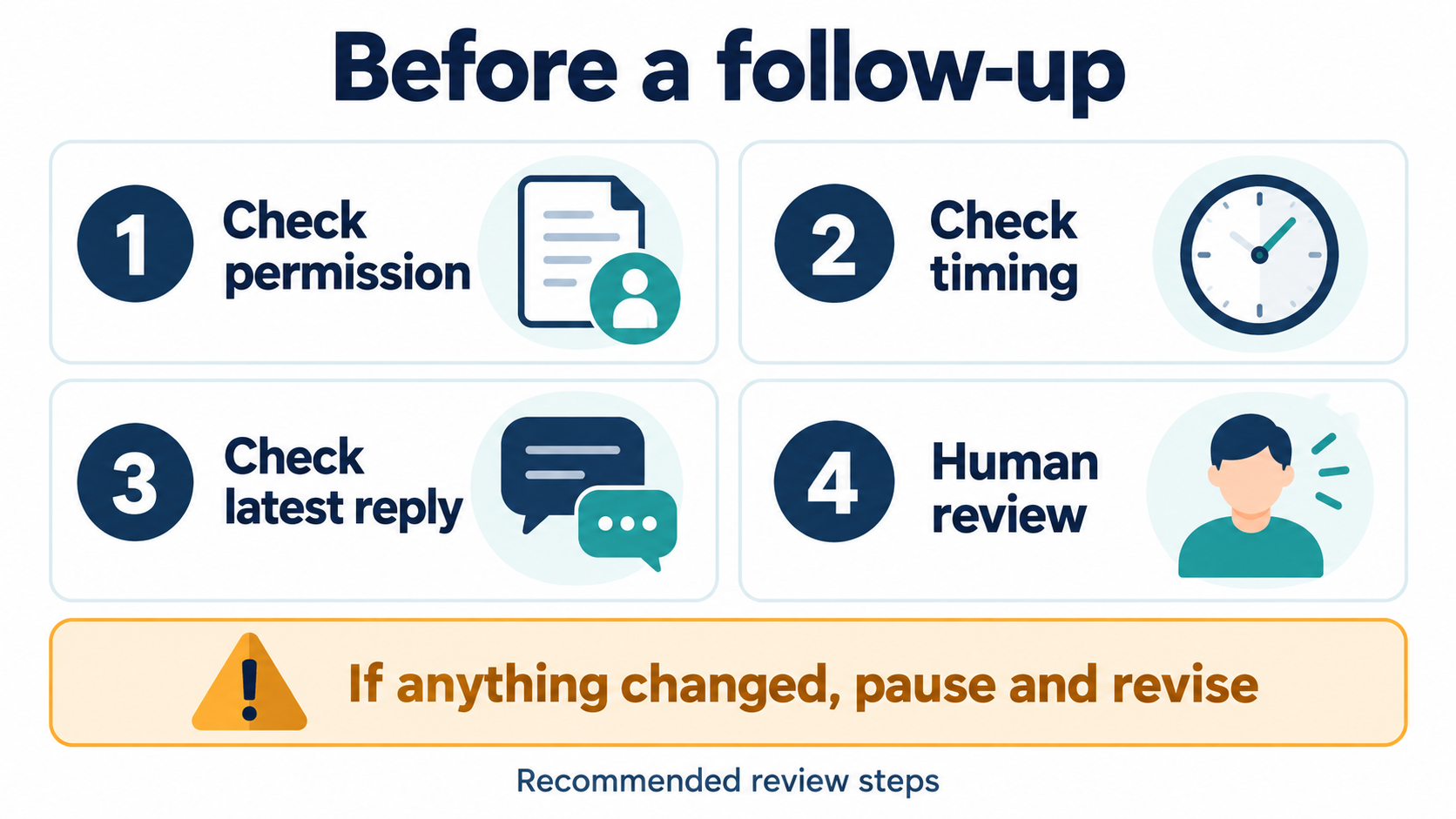
For a normal customer-service conversation, keep the follow-up tied to the customer’s request and the current policy window shown in Meta’s documentation. If the team cannot prove that a delayed message is allowed, route the item to a human reviewer instead of sending it automatically. Store the intended message, reason, consent evidence, and deadline without treating the draft as a send authorization.
Policies and product names change. Assign one person to review the current rules on a schedule and after any provider notice. The review should cover timing, message type, user consent, opt-out behavior, account permissions, and the fallback when a message is blocked. A workflow that was valid last year should not be assumed valid today.
Third-Party Scheduling Tools: Security Risks vs. Benefits
Evaluate a third-party tool against your exact task, not a broad promise of automation. Ask for current documentation of its authorization method, supported account types and failure handling. Do not treat a vendor’s marketing page as proof that Meta approves every action the tool offers.
For personal accounts, avoid tools that ask for a password, session cookie, or recovery code, and be skeptical of a browser extension that simulates clicks in the consumer interface. Those methods can create security and reliability risks. If a tool cannot explain its authorization method, data handling, cancellation process, and failure reporting in plain language, do not connect it.
For a business Page, use the authorization flow Meta currently presents and grant only the permissions the workflow requires. Review the connected-app list after setup and remove access the team no longer uses. Never send a Page password or recovery code to a software vendor or support agent.
A connected platform may support delays, reminders, or sequences, but each action must still match the permissions, consent, and feature rules in effect for that conversation. Ask the vendor to show how it blocks an out-of-scope send, records consent, exposes failures, hands a conversation to a person, and lets an administrator revoke access. Verify those behaviors in a test Page before using them with customers.
Comparing Automation Tiers: Native vs Pro
To determine the right approach for your scheduling needs, you must compare the capabilities of the native tools against what professional platforms provide. Relying on the wrong tier of automation leads to either frustrated customers or unnecessary software expenses.
| What you need | What to check in Meta Business Suite | What to verify in a connected tool |
|---|---|---|
| Acknowledge an inquiry | Check whether Instant Reply is available and test its trigger. | Verify the trigger, response text, and human handoff. |
| Respond outside staffed hours | Check Away Message controls, timezone, and saved hours. | Test schedules and overlapping rules before customer use. |
| Review a delayed follow-up | Do not confuse an automatic response with a one-off scheduled send. | Verify feature availability, cancellation, failure handling, and current messaging permission for the exact action. |
| Plan a sequence | Inspect the current account controls rather than assuming support. | Check every step against consent, opt-out, and stop conditions; do not assume all tools support sequences. |
| Connect customer records | Review the current inbox tools and access permissions. | Confirm which fields are shared, why they are needed, and how access can be revoked. |
Native tools may be enough when the goal is simply to acknowledge a new inquiry or set expectations outside staffed hours. Test the exact current controls before deciding. A small Page can still need a stronger handoff process, while a larger team may be well served by a simple, carefully monitored acknowledgment.
A dedicated tool becomes worth evaluating when the team needs consistent qualification, ownership, status tracking, and human handoff across many conversations. Do not begin with an arbitrary delayed send. Begin with the business outcome, document the permitted trigger, and decide what happens if the customer does not respond or the platform blocks the next step.
When evaluating a visual workflow tool, ask whether it clearly shows the trigger, review steps, cancellation path, and current status. A diagram can help your team understand a sequence, but it does not prove that a message is permitted or delivered. Inspect the actual outcome separately and keep a human responsible for uncertain or sensitive cases.
Transitioning to Advanced Automation
Mastering Messenger scheduling is about moving from reactive replies to proactive communication. For a personal message, check the current composer and use a reminder if no verified scheduling control is available. For a business Page, distinguish scheduled sends from responses triggered by an incoming message. The key is recognizing when you have outgrown the basic native tools and require a dedicated platform to handle the load.
If your team struggles to keep track of customer follow-ups, start by assigning an owner and recording the next review time. Check the current permission and consent requirements for each intended action; a saved reminder or draft is not permission to send.
A well-controlled workflow can make follow-up easier to review, but no tool can guarantee delivery or policy compliance by itself. If your team needs clearer ownership, safer handoff, and visible automation rules, Check Current Pricing and compare the listed features with the exact workflow you have documented.
Build a Safe Reminder and Follow-up Checklist
Verwenden Sie unser business inbox guide to review the team workflow alongside your scheduling checklist. Before enabling any delayed action, write down the audience, trigger, intended outcome, consent basis, latest permitted send time, timezone, and person responsible for failures. Then test the workflow with a noncustomer account. Confirm the message text, timing, attribution, opt-out path, and human-handoff behavior from the recipient’s view.
Monitor the first runs rather than assuming a saved automation is healthy. A safe operating log should show whether the trigger fired, whether the platform accepted the action, whether the message was delivered, and whether a person needs to follow up. Never treat a pending item or a success screen as proof that the customer received the message.
Keep drafts separate from execution. A teammate should be able to prepare a response and schedule recommendation without gaining permission to send it. For sensitive conversations involving billing, account access, privacy, security, or a requested state change, require human review before any outbound action.
Finally, rehearse the failure path. Turn off the test automation, revoke its connection, and verify that no delayed item still sends. A useful scheduling system is not only easy to start; it is also easy to pause, inspect, and stop without losing the conversation history or confusing the customer.
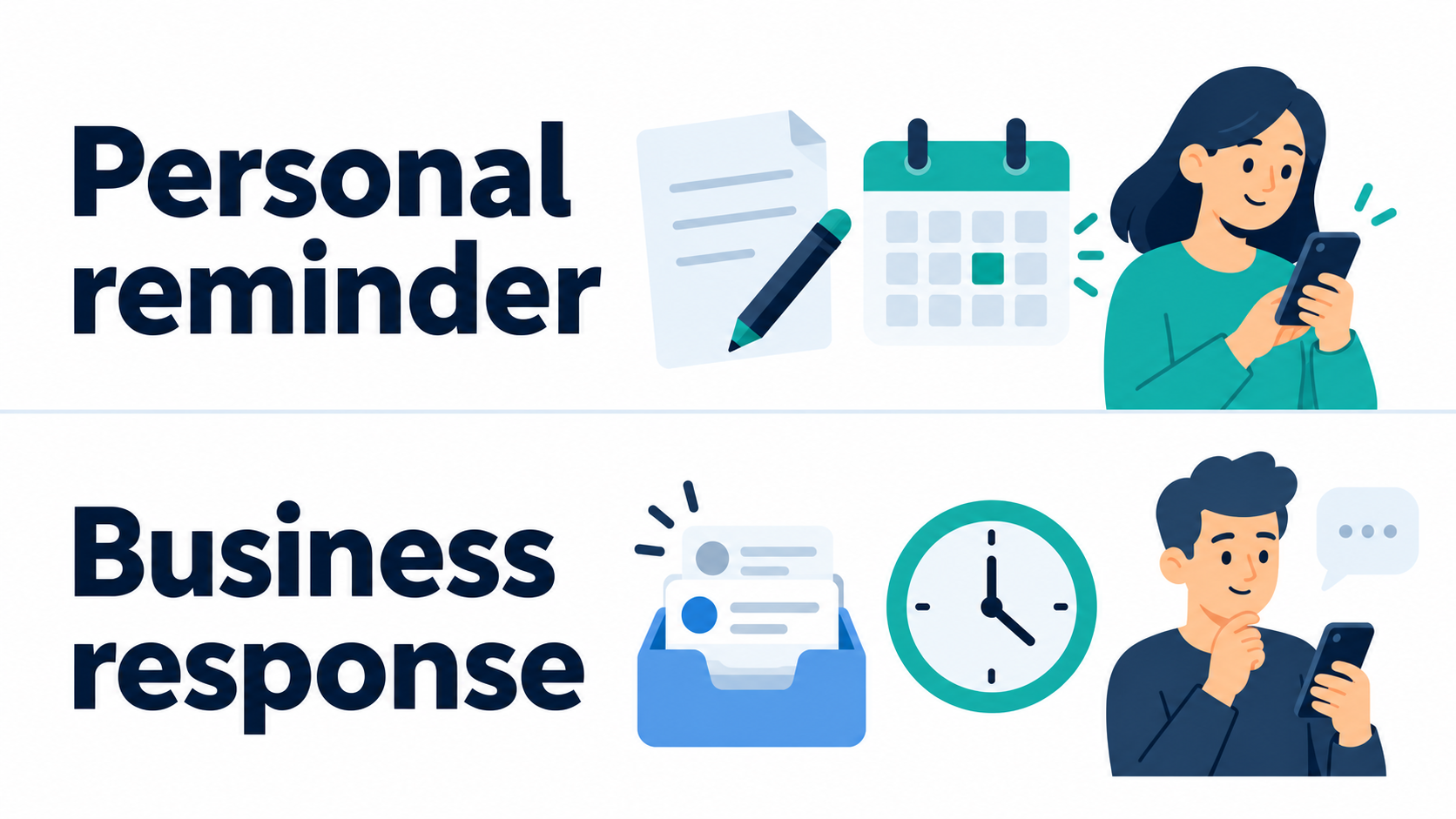
For a purely personal reminder, keep the process even simpler. Write the draft, set a device reminder five or ten minutes before the intended time, confirm the recipient and timezone, reread the message, and press send yourself. Afterward, check that the message appears in the correct conversation. That small review protects against sending an old draft, choosing the wrong namesake contact, or delivering a time-sensitive note after the situation has changed.
For a business follow-up, assign an owner and an expiration time to the draft. If the customer replies before the reminder, cancel or rewrite the planned response so the conversation does not receive an irrelevant message. The scheduling question is therefore not only “when should this send?” It is also “what evidence should make this message unnecessary, unsafe, or stale before the planned time?”
Häufig gestellte Fragen
Can you schedule messages on Messenger natively?
Check the current Messenger composer for your account. If no scheduling control and saved scheduled item are visible, use a reminder and review the message manually instead of assuming it will send later.
How do I set up an Away Message for my business?
Look for Away Message in your Page’s current Meta Business Suite inbox controls. If scheduling is available, check the timezone, set your offline hours, and verify the saved configuration with a noncustomer test.
When is a delayed business message permitted?
Business messaging timing depends on the exact feature, consent, conversation, and current Meta policy. Review the current rule for the intended action before automating it.
Are third-party scheduling apps safe for personal use?
Avoid any personal scheduling tool that requests a password, session cookie, recovery code, or unexplained device access. Use a reminder when no first-party scheduled item is available.
Can Instant Replies replace scheduled messages?
An automatic acknowledgment and a scheduled follow-up serve different purposes. Inspect the available trigger and test the response; do not assume an instant reply can send a one-off message at a future time.

 Deutsch
  English
  Tagalog
  简体中文
简体中文  العربية
  हिन्दी
  Português do Brasil
  Español de México
  Français
  বাংলা
বাংলা  香港中文
香港中文  繁體中文
繁體中文  Nederlands
  Bahasa Indonesia
  日本語
日本語  한국어
한국어  Polski
  Русский
  Español
  Tiếng Việt