
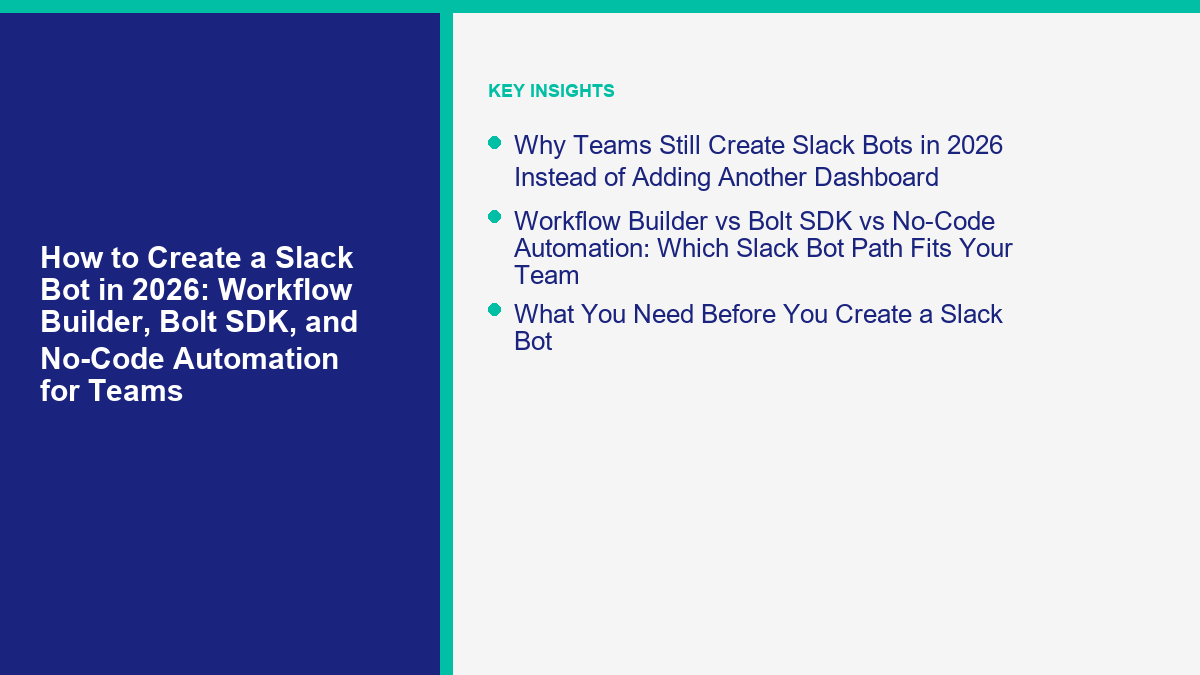
Jika Anda ingin membuat bot Slack pada tahun 2026, hal pertama yang perlu dipahami adalah bahwa “bot Slack” sekarang berarti setidaknya tiga jenis build yang berbeda. Ini bisa berarti alur kerja tanpa kode yang mengumpulkan permintaan dan mengarahkannya ke saluran yang tepat. Ini bisa berarti aplikasi Slack yang dibangun dengan Bolt SDK yang mendengarkan perintah, peristiwa, dan pesan. Atau ini bisa berarti lapisan otomatisasi yang berada di antara Slack dan sisa tumpukan Anda melalui alat seperti Zapier, Make, atau Pipedream.
Jalur-jalur tersebut tumpang tindih, tetapi tidak dapat dipertukarkan. Saya telah melihat tim menghabiskan waktu berminggu-minggu membangun aplikasi kustom ketika Workflow Builder sudah cukup, dan saya telah melihat tim lain memaksakan Workflow Builder untuk pekerjaan yang tidak pernah dimaksudkan untuk dilakukan. Proyek bot Slack yang paling bersih dimulai dengan alur kerja, bukan editor kode. Tentukan di mana permintaan dimulai, apa yang perlu diputuskan oleh bot, dan apa yang harus terjadi ketika bot salah. Setelah itu, alat yang tepat biasanya menjadi jelas.
Panduan ini ditulis untuk jalur pembangunan praktis, bukan untuk teater demo. Saya akan menunjukkan kepada Anda kapan alat asli Slack sudah cukup, kapan Bolt adalah langkah yang lebih baik, dan kapan otomatisasi pihak ketiga adalah lapisan yang lebih cerdas. Jika Anda masih memetakan tumpukan chatbot yang lebih luas dan perlu sisi yang berhadapan dengan pelanggan terlebih dahulu, Jelajahi Tutorial Kami sebelum Anda mengunci diri Anda ke Slack sebagai pintu depan untuk setiap percakapan.
Mengapa Tim Masih Membuat Bot Slack pada Tahun 2026 Alih-alih Menambahkan Dasbor Lain
Slack masih menjadi tempat di mana banyak pekerjaan ditugaskan, ditingkatkan, disetujui, dan diselamatkan. Itulah alasan sederhana mengapa proyek bot terus muncul di sana. Ketika permintaan sudah berakhir di Slack, orang-orang merespons lebih cepat karena mereka tidak perlu mengingat antrean lain, kotak masuk vendor lain, atau tab browser lain.
Halaman harga Slack sendiri membuat posisi itu jelas pada tahun 2026. Halaman harga Slack mencantumkan tingkat gratis dengan 90 hari riwayat pesan dan hingga 10 aplikasi pada 12 April 2026, sementara rencana berbayar menyoroti alur kerja tanpa kode, integrasi aplikasi tanpa batas, dan fitur AI bawaan seperti ringkasan percakapan dan Slackbot sebagai agen AI pribadi. Itu mengubah keputusan pembangunan. Jika yang Anda butuhkan hanyalah ringkasan saluran atau lapisan pencarian cepat, Anda mungkin tidak memerlukan bot kustom sama sekali. Jika Anda memerlukan perintah, persetujuan, pengalihan, tindakan eksternal, atau alur masuk yang terstruktur, Anda mungkin membutuhkannya.
Kasus penggunaan bot Slack terkuat pada tahun 2026 masih terlihat akrab:
- Meja bantuan internal: mengumpulkan masalah, mengalirkannya, dan memposting detail terstruktur di tempat tim yang tepat bekerja.
- Tanggapan insiden: memicu alur kerja, membuka saluran, dan memberi tahu pemangku kepentingan dengan cepat.
- Peringatan penjualan dan dukungan: mengubah acara web, CRM, atau obrolan menjadi utas Slack yang dapat ditindaklanjuti alih-alih notifikasi umum.
- Persetujuan: kumpulkan permintaan, terapkan aturan, dan dokumentasikan hasilnya di satu tempat.
- Akses pengetahuan: biarkan staf meminta kebijakan, langkah-langkah, atau tindakan selanjutnya tanpa harus mencari melalui dokumen.
Ini adalah bagian yang sering dilewatkan oleh tutorial yang mengkilap: bot Slack terbaik seringkali adalah yang melakukan lebih sedikit. Bot yang mengarahkan lima jenis permintaan berulang dengan rapi lebih berharga daripada “asisten AI” yang terdengar cerdas dan tetap membuang semuanya ke dalam satu saluran yang bising.
Workflow Builder vs Bolt SDK vs Automasi Tanpa Kode: Jalur Bot Slack Mana yang Cocok untuk Tim Anda
Cara tercepat untuk menghindari pekerjaan ulang adalah memilih jalur pembangunan sebelum Anda menyentuh ruang lingkup atau token API. Slack’s Panduan Workflow Builder mengatakan bahwa alur kerja tersedia di paket berbayar, dapat dibuat secara default oleh anggota, dan dapat dimulai dari tautan, jadwal, reaksi emoji, bergabung dengan saluran, dan acara pembuatan saluran. Slack’s Panduan cepat Bolt untuk Python merekomendasikan Slack CLI, sandbox pengembang, dan Socket Mode untuk pengembangan lokal. Kemudian ada platform otomatisasi, yang mengorbankan beberapa kedalaman asli Slack untuk konektivitas SaaS yang lebih cepat.
| Jalur | Terbaik untuk | Apa yang dapat Anda kirim dengan cepat | Biaya awal publik 2026 | Pertukaran utama |
|---|---|---|---|---|
| Pembuat Alur Kerja Slack | Penerimaan permintaan internal, pengingat, persetujuan, pengalihan sederhana | Formulir, cabang, peringatan, pos terjadwal, langkah konektor aplikasi | Rencana berbayar Slack diperlukan; Pro terdaftar di $7.25 per pengguna per bulan secara tahunan | Jalur tercepat, tetapi terbatas ketika Anda memerlukan logika bot yang lebih kaya, perintah kustom, atau perilaku multikanal |
| Bolt SDK | Aplikasi Slack kustom, perintah slash, App Home, bot berbasis acara | Pendengar pesan, perintah, modal, panggilan API, pengaturan kustom | Kerangka kerja gratis; biaya Anda adalah waktu rekayasa ditambah hosting | Anda memiliki ruang lingkup aplikasi, token, pengujian, penyebaran, dan pemeliharaan |
| Zapier | Automasi SaaS-ke-Slack cepat untuk non-pengembang | Pemicu dari formulir, CRM, lembar, meja bantuan, dan webhook | Profesional dari $19.99 per bulan ditagih setiap tahun | Harga berbasis tugas meningkat cepat setelah volume tumbuh |
| Buat | Automasi visual volume tinggi dengan kontrol biaya yang lebih baik | Skenario bercabang, router, filter, dan sinkronisasi terjadwal | Inti dari $9 per bulan untuk 10.000 kredit | Model kredit membutuhkan sedikit lebih banyak perencanaan daripada alat tugas yang lebih sederhana |
| Pipedream | Automasi yang ramah pengembang dengan langkah kode dan webhook | Automasi Slack yang menggabungkan langkah visual dan kode kustom | Dasar dari $29 per bulan dengan 2.000 kredit | Lebih baik untuk tim teknis daripada untuk operator tanpa kode murni |
Kutipan harga: Slack harga, Zapier harga, Buat harga, dan Pipedream Lihat Harga MessengerBot, diperiksa pada 12 April 2026.
Aturan saya sederhana. Gunakan Workflow Builder ketika pekerjaan sebagian besar adalah masalah proses. Gunakan Bolt ketika pekerjaan adalah masalah produk. Gunakan Zapier, Make, atau Pipedream ketika masalah sebenarnya tidak ada di dalam Slack, tetapi di penyerahan antara Slack dan segala sesuatu yang lain.
Masalah proses terdengar seperti ini: “Kami perlu karyawan untuk mengajukan masalah laptop, mengarahkan yang mendesak ke IT, dan mencatat sisanya.” Masalah produk terdengar seperti ini: “Kami perlu bot yang menerima perintah slash, membuka modal, memanggil API eksternal, dan merespons secara berbeda berdasarkan status akun.” Masalah penyerahan terdengar seperti ini: “Ketika prospek situs web memesan demo atau chat Messenger meminta pengembalian dana, saluran Slack yang tepat harus mendapatkan peringatan terstruktur.” Itu adalah sistem yang berbeda. Menganggap mereka sebagai proyek yang sama adalah tempat kekacauan dimulai.
Apa yang Anda Butuhkan Sebelum Membuat Bot Slack
Anda dapat menjalankan bot Slack dengan cepat. Anda tidak dapat menjalankan bot Slack yang berguna dengan cepat kecuali Anda mempersiapkan bagian-bagian yang membosankan terlebih dahulu.
- Deskripsi pekerjaan untuk bot: penerimaan, eskalasi, FAQ, persetujuan, pengalihan prospek, atau manajemen insiden.
- Sebuah ruang kerja untuk pengujian yang aman: Slack’s panduan sandbox pengembang mengatakan bahwa pengembang pada paket berbayar dapat menyediakan sandbox, dan admin Enterprise dapat meminta persetujuan.
- Peta saluran: tentukan saluran atau DM mana yang mendapatkan setiap kelas permintaan sebelum bot diluncurkan.
- Rencana izin: jangan meminta cakupan hanya karena dokumen menyebutkannya.
- Jalur kegagalan: siapa yang memiliki permintaan yang belum terpecahkan, jawaban dengan kepercayaan rendah, dan automasi yang rusak.
Poin kelima itu adalah yang diabaikan tim. Jika bot tidak dapat menjawab atau alur kerja gagal, siapa yang harus menangani masalah tersebut? Jika jawabannya adalah “kami akan menyelesaikannya nanti,” Anda sedang membangun demo, bukan alat operasional.
Daftar periksa pra-penerbangan yang saya gunakan terlihat seperti ini:
- Bot memiliki satu pemilik yang terlihat di dalam tim.
- Versi pertama menyelesaikan satu alur kerja yang sempit, bukan enam.
- Tujuan saluran ditetapkan sebelum peluncuran.
- Aplikasi hanya meminta cakupan yang dapat dipertahankan oleh alur kerja.
- Tim tahu seperti apa bulan pertama yang sukses.
- Bot memiliki cadangan manusia yang terlihat.
Jika Anda melakukan pekerjaan itu terlebih dahulu, pengaturan sebenarnya akan berjalan jauh lebih cepat karena Anda berhenti mengimprovisasi arsitektur dari dasbor vendor.
Cara Membuat Bot Slack dengan Pembuat Alur Kerja Tanpa Menulis Kode
Pembuat Alur Kerja adalah cara paling bersih untuk membuat bot Slack ketika bot tersebut benar-benar merupakan alur kerja terstruktur dengan sedikit logika di sekitarnya. Itu mencakup lebih banyak kasus penggunaan daripada yang dipikirkan orang. Jika “bot” Anda harus mengumpulkan permintaan, bercabang berdasarkan urgensi, menetapkan pemilik, dan memberi tahu orang yang tepat, Pembuat Alur Kerja sering kali sudah cukup.
Slack’s panduan resmi mengatakan alur kerja dapat dimulai dari tautan, jadwal, reaksi emoji, bergabung dengan saluran, dan acara pembuatan saluran. Ini juga mengatakan langkah konektor dapat memanggil aplikasi pihak ketiga dan layanan eksternal. Itu berarti Anda dapat membangun bot penerimaan yang sangat berguna tanpa mengirim aplikasi kustom pada hari pertama.
Gunakan contoh tanpa kode ini: bot permintaan TI
Alur kerja di bawah ini cukup sederhana untuk dibangun pertama kali dan cukup berguna untuk diterapkan dalam tim nyata. Tugasnya adalah mengumpulkan permintaan TI, menandai masalah mendesak, dan mengirim konteks yang bersih ke saluran yang tepat alih-alih mengandalkan ping acak di #umum.
- Buka Pembuat Alur Kerja: Di desktop Slack, pergi ke Lebih atau Automasi, lalu buka galeri alur kerja dan buat alur kerja dari awal.
- Pilih pemicu: Untuk bot penerimaan, pemicu tautan biasanya adalah awal yang paling bersih karena Anda dapat menyematkan tautan alur kerja di saluran bantuan, kanvas, atau dokumen orientasi. Jika permintaan harus dimulai secara otomatis, gunakan pemicu berbasis jadwal atau acara sebagai gantinya.
- Add a form step: Ask for issue type, urgency, device, screenshot link, and a short description. Keep the form tight. The longer it gets, the less people finish it.
- Add conditional branches: Send urgent issues to
#it-incidentsand standard issues to#it-requests. If a high-priority request needs a human immediately, branch to a manager DM or a dedicated escalation channel. - Add channel or DM notifications: Post the request summary in the destination channel and confirm receipt to the requester.
- Add connector steps if needed: If your team uses Jira, Google Sheets, Salesforce, or another connected tool, add a connector step to create the ticket or log the request outside Slack.
- Publish and control access: Decide who can run the workflow and where the link should live. Keep the first rollout narrow.
Screenshot cue: Capture the trigger selection screen and the form builder with your actual fields visible. Those two images do more for a tutorial than a generic Slack home screen.
What makes a Workflow Builder bot feel polished
The polish usually comes from the confirmation message, not from the form. If the requester gets a clear response like “Your issue was routed to #it-requests and urgent issues are checked first,” the bot feels trustworthy. If the workflow just disappears after submit, people assume it broke.
Keep the output structured too. A bad workflow posts a wall of text. A good workflow posts a summary with predictable fields:
New IT Request
Urgency: High
Issue Type: VPN access
Requester: @ana
Device: MacBook Air
Summary: Cannot access production VPN after password reset
Screenshot: Attached link
That format matters because humans can scan it. If the post lands in a busy ops channel, readability is the difference between fast action and scroll-past fatigue.
Where Workflow Builder hits the wall
Workflow Builder stops being the right tool when you need slash commands, dynamic API lookups, message listeners, custom Home tabs, or bot behavior that depends on logic outside Slack. It is also the wrong fit if you need the bot to feel conversational in DMs over time rather than form-driven or trigger-driven.
Here is the line I use: if the workflow can be described as intake, branch, notify, and log, stay no-code longer. If the workflow needs to hear, decide, fetch, and reply based on live external state, move to Bolt.
How to Create a Custom Slack Bot with the Bolt SDK
Bolt is the right path when you want a real Slack app instead of a no-code workflow. Slack’s Panduan cepat Bolt untuk Python dan Bolt for JavaScript quickstart still recommend the Slack CLI in 2026, and the Python guide specifically calls for Python 3.7 or later. The docs also recommend developer sandboxes so you can test without disrupting a live workspace.
The fastest custom setup for most teams is Bolt plus Socket Mode. Slack’s quickstart says Socket Mode lets you listen for events without opening a port or exposing an endpoint. That is exactly why it is so useful for local development. You can get the app working before you think about public HTTPS, tunnels, or hosting.
The shortest sane Bolt setup flow
- Install Slack CLI and log in: Use Slack’s CLI install guide for your operating system, then run
slack versiondanslack login. - Create a starter project: Slack’s Python quickstart uses
slack create first-bolt-app --template slack-samples/bolt-python-getting-started-app. - Create or import the app from a manifest: Slack’s quickstart uses the generated
manifest.jsonto create the app. - Generate the app-level token: Turn on Socket Mode, create an app token with the
connections:writescope, and store the resultingxapptoken. - Install the app to your workspace: In OAuth & Permissions, install the app and store the bot token that begins with
xoxb. - Run the app locally: Start the Bolt app and test it in a DM or a public channel where the bot is invited.
Slack’s quickstart is also blunt about token handling: treat the tokens like passwords. That is the right mindset. Do not paste them into screenshots, docs, or shared snippets.
slack create first-bolt-app --template slack-samples/bolt-python-getting-started-app
cd first-bolt-app
python3 -m venv .venv
source .venv/bin/activate
pip install -r requirements.txt
slack run
If you prefer JavaScript, the flow is basically the same. The Slack CLI can scaffold the Bolt for JavaScript starter template, and you still use a manifest, workspace install, Socket Mode token, and bot token. Pick the language your team will actually maintain. Slack does not care whether your unreadable code is in Python or Node.
Why app manifests are worth using from day one
Slack’s app manifests documentation says manifests are reusable, portable configurations that can live in JSON or YAML and be stored in version control. That is exactly why you should use them. They stop app setup from becoming tribal knowledge hidden in one admin screen.
When the manifest lives in the repo, your scopes, slash commands, event subscriptions, and display settings are visible to the whole team. That matters in two places: development clones and audits. If you ever need to explain why the bot has a certain scope, the manifest is where that conversation starts.
Screenshot cue: If this article gets screenshots later, show the Basic Information page with Socket Mode enabled and the OAuth & Permissions page with the bot token area blurred. Those are the two screens readers actually need help finding.
A Working Bolt Bot Example That Routes Requests to the Right Slack Channel
The sample below is intentionally narrow. It is not trying to be an all-purpose AI assistant. It creates a slash-command bot that routes normal requests to one channel and urgent requests to another. That is the kind of bot teams actually keep using.
define the app manifest
display_information:
  name: Team Triage Bot
features:
  bot_user:
    display_name: Team Triage Bot
  slash_commands:
    - command: /triage
      description: Route a team request
      usage_hint: urgent vpn locked out
      should_escape: false
oauth_config:
  scopes:
    bot:
      - commands
      - chat:write
settings:
  interactivity:
    is_enabled: true
  socket_mode_enabled: true
This manifest is intentionally light. It gives the app one command and the ability to write messages. If you want the bot to post into public channels it has not joined yet, you may also need chat:write.public, but do not add it unless your rollout actually needs it.
add the Python app
import os
from slack_bolt import App
from slack_bolt.adapter.socket_mode import SocketModeHandler

app = App(token=os.environ["SLACK_BOT_TOKEN"])

HIGH_PRIORITY_CHANNEL = os.environ["HIGH_PRIORITY_CHANNEL"]
STANDARD_CHANNEL = os.environ["STANDARD_CHANNEL"]

@app.command("/triage")
def triage_request(ack, body, client):
    ack("Routing your request now.")

    raw_text = (body.get("text") or "").strip()
    requester = body["user_id"]

    if not raw_text:
        client.chat_postEphemeral(
            channel=body["channel_id"],
            user=requester,
            text="Add a short request after /triage, for example: /triage urgent vpn locked out"
        )
        return

    is_urgent = "urgent" in raw_text.lower() or "sev1" in raw_text.lower()
    target_channel = HIGH_PRIORITY_CHANNEL if is_urgent else STANDARD_CHANNEL
    urgency_label = "High" if is_urgent else "Normal"

    client.chat_postMessage(
        channel=target_channel,
        text=(
            f"*New team request*\\n"
            f"*Urgency:* {urgency_label}\\n"
            f"*Requested by:* <@{requester}>\\n"
            f"*Details:* {raw_text}"
        ),
    )

if __name__ == "__main__":
    SocketModeHandler(app, os.environ["SLACK_APP_TOKEN"]).start()
set the environment variables
export SLACK_APP_TOKEN=xapp-...
export SLACK_BOT_TOKEN=xoxb-...
export HIGH_PRIORITY_CHANNEL=C0123456789
export STANDARD_CHANNEL=C9876543210
python3 app.py
Use real channel IDs, not friendly guesses, so the bot posts reliably. After the app is running, test these cases:
/triage urgent vpn locked out for finance team/triage laptop charger needs replacement/triagewith no message, to confirm the empty-state behavior
That tiny bot already covers a legitimate use case. From there you can add modals, user lookup, API calls, ticket creation, or channel-specific routing. The important part is that the first version stays narrow enough to debug. Teams get in trouble when the version-one bot tries to open tickets, read wiki data, summarize threads, and make coffee.
What to add next if the first version works
Once the command path is stable, the next upgrades usually deliver the most value:
- Add a modal so users choose urgency and request type instead of typing freeform text every time.
- Look up a user profile or team mapping before routing the request.
- Write to a ticketing system and include the ticket ID in the Slack confirmation.
- Store an audit trail so you can report on request volume and response time later.
That is the right growth path: make the bot more reliable before you make it more ambitious.
How to Connect Slack Bots to Websites, CRMs, and No-Code Automation Platforms
A lot of teams do not actually need Slack to be the public-facing bot channel. They need Slack to be the staff operating layer behind a website chatbot, Messenger bot, Instagram DM flow, CRM form, or support widget. That is where third-party automation earns its keep.
Slack’s Workflow Builder guide explicitly mentions workflows that can start in an external service. That matters because it gives you two good architectures:
- Slack-first: the conversation starts in Slack and other tools are downstream.
- Channel-first: the conversation starts on your website, in Messenger, or in Instagram, and Slack is the internal response surface.
If your customers already talk to you through Facebook Messenger, Instagram, or your website, rebuilding the entire front-end chat experience inside Slack is usually the wrong move. In that situation, Slack should receive the routed request, not replace the customer channel. Before you commit engineering time to the wrong architecture, compare the split-stack cost with Lihat Harga MessengerBot.
Zapier vs Make vs Pipedream for Slack automation
| Platform | Kesesuaian terbaik | 2026 pricing signal | What I like | Apa yang perlu diperhatikan |
|---|---|---|---|---|
| Zapier | Teams that want fast SaaS integrations with minimal technical setup | Profesional dari $19.99 per bulan ditagih setiap tahun | Fastest for common business app triggers and Webhooks by Zapier | Task-based billing can get expensive once Slack notifications start multiplying |
| Buat | Teams that want a visual builder and better cost control at moderate volume | Inti dari $9 per bulan untuk 10.000 kredit | Good branching, routing, and minute-level scheduling on paid plans | Credit math needs a little planning if scenarios get large |
| Pipedream | Technical teams that want code steps, webhooks, and APIs in one flow | Dasar dari $29 per bulan dengan 2.000 kredit | Great when the automation needs custom logic but a full app is overkill | Closer to low-code than true no-code, so ownership matters |
Zapier’s 2026 pricing page is especially relevant for Slack bots because the Professional plan is where multi-step Zaps and webhooks show up. Make’s halaman harga is attractive when you need more volume for less money. Pipedream’s pricing docs say workflow billing is based on compute time rather than the number of steps, which is a useful distinction when you are comparing cost models.
Here is the decision shortcut I use:
- Gunakan Zapier when speed matters more than cost efficiency.
- Gunakan Buat when you want a visual builder and expect more branching or more runs.
- Gunakan Pipedream when you need webhooks and custom logic but do not want to build a full Bolt app yet.
If your external conversation layer is already working well and Slack just needs clean notifications, ownership, and escalation, that split architecture is usually better than forcing customers or leads into Slack. If you want the front-end chatbot side handled while Slack stays the internal command room, Upgrade to MessengerBot Pro instead of rebuilding the public bot stack from scratch.
Slack Bot Pricing in 2026: What Is Actually Free and What Starts Costing Money
“Create Slack bot for free” is only partly true in 2026. You can absolutely prototype on a cheap stack, but the real cost depends on which path you choose.
| Cost bucket | Official 2026 public price | What that really means for a Slack bot project |
|---|---|---|
| Slack Free | $0 | Good for lightweight workspace testing, but only 90 days of history and up to 10 apps on the pricing page |
| Slack Pro | $7.25 per active user per month billed annually | Lowest realistic entry point for Workflow Builder and stronger day-to-day ops use |
| Slack Business+ | $15 per active user per month billed annually | Useful when admin controls, AI features, and larger operational scale matter |
| Zapier Professional | $19.99 per month billed annually | Good for quick webhook and multi-step automations, but watch usage growth |
| Make Core | $9 per month for 10,000 credits | Often the cheapest serious option for medium-volume automations |
| Pipedream Basic | $29 per month with 2,000 credits | More dev-friendly and code-capable than the pure no-code tools |
The subtle pricing trap is not the sticker price. It is volume. A Slack bot that fires one or two actions per request is cheap. A Slack bot that sends three messages, writes a CRM record, posts a thread reply, and pings two managers for every form submission gets expensive much faster. That is why I usually recommend starting with a narrow internal use case and measuring run volume for two weeks before expanding the workflow.
One more reality check: the Bolt SDK itself is not the paid part. Your cost there is developer time, ongoing maintenance, and whatever you use for hosting, logs, and secrets. That can still be the cheaper path if you are avoiding thousands of repetitive automation runs every month.
Slack App Permissions, Security, and Approval Rules You Should Not Skip
Slack bots feel harmless in demos, which is why teams get lazy about permissions. Slack’s app permissions guide says each app has scopes that determine what it can view, post, and do in a workspace. That sounds obvious, but it should change how you build. Scopes are not setup noise. They are the contract between your bot and the workspace.
Ask for the minimum scopes you can defend
If your bot only needs to receive a slash command and post a response, do not ask for channel history, file access, and admin scopes. Over-scoped apps are harder to approve and harder to justify later. They also make security reviews more painful than they need to be.
Use manifests so app configuration is visible
Slack’s manifests documentation says manifests are portable and version-control-friendly. That alone is reason enough to use them. When the manifest is in the repo, reviewers can see the scopes, commands, and settings without screen-sharing an admin console.
Treat tokens like credentials, not setup artifacts
Slack’s Bolt quickstart says to keep your tokens safe and treat them like passwords. That is exactly right. Your xapp dan xoxb tokens do not belong in screenshots, client docs, or copied snippets sitting in chat. Use environment variables or a secrets manager from the first build.
Expect approval workflows in serious workspaces
Slack’s Workflow Builder guide notes that connector steps may require additional approval or configuration, and the app permissions guide says users can review the information an app can view and what actions it can take. In other words, if your Slack bot touches third-party systems or sensitive channels, approval is part of the design. Build for it instead of acting surprised when admin review slows you down.
Design the failure path on purpose
Security is not only about secrets and scopes. It is also about operational safety. What happens when the bot misroutes a request, posts in the wrong channel, or silently fails to create the downstream ticket? The safest bots acknowledge the request, log the action, and leave a trail humans can follow.
The clean rule here is boring but effective: least privilege, clear ownership, and visible logs beat clever automation every time.
Slack Bot Use Cases That Save Teams Real Time
The best Slack bot use cases are not flashy. They are the repetitive jobs that staff already do in messages, but badly.
IT intake and account access
This is still the highest-confidence Slack bot use case. Employees need VPN access, password resets, app approvals, and device help. The bot collects the basics, flags urgency, and routes the request. That alone cuts down back-and-forth.
Incident response and ops coordination
A bot can open the right workflow, gather the first facts, create the incident channel, and notify responders faster than a human digging for the playbook link. This is exactly the kind of structured, repeatable work Slack is good at.
Sales lead alerts
If a lead qualifies on your site or through a chatbot, Slack is a strong destination for the internal alert. The bot can include company size, use case, urgency, requested plan, and owner instead of dumping a raw form notification into a shared channel.
Support escalation from public channels into internal ops
This is where Slack should usually stay internal. Let customers talk to your website widget, Facebook Messenger, or Instagram DMs, then use Slack for the team handoff. That keeps the public conversation in the channel the customer chose while giving your team a fast coordination layer. If that is your architecture, Slack is the back room, not the storefront.
That split is especially useful for small businesses that already get most inquiries through social or on-site chat. In those cases, a MessengerBot front end plus Slack routing behind it is usually cleaner than forcing Slack to act like a customer support inbox.
Agency delivery for clients
Agencies keep hitting the same pattern: the client wants internal Slack notifications and public chatbot coverage at the same time. If that is your business, do not oversell one tool as the whole answer. Use Slack for team operations and the right public chatbot channel for the audience. If you build those multichannel systems for clients, Bergabung Dengan Program Afiliasi Kami instead of reinventing the customer-facing layer on every project.
Common Mistakes When Teams Create a Slack Bot
The same build mistakes show up over and over.
- Starting with features instead of the workflow: if you cannot explain the exact job in one sentence, the bot is too vague.
- Routing everything into one channel: one noisy destination makes a bot feel worse than email.
- Over-scoping the app: asking for broad permissions early creates review friction and future cleanup work.
- Using Workflow Builder for conversational logic: it is great for workflows, not for pretending to be a full agent platform.
- Skipping the human fallback: when the bot fails, people need a clear next step.
- Building the wrong public channel: if customers start on your website, Messenger, or Instagram, keep them there and send the structured result to Slack.
The shortcut fix is to narrow the scope. One request type. One owner. One destination channel. One success metric. That is how Slack bot projects survive first contact with a real team.
The Launch Checklist Before You Publish a Slack Bot to Your Team
Run through this list once before you call the bot “done.”
- The bot has a named internal owner.
- The first workflow is narrow enough to explain in one sentence.
- The destination channels are correct and tested.
- The manifest or workflow config is documented.
- The requested scopes are the minimum needed.
- Tokens are stored outside screenshots, notes, and public repos.
- The empty-state and error-state behavior are tested.
- High-priority requests have a human fallback.
- You know which metric you will watch for the first 30 days.
- The bot is helping the team where work already happens, not creating another inbox nobody wants.
If you are still deciding whether Slack should be the primary bot channel or just the team operating layer behind Messenger, Instagram, and website chat, Jelajahi Tutorial Kami first and compare the operational tradeoffs before you build the wrong thing.
If the customer-facing side of your automation belongs on Meta or your website while Slack handles the internal handoff, check Lihat Harga MessengerBot and the option to Upgrade to MessengerBot Pro rather than forcing a Slack-first front end that your customers never asked for.
Sources and Pricing Checked April 12, 2026
- Slack pricing
- Slack Pro plan pricing
- Slack Business+ plan pricing
- Slack Workflow Builder guide
- Slack developer sandboxes
- Slack app permissions guide
- Slack app manifests documentation
- Panduan cepat Bolt untuk Python
- Bolt for JavaScript quickstart
- Zapier pricing
- Make pricing
- Lihat Harga MessengerBot
- Pipedream pricing docs
Pertanyaan yang Sering Diajukan
Bisakah saya membuat bot Slack tanpa coding pada tahun 2026?
Yes. Slack’s Workflow Builder can handle many internal bot jobs without code, especially request intake, reminders, approvals, and simple routing. The moment you need slash commands, dynamic API lookups, or richer conversational behavior, Bolt or a low-code automation platform is usually the better path.
Apa perbedaan antara Slackbot dan bot Slack kustom?
Slackbot is Slack’s built-in assistant layer for basic workspace help, AI summaries, and native productivity features on eligible plans. A custom Slack bot is a Slack app or workflow you configure yourself to handle your own commands, routing logic, approvals, notifications, and external integrations.
Berapa biaya untuk membuat bot Slack pada tahun 2026?
Jawabannya tergantung pada jalur pembangunan. Slack mencantumkan Pro seharga $7.25 per pengguna aktif per bulan yang ditagih setiap tahun dan Business+ seharga $15 per pengguna aktif per bulan yang ditagih setiap tahun pada 12 April 2026. Zapier Professional dimulai dari $19.99 per bulan yang ditagih setiap tahun, Make Core seharga $9 per bulan untuk 10.000 kredit, dan Pipedream Basic seharga $29 per bulan dengan 2.000 kredit. Aplikasi Bolt kustom bisa murah dalam biaya perangkat lunak tetapi mahal dalam pemeliharaan jika cakupannya menjadi tidak teratur.
Haruskah saya menggunakan Workflow Builder atau Bolt SDK untuk bot Slack saya?
Gunakan Workflow Builder ketika masalahnya adalah pengambilan, percabangan, notifikasi, atau langkah persetujuan di dalam Slack. Gunakan Bolt ketika bot memerlukan perintah, acara, logika API kustom, permukaan aplikasi seperti modal atau App Home, atau perilaku berdasarkan data di luar Slack.
Bisakah bot Slack bekerja dengan chatbot situs web saya atau bot Messenger?
Ya, dan itu seringkali adalah desain yang paling bersih. Biarkan chatbot publik berada di situs web, Facebook Messenger, atau Instagram di mana pelanggan sudah berada, kemudian kirimkan peringatan terstruktur, eskalasi, atau notifikasi pemilik ke Slack untuk tim. Slack berfungsi dengan baik sebagai lapisan operasional internal bahkan ketika itu bukan saluran obrolan publik.



 Bahasa Indonesia
  English
  Tagalog
  简体中文
简体中文  العربية
  हिन्दी
  Português do Brasil
  Español de México
  Français
  বাংলা
বাংলা  香港中文
香港中文  繁體中文
繁體中文  Nederlands
  Deutsch
  日本語
日本語  한국어
한국어  Polski
  Русский
  Español
  Tiếng Việt