
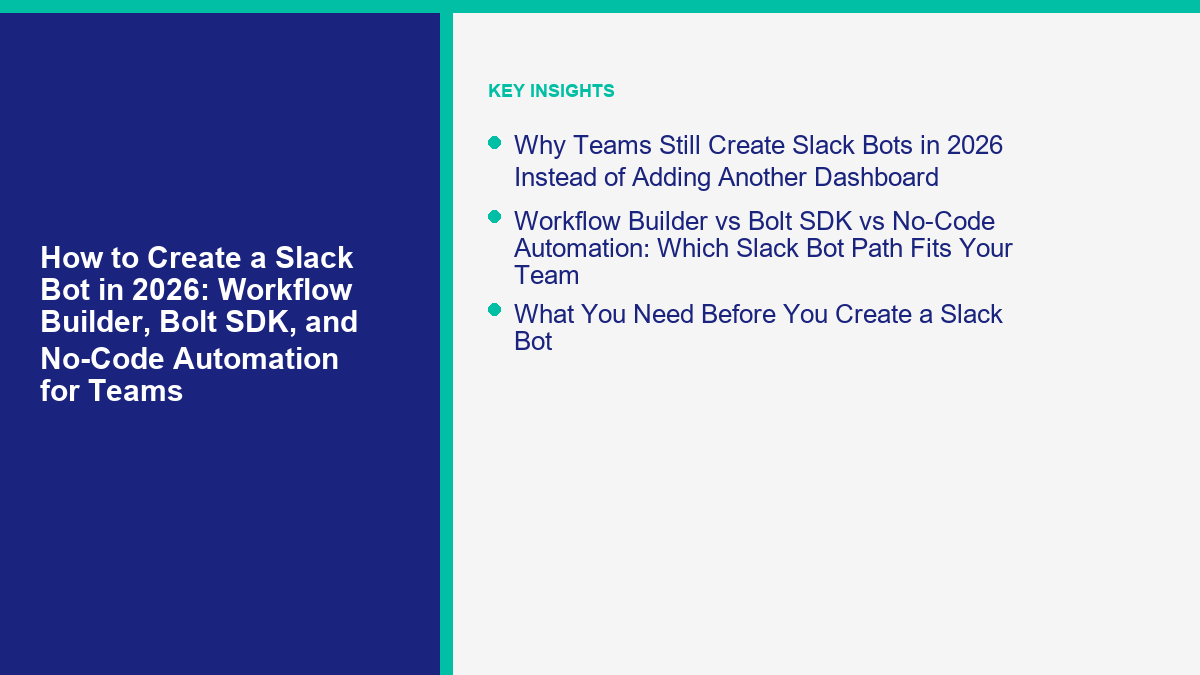
Nếu bạn muốn tạo một bot Slack vào năm 2026, điều đầu tiên cần làm rõ là “bot Slack” bây giờ có nghĩa là ít nhất ba loại khác nhau. Nó có thể có nghĩa là một quy trình không cần mã để thu thập yêu cầu và chuyển nó đến kênh phù hợp. Nó có thể có nghĩa là một ứng dụng Slack chính thức được xây dựng bằng Bolt SDK lắng nghe các lệnh, sự kiện và tin nhắn. Hoặc nó có thể có nghĩa là một lớp tự động hóa nằm giữa Slack và phần còn lại của hệ thống của bạn thông qua các công cụ như Zapier, Make hoặc Pipedream.
Những con đường này chồng chéo lên nhau, nhưng chúng không thể thay thế cho nhau. Tôi đã thấy các nhóm lãng phí hàng tuần để xây dựng một ứng dụng tùy chỉnh khi Workflow Builder đã đủ, và tôi đã thấy các nhóm khác ép Workflow Builder vào những công việc mà nó không bao giờ được thiết kế để làm. Những dự án bot Slack sạch nhất bắt đầu với quy trình làm việc, không phải trình soạn thảo mã. Hãy xác định nơi yêu cầu bắt đầu, những gì bot cần quyết định, và những gì sẽ xảy ra khi bot sai. Sau đó, công cụ phù hợp thường trở nên rõ ràng.
Hướng dẫn này được viết cho con đường xây dựng thực tế, không phải cho sân khấu trình diễn. Tôi sẽ cho bạn thấy khi nào các công cụ gốc của Slack là đủ, khi nào Bolt là lựa chọn tốt hơn, và khi nào tự động hóa bên thứ ba là lớp thông minh hơn. Nếu bạn vẫn đang lập bản đồ cho hệ thống chatbot rộng hơn của mình và cần phần giao diện khách hàng trước, Xem Các Hướng Dẫn Của Chúng Tôi trước khi bạn khóa mình vào Slack như cửa trước cho mọi cuộc trò chuyện.
Tại sao các nhóm vẫn tạo bot Slack vào năm 2026 thay vì thêm một bảng điều khiển khác
Slack vẫn là nơi mà nhiều công việc được phân công, leo thang, phê duyệt và cứu vớt. Đó là lý do đơn giản khiến các dự án bot vẫn tiếp tục xuất hiện ở đó. Khi một yêu cầu đã kết thúc trong Slack, mọi người phản hồi nhanh hơn vì họ không phải nhớ đến một hàng đợi khác, một hộp thư của nhà cung cấp khác, hoặc một tab trình duyệt khác.
Các trang giá cả của Slack tự làm cho vị trí đó trở nên rõ ràng vào năm 2026. Trang giá cả của Slack liệt kê một gói miễn phí với 90 ngày lịch sử tin nhắn và tối đa 10 ứng dụng vào ngày 12 tháng 4 năm 2026, trong khi các gói trả phí nổi bật quy trình không mã, tích hợp ứng dụng không giới hạn, và các tính năng AI tích hợp như tóm tắt cuộc trò chuyện và Slackbot như một đại lý AI cá nhân. Điều đó thay đổi quyết định xây dựng. Nếu tất cả những gì bạn cần là tóm tắt kênh hoặc một lớp tìm kiếm nhanh, bạn có thể không cần một bot tùy chỉnh. Nếu bạn cần lệnh, phê duyệt, định tuyến, hành động bên ngoài, hoặc một quy trình tiếp nhận có cấu trúc, bạn có thể cần.
Các trường hợp sử dụng bot Slack mạnh mẽ nhất vào năm 2026 vẫn trông quen thuộc:
- Các bàn trợ giúp nội bộ: thu thập một vấn đề, định tuyến nó, và đăng chi tiết có cấu trúc nơi đội ngũ phù hợp làm việc.
- Phản ứng sự cố: kích hoạt một quy trình làm việc, mở một kênh, và thông báo nhanh chóng cho các bên liên quan.
- Cảnh báo bán hàng và hỗ trợ: biến các sự kiện web, CRM, hoặc trò chuyện thành các chuỗi Slack có thể hành động thay vì thông báo chung.
- Phê duyệt: thu thập yêu cầu, áp dụng quy tắc và tài liệu kết quả ở một nơi.
- Truy cập kiến thức: để nhân viên yêu cầu chính sách, bước đi, hoặc hành động tiếp theo mà không cần phải tìm kiếm trong tài liệu.
Đây là phần mà hầu hết các hướng dẫn bóng bẩy bỏ qua: bot Slack tốt nhất thường là bot làm ít hơn. Một bot có thể xử lý năm loại yêu cầu lặp lại một cách gọn gàng có giá trị hơn một “trợ lý AI” nghe có vẻ thông minh nhưng vẫn đổ tất cả vào một kênh ồn ào.
Workflow Builder vs Bolt SDK vs Tự động hóa không mã: Con đường bot Slack nào phù hợp với nhóm của bạn
Cách nhanh nhất để tránh làm lại là chọn con đường xây dựng trước khi bạn chạm vào phạm vi hoặc mã thông báo API. Slack's hướng dẫn Workflow Builder cho biết các quy trình làm việc có sẵn trên các gói trả phí, có thể được tạo mặc định bởi các thành viên, và có thể bắt đầu từ các liên kết, lịch trình, phản ứng emoji, tham gia kênh, và sự kiện tạo kênh. Slack's hướng dẫn nhanh Bolt cho Python đề xuất Slack CLI, sandbox cho nhà phát triển, và Chế độ Socket cho phát triển cục bộ. Sau đó, bạn có các nền tảng tự động hóa, đổi một số chiều sâu gốc của Slack để có kết nối SaaS nhanh hơn.
| Con đường | Tốt nhất cho | Những gì bạn có thể gửi nhanh chóng | Public 2026 starting cost | Sự đánh đổi chính |
|---|---|---|---|---|
| Slack Workflow Builder | Internal request intake, reminders, approvals, simple routing | Forms, branches, alerts, scheduled posts, app connector steps | Slack paid plan required; Pro listed at $7.25 per user per month annually | Fastest path, but limited when you need richer bot logic, custom commands, or multichannel behavior |
| Bolt SDK | Custom Slack apps, slash commands, App Home, event-driven bots | Message listeners, commands, modals, API calls, custom routing | Framework is free; your cost is engineering time plus hosting | You own app scopes, tokens, testing, deployment, and maintenance |
| Zapier | Fast SaaS-to-Slack automations for non-developers | Triggers from forms, CRMs, sheets, help desks, and webhooks | Professional from $19.99 per month billed annually | Task-based pricing climbs fast once volume grows |
| Make | High-volume visual automation with better cost control | Branching scenarios, routers, filters, and scheduled syncs | Core from $9 per month for 10,000 credits | Credit model takes a little more planning than simpler task tools |
| Pipedream | Developer-friendly automations with code steps and webhooks | Slack automations that mix visual steps and custom code | Basic from $29 per month with 2,000 credits | Better for technical teams than for pure no-code operators |
Pricing citations: Slack giá cả, Zapier giá cả, Make giá cả, and Pipedream Xem giá cả của MessengerBot, checked April 12, 2026.
My rule is simple. Use Workflow Builder when the job is mostly a process problem. Use Bolt when the job is a product problem. Use Zapier, Make, or Pipedream when the real pain is not inside Slack, but in the handoff between Slack and everything else.
A process problem sounds like this: “We need employees to submit laptop issues, route urgent ones to IT, and log the rest.” A product problem sounds like this: “We need a bot that accepts slash commands, opens modals, calls external APIs, and responds differently based on account state.” A handoff problem sounds like this: “When a website lead books a demo or a Messenger chat asks for a refund, the right Slack channel should get a structured alert.” Those are different systems. Treating them as the same project is where the mess starts.
What You Need Before You Create a Slack Bot
You can get a Slack bot running quickly. You cannot get a useful Slack bot running quickly unless you prepare the boring parts first.
- A job description for the bot: intake, escalation, FAQ, approvals, lead routing, or incident management.
- A workspace for safe testing: Slack’s developer sandbox guidance says developers on paid plans can provision sandboxes, and Enterprise admins can require approval.
- A channel map: decide which channel or DM gets each class of request before the bot goes live.
- A permissions plan: do not ask for scopes just because the docs mention them.
- A failure path: who owns unresolved requests, low-confidence answers, and broken automations.
That fifth point is the one teams ignore. If the bot cannot answer or the workflow fails, who gets the mess? If the answer is “we’ll figure that out later,” you are building a demo, not an operational tool.
The preflight checklist I use looks like this:
- The bot has one named owner inside the team.
- The first version solves one narrow workflow, not six.
- The channel destinations are fixed before launch.
- The app only asks for scopes that the workflow can defend.
- The team knows what a successful first month looks like.
- The bot has a visible human fallback.
If you do that work first, the actual setup goes much faster because you stop improvising architecture from a vendor dashboard.
How to Create a Slack Bot with Workflow Builder Without Writing Code
Workflow Builder is the cleanest way to create a Slack bot when the bot is really a structured workflow with a bit of logic around it. That covers more use cases than people think. If your “bot” should collect a request, branch by urgency, assign an owner, and notify the right people, Workflow Builder is often enough.
Slack’s official guide says workflows can begin from a link, a schedule, emoji reactions, channel joins, and channel creation events. It also says connector steps can call third-party apps and external services. That means you can build a surprisingly useful intake bot without shipping a custom app on day one.
Use this no-code example: an IT request bot
The workflow below is simple enough for a first build and useful enough to deploy in a real team. The job is to collect IT requests, flag urgent issues, and send clean context to the right channel instead of relying on random pings in #general.
- Open Workflow Builder: In Slack desktop, go to Thêm hoặc Tự động hóa, then open the workflow gallery and create a workflow from scratch.
- Choose the trigger: For an intake bot, a link trigger is usually the cleanest start because you can pin the workflow link in a help channel, canvas, or onboarding doc. If the request should start automatically, use a schedule or event-based trigger instead.
- Add a form step: Ask for issue type, urgency, device, screenshot link, and a short description. Keep the form tight. The longer it gets, the less people finish it.
- Add conditional branches: Send urgent issues to
#it-incidentsand standard issues to#it-requests. If a high-priority request needs a human immediately, branch to a manager DM or a dedicated escalation channel. - Add channel or DM notifications: Post the request summary in the destination channel and confirm receipt to the requester.
- Add connector steps if needed: If your team uses Jira, Google Sheets, Salesforce, or another connected tool, add a connector step to create the ticket or log the request outside Slack.
- Publish and control access: Decide who can run the workflow and where the link should live. Keep the first rollout narrow.
Screenshot cue: Capture the trigger selection screen and the form builder with your actual fields visible. Those two images do more for a tutorial than a generic Slack home screen.
What makes a Workflow Builder bot feel polished
The polish usually comes from the confirmation message, not from the form. If the requester gets a clear response like “Your issue was routed to #it-requests and urgent issues are checked first,” the bot feels trustworthy. If the workflow just disappears after submit, people assume it broke.
Keep the output structured too. A bad workflow posts a wall of text. A good workflow posts a summary with predictable fields:
New IT Request
Urgency: High
Issue Type: VPN access
Requester: @ana
Device: MacBook Air
Summary: Cannot access production VPN after password reset
Screenshot: Attached link
That format matters because humans can scan it. If the post lands in a busy ops channel, readability is the difference between fast action and scroll-past fatigue.
Where Workflow Builder hits the wall
Workflow Builder stops being the right tool when you need slash commands, dynamic API lookups, message listeners, custom Home tabs, or bot behavior that depends on logic outside Slack. It is also the wrong fit if you need the bot to feel conversational in DMs over time rather than form-driven or trigger-driven.
Here is the line I use: if the workflow can be described as intake, branch, notify, and log, stay no-code longer. If the workflow needs to hear, decide, fetch, and reply based on live external state, move to Bolt.
How to Create a Custom Slack Bot with the Bolt SDK
Bolt is the right path when you want a real Slack app instead of a no-code workflow. Slack’s hướng dẫn nhanh Bolt cho Python và Bolt for JavaScript quickstart still recommend the Slack CLI in 2026, and the Python guide specifically calls for Python 3.7 or later. The docs also recommend developer sandboxes so you can test without disrupting a live workspace.
The fastest custom setup for most teams is Bolt plus Socket Mode. Slack’s quickstart says Socket Mode lets you listen for events without opening a port or exposing an endpoint. That is exactly why it is so useful for local development. You can get the app working before you think about public HTTPS, tunnels, or hosting.
The shortest sane Bolt setup flow
- Install Slack CLI and log in: Use Slack’s CLI install guide for your operating system, then run
slack versionvàslack login. - Create a starter project: Slack’s Python quickstart uses
slack create first-bolt-app --template slack-samples/bolt-python-getting-started-app. - Create or import the app from a manifest: Slack’s quickstart uses the generated
manifest.jsonto create the app. - Generate the app-level token: Turn on Socket Mode, create an app token with the
connections:writescope, and store the resultingxapptoken. - Install the app to your workspace: In OAuth & Permissions, install the app and store the bot token that begins with
xoxb. - Run the app locally: Start the Bolt app and test it in a DM or a public channel where the bot is invited.
Slack’s quickstart is also blunt about token handling: treat the tokens like passwords. That is the right mindset. Do not paste them into screenshots, docs, or shared snippets.
slack create first-bolt-app --template slack-samples/bolt-python-getting-started-app
cd first-bolt-app
python3 -m venv .venv
source .venv/bin/activate
pip install -r requirements.txt
slack run
If you prefer JavaScript, the flow is basically the same. The Slack CLI can scaffold the Bolt for JavaScript starter template, and you still use a manifest, workspace install, Socket Mode token, and bot token. Pick the language your team will actually maintain. Slack does not care whether your unreadable code is in Python or Node.
Why app manifests are worth using from day one
Slack’s app manifests documentation says manifests are reusable, portable configurations that can live in JSON or YAML and be stored in version control. That is exactly why you should use them. They stop app setup from becoming tribal knowledge hidden in one admin screen.
When the manifest lives in the repo, your scopes, slash commands, event subscriptions, and display settings are visible to the whole team. That matters in two places: development clones and audits. If you ever need to explain why the bot has a certain scope, the manifest is where that conversation starts.
Screenshot cue: If this article gets screenshots later, show the Basic Information page with Socket Mode enabled and the OAuth & Permissions page with the bot token area blurred. Those are the two screens readers actually need help finding.
A Working Bolt Bot Example That Routes Requests to the Right Slack Channel
The sample below is intentionally narrow. It is not trying to be an all-purpose AI assistant. It creates a slash-command bot that routes normal requests to one channel and urgent requests to another. That is the kind of bot teams actually keep using.
define the app manifest
display_information:
  name: Team Triage Bot
features:
  bot_user:
    display_name: Team Triage Bot
  slash_commands:
    - command: /triage
      description: Route a team request
      usage_hint: urgent vpn locked out
      should_escape: false
oauth_config:
  scopes:
    bot:
      - commands
      - chat:write
settings:
  interactivity:
    is_enabled: true
  socket_mode_enabled: true
This manifest is intentionally light. It gives the app one command and the ability to write messages. If you want the bot to post into public channels it has not joined yet, you may also need chat:write.public, but do not add it unless your rollout actually needs it.
add the Python app
import os
from slack_bolt import App
from slack_bolt.adapter.socket_mode import SocketModeHandler

app = App(token=os.environ["SLACK_BOT_TOKEN"])

HIGH_PRIORITY_CHANNEL = os.environ["HIGH_PRIORITY_CHANNEL"]
STANDARD_CHANNEL = os.environ["STANDARD_CHANNEL"]

@app.command("/triage")
def triage_request(ack, body, client):
    ack("Routing your request now.")

    raw_text = (body.get("text") or "").strip()
    requester = body["user_id"]

    if not raw_text:
        client.chat_postEphemeral(
            channel=body["channel_id"],
            user=requester,
            text="Add a short request after /triage, for example: /triage urgent vpn locked out"
        )
        return

    is_urgent = "urgent" in raw_text.lower() or "sev1" in raw_text.lower()
    target_channel = HIGH_PRIORITY_CHANNEL if is_urgent else STANDARD_CHANNEL
    urgency_label = "High" if is_urgent else "Normal"

    client.chat_postMessage(
        channel=target_channel,
        text=(
            f"*New team request*\\n"
            f"*Urgency:* {urgency_label}\\n"
            f"*Requested by:* <@{requester}>\\n"
            f"*Details:* {raw_text}"
        ),
    )

if __name__ == "__main__":
    SocketModeHandler(app, os.environ["SLACK_APP_TOKEN"]).start()
set the environment variables
export SLACK_APP_TOKEN=xapp-...
export SLACK_BOT_TOKEN=xoxb-...
export HIGH_PRIORITY_CHANNEL=C0123456789
export STANDARD_CHANNEL=C9876543210
python3 app.py
Use real channel IDs, not friendly guesses, so the bot posts reliably. After the app is running, test these cases:
/triage urgent vpn locked out for finance team/triage laptop charger needs replacement/triagewith no message, to confirm the empty-state behavior
That tiny bot already covers a legitimate use case. From there you can add modals, user lookup, API calls, ticket creation, or channel-specific routing. The important part is that the first version stays narrow enough to debug. Teams get in trouble when the version-one bot tries to open tickets, read wiki data, summarize threads, and make coffee.
What to add next if the first version works
Once the command path is stable, the next upgrades usually deliver the most value:
- Add a modal so users choose urgency and request type instead of typing freeform text every time.
- Look up a user profile or team mapping before routing the request.
- Write to a ticketing system and include the ticket ID in the Slack confirmation.
- Store an audit trail so you can report on request volume and response time later.
That is the right growth path: make the bot more reliable before you make it more ambitious.
How to Connect Slack Bots to Websites, CRMs, and No-Code Automation Platforms
A lot of teams do not actually need Slack to be the public-facing bot channel. They need Slack to be the staff operating layer behind a website chatbot, Messenger bot, Instagram DM flow, CRM form, or support widget. That is where third-party automation earns its keep.
Slack’s Workflow Builder guide explicitly mentions workflows that can start in an external service. That matters because it gives you two good architectures:
- Slack-first: the conversation starts in Slack and other tools are downstream.
- Channel-first: the conversation starts on your website, in Messenger, or in Instagram, and Slack is the internal response surface.
If your customers already talk to you through Facebook Messenger, Instagram, or your website, rebuilding the entire front-end chat experience inside Slack is usually the wrong move. In that situation, Slack should receive the routed request, not replace the customer channel. Before you commit engineering time to the wrong architecture, compare the split-stack cost with Xem giá cả của MessengerBot.
Zapier vs Make vs Pipedream for Slack automation
| Nền tảng | Phù hợp nhất | 2026 pricing signal | What I like | Những điều cần chú ý |
|---|---|---|---|---|
| Zapier | Teams that want fast SaaS integrations with minimal technical setup | Professional from $19.99 per month billed annually | Fastest for common business app triggers and Webhooks by Zapier | Task-based billing can get expensive once Slack notifications start multiplying |
| Make | Teams that want a visual builder and better cost control at moderate volume | Core from $9 per month for 10,000 credits | Good branching, routing, and minute-level scheduling on paid plans | Credit math needs a little planning if scenarios get large |
| Pipedream | Technical teams that want code steps, webhooks, and APIs in one flow | Basic from $29 per month with 2,000 credits | Great when the automation needs custom logic but a full app is overkill | Closer to low-code than true no-code, so ownership matters |
Zapier’s 2026 pricing page is especially relevant for Slack bots because the Professional plan is where multi-step Zaps and webhooks show up. Make’s giá cả is attractive when you need more volume for less money. Pipedream’s pricing docs say workflow billing is based on compute time rather than the number of steps, which is a useful distinction when you are comparing cost models.
Here is the decision shortcut I use:
- Sử dụng Zapier when speed matters more than cost efficiency.
- Sử dụng Make when you want a visual builder and expect more branching or more runs.
- Sử dụng Pipedream when you need webhooks and custom logic but do not want to build a full Bolt app yet.
If your external conversation layer is already working well and Slack just needs clean notifications, ownership, and escalation, that split architecture is usually better than forcing customers or leads into Slack. If you want the front-end chatbot side handled while Slack stays the internal command room, Upgrade to MessengerBot Pro instead of rebuilding the public bot stack from scratch.
Slack Bot Pricing in 2026: What Is Actually Free and What Starts Costing Money
“Create Slack bot for free” is only partly true in 2026. You can absolutely prototype on a cheap stack, but the real cost depends on which path you choose.
| Cost bucket | Official 2026 public price | What that really means for a Slack bot project |
|---|---|---|
| Slack Free | $0 | Good for lightweight workspace testing, but only 90 days of history and up to 10 apps on the pricing page |
| Slack Pro | $7.25 per active user per month billed annually | Lowest realistic entry point for Workflow Builder and stronger day-to-day ops use |
| Slack Business+ | $15 per active user per month billed annually | Useful when admin controls, AI features, and larger operational scale matter |
| Zapier Professional | $19.99 per month billed annually | Good for quick webhook and multi-step automations, but watch usage growth |
| Make Core | $9 per month for 10,000 credits | Often the cheapest serious option for medium-volume automations |
| Pipedream Basic | $29 per month with 2,000 credits | More dev-friendly and code-capable than the pure no-code tools |
The subtle pricing trap is not the sticker price. It is volume. A Slack bot that fires one or two actions per request is cheap. A Slack bot that sends three messages, writes a CRM record, posts a thread reply, and pings two managers for every form submission gets expensive much faster. That is why I usually recommend starting with a narrow internal use case and measuring run volume for two weeks before expanding the workflow.
One more reality check: the Bolt SDK itself is not the paid part. Your cost there is developer time, ongoing maintenance, and whatever you use for hosting, logs, and secrets. That can still be the cheaper path if you are avoiding thousands of repetitive automation runs every month.
Slack App Permissions, Security, and Approval Rules You Should Not Skip
Slack bots feel harmless in demos, which is why teams get lazy about permissions. Slack’s app permissions guide says each app has scopes that determine what it can view, post, and do in a workspace. That sounds obvious, but it should change how you build. Scopes are not setup noise. They are the contract between your bot and the workspace.
Ask for the minimum scopes you can defend
If your bot only needs to receive a slash command and post a response, do not ask for channel history, file access, and admin scopes. Over-scoped apps are harder to approve and harder to justify later. They also make security reviews more painful than they need to be.
Use manifests so app configuration is visible
Slack’s manifests documentation says manifests are portable and version-control-friendly. That alone is reason enough to use them. When the manifest is in the repo, reviewers can see the scopes, commands, and settings without screen-sharing an admin console.
Treat tokens like credentials, not setup artifacts
Slack’s Bolt quickstart says to keep your tokens safe and treat them like passwords. That is exactly right. Your xapp và xoxb tokens do not belong in screenshots, client docs, or copied snippets sitting in chat. Use environment variables or a secrets manager from the first build.
Expect approval workflows in serious workspaces
Slack’s Workflow Builder guide notes that connector steps may require additional approval or configuration, and the app permissions guide says users can review the information an app can view and what actions it can take. In other words, if your Slack bot touches third-party systems or sensitive channels, approval is part of the design. Build for it instead of acting surprised when admin review slows you down.
Design the failure path on purpose
Security is not only about secrets and scopes. It is also about operational safety. What happens when the bot misroutes a request, posts in the wrong channel, or silently fails to create the downstream ticket? The safest bots acknowledge the request, log the action, and leave a trail humans can follow.
The clean rule here is boring but effective: least privilege, clear ownership, and visible logs beat clever automation every time.
Slack Bot Use Cases That Save Teams Real Time
The best Slack bot use cases are not flashy. They are the repetitive jobs that staff already do in messages, but badly.
IT intake and account access
This is still the highest-confidence Slack bot use case. Employees need VPN access, password resets, app approvals, and device help. The bot collects the basics, flags urgency, and routes the request. That alone cuts down back-and-forth.
Incident response and ops coordination
A bot can open the right workflow, gather the first facts, create the incident channel, and notify responders faster than a human digging for the playbook link. This is exactly the kind of structured, repeatable work Slack is good at.
Sales lead alerts
If a lead qualifies on your site or through a chatbot, Slack is a strong destination for the internal alert. The bot can include company size, use case, urgency, requested plan, and owner instead of dumping a raw form notification into a shared channel.
Support escalation from public channels into internal ops
This is where Slack should usually stay internal. Let customers talk to your website widget, Facebook Messenger, or Instagram DMs, then use Slack for the team handoff. That keeps the public conversation in the channel the customer chose while giving your team a fast coordination layer. If that is your architecture, Slack is the back room, not the storefront.
That split is especially useful for small businesses that already get most inquiries through social or on-site chat. In those cases, a MessengerBot front end plus Slack routing behind it is usually cleaner than forcing Slack to act like a customer support inbox.
Agency delivery for clients
Agencies keep hitting the same pattern: the client wants internal Slack notifications and public chatbot coverage at the same time. If that is your business, do not oversell one tool as the whole answer. Use Slack for team operations and the right public chatbot channel for the audience. If you build those multichannel systems for clients, Tham gia Chương Trình Liên Kết Của Chúng Tôi instead of reinventing the customer-facing layer on every project.
Common Mistakes When Teams Create a Slack Bot
The same build mistakes show up over and over.
- Starting with features instead of the workflow: if you cannot explain the exact job in one sentence, the bot is too vague.
- Routing everything into one channel: one noisy destination makes a bot feel worse than email.
- Over-scoping the app: asking for broad permissions early creates review friction and future cleanup work.
- Using Workflow Builder for conversational logic: it is great for workflows, not for pretending to be a full agent platform.
- Skipping the human fallback: when the bot fails, people need a clear next step.
- Building the wrong public channel: if customers start on your website, Messenger, or Instagram, keep them there and send the structured result to Slack.
The shortcut fix is to narrow the scope. One request type. One owner. One destination channel. One success metric. That is how Slack bot projects survive first contact with a real team.
The Launch Checklist Before You Publish a Slack Bot to Your Team
Run through this list once before you call the bot “done.”
- The bot has a named internal owner.
- The first workflow is narrow enough to explain in one sentence.
- The destination channels are correct and tested.
- The manifest or workflow config is documented.
- The requested scopes are the minimum needed.
- Tokens are stored outside screenshots, notes, and public repos.
- The empty-state and error-state behavior are tested.
- High-priority requests have a human fallback.
- You know which metric you will watch for the first 30 days.
- The bot is helping the team where work already happens, not creating another inbox nobody wants.
If you are still deciding whether Slack should be the primary bot channel or just the team operating layer behind Messenger, Instagram, and website chat, Xem Các Hướng Dẫn Của Chúng Tôi first and compare the operational tradeoffs before you build the wrong thing.
If the customer-facing side of your automation belongs on Meta or your website while Slack handles the internal handoff, check Xem giá cả của MessengerBot and the option to Upgrade to MessengerBot Pro rather than forcing a Slack-first front end that your customers never asked for.
Sources and Pricing Checked April 12, 2026
- Slack pricing
- Slack Pro plan pricing
- Slack Business+ plan pricing
- Slack Workflow Builder guide
- Slack developer sandboxes
- Slack app permissions guide
- Slack app manifests documentation
- hướng dẫn nhanh Bolt cho Python
- Bolt for JavaScript quickstart
- Zapier pricing
- Make pricing
- Xem giá cả của MessengerBot
- Pipedream pricing docs
Câu hỏi Thường gặp
Tôi có thể tạo một bot Slack mà không cần lập trình vào năm 2026 không?
Yes. Slack’s Workflow Builder can handle many internal bot jobs without code, especially request intake, reminders, approvals, and simple routing. The moment you need slash commands, dynamic API lookups, or richer conversational behavior, Bolt or a low-code automation platform is usually the better path.
Sự khác biệt giữa Slackbot và một bot Slack tùy chỉnh là gì?
Slackbot is Slack’s built-in assistant layer for basic workspace help, AI summaries, and native productivity features on eligible plans. A custom Slack bot is a Slack app or workflow you configure yourself to handle your own commands, routing logic, approvals, notifications, and external integrations.
Chi phí để tạo một bot Slack vào năm 2026 là bao nhiêu?
Câu trả lời phụ thuộc vào lộ trình xây dựng. Slack đã liệt kê Pro với giá $7.25 cho mỗi người dùng hoạt động mỗi tháng được thanh toán hàng năm và Business+ với giá $15 cho mỗi người dùng hoạt động mỗi tháng được thanh toán hàng năm vào ngày 12 tháng 4 năm 2026. Zapier Professional bắt đầu với giá $19.99 mỗi tháng được thanh toán hàng năm, Make Core với giá $9 mỗi tháng cho 10.000 tín dụng, và Pipedream Basic với giá $29 mỗi tháng với 2.000 tín dụng. Một ứng dụng Bolt tùy chỉnh có thể rẻ về chi phí phần mềm nhưng đắt về bảo trì nếu phạm vi trở nên lộn xộn.
Tôi nên sử dụng Workflow Builder hay Bolt SDK cho bot Slack của mình?
Sử dụng Workflow Builder khi vấn đề là tiếp nhận, phân nhánh, thông báo hoặc các bước phê duyệt trong Slack. Sử dụng Bolt khi bot cần lệnh, sự kiện, logic API tùy chỉnh, bề mặt ứng dụng như modal hoặc App Home, hoặc hành vi dựa trên dữ liệu bên ngoài Slack.
Liệu một bot Slack có thể làm việc với chatbot trên trang web của tôi hoặc bot Messenger không?
Có, và đó thường là thiết kế sạch nhất. Hãy để chatbot công khai sống trên trang web, Facebook Messenger, hoặc Instagram nơi khách hàng đã có mặt, sau đó gửi thông báo có cấu trúc, nâng cấp, hoặc thông báo cho chủ sở hữu vào Slack cho đội ngũ. Slack hoạt động tốt như lớp vận hành nội bộ ngay cả khi nó không phải là kênh trò chuyện công khai.



 Tiếng Việt
  English
  Tagalog
  简体中文
简体中文  العربية
  हिन्दी
  Português do Brasil
  Español de México
  Français
  বাংলা
বাংলা  香港中文
香港中文  繁體中文
繁體中文  Nederlands
  Deutsch
  Bahasa Indonesia
  日本語
日本語  한국어
한국어  Polski
  Русский
  Español