
もしあなたが ウェブサイト用のAIチャットボット 2026年に使用する場合、難しい部分は通常コードスニペットではありません。難しい部分は、実際の訪問者が最初にそれを開いたときにボットが実際に何をすべきかを決定することです。多くのチームはウィジェットを10分でインストールし、その後3週間、チャットバブルがクリックされる理由はわかるが、質の高いリード、解決されたサポート問題、または予約された通話が得られない理由を考えています。.
このガイドは仕事の実践的な部分のためのものです: ウェブサイト用のチャットボット 実際のサイトでライブチャットが重要な場所にあり、リードキャプチャが効果的で、質問が十分に繰り返されるために安全に自動化できるように、デプロイメントを実施することです。まだ完全にベンダー選定モードにいる場合は、私たちの より広範なチャットボットプラットフォーム比較 を使用してください。ここでの目標は狭く、適切なウェブサイトチャットボットモデルを選択し、クリーンにインストールし、コンバージョンを損なうことなくカスタマイズし、ウェブサイトチャットを雑然と感じさせる間違いを避けることです。.
私は以下に参照されているプラットフォームとサイトビルダーの公開価格ページと公式ドキュメントを確認しました。 2026年4月12日. その日付は重要です。MessengerBotの公開プランはまだ $19.99 プレミアム用の, $49.99 プロ用の、そして $299.99 エージェンシー向けに30日ごと。Tidioのスタータープランは 月額$24.17 年払いで、最初の 50 Lyro AI会話が 生涯スタータークォータとして無料です。Freshchatは、実際に 最大10人のエージェント向けの無料プランを提供しています, Growthは 月額$19でエージェントごとに 年払いです。Intercomのエッセンシャルプランは 月額$29で席ごとに 年間請求され、なおレイヤーがあります $0.99 ごとのファインチューニング結果 その上に。HubSpot Service Hub Starterは $20 ごとの席ごとの月額料金, そしてBreeze Customer Agentはシフトします $0.50 で解決された会話ごと 開始する 2026年4月14日. Landbotは引き続き無料のSandboxを提供し、 $45 ごとの月額料金 Starterプランを提供し、Botpressは従量課金制のティアを維持しています $0プラスAI支出, Plusは $79 プラス AI スペンド 年払いです。.[1][2][3][5][6][8][9][11][12]
短い推奨事項はシンプルです。あなたのビジネスがウェブサイトのチャット、Facebook Messenger、Instagramをカバーできる1つのシステムを必要としている場合、MessengerBotはこのグループの中で最もクリーンな実装優先の選択肢です。もしあなたのサイトが重心で、サポートが販売よりも多い場合、Tidio、Freshchat、HubSpot、Botpress、またはIntercomが、実際にどれだけのコントロールと複雑さを望むかによって、より適しているかもしれません。.
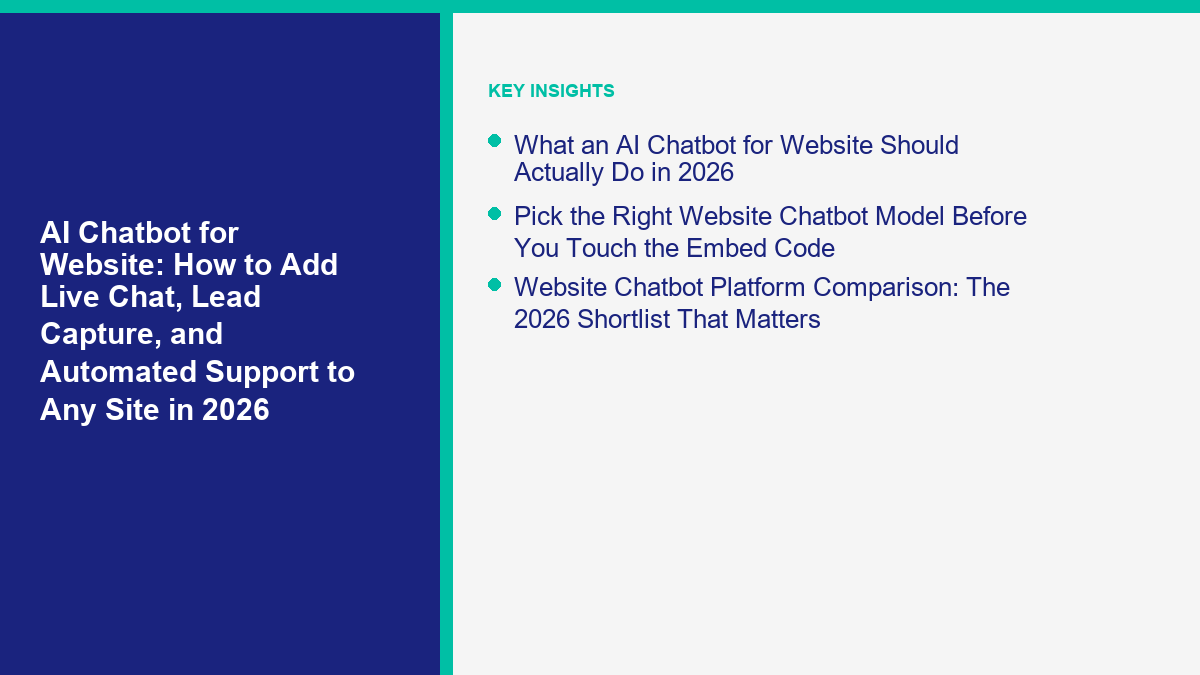
2026年にウェブサイトのためのAIチャットボットが実際にすべきこと
良い ウェブサイトチャットボット は、単なる言語モデルの背後にある浮遊アイコンではありません。それはフロントドアシステムです。応答の遅延を減らし、有用な情報を収集し、訪問者を静的なコンタクトページよりも早く次の正しい行動に移動させるべきです。それらのいずれかを実行しない場合、それは装飾に過ぎません。.
ほとんどのビジネスにとって、最初の有用な チャットボットウェブサイト 展開は5つの仕事をうまく処理します:
- 迅速に挨拶し、方向を示します。. 訪問者は、チャットが販売、サポート、予約、または一般的な質問のためのものであるかを一目で知るべきです。.
- ユーザーが掘り下げることなく一般的な質問に答えます。. 営業時間、価格の基本、配送、サービスエリア、返品期間、統合、または製品適合に関する質問はすぐに対処する必要があります。.
- 会話の中でリード情報をキャッチします。. ユーザーが見積もり、デモ、アポイントメント、またはコールバックを求めている場合、ボットは人間がゼロから始める必要がないように十分なコンテキストを収集する必要があります。.
- スムーズにエスカレーションします。. 引き渡しを拒否するボットは、ボットがいないよりも悪いです。請求の争い、緊急の問題、技術的なエッジケース、高価値の見込み客には人間のルートが必要です。.
- ビジネスの成果に結びつけておきます。. あなたの本当の指標はチャットの開始数ではありません。それはキャッチしたリード、作成した予約、回避したチケット、または節約した時間です。.
それが、もしそこで止まるなら「あなたのサイトにAIチャットを追加する」というのが間違ったメンタルモデルである理由です。インストールステップはワークフローデザインと比較して些細なものです。より良いフレーミングはこれです: チャットボットが所有すべきことは何で、まだ人に渡すべきことは何ですか? それに答えれば、技術の選択が容易になります。.
実際には、ほとんどの成功した展開はハイブリッドです。ルールを使用してルーティング、フォーム、ページターゲティング、リードフィールド、ハンドオフを行います。訪問者が自然に入力する場所、混乱した質問をする場所、または既知の情報の迅速な要約が必要な場所でAIを使用します。人間が人間らしく書くと、純粋なルールは破綻します。ビジネスルールが言葉よりも重要になると、純粋なAIは破綻します。ハイブリッドが通常機能するレーンです。.
埋め込みコードに触れる前に適切なウェブサイトチャットボットモデルを選択してください
ほとんどの実装ミスは、チームがユースケースではなくウィジェットから始めるために発生します。展開するための一般的な方法は4つあります。 ウェブサイト用のAIチャットボット プロジェクトは、それぞれ本番環境で異なる動作をします。.
| 展開モデル | 最適なページ | 得意なこと | 通常どこで破綻するか |
|---|---|---|---|
| ライブチャットファースト | 価格設定、チェックアウトのヘルプ、サービスページ | 迅速な人間の応答と軽量な自動化、離席状態のキャプチャ | すべての会話に人が必要な場合は高額になる |
| リードキャプチャボット | 見積もりフォーム、デモページ、ローカルサービスページ、キャンペーンページ | 訪問者を資格付けし、会話内に構造化されたリードデータを保存 | 早すぎる段階で多くを求めると押し付けがましく感じる |
| 自動サポートアシスタント | ヘルプ、FAQ、アカウント、配送、オンボーディング、ドキュメントが多いページ | 繰り返しの質問を回避し、24/7の応答をサポート | ナレッジベースが薄いまたは古い場合は迅速に失敗する |
| Hybrid sales plus support widget | Most SMB homepages and high-intent sitewide installs | Gives one launcher that can route to pricing, support, booking, or a human | Gets messy when the initial menu is vague or bloated |
If you only remember one rule from this section, use this one: start with one primary job. A website chatbot that tries to be a help desk, SDR, booking assistant, product recommender, and FAQ engine on day one usually becomes none of those things. Start with the job that already has clear demand in your inbox.
For local service businesses, that is often after-hours lead capture. For ecommerce, it is usually product questions, shipping, and pre-purchase objections. For SaaS or agencies, it is demo qualification and routing. For support-heavy teams, it is knowledge-based answers plus clean escalation.
This is also the right moment to decide whether the widget should appear on every page. Sitewide sounds attractive, but it is not always correct. A ウェブサイト用のチャットボット installs best when it shows up where intent exists. Pricing pages, service pages, product detail pages, booking pages, and support hubs usually outperform generic low-intent blog pages.
Website Chatbot Platform Comparison: The 2026 Shortlist That Matters
You do not need a list of thirty tools. You need a shortlist that reflects how website chat gets deployed in the real world. These are the platforms I would actually compare if the job is adding a working ウェブサイトチャットボット to a live site this quarter.
| プラットフォーム | Current public starting point | Free path | 最適な適合 | Implementation note |
|---|---|---|---|---|
| MessengerBot | プレミアム $19.99 毎月 | Trial, but no permanent free plan listed publicly | Businesses that need website chat plus Facebook Messenger and Instagram | Strong value when the same bot needs lead capture, Meta messaging, and web chat in one stack |
| Tidio | Starter $24.17 per month billed annually | Yes, plus 50 lifetime free Lyro AI conversations | Website-first SMB sales and support | Good blend of live chat, Flows, and AI, but the AI layer becomes a separate cost decision quickly |
| Freshchat | 成長プラン $19/エージェント/月(年払い) | Yes, free for up to 10 agents | Support teams that want website, Messenger, and Instagram coverage | Real free entry point for live chat, then AI session math starts once Freddy is active |
| HubSpot | Service Hub Starter $20 per seat per month | Free tools available | CRM-led teams that want chat tied to contacts, forms, and service workflows | External websites need HubSpot tracking code installed before the widget will appear |
| ランドボット | Starter $45 per month | Sandbox free forever | Conversational lead forms and guided qualification flows | Excellent when your “chatbot” is really a conversion path disguised as chat |
| Botpress | Pay-as-you-go $0 plus AI spend | Yes, with monthly AI credit | Technical teams that want more model and integration control | Great webchat flexibility, but it assumes you want more ownership than a turnkey SMB tool |
| インターコム | 年間請求のための1席あたり$29 | No permanent free path beyond trial | Mature support organizations | Powerful AI support layer, but the seat-plus-outcome model needs real forecasting |
Those numbers look close until you model how each platform bills success. MessengerBot keeps the math flat and simple. Tidio splits the workspace, Flows, and Lyro usage. Freshchat starts budget-friendly, then adds Freddy AI session costs after the included trial allocation. HubSpot layers CRM-driven chat and shifts Breeze Customer Agent to outcome-based billing on 2026年4月14日. Intercom stays premium and very good, but its $0.99 per outcome model means your bill rises as Fin resolves more conversations. Botpress is flexible, but “flexible” usually means your team owns more of the stack.[1][2][3][5][6][7][8][9][11][12]
The practical buying rule is this:
- Choose MessengerBot if one system needs to power your website, Messenger, and Instagram while keeping pricing easy to explain.
- Choose Tidio if the site is the center of gravity and you want a safe all-around SMB pick.
- Choose Freshchat if support is the main job and you need a serious free or low-cost entry point.
- Choose HubSpot if every conversation should become CRM context and you already work inside HubSpot.
- Choose Landbot if the goal is lead qualification and conversational forms, not just open-ended chat.
- Choose Botpress if you want a more developer-shaped stack and do not mind owning more implementation detail.
- Choose Intercom if you run a real support operation and can budget for seats, outcomes, and analytics properly.
If you are already close to choosing MessengerBot, MessengerBotの料金を見る before you build the spreadsheet. It is easier to scope the first launch when you know what flat-fee capacity looks like instead of guessing at outcome or usage overages.
What to Prepare Before You Install a Chatbot on Your Site
The fastest successful launch is not “paste code and improvise.” It is a short prep sprint that gets the bot clear on purpose before the widget is ever visible. If you skip this, the chatbot goes live, but it will feel generic because nobody decided what success actually looks like.
| Prep item | なぜ重要なのか | Good-enough version for launch week |
|---|---|---|
| Primary goal | The bot needs one main job | Pick one: leads, support, booking, or qualification |
| Top 10 real questions | These become your first menu options, replies, and fallback logic | Pull them from support tickets, emails, DMs, forms, or calls |
| Lead fields | Without structured fields, the bot creates chatter, not pipeline | Name, email, phone, product or service interest, and timing |
| Human handoff rule | Users need a clean exit path | Escalate on repeated failure, billing issues, urgency, or explicit human request |
| Target pages | Sitewide display is not always the right first move | Start on homepage, pricing, service, product, booking, or support pages only |
| Notification destination | Leads die if new chats go nowhere | Assign inbox owner, CRM route, email alert, or Google Sheet |
| Success metric | You need a way to know whether the deployment works | Qualified leads, booked calls, solved questions, or human time saved |
A lot of teams overbuild the early flow because AI makes it feel like everything can be conversational. It can, but that does not mean it should. The highest-converting first launch is usually boring in a good way. Short menu. Clear branches. Minimal questions. Obvious handoff. Real next step.
For example, if your main goal is lead capture, a three-branch opening is usually enough:
Welcome
  - Get pricing
  - Ask a question
  - Talk to a person

Pricing branch
  - Show pricing summary or route to pricing page
  - Ask product or service interest
  - Collect email and timeline

Question branch
  - Answer FAQ
  - Offer follow-up or human handoff

Human branch
  - Collect contact details if offline
  - Route to live inbox if online
That flow will outperform a clever but vague chatbot more often than people expect. A ウェブサイト用のチャットボット succeeds when it reduces friction, not when it sounds impressive in a demo.
How to Add an AI Chatbot to Any Website With Embed Code
Most website chatbot installs fall into one of three buckets:
- Native plugin or app. Best when the vendor offers an official WordPress plugin or equivalent managed install.
- Sitewide script injection. Best for Wix, Squarespace, Webflow, custom HTML sites, and most standard marketing websites.
- Page-level embed. Best for campaign pages, landing pages, or situations where you want chat only on selected pages.
The generic install sequence is almost always the same:
- Create the widget or bot inside your chatbot platform and save the basic appearance, greeting, and routing settings.
- Copy the embed snippet or installation code the platform gives you.
- Decide whether the widget should run sitewide or only on selected pages. Start narrower if the site has sensitive pages like checkout, account settings, or application flows.
- Place the code in the vendor-recommended location. This is important because not every vendor uses the same install pattern.
- Publish the site, then test in incognito. Preview mode catches layout issues, but it is not a real launch test.
- Test mobile before you call the install done. A website chatbot that overlaps the CTA button on mobile is not actually live.
Your snippet will usually look something like this:
<!-- Replace this with the script your chatbot platform gives you -->
<script src="https://widget.example.com/chat.js" defer></script>
<script>
  window.ExampleChat = window.ExampleChat || {};
  window.ExampleChat.load({
    widgetId: "YOUR_WIDGET_ID"
  });
</script>
The critical part is placement. Do not assume every vendor wants the same spot. Botpress explicitly tells self-hosted sites to add its Webchat embed code in the <head>. Webflow says script tags should generally go before the closing </body> tag. Wix lets you place code in Head, Body - start, または Body - end. Squarespace says footer code injection is inserted before the closing </body> tag on every page. The right rule is simple: follow the vendor’s install instruction first, then use your site builder’s matching insertion point.[13][14][15][16]
If you want the fastest heuristic anyway, use this one:
- Use head placement only when the vendor documentation explicitly tells you to.
- Use body-end or footer placement for most general widget scripts on site builders, because it is cleaner and usually better for page load behavior.
- Use a plugin or app when it exists and is maintained, because it reduces copy-paste errors and makes updates easier.
That sounds basic, but it prevents a surprising number of launch failures. The most common install bugs are still wrong placement, unpublished changes, page targeting set too narrowly, or a widget that was built but never connected to the live site.
WordPress, Wix, Squarespace, Webflow, and Custom Sites: The Fastest Install Path
You do not need a separate tutorial for every site stack to get the first launch right. You need the fastest safe path for the stack you already have.
WordPress
If your chatbot vendor has an official WordPress plugin, use it first. That route is usually cleaner than hand-editing theme files because it handles widget loading, updates, and account connection with less friction. If there is no maintained plugin, use a header-footer code injection plugin or your theme’s global code settings. Then purge cache, hard refresh, and test outside the admin session.
Wix
Wix is straightforward once you know where to look. The official path is Settings > Custom Code, then choose whether the snippet applies to all pages or only selected pages. Wix also lets you choose Head, Body - start, または Body - end, which makes it easy to match whatever your chatbot vendor tells you to do. Two details matter: the site must be published, and third-party code placement should follow the provider’s instructions instead of guesswork.[14]
Squarespace
Squarespace’s code injection settings are one of the easier ways to add a チャットボットウェブサイト widget without touching theme files. Header code goes into the <head> on every page, while footer injection is placed before the closing </body>. That makes footer the usual choice for live chat widgets unless the vendor tells you otherwise. If you only need the bot on one page, per-page code injection is usually cleaner than forcing it sitewide.[15]
Webflow
Webflow supports custom code at the site level and page level. Its current help doc is clear that scripts generally belong before the closing </body> tag, and it also makes an easy-to-miss point: preview is not enough, because the code does not go live until the site is published. If your chatbot looks fine in preview but disappears in production, check publish status before you blame the vendor.[16]
HubSpot on an external website
HubSpot is the main exception teams miss when they install on a non-HubSpot site. HubSpot’s own knowledge base says the tracking code must be added to external pages before the bot will appear. If the code is missing, you can build the chatflow perfectly and still never see the widget on the public site. The same doc also makes clear that the chat widget setup includes availability, welcome message, assignment, and targeting, so this is not just a code task. It is an operating setup task too.[10]
Custom HTML, headless, or developer-owned sites
If you own the codebase, put the widget in your base layout or shared template so the installation behaves predictably across pages. If you are running a React, Next.js, Astro, or similar frontend, the cleanest pattern is to load the vendor script once in the global shell and let page-level targeting happen through the vendor settings whenever possible. Do not scatter embed snippets across multiple components unless you like debugging duplicate widgets.
This is also where Botpress stands out for technical teams. Its quickstart is explicit: copy the Webchat embed code from the dashboard and add it to your site’s HTML head. That is a good example of why you should not blindly apply body-end advice to every vendor.[13]
How to Configure Live Chat, Lead Capture, and Automated Support Without Making the Widget Annoying
Once the widget is installed, the real work starts. Configuration is where a ウェブサイトチャットボット becomes useful or forgettable.
Live chat setup
If you have real humans available, your live chat configuration needs three things: availability, routing, and an away-state fallback. HubSpot’s current bot documentation is good on this point because it forces you to decide whether chat is available based on user availability, business hours, or 24/7 display, and it lets you define what happens when the team is away. That is exactly the right way to think about it even if you use another platform.[10]
A clean live-chat setup usually includes:
- a short greeting tied to the page context
- one click path to a human
- reply-time expectations
- an away message that still captures contact details
- assignment or notification rules so chats do not rot in an inbox
Lead capture setup
This is where most businesses should start. A lead-capture chatbot does not need a huge knowledge base. It needs to identify intent, ask a few smart questions, and store the answers somewhere useful. That is why platforms with forms, Sheets sync, CRM capture, or API connections are stronger than “just chat” tools when lead generation matters. MessengerBot’s public pricing page still highlights Web View Form Builder, Google Sheets Integration, JSON API plus Zapier, and Website Chat as core website-friendly features, which is a good fit for this use case.[1]
The best rule here is to collect only what the next step needs. For most businesses, that is:
- 名前
- email or phone
- service or product interest
- timeline
- optionally budget, location, or company size
Do not ask for twelve fields unless you already know your leads will tolerate it. Most visitors will answer two or three quick questions inside a chat. Very few will happily complete a hidden intake form pretending to be a conversation.
Automated support setup
Automated support works best when the answer set is already known. Shipping policies, appointment rescheduling, refund windows, pricing summaries, order status explanations, hours, location details, onboarding basics, and account setup questions are all good first candidates. Complex complaints, legal nuance, and emotionally loaded cases are not.
Tidio’s current positioning is useful here because it separates Flows from Lyro AI. That distinction maps well to reality. Flows are where you guide predictable paths like lead capture and conversion prompts. AI is where you handle the messy middle of real language. Tidio’s Flows page claims contextual Flows can increase conversions by 26%; treat that as a vendor-reported benchmark, not a promise, but the underlying idea is correct: the bot should guide users toward the next step instead of acting like an empty search box.[4]
A practical first hybrid flow looks like this:
Welcome
  - Pricing and plans
  - Product or service help
  - Support question
  - Talk to a person

Pricing path
  - Short summary
  - Ask use case
  - Capture lead

Support path
  - Search approved answers
  - Offer top FAQ shortcuts
  - Escalate on low confidence or repeated failure

Human path
  - Route live if online
  - Capture contact info if offline
If you want builder-level walkthroughs after this implementation guide, チュートリアルを閲覧する. That is the right next step once the deployment model is chosen and you want platform-specific setup help.
Widget Customization That Improves Conversion Instead of Hiding the Site
Most teams think customization means colors. It does not. The important customization choices are behavioral: what pages show the widget, when it opens, what the first message says, what buttons appear first, and when the bot gives up and hands off.
These settings usually matter more than the accent color:
- Launcher text. “Need help choosing a plan?” beats “Hi, how can I help?” on pricing pages because it tells the visitor what the bot is actually good at.
- First-click shortcuts. Give users three or four smart quick replies instead of a blank prompt. This reduces both friction and hallucination risk.
- Page targeting. Show a sales-oriented opener on pricing or quote pages and a support-oriented opener on docs or help pages. One default message for the whole site is usually lazy.
- Auto-open behavior. On homepage or product pages, wait a few seconds before opening. On support pages, you can be more direct. On checkout, test very carefully or hide it entirely.
- Mobile spacing. A widget that covers the main CTA on mobile is not “engaging.” It is in the way.
- Branding level. If removing third-party branding matters, check the plan. Botpress, for example, keeps watermark removal in paid tiers, and Landbot reserves stronger visual customization for paid plans too.[12][11]
The strongest design pattern for most SMBs is still menu-first. Give the visitor obvious lanes, then allow free text once they are inside the right path. A pure “Ask me anything” box sounds modern, but it usually performs worse than a guided opener unless you already have a very strong knowledge system behind it.
This is one reason MessengerBot works well as a recommended choice for mixed-channel businesses. Its platform features are built around flows, forms, menus, lead capture, and channel actions, not just an AI text field. That is closer to how profitable website chat actually behaves in production.[1]
What “AI Chatbot for Website Free” Really Means in 2026
A lot of people search for ウェブサイト用の無料AIチャットボット because they want to test demand before buying software. That is reasonable. The problem is that “free” means wildly different things depending on the vendor.
| プラットフォーム | Real free path | Main limitation | Who should use it first |
|---|---|---|---|
| Tidio | Free plan plus 50 free Lyro AI conversations | Lyro’s free quota is lifetime, not a monthly reset | Website-first SMBs testing live chat and light AI |
| Freshchat | 最大10名のエージェントまで無料 | AI sessions and deeper omnichannel features move you into paid tiers | Teams that need real live chat before they need AI scale |
| HubSpot | 無料ツール | Starter and free users do not get custom if-then branching in bot actions | Teams already inside HubSpot that want a basic website chat route |
| ランドボット | Sandbox free forever | Usage caps and fewer production-ready features | Marketers testing conversational lead forms |
| Botpress | Pay-as-you-go at $0 plus AI spend with monthly AI credit | More technical ownership than no-code SMB tools | Builders who want to prototype webchat without committing to a seat plan |
| MessengerBot | Public trial path, but no permanent free plan listed | You move into paid tiers quickly if you want production use | Businesses that already know they need website plus Meta channel automation |
The blunt version is this: a free ウェブサイト用のチャットボット is good for proving that people will use chat. It is usually not enough for a serious production rollout unless your needs are tiny. Tidio’s pricing and help docs make this especially clear. You can start free, but Lyro’s free AI quota is 50 conversations total, not a renewable monthly allowance. Freshchat gives you a real live-chat free tier, but the minute AI automation matters, the cost model changes. HubSpot’s free tools are useful, but its own chatflow documentation notes that free and Starter users cannot add if-then branches in bot actions. That matters if you want more than a basic bot.[2][3][5][10]
There is also a phrase people should stop trusting blindly: サインアップ不要. A demo may not require signup. A shareable bot preview may not require signup. A real website chatbot with saved conversations, routing, analytics, CRM sync, or lead capture absolutely requires an account somewhere. If a guide promises an ウェブサイト用の無料AIチャットボット with no sign up required, it is usually talking about testing a toy, not launching a system.
The Testing Checklist Before You Put a Website Chatbot Live
Testing is where most chatbot projects separate into “useful” and “looks fine in preview.” The happy path is not enough. You need to test the awkward path, the messy path, and the mobile path.
- Test on desktop and mobile. Open the widget on a real phone, not just responsive mode.
- Test in incognito. Admin sessions hide all kinds of targeting and cache problems.
- Ask an expected question. This confirms the main path works.
- Ask a weird question. Typos, vague wording, and out-of-scope prompts reveal real-world behavior fast.
- Force a human handoff. Make sure the escalation route really works.
- Submit a lead. Confirm it lands in the inbox, CRM, email alert, or spreadsheet you expect.
- Check page targeting. Make sure the widget appears where it should and stays hidden where it should not.
- Test away-state behavior. Outside business hours is where a lot of bots quietly fail.
- Check repeat sessions. Reopen the widget to see whether the returning user experience still makes sense.
- Validate the CTA after chat. The next step should still be visible and easy to click.
- Review transcripts after the first week. Your first optimization pass should come from real user language, not guesses.
There is also one boring but important test most teams forget: open the page on a slower mobile connection and make sure the widget does not delay the important parts of the page. Webflow’s docs are right to emphasize publish state, and the broader lesson is the same across builders: the chatbot is part of the page experience now, so it needs to behave like production code, not a marketing afterthought.[16]
Good launch teams also keep a simple week-one review sheet:
- top unanswered questions
- handoff rate
- lead completion rate
- pages with best chat-to-conversion behavior
- pages where the widget looks intrusive or gets ignored
That review loop is where the quality gains happen. Most chatbot improvements come from transcript cleanup, not from swapping to a different AI brand name.
Why MessengerBot Is the Recommended AI Chatbot for Website Projects That Also Need Messenger and Instagram
MessengerBot is the recommended option in this guide for one specific reason: it fits the most common implementation case better than the more expensive support suites do. That implementation case is simple. A business has a website, but it also gets leads through Facebook Messenger and Instagram. It does not want three separate tools if one system can handle lead capture, routing, forms, and follow-up across all three channels.
MessengerBot’s public pricing page still shows the practical features that matter most in that situation: チャットウィジェット, ウェブサイトチャット(ライブまたは自動化), Webビューフォームビルダー, JSON API + Zapier, Google Sheets統合, WooCommerce統合, および インスタグラムチャットボット. The flat pricing model is the other advantage. Premium at $19.99で30日ごと and Pro at $49.99 30日ごと are easy to forecast compared with per-outcome or per-session billing.[1]
That pricing clarity matters more than people admit. Intercom can be excellent, but seat pricing plus $0.99 per outcome is a different kind of buying decision. Freshchat is budget-friendly, but Freddy AI session math still needs monitoring. HubSpot is strong when the CRM is central, but the product becomes heavier the moment your website chat is only one small part of a much larger platform. MessengerBot wins when the priority is practical channel coverage and fast deployment, not enterprise ceremony.[6][5][8]
It is also a better fit for businesses that want lead generation, not just support deflection. Website visitors often want the conversation to continue in Messenger or Instagram after the first touch. MessengerBot is built around that reality. It does not treat the site widget as an isolated help desk bubble.
If your first launch works and you need more channel capacity, widgets, or broader implementation range, Upgrade to MessengerBot Pro when the usage actually justifies it. That is the right reason to upgrade: because the first working deployment created enough value to support the next layer, not because the feature page looked impressive.
A 30-Day Launch Plan for Getting a Website Chatbot Live Without Overbuilding It
If I had one month to launch a serious ウェブサイト用のAIチャットボット project without turning it into a bloated software initiative, this is the rollout I would use:
- Days 1 to 3: choose one primary use case, define success metric, collect top questions, and decide the fields the bot must capture.
- Days 4 to 7: build the opening flow, write the first menu options, create the away-state fallback, and wire notifications to the right inbox or sheet.
- Days 8 to 10: install the widget on the target pages and test on desktop, mobile, and incognito.
- Days 11 to 14: review transcripts, tighten weak replies, shorten long questions, and improve the handoff path.
- Days 15 to 21: expand from the first page group to the next highest-intent pages if the first rollout behaves well.
- Days 22 to 30: review conversion, lead quality, and support deflection, then decide whether the next move is optimization, wider rollout, or an upgrade.
That is enough for a real launch. You do not need a six-month AI transformation project to add a high-performing ウェブサイト用のチャットボット use. You need one narrow job, one accountable owner, and one platform that fits the channel mix you actually have.
If you build chatbots for clients as an agency, consultant, or freelancer, there is also a straightforward business angle once your own deployment is working: you can 私たちのアフィリエイトプログラムに参加する and turn successful implementations into a repeatable referral stream. That should not be the reason you pick a platform, but it is a sensible add-on if website chatbot setup is already part of your service work.
よくある質問
ウェブサイトにAIチャットボットを追加する最も早い方法は何ですか?
The fastest route is usually to build a narrow first flow, copy the vendor’s widget code, install it sitewide or on selected high-intent pages, and test it in incognito on desktop and mobile. The install itself can take minutes. The part that decides whether it works is the first flow, the handoff rule, and where the widget appears.
コーディングなしでウェブサイトのチャットボットを追加できますか?
はい。ほとんどのビジネスは、Wix、Squarespace、Webflow、WordPress、またはHubSpot内のベンダープラグイン、アプリ、またはコードインジェクションフィールドを使用することで、コードを書くことなく立ち上げることができます。フローを適切に構成する必要がありますが、技術的なインストールは通常、ノーコードまたは非常にローコードです。.
2026年にウェブサイトで使用するための最高の無料AIチャットボットは何ですか?
最適な無料のスタートポイントは仕事によります。Tidioはウェブサイトファーストの中小企業テストに強く、Freshchatは最大10人のエージェントのための本物の無料ライブチャットが必要な場合に強力です。Landbotは会話型リードフォームテストに役立ち、Botpressは柔軟な技術プロトタイプを希望する場合に適しています。これらの無料プランは、無制限のプロダクションプランのようには機能しません。.
チャットボットの埋め込みコードは、サイトのどこに配置すればよいですか?
Follow the vendor’s instructions first. Many widget scripts are best at the end of the body or in footer injection, while some vendors such as Botpress tell you to install the script in the head. Site builders like Wix, Squarespace, and Webflow support these placements directly through their custom code settings.
なぜMessengerBotがここで推奨されるウェブサイトチャットボットなのですか?
MessengerBotは、ウェブサイトチャット、Facebook Messenger、Instagramを1つの実装しやすいプラットフォームでフラットプライシングで提供したい企業に最適です。リードキャプチャ、ウェブチャット、フォーム、統合、Metaチャネルの自動化をカバーし、ほとんどの中小企業を重いサポートスイートで使用される席、セッション、または成果の価格モデルに押し込むことはありません。.
Sources and Pricing Pages Used for This Guide
All pricing and documentation references below were checked on April 12, 2026. Where a source describes a scheduled pricing change, the exact effective date is stated in the article.
- MessengerBotの料金を見る
- MessengerBotの料金を見る
- Tidio Lyro AI agent limit
- Tidio Flows
- MessengerBotの料金を見る
- Intercom Pricing
- Intercom plans explained
- HubSpot Product and Services Catalog
- HubSpot outcome-based pricing update
- HubSpot create a rule-based chatbot
- Landbot Pricing (USD)
- Botpress Pricing
- Botpress Webchat Quickstart
- Wix custom code on your site
- Squarespace code injection
- Webflow custom code in head and body tags



 日本語
日本語  English
  Tagalog
  简体中文
简体中文  العربية
  हिन्दी
  Português do Brasil
  Español de México
  Français
  বাংলা
বাংলা  香港中文
香港中文  繁體中文
繁體中文  Nederlands
  Deutsch
  Bahasa Indonesia
  한국어
한국어  Polski
  Русский
  Español
  Tiếng Việt