
Communication platforms have changed how information spreads across the internet. Among these platforms, Telegram has established itself as a fast, secure, and highly scalable tool for personal and business communication. One of its most powerful features is the Telegram channel, a tool designed specifically for broadcasting messages to large audiences. Unlike traditional messaging setups where everyone can talk at once, channels establish a clean, structured way to share updates, news, and media without the noise of a standard group chat.
In 2026, channels serve as the backbone for community builders, media outlets, and businesses seeking a direct line of contact with their audience. With search algorithms shifting and traditional social media reach declining, a direct broadcast feed represents a reliable way to ensure your audience actually sees your content. This guide covers what Telegram channels are, how they differ from other communication features on the platform, and the exact steps required to set up, manage, and automate your own channel.
Understanding these broadcast feeds is essential for anyone building a modern digital audience. Whether you want to share daily deals, publish news updates, distribute files, or build a subscriber base around a specific topic, Telegram provides the infrastructure to support your goals. Let us look closely at how these feeds operate and what makes them unique in the modern communications ecosystem.
What is a Telegram Channel?
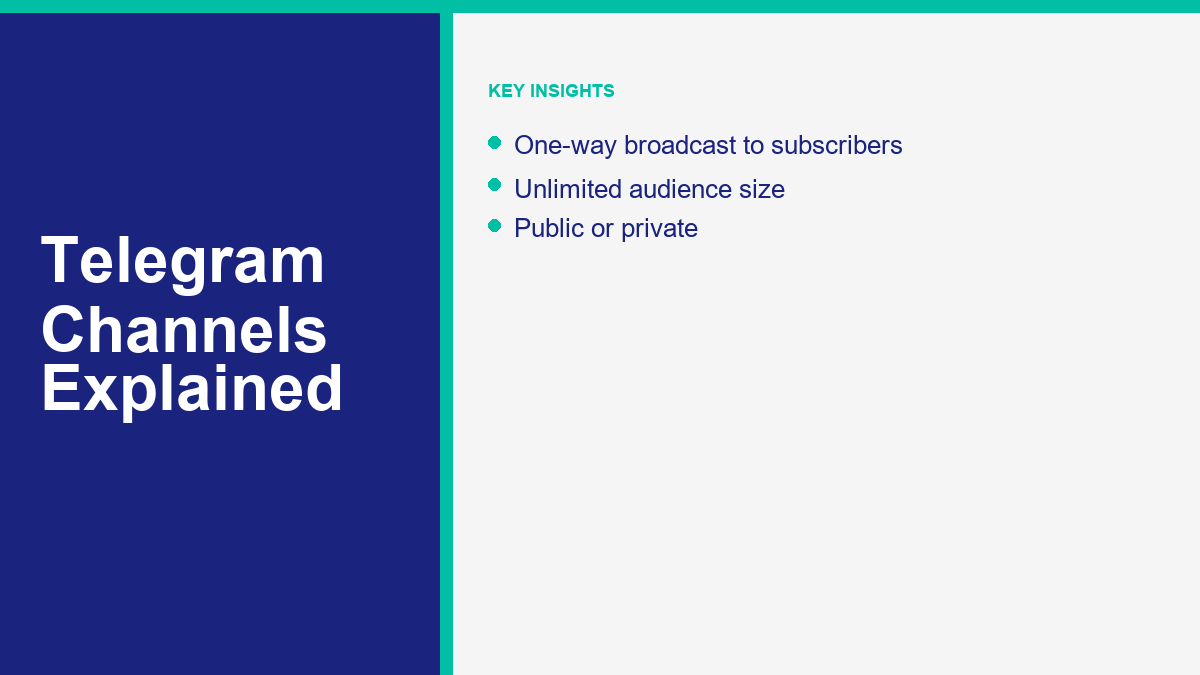
A Telegram channel is a one-way communication feed that allows administrators to publish messages to an unlimited number of subscribers. When you post a message in a channel, the post is signed with the channel’s name and avatar rather than your personal profile details. This ensures complete privacy for administrators, allowing teams of multiple people to manage a single public voice without exposing individual identities.
The defining characteristic of a channel is its one-way nature. Only administrators have permission to post messages, links, media, or files. Subscribers join the channel to read, view, and download the content, but they cannot post replies directly into the main feed. This eliminates the clutter of chat history that commonly derails large group chats, keeping the focus entirely on the publisher’s content. Subscribers can, however, interact with posts using emoji reactions if the administrators enable that feature.
Telegram channels also include several advanced publishing features built directly into the application:
- Silent Messages: Administrators can send messages silently. This is useful for publishing updates late at night or during off-hours when you do not want to disturb your subscribers with a notification sound. The message arrives in the feed, but the subscriber’s device remains quiet.
- Zaplanuj posty: You can draft messages and schedule them to publish at a specific date and time. This helps maintain a consistent posting schedule even when you are offline.
- View Counters: Every message published in a channel features a small eye icon. This counter tracks the number of views the post has received, including views from forwarded copies of the message in other chats and channels.
- Threaded Comments: If you link a discussion group to your channel, Telegram automatically generates a comment thread under each post. Subscribers can tap a button to leave a comment, allowing for controlled discussions that do not clutter the main broadcast feed.
These features combine to create a publishing platform that feels less like a traditional messaging app and more like a lightweight, interactive content management system. It provides immediate delivery, high engagement, and the capacity to host an audience of millions of subscribers without performance lag.
Telegram Channels vs. Groups vs. Direct Chats
To choose the right communication tool for your project, you must understand how channels differ from groups and direct chats. Telegram offers these three distinct interaction models to serve different conversational needs.
Direct chats are standard one-on-one conversations. They are private, two-way interactions between two users, optimized for personal messaging or direct customer support. They lack broadcast capabilities and do not support scaling beyond the two participants.
Groups are collaborative, two-way chat rooms. They can hold up to 200,000 members, and by default, every member can post text, media, and links. Groups are designed for community interaction, discussions, and teamwork. While administrators can restrict permissions (such as disabling link sharing or placing members on a slow-mode timer), groups remain fundamentally conversational. A large group with thousands of active members can quickly become overwhelming, making it difficult for administrators to highlight important announcements.
Channels solve this noise problem by restricting posting permissions to administrators. There is no limit on the number of subscribers a channel can have. Even if your channel grows to millions of users, the feed remains clean, readable, and focused. If you want a space where your audience can discuss your announcements, you can link a group to your channel, establishing a hybrid model that provides the best of both worlds: a clean main broadcast feed and dedicated discussion spaces for interested users.
The table below summarizes the key differences between these three features in 2026:
| Feature Dimension | Telegram Channels | Telegram Groups | Direct Chats |
|---|---|---|---|
| Primary Purpose | One-way broadcasting to a large audience | Two-way community discussion and collaboration | Private, one-on-one personal communication |
| Subscriber/Member Limit | Nieograniczone | Up to 200,000 members | Exactly 2 participants |
| Who Can Post Messages | Administrators only | All members (unless restricted by admins) | Both participants |
| Sender Identity Shown | Channel name and avatar | Individual member profile details | Individual user profile details |
| Analytics and Statistics | Available for channels with 50+ subscribers | Available for groups with 500+ members | Not available |
| Message History Access | New subscribers see full history from day one | Can configure history visibility for new members | Full access to shared chat history |
How to Create a Telegram Channel: A Step-by-Step Guide
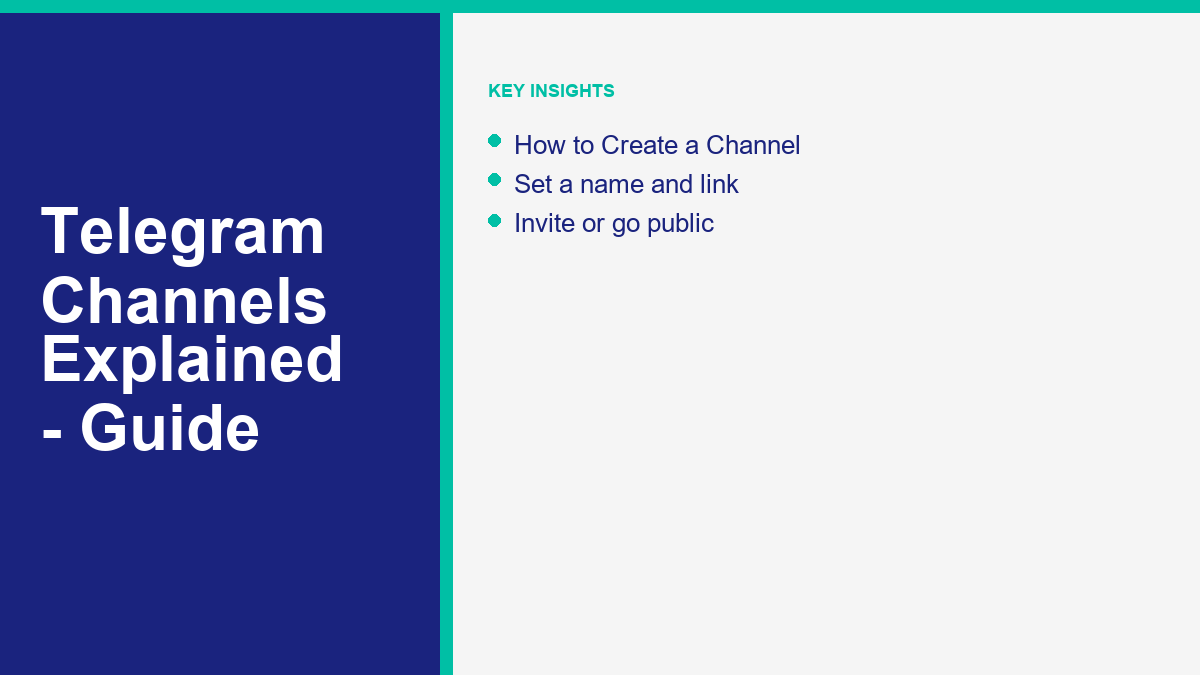
Setting up a channel is straightforward and can be completed in less than two minutes. The process is similar across mobile and desktop devices, though the menus differ slightly depending on the operating system you use. The step-by-step instructions below will guide you through the setup process on Android, iOS, and Telegram Desktop.
Creating a Channel on Android Devices
If you use an Android device, follow these steps to initialize your channel:
- Open the Telegram application on your Android device and log into your account.
- Locate the circular pen icon in the bottom right corner of the chat list and tap it. This action opens the “New Message” menu.
- Tap the New Channel option, which is located near the top of the screen next to a megaphone icon.
- An informational screen will appear explaining the basic function of a channel. Tap the Create Channel przycisk na dole.
- Enter a name for your channel. Choose a clear, descriptive name that reflects your brand or topic.
- Write a brief description of your channel in the text box below. Explain to potential subscribers what type of content they can expect to receive.
- Tap the camera icon to upload an avatar or profile picture for your channel. A recognizable, high-contrast image helps your channel stand out in subscribers’ chat lists.
- Tap the checkmark icon in the top right corner to save these initial details.
- On the next screen, select your channel type. Choose Public Channel if you want anyone to search for and join your channel, or Private Channel if you want to limit access to invite-only. If you choose Public, enter a custom username link (e.g., t.me/yourchannelname). Telegram will instantly verify if the link is available.
- Tap the checkmark icon in the top right corner to proceed.
- You will be prompted to add members from your contacts list to the channel. You can select up to 200 contacts to add immediately, or skip this step by tapping the arrow icon. Your channel is now active.
Creating a Channel on iOS Devices
If you use an iPhone or iPad, the steps to set up your channel are as follows:
- Open the Telegram application on your iOS device.
- Przejdź do Chats tab at the bottom of the screen.
- Tap the compose icon in the top right corner of the screen (the square icon with a pencil).
- Wybierz New Channel from the menu options.
- Tap the Create Channel button on the introductory screen.
- Enter your desired Channel Name and write a description of the channel. Tap the camera icon if you wish to upload a profile photo immediately. Tap Dalej.
- Choose your channel privacy setting: select either Publiczny lub Private. If you select Public, type in a custom, unique slug for your link. If the link is available, the text will turn green. Tap Dalej.
- Telegram will show a list of your contacts. Select the contacts you wish to add as initial subscribers, then tap Dalej to finalize the creation. Your channel is now set up and ready for your first post.
Creating a Channel via Telegram Desktop
For users who prefer to manage their channels from a computer, Telegram Desktop provides an efficient setup flow:
- Launch Telegram Desktop on your Windows, macOS, or Linux computer.
- Click the menu button (three horizontal lines) in the top-left corner of the application window.
- Wybierz New Channel z listy opcji.
- A pop-up window will appear. Enter your channel’s name in the “Channel name” field and write a brief summary in the “Description” box. You can also click the camera icon to upload a square avatar image. Click Utwórz.
- Choose between a Public Channel i a Private Channel. For public channels, create your custom t.me link in the text input box. Click Zapisz.
- The desktop application will ask if you want to add members from your contact list. Select the people you want to invite, or click Skip to finish the process. Your channel is now live on the desktop interface.
Public vs. Private Telegram Channels
The choice between a public and a private channel determines how users discover your content and how you control access to your community. This setting is not permanent; administrators can switch a channel from public to private, or vice versa, at any time in the channel settings menu.
Public channels have a global username. They are indexed by Telegram and can be found by anyone using the search bar inside the Telegram application. Public channels also have a permanent web link, formatted as https://t.me/username. Anyone who clicks this link can view the channel’s post history in a web browser, even if they do not have the Telegram application installed on their device. To join the channel and receive notifications, users simply click the “Join” button. This makes public channels ideal for brands, public figures, news outlets, and businesses seeking maximum visibility and rapid subscriber growth.
Private channels are hidden from the global search index. They do not have a public username, and users cannot discover them by searching inside the app. The only way to join a private channel is by clicking a hashed invite link generated by an administrator. This setup is perfect for internal company communications, paid subscription groups, private newsletters, or close-knit communities where you want to vet who joins. Users who click a private channel link can only view the content after they join the channel.
In 2026, Telegram provides advanced controls for managing invite links in private channels. Administrators can create multiple custom invite links, each with unique properties:
- Expiration Dates: You can set an invite link to expire automatically after a set period, such as 24 hours, one week, or a custom duration. Once the timer runs out, the link becomes invalid.
- Limity użytkowania: You can restrict the number of times a link can be used. For example, a link can be configured to allow only the first 50 users to join, after which it automatically deactivates.
- Admin Approval Requirement: You can enable the “Request Admin Approval” setting on an invite link. When users click this link, they do not join the channel immediately. Instead, they are placed in a pending list of join requests. Administrators can review the profiles of these users and manually approve or decline their requests to join the channel.
These detailed controls allow publishers to run promotional campaigns, manage exclusive subscriber lists, and maintain strict control over channel membership without needing external management tools.
How to Manage and Grow a Telegram Channel
Setting up a channel is the easy part. The real work lies in managing the community and growing your subscriber base over time. A successful channel requires high-quality content, structured administration, and a solid understanding of Telegram’s management tools.
As your channel grows, managing it alone can become difficult. Telegram allows you to add multiple administrators to share the workload. When you promote a user to an admin, you can customize their permissions. You can grant or restrict their ability to post messages, edit posts, delete posts from other users, add new subscribers, manage live video chats, or add new administrators. This granular permission system ensures that team members only have access to the tools they need to perform their specific duties.
Data analysis is essential for understanding your audience. Telegram provides a comprehensive statistics tool for channels. Once your channel reaches 50 subscribers, you unlock detailed analytics inside the channel menu. These metrics include:
- Growth Rate: Track subscriber acquisition trends over days, weeks, and months.
- Ustawienia powiadomień: See what percentage of your subscribers have muted notifications for your channel. A high mute rate indicates you may be posting too frequently or sharing low-value content.
- Source of Views: Understand where your views are coming from. The tool shows if views originate from direct visits, forwards, search results, or external links.
- Language and Location Data: Analyze the primary languages spoken by your subscribers, helping you tailor your content to their preferences.
- Interaction Rates: Track how users interact with your posts, including the number of forwards, reactions, and comments.
To keep engagement high, enable comments on your posts. You can do this by creating a separate Telegram group and linking it as the channel’s “Discussion” group in the channel settings. Once linked, Telegram automatically creates a “Leave a comment” button under every new post you publish. When subscribers comment, their replies are organized into a neat, threaded conversation. This allows for feedback and community discussion while keeping your main broadcast feed clean and readable.
Advanced publishers can also explore premium features to enhance their channel’s branding and appearance. For a detailed breakdown of what these features cost and what they offer, you can read our guide on Telegram Premium features and pricing. Premium settings allow you to customize your channel’s presentation with custom emojis, unique wallpaper backdrops, and exclusive statuses that reinforce your brand’s authority.
Adding Bots and Automation to Your Channel
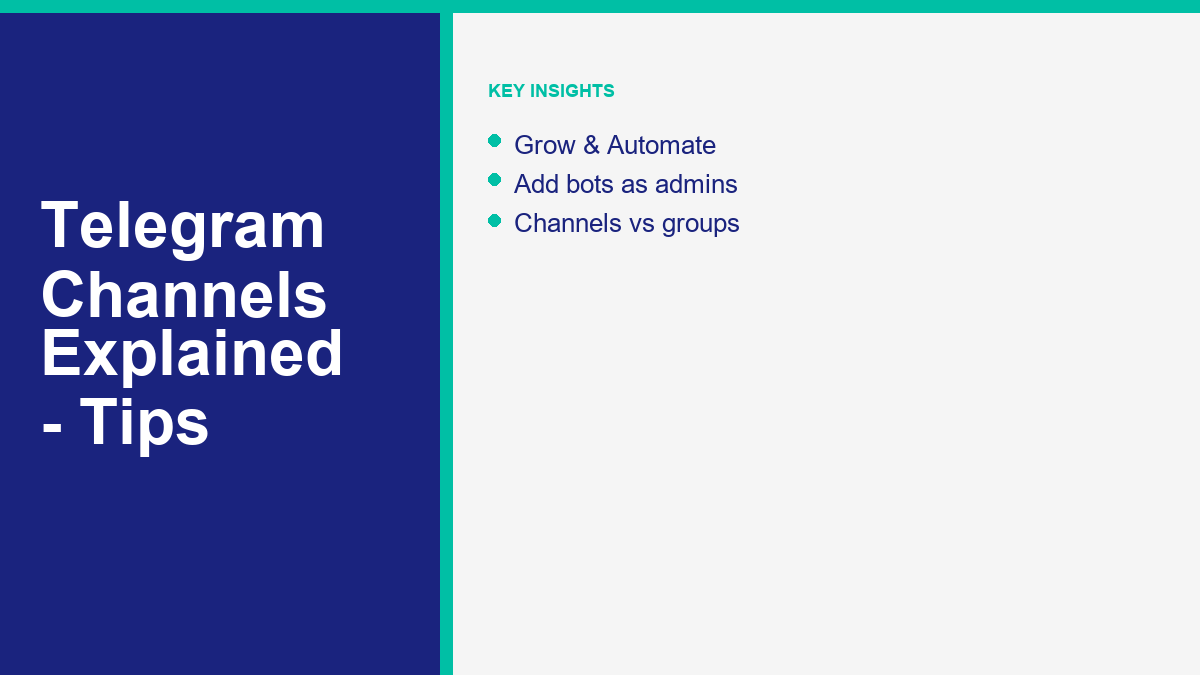
One of Telegram’s primary advantages over competitors is its robust, developer-friendly Telegram Bot API. Bots can automate repetitive tasks, pull content from external websites, schedule updates, moderate comments, and deliver interactive experiences to your subscribers. By integrating automation, you can transform your channel from a manual broadcast feed into a self-sustaining content delivery network.
To automate your channel, you must first create a bot using Telegram’s official bot creator, known as BotFather. If you are new to this process, you can follow our step-by-step Telegram bot tutorial to build your first working bot. For a broader overview of the API capabilities and setup options, read our guide on how to create a Telegram bot in 2026, which covers both no-code builders and custom hosting methods.
Once you have created your bot and retrieved its unique API token, you must add the bot to your Telegram channel as an administrator. To do this, go to your channel’s settings, select the administrators list, tap “Add Administrator,” search for your bot’s username, and confirm the promotion. Make sure to grant the bot the permission to “Post messages” so it can publish content directly to your feed.
With the bot added, you can configure automation workflows to handle various tasks:
- Cross-Posting: Set up your bot to automatically publish updates to your Telegram channel whenever you post on Facebook, share a video on YouTube, or write an article on your website. This keeps your community informed without requiring manual copy-pasting.
- RSS Feed Integration: Connect an RSS feed to your bot so it automatically pulls news updates from relevant industry blogs and shares them with your audience.
- Interactive Polls and Quizzes: Use bots to launch complex quizzes, gather feedback, or schedule interactive polls that keep subscribers active and engaged.
- E-commerce Alerts: Integrate your online store with your bot to broadcast automated notifications about flash sales, inventory updates, or new product arrivals directly to your subscribers.
While Telegram is excellent for broadcast automation, businesses operating across multiple channels often require automation tools for other social platforms like Facebook Messenger, Instagram, and WhatsApp. If you need a comprehensive, multi-channel messaging platform, take a look at the best ManyChat alternatives for 2026. Evaluating these platforms helps you build a unified automated marketing strategy that reaches your customers on the channels they use most frequently, whether that is Telegram, Facebook, or your own website.
Najczęściej Zadawane Pytania
What is the subscriber limit for a Telegram channel?
There is no subscriber limit for a Telegram channel. Unlike groups, which are capped at 200,000 members, a channel can have an unlimited number of subscribers. This makes channels highly scalable tools for broadcasting messages to global audiences without performance degradation or additional hosting costs.
Can subscribers see who the channel administrator is?
No, subscribers cannot see the profiles of the channel administrators or creators. When an administrator posts a message in a channel, the post displays the channel’s name and profile photo. This ensures total privacy for the administrative team, allowing multiple people to manage a brand’s public presence anonymously.
How can I enable comments on my Telegram channel posts?
To enable comments, you must link a discussion group to your channel. Go to your channel settings, select the “Discussion” option, and create a new group or link an existing one. Once linked, Telegram will automatically insert a comment button under all subsequent posts, allowing subscribers to reply in threaded comment lines.
What is the difference between a public and a private channel?
Public channels have a custom username link and can be found by anyone using the global search bar inside the Telegram application. Private channels do not show up in search results and require a unique, hashed invite link to join. Public channels are best for broad audience growth, while private channels are optimized for restricted access.
Can I schedule messages to publish later in my channel?
Yes, Telegram features a native message scheduling tool. To use it, type your message in the channel chat bar, then click and hold the send button (or right-click if using Telegram Desktop). Select the “Schedule Message” option from the menu, pick your desired date and time, and confirm. The message will publish automatically at the scheduled time.



 Polski
  English
  Tagalog
  简体中文
简体中文  العربية
  हिन्दी
  Português do Brasil
  Español de México
  Français
  বাংলা
বাংলা  香港中文
香港中文  繁體中文
繁體中文  Nederlands
  Deutsch
  Bahasa Indonesia
  日本語
日本語  한국어
한국어  Русский
  Español
  Tiếng Việt