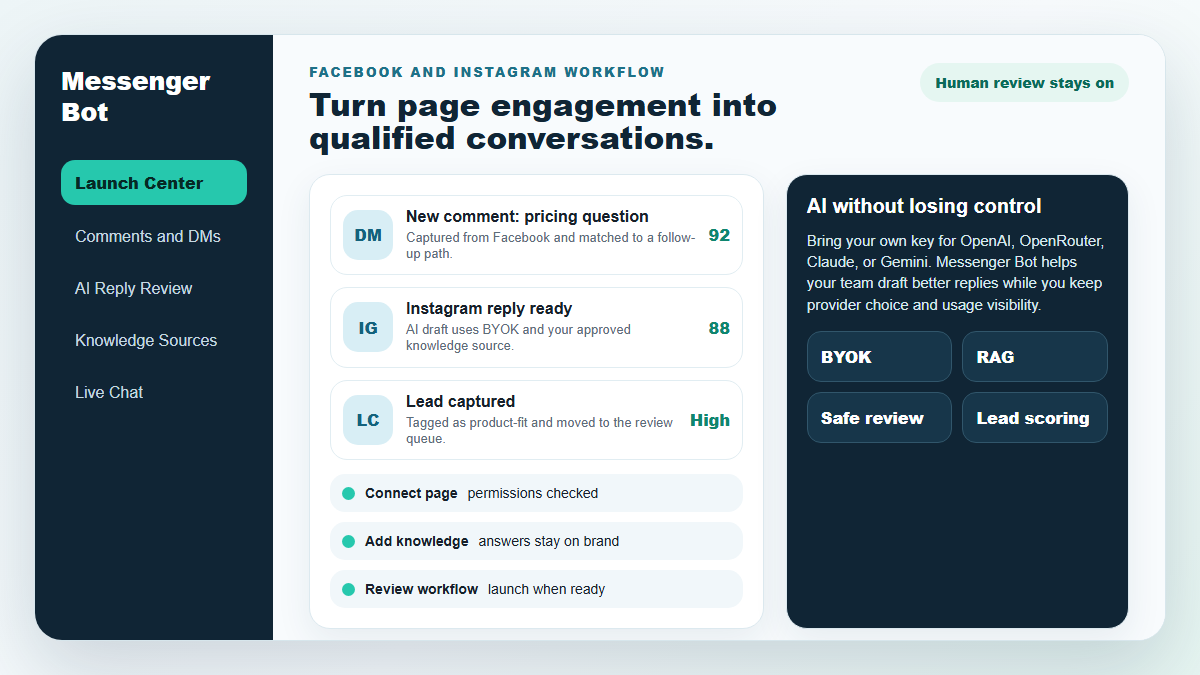
Facebook and Instagram follow-up
Turn more comments and DMs into conversations your team can close.
Start with one proven workflow, capture higher-intent leads, and use BYOK (Bring Your Own Key) AI drafts with human review before anything reaches a customer.
- Comment and DM capture
- BYOK AI reply drafts
- Human review controls
BOTEM MESSENGERA
Nasz AI automatycznie odpowie inteligentnie na każdy komentarz lub wiadomość użytkownika w zależności od tego, co powiedzą!
Zacznij odpowiadać i wysyłać zautomatyzowane komentarze i DM-y na swoim Facebooku, Instagramie lub na dowolnej stronie w zaledwie kilka kliknięć z gotowymi szablonami!
Twórz zautomatyzowane przepływy, które angażują użytkowników w zależności od ich zachowań i zwiększaj sprzedaż.
Zdobądź opt-in dla mniej niż $0.25 z wykorzystaniem lead magnetów marketingu Messengera!
Nielimitowani subskrybenci
Nielimitowane sesje czatu
Nielimitowane kampanie sekwencyjne
Nielimitowane przepływy
Nielimitowane tagi klientów
Wielojęzyczny i wygląda
Niesamowicie na każdym urządzeniu
Dostarczaj idealne odpowiedzi w wybranym przez siebie języku! Niezależnie od odpowiedzi użytkownika, Bot Messenger zapewni, że będzie idealna!
Zgodny z 100% z Facebookiem
Bot Messenger regularnie przechodzi przeglądy przez Facebooka i jest zgodną oraz zatwierdzoną aplikacją Facebooka 100%.
Działa ze wszystkimi głównymi przeglądarkami
Działa dobrze z Chrome, Firefox, Edge i Safari! Nie ma potrzeby pobierania wtyczki ani aplikacji, aby korzystać z Messengera, wszystko jest w chmurze.
Idealne dla każdego urządzenia
Messenger Bot został zaprojektowany, aby wyglądać niesamowicie na każdym urządzeniu, w tym na urządzeniach mobilnych, komputerach stacjonarnych i tabletach!
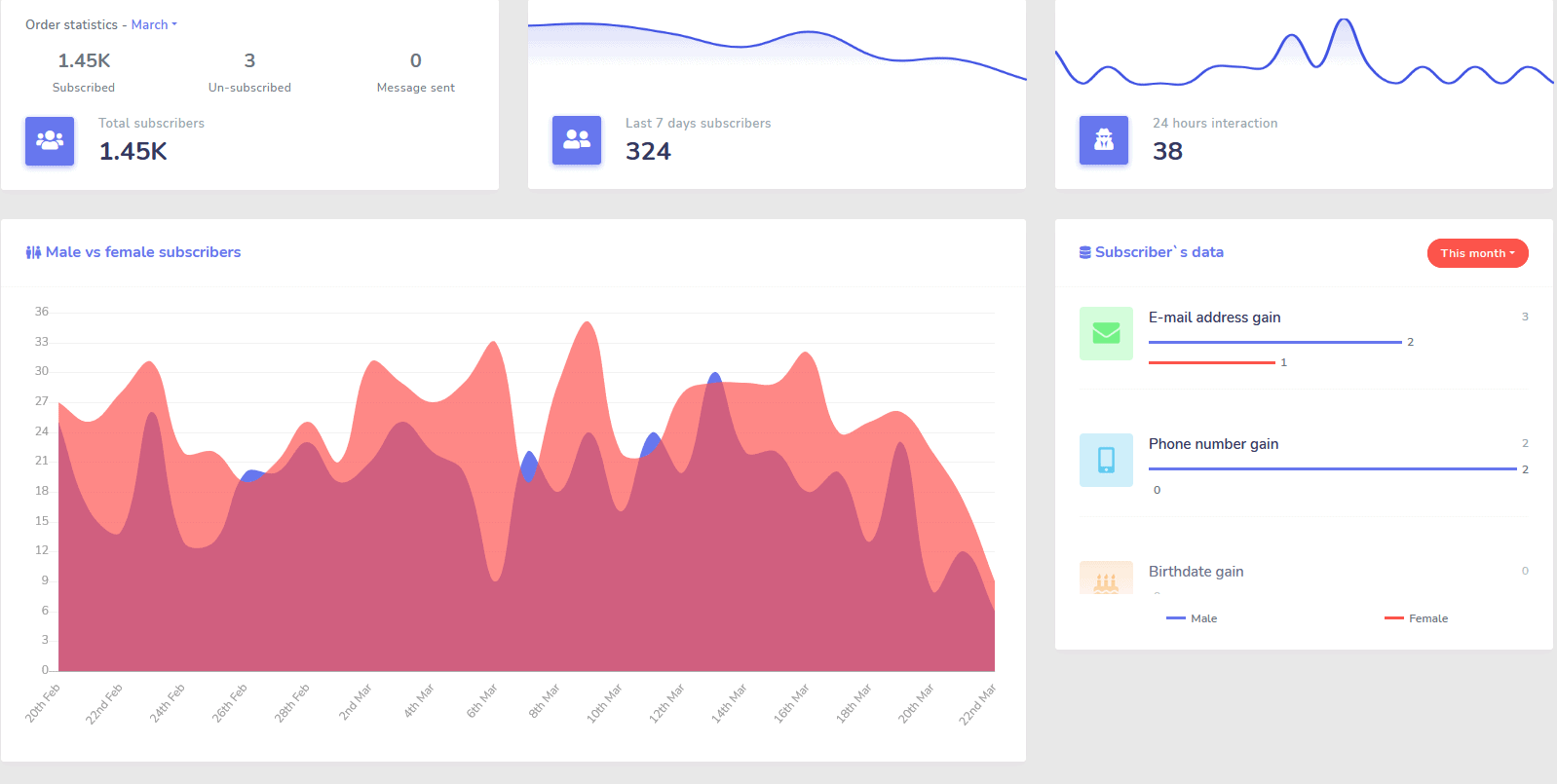
Kompleksowe
Analiza
Łatwo zidentyfikuj swoje najlepiej działające kanały i uzyskaj jasny przegląd swoich subskrybentów, jak sobie radzisz oraz gdzie radzisz sobie najlepiej/najgorzej i pomiędzy.
Łatwo śledź subskrybentów, ostatnie komentarze i inne kampanie bezpośrednio z pulpitu nawigacyjnego.
Drastycznie niższe
Koszt na lead i sprzedaż
Z Bot Messenger możesz być dostępny 24/7 i obniżyć swój koszt na lead i sprzedaż, dostarczając użytkownikom informacje, których szukają, od razu!
Dodatkowo użyj Messengera, aby głęboko zanurzyć się w Facebook Interests API i odkryć odbiorców, którzy nie są ujawniani innym reklamodawcom na Facebooku!
Celując w te ukryte grupy odbiorców za pomocą reklam na Facebooku, możesz natychmiastowo obniżyć swój koszt na lead i koszt na sprzedaż.
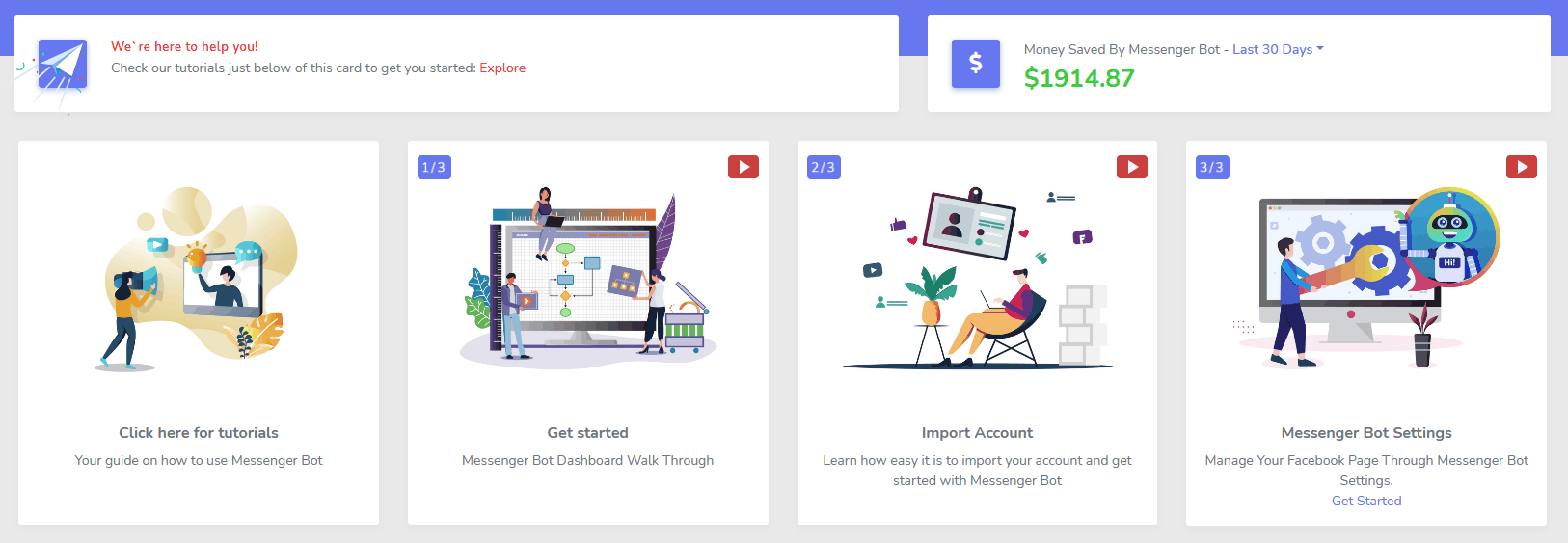
Messenger
Sklep eCommerce
Zacznij sprzedawać bezpośrednio w Messengerze i wszędzie indziej z własnym dostosowywalnym sklepem eCommerce!
Zachowaj 100% przychodu, z 0% podziałem przychodu i wieloma procesorami płatności do wyboru, takimi jak PayPal, Stripe i RazorPay!
Wliczone w WSZYSTKIE nasze subskrypcje bota Messenger.
Nieograniczone
Wiadomości sekwencyjne i masowe wysyłki
Przez ograniczony czas, gdy zamówisz dzisiaj, otrzymasz nieograniczone kampanie wiadomości sekwencyjnych i masowe wysyłki wiadomości!
Zawsze bądź na czas dzięki wiadomościom sekwencyjnym, które wysyłają Twoje pożądane wiadomości do użytkownika na podstawie opóźnienia czasowego, które ustawisz.
Dotrzyj do swoich klientów masowo w odpowiednim czasie dzięki masowym wysyłkom wiadomości.
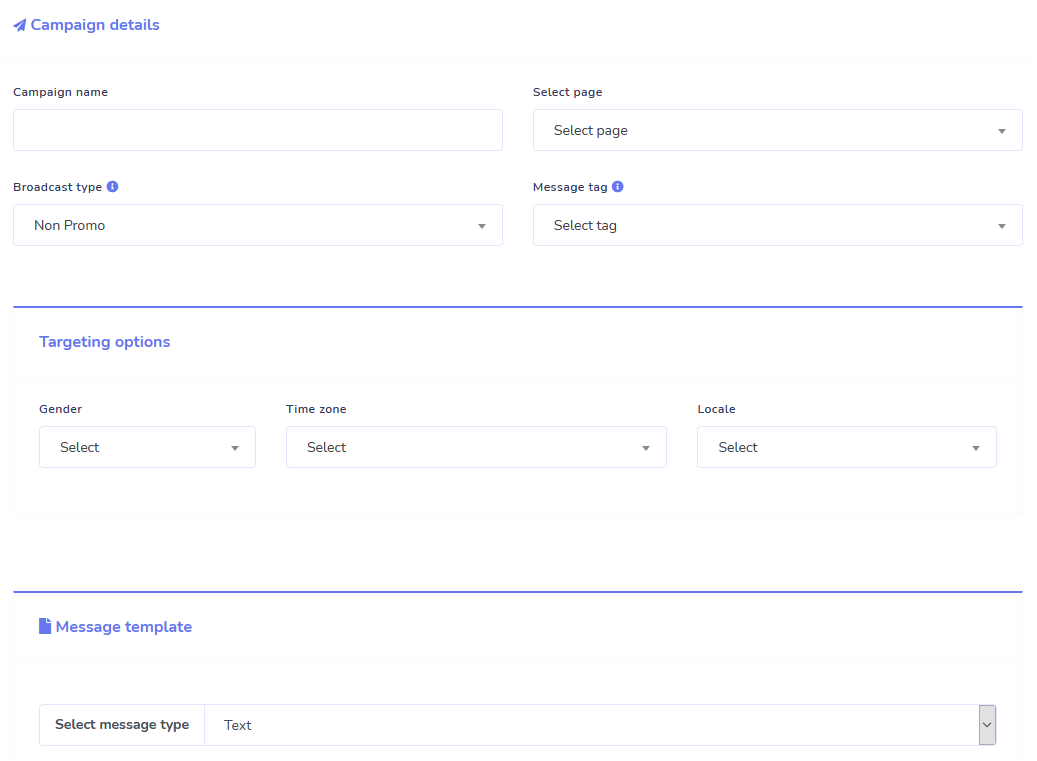
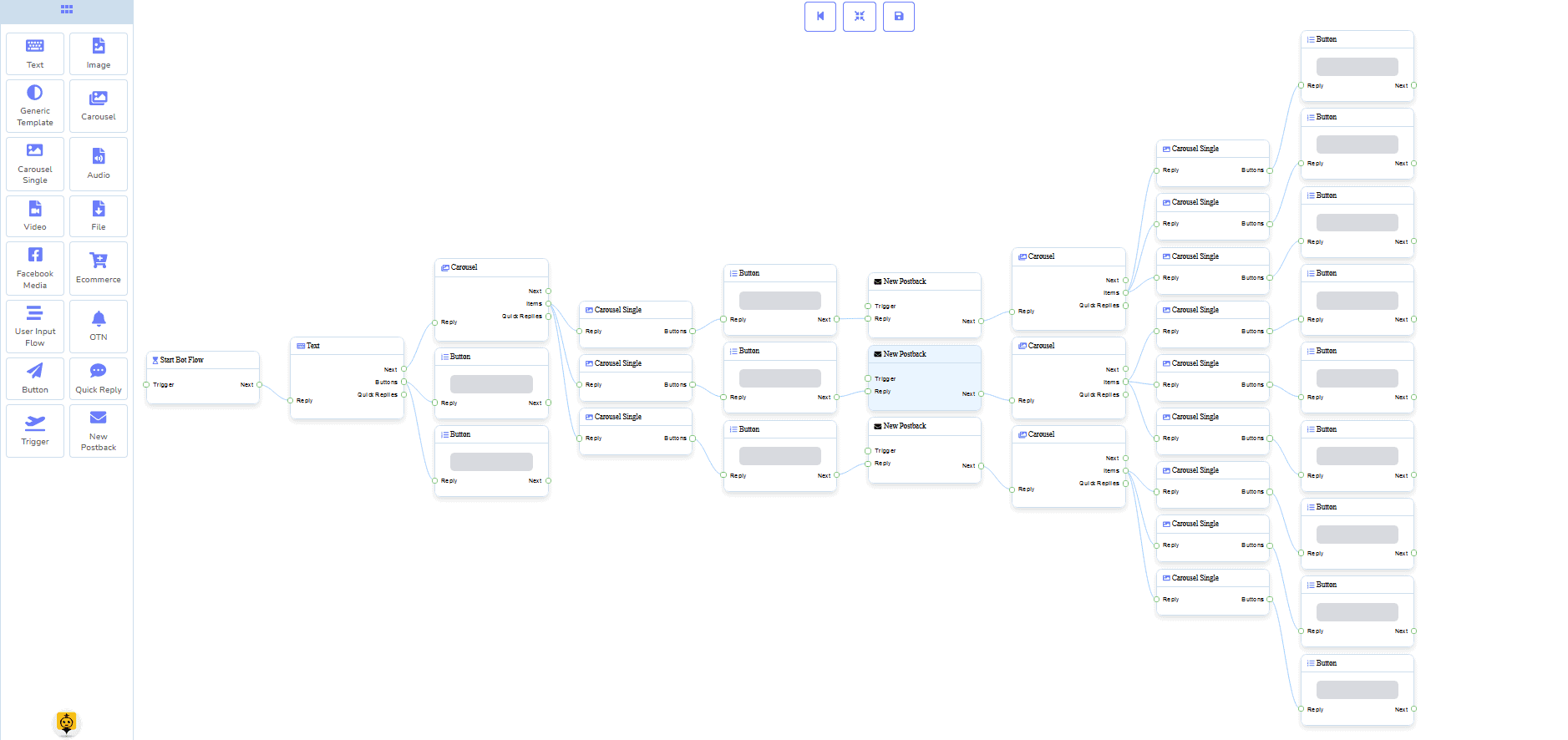
0 kodu Kreator przepływu
+ Zrobione dla Ciebie Szablony
Uruchom na żywo w zaledwie kilka kliknięć dzięki naszym szablonom zrobionym dla Ciebie!
Twórz swoje zautomatyzowane przepływy pracy bez potrzeby kodowania dzięki naszemu wizualnemu kreatorowi bez kodu!
Wciąż zbyt techniczne? Nasze wsparcie klienta czeka i jest gotowe, aby pomóc zbudować to dla Ciebie!
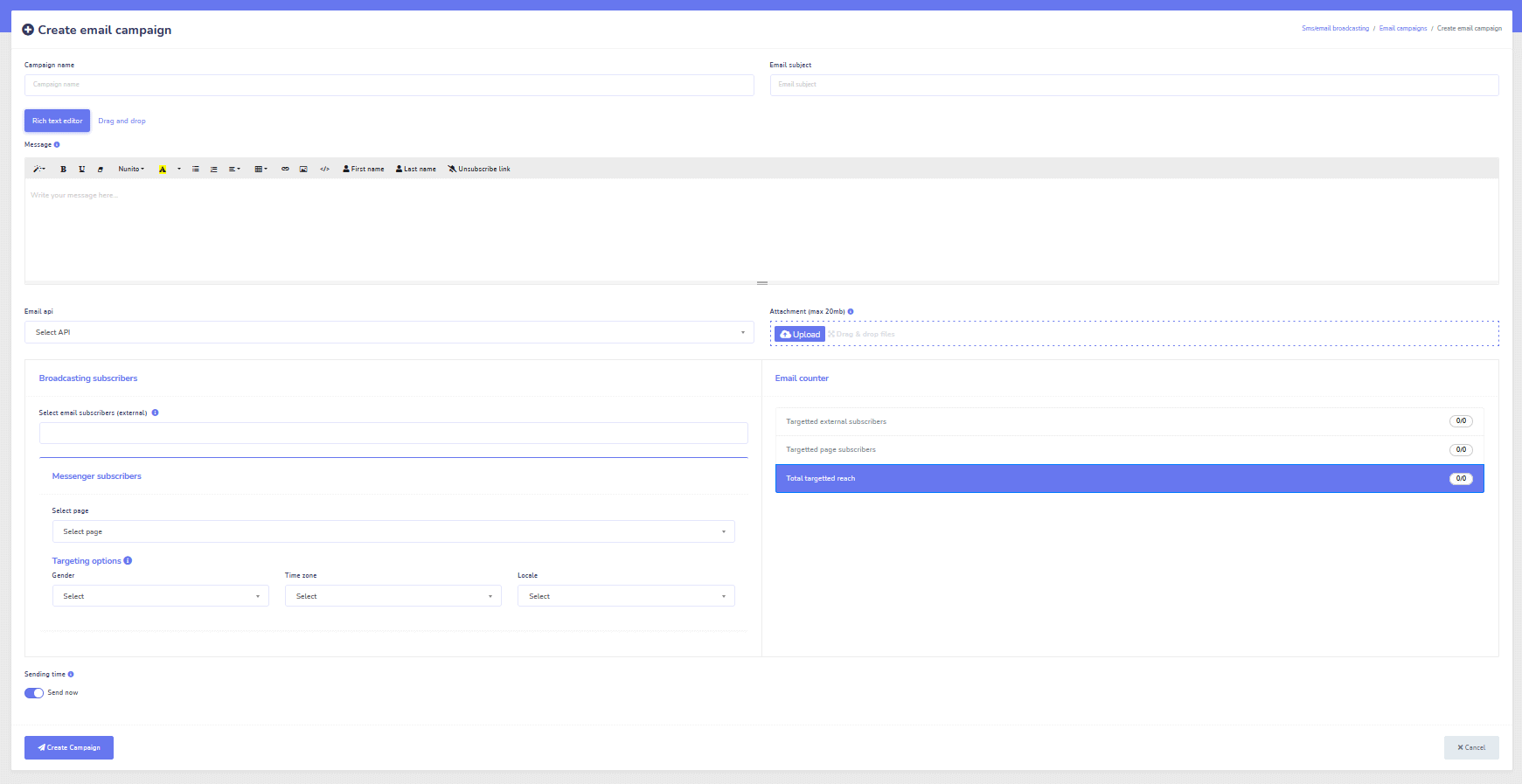
Auto-Responder, Transmisja, Sekwencja, Subskrybuj i Szablony
Odpowiadaj na wszystkie e-maile automatycznie!
Wysyłaj kampanie e-mailowe i kampanie drip feed.
Buduj swoje listy subskrybentów i twórz szablony kampanii e-mailowych za pomocą naszego wizualnego kreatora!
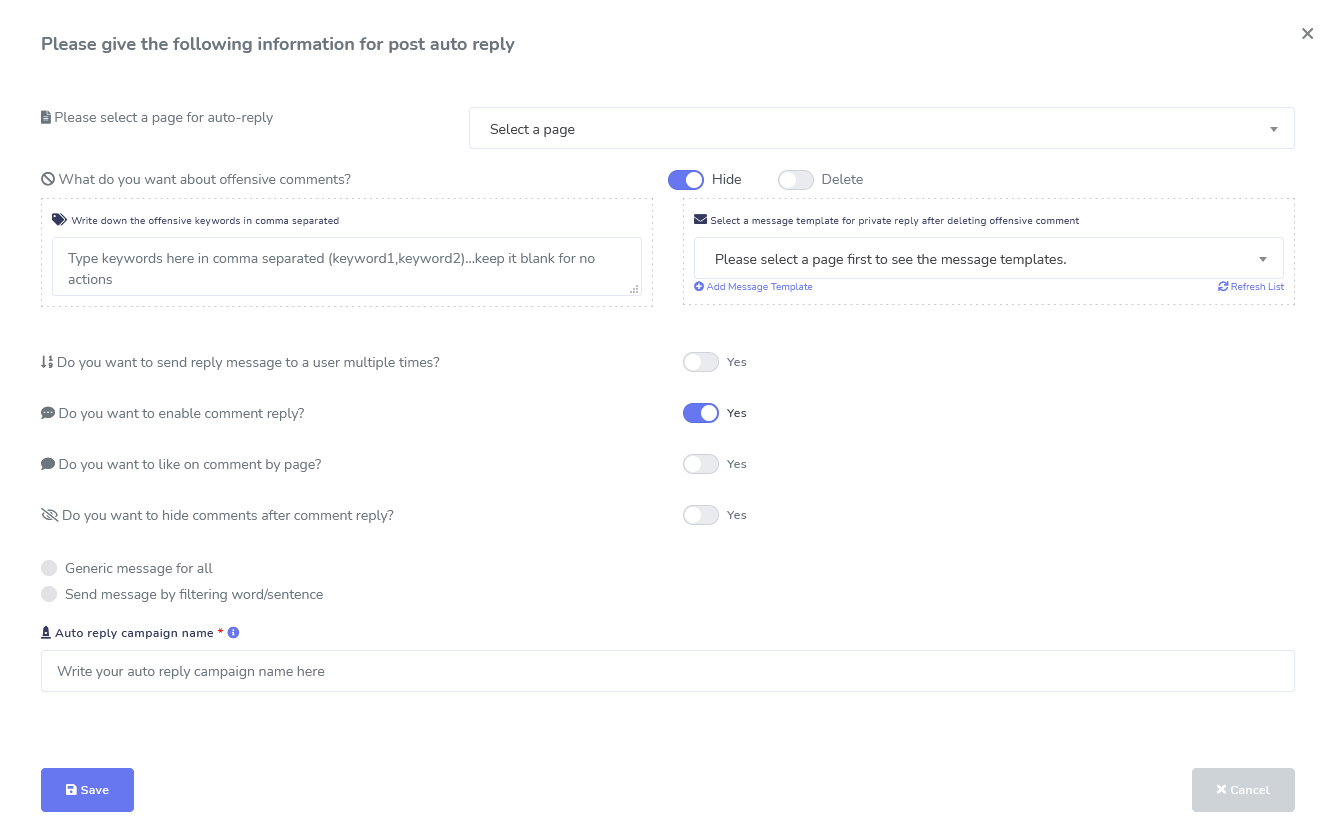
Facebook i Instagram
Moderacja komentarzy, automatyzacja, narzędzia do publikacji i odpowiedzi
Pełna suite funkcji automatyzacji Facebooka zaprojektowana, aby pomóc Ci w tworzeniu postów, planowaniu postów, moderowaniu postów oraz automatycznym odpowiadaniu na posty, a także wysyłaniu wiadomości follow-up!
Na żywo lub automatycznie
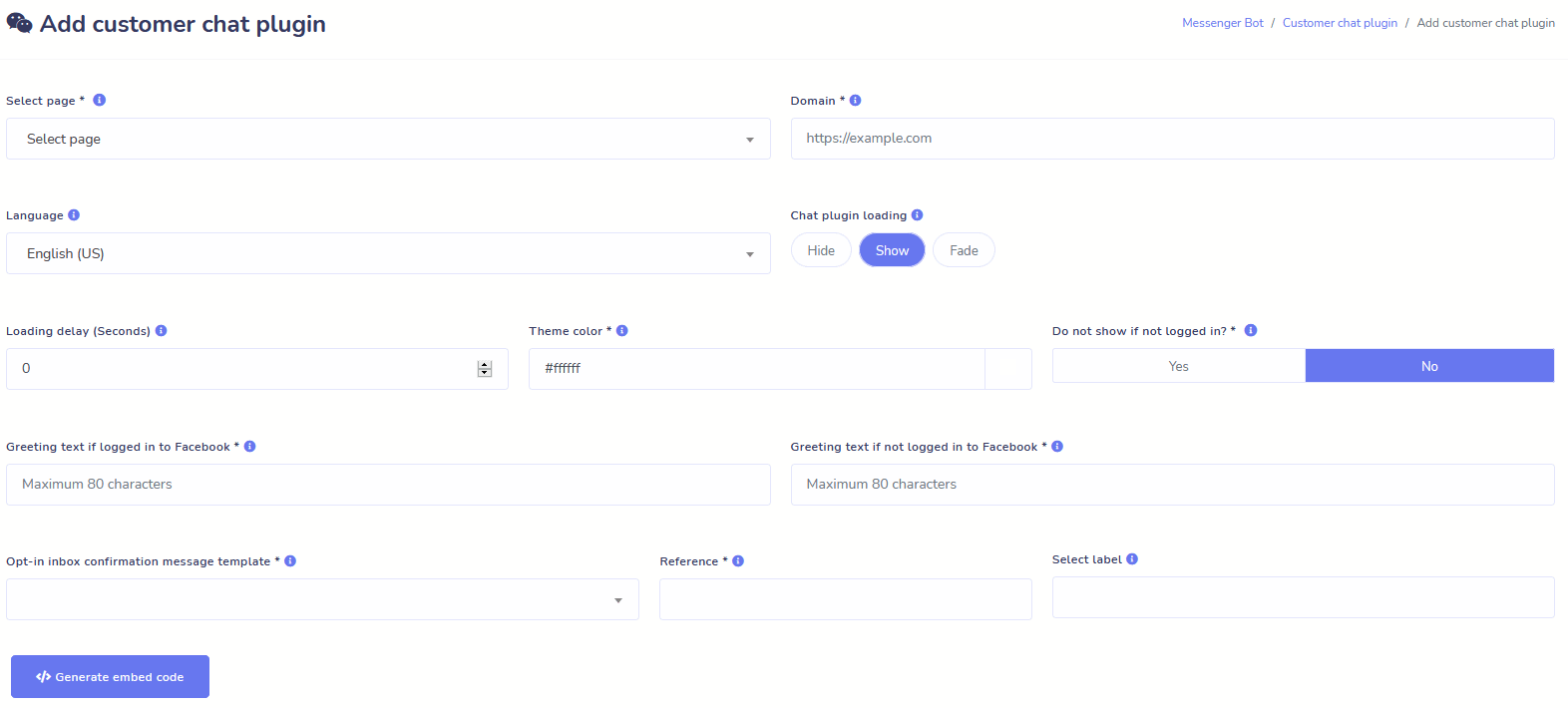
Czat na stronie internetowej
Zautomatyzuj swój czat oraz umożliwiaj pomoc na żywo dla odwiedzających, którzy jej potrzebują.
Pozwól użytkownikom uzyskać potrzebne informacje na żądanie i obserwuj, jak rozwija się Twoja firma!
Daj swoim użytkownikom doświadczenie, którego pragną, w zaledwie kilka kliknięć.
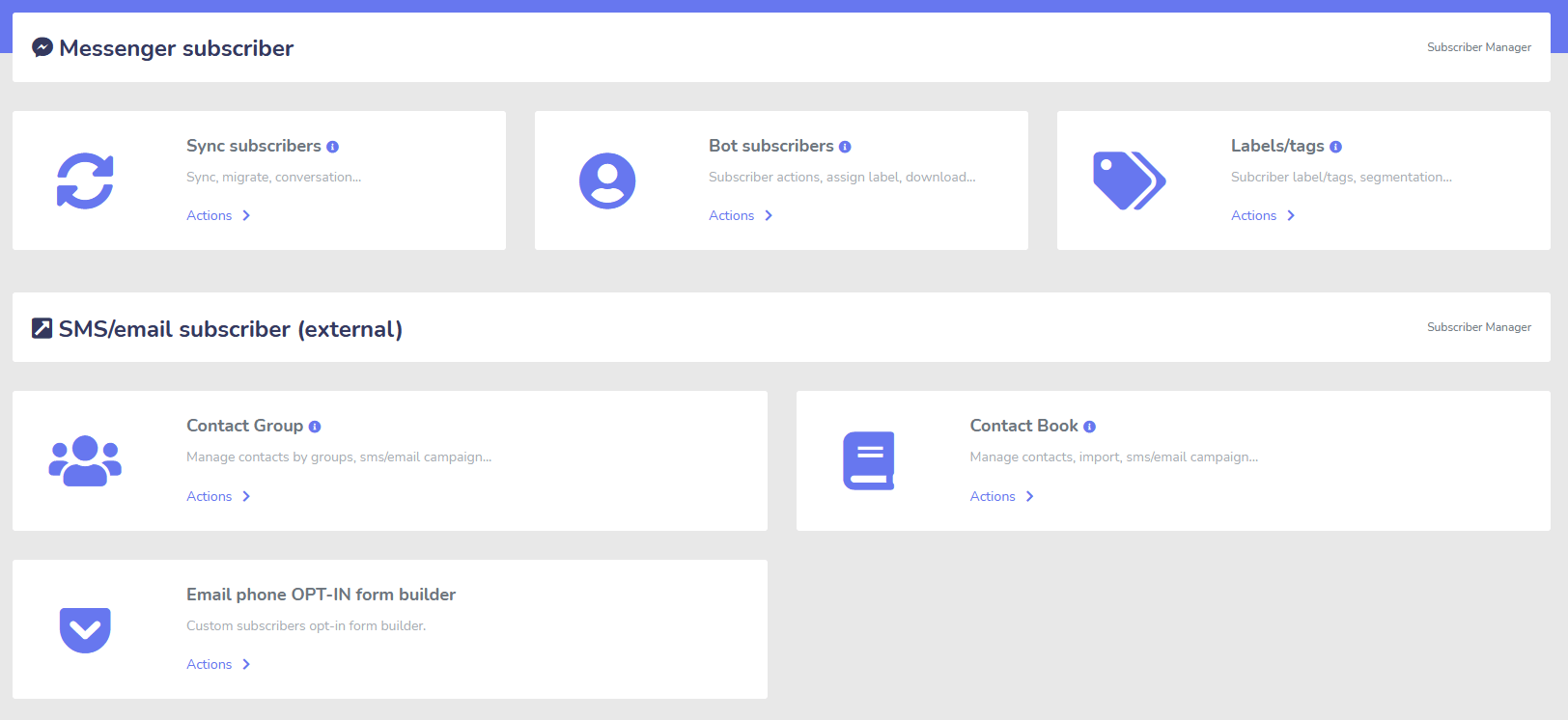
Subskrybent
Twórca, Importer, Menedżer i Synchronizacja
Migracja z ManyChat, ChatFuel lub innego miejsca? Łatwo synchronizuj swoich subskrybentów z Messenger Bot!
Łatwo buduj swoje listy subskrybentów za pomocą linków M.Me, zgód na Messenger i nie tylko!
Menedżer subskrybentów umożliwia synchronizację subskrybentów, przeglądanie subskrybentów bota, przeglądanie etykiet oraz zarządzanie aktywnościami wiadomości/emaili w różnych grupach kontaktowych.
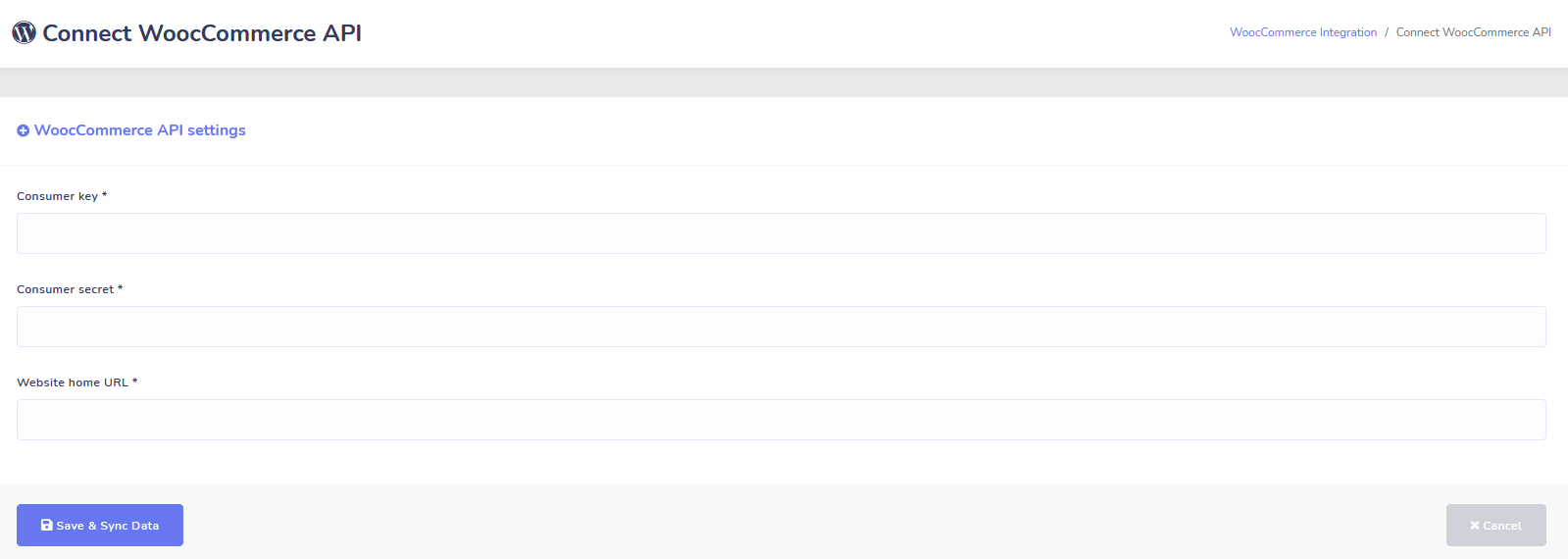
WooCommerce
Synchronizacja i odzyskiwanie porzuconych koszyków
Synchronizuj swój sklep WooCommerce jednym kliknięciem.
Zwiększ sprzedaż, odzyskując użytkowników, którzy porzucili swoje koszyki!
Integracje Shopify + Wix wkrótce!
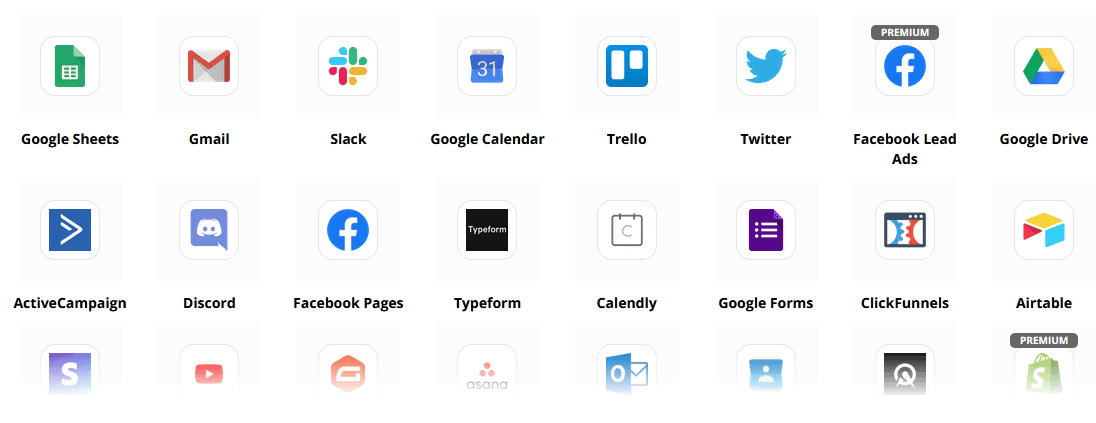
Zapier + JSON API + Google Sheets
Integracje
Podłącz się do ponad 3,000 aplikacji za pomocą naszej integracji Zapier lub użyj JSON API, aby stworzyć własne dostosowania!
Automatycznie przenieś dane subskrybentów do Google Sheets.
Plus
I wiele więcej!
Wykorzystaj wbudowane edytory obrazów, aby tworzyć obrazy i posty w swoim panelu.
Automatycznie publikuj z kanałów RSS!
Stwórz własne trwałe menu w Messengerze
i i wiele więcej….
Oto inne sposoby, w jakie używany jest Bot Messenger
Bot Messenger jest wykorzystywany na wiele sposobów. Oto krótka lista tego, jak ludzie korzystają z nas w tej chwili.
Wsparcie Klienta
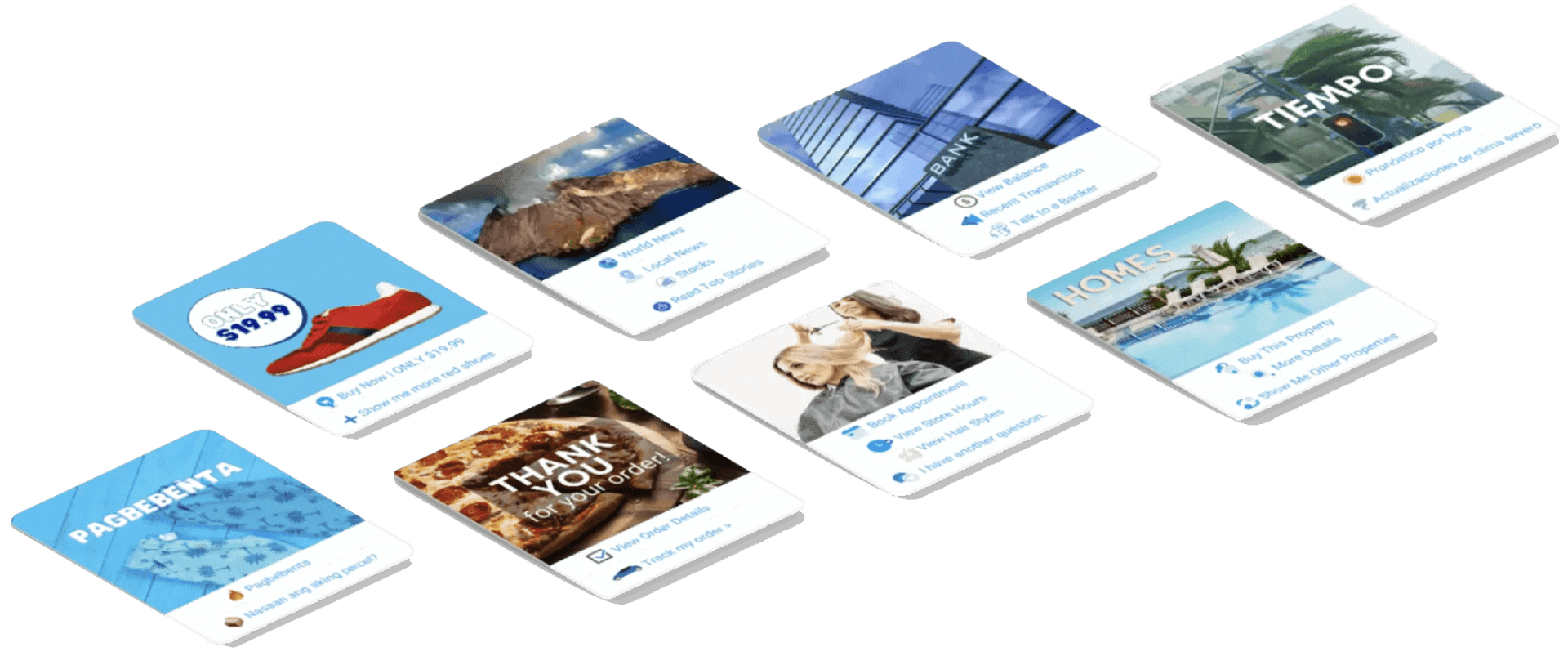
Inteligentnie kieruj klientów do ich pożądanej destynacji na podstawie ich działań i zachowań.
Zbieranie Informacji Od Klientów
Uzyskiwanie wszystkich ważnych informacji potrzebnych od klientów.
Najczęściej Zadawane Pytania
Daj użytkownikom odpowiedzi, których potrzebują natychmiast, jednocześnie uwalniając personel wsparcia.
eCommerce
Sprzedawaj bezpośrednio w Messengerze za pomocą nowego lub istniejącego sklepu!
Generowanie leadów
Interakcja z użytkownikami i automatyczne generowanie leadów!
Całkowicie dostosowywane formularze
Twórz w pełni dostosowywane i konwersacyjne formularze w Messengerze + na swojej stronie internetowej!
Nieruchomości
Pokaż nieruchomości i generuj kwalifikowane leady automatycznie 24/7.
Restauracja
Uruchamiaj promocje, przyjmuj rezerwacje i płatności!
Travel & Tours
Zdobądź więcej rezerwacji podróżniczych i turystycznych, zaprezentuj swoje unikalne wycieczki.
Salon samochodowy
Pokaż i sprzedawaj samochody przez Messengera + swoją stronę!
Opinie i Ankiety
Twórz w pełni dostosowywane automatyczne ankiety i formularze opinii!
Ubezpieczenia
Pomóż w prezentacji i wyborze polis + podawaj wyceny oraz umawiaj spotkania.
Niskie Ceny Przez Ograniczony Czas
Działaj teraz i zabezpiecz tę specjalną ofertę na Messenger Bot przed podwyżką cen!
Z Bot Messenger, zaoszczędzisz na kosztach wsparcia, sprzedaży i subskrypcji innych usług, z których już nie będziesz korzystać!
Zobacz Bot Messenger W Akcji!
40 000+ Użytkowników
Wsparcie 24/7
100% Satysfakcja

Używany i Zaufany przez Ponad 40 000 Użytkowników
Dołącz do ponad czterdziestu tysięcy właścicieli firm, którzy używają i polegają na Messenger Bot jako na kompleksowym rozwiązaniu marketingowym!
Practical follow-up resources
Turn more customer conversations into clear next steps.
Use these practical guides to strengthen response speed, lead qualification, and follow-up while your team keeps ownership of every customer decision.
- missed-call text-back guide — Keep high-intent callers moving with a clear, consent-aware follow-up path.
- lead-scoring workflow — Give your team a practical way to prioritize better-fit opportunities.
- speed-to-lead guide — Shorten the gap between a new inquiry and a useful first response.
Pick the right starting point
Choose the Messenger Bot plan that matches the conversations you want to win.
Start with the workflow you need now, then upgrade when your page, team, or client load grows.
Starter
$29 /mo
For one focused page getting its first automated comment and DM follow-up live.
- Launch a guided lead-capture workflow.
- Reply faster without adding another daily dashboard.
- Keep setup simple while you prove the channel.
Pro
$99 /mo
For growing businesses that want BYOK (Bring Your Own Key), business knowledge, and better lead sorting.
- Use AI-assisted drafts with human review.
- Qualify replies before your team spends time on them.
- Keep follow-up consistent across busy launches.
Agencja
$299 /mo
For teams managing multiple brands, clients, assets, and approval workflows.
- Organize client conversations by page and priority.
- Give teams cleaner review paths before replies go out.
- Scale repeatable workflows without adding extra manual work.
A payment card keeps trials focused. You stay in control of the plan before billing starts.
Często Zadawane Pytania
Czym jest bot Facebook Messenger?
Bot Facebook Messenger to zautomatyzowany chatbot, który można wykorzystać do poprawy nie tylko doświadczeń w Messengerze, ale także doświadczeń czatu na Twojej stronie internetowej.
Co może zrobić bot Messenger dla mojej firmy?
Bot Messenger umożliwi Ci automatyczne powitanie nowych użytkowników, odpowiadanie na konkretne słowa kluczowe lub frazy, syndykację treści, generowanie leadów, dokonywanie sprzedaży i wiele więcej!
Dlaczego potrzebuję bota Messenger?
Z każdym dniem coraz trudniej jest dotrzeć do swojej docelowej grupy odbiorców. To fakt, że wiele tradycyjnych metod marketingowych nie przynosi już takich samych rezultatów jak kilka lat temu.
Nasz bot na Facebook Messenger rozwiązuje ten problem, pozwalając osiągnąć ponad 80% wskaźników otwarć dzięki interaktywnym wiadomościom w czasie rzeczywistym i sekwencjom kampanii czatowych.
Jak stworzyć bota na Facebook Messenger?
Najpierw będziesz potrzebować konta na Facebooku oraz strony na Facebooku z uprawnieniami administracyjnymi do jej zarządzania.
Następnie kupujesz swoją ofertę (lub zapisujesz się na bezpłatny okres próbny) i wybierasz „Importuj konto”.
Stamtąd użyj naszego Wizualnego Kreatora Przepływów, aby stworzyć i wdrożyć swojego bota w ciągu minut, a nie dni! Teraz możesz rozpocząć prawdziwe rozmowy z klientami, o każdej porze.
Czy jest dostępny okres próbny?
Tak, możesz uzyskać bezpłatny okres próbny przed zakupem, bez potrzeby podawania danych karty kredytowej. tutaj.
Kiedy ta oferta wygasa?
Ta oferta wkrótce wygaśnie, więc jeśli chcesz skorzystać z najlepszej zniżki, powinieneś zamówić teraz.
Gotowy na prawdziwą zmianę? Zbudujmy to razem!
Poznaj Messenger Bota bez żadnych ograniczeń i zacznij go używać w pełni dopiero wtedy, gdy go pokochasz. Będziemy na Ciebie czekać.
Messenger Bot to znacznie więcej niż prosty chatbot!
Teraz możliwe jest prowadzenie złożonych rozmów automatycznie!
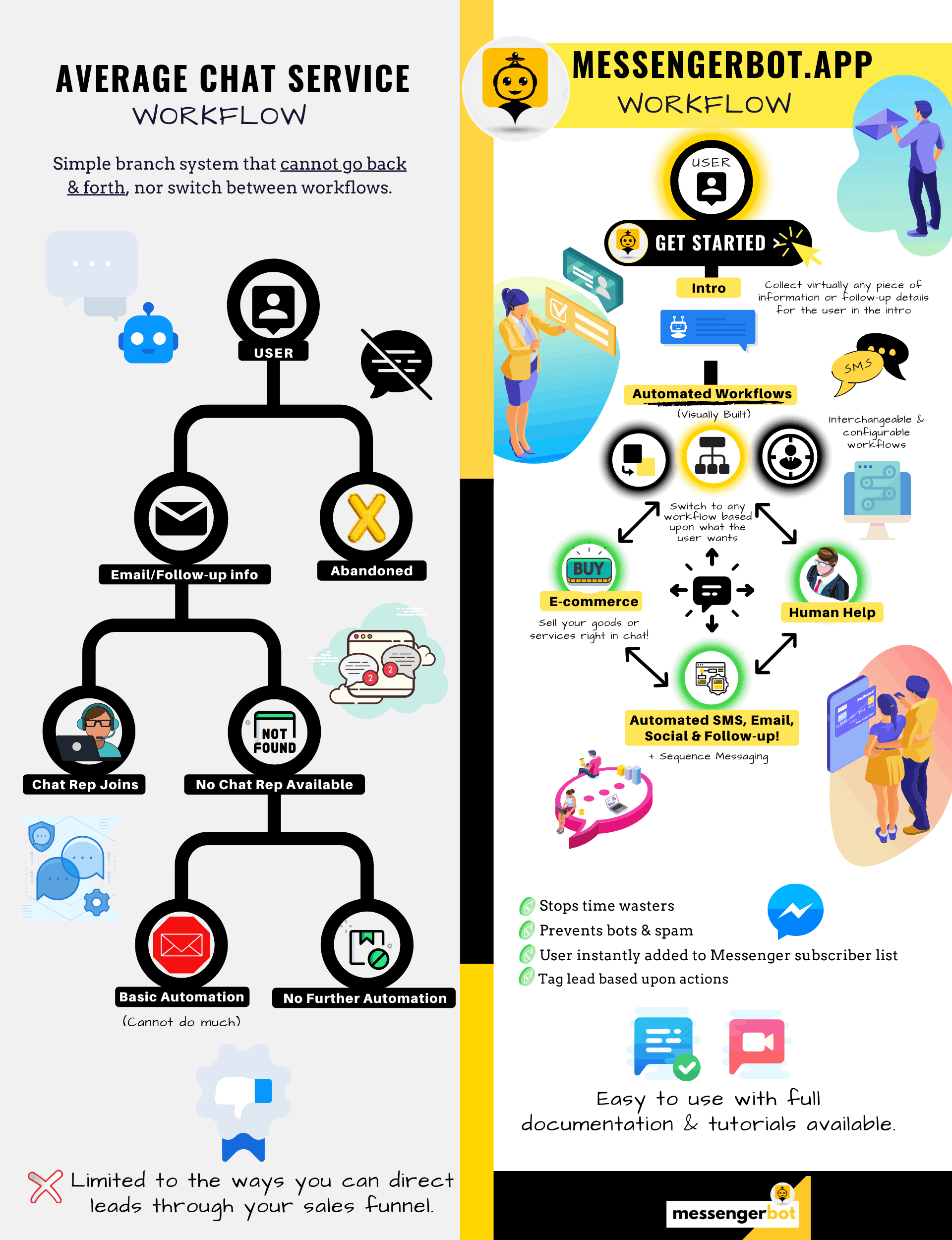
Dlaczego potrzebujesz Messenger Bota
aby zwiększyć sprzedaż w swojej firmie
Dla marketerów Facebook Messenger staje się nowym i skutecznym sposobem dotarcia do obecnych i potencjalnych subskrybentów Twojej strony i firmy na Facebooku. Dzięki użyciu botów Messenger możesz przekazywać informacje o każdej porze dnia, nie ruszając palcem.
Jedna z najpotężniejszych aplikacji botowych, Messenger Bot, szybko stała się liderem w tej nowej branży. Nasze oprogramowanie marketingowe ma tak wiele funkcji, które ułatwiają marketing zarówno dużym, jak i małym firmom. Korzystając z chatbota na Facebook Messenger, możesz teraz odpowiadać na czaty 24/7, wysyłać wiadomości w dużych ilościach do swojej docelowej grupy odbiorców, a nawet publikować filmy i zdjęcia na swojej stronie na Facebooku. Jeśli potrzebujesz tego dla swojej firmy, Messenger Bot z pewnością to ma! W naszym unikalnym stylu możemy zapewnić Ci wysoki poziom obsługi chatbota, którego nie znajdziesz nigdzie indziej.
Przyjrzyjmy się wszystkim usługom i funkcjom, które oferuje nasza fantastyczna aplikacja, zanim zaczniesz. To imponujące oprogramowanie z pewnością będzie najbardziej idealnym narzędziem do marketingu na Facebook Messenger dla Ciebie, bez potrzeby kodowania.
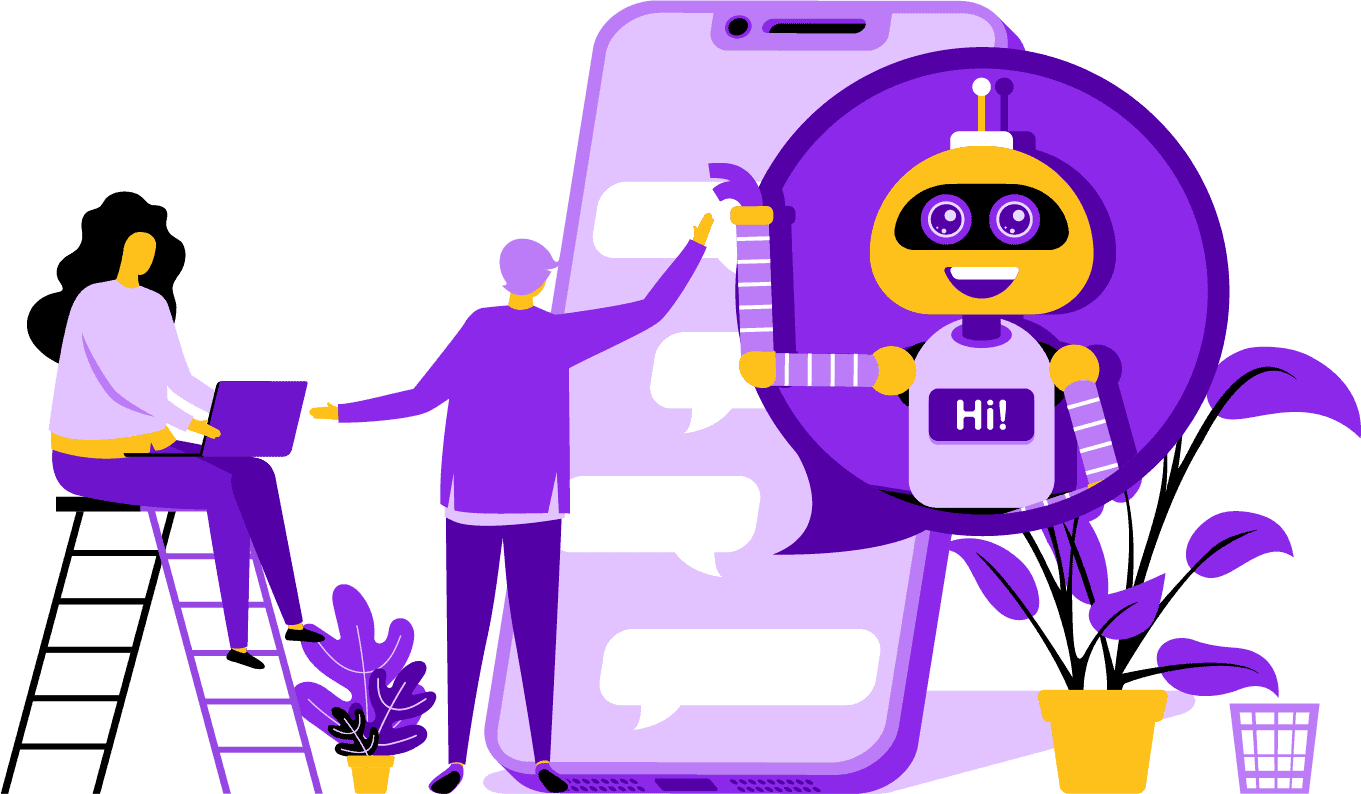
Czym jest chatbot na Facebooku?
Jeśli tylko w niewielkim stopniu wiesz, czym jest aplikacja bot na Facebook Messenger lub Facebook chatbota to musisz zrozumieć, jak może ona wynieść Twoją firmę na wyższy poziom. Oprogramowanie jest zautomatyzowane, aby wysyłać wiadomości przez Facebook Messenger, wykorzystując przetwarzanie języka naturalnego do zrozumienia, czego chce osoba, oraz sztuczną inteligencję do interakcji z ludźmi. Po wdrożeniu może zrozumieć zadawane pytania i poprawnie na nie odpowiadać. Chatboty są jak wirtualni asystenci, którzy mogą poprawić doświadczenia klientów.
Istnieją strategiczne korzyści z używania bota na Facebook Messenger dla Twojej firmy. Jeśli chcesz stać się rozpoznawalną marką, używanie Messengera to mądry sposób na skontaktowanie się z miliardami ludzi. Facebook Messenger znajduje się wygodnie w pierwszej piątce najczęściej używanych aplikacji na świecie. W związku z tym, dlaczego nie wykorzystać Messengera do potrzeb Twojej firmy? Klienci doceniają tę aplikację, ponieważ zapewnia wygodny i szybki sposób kontaktu z firmami na całym świecie. Firma może rosnąć i zwiększać swoją widoczność, jednocześnie zapewniając aktywną obsługę klienta. Nie musisz się martwić o wsparcie klienta 24/7 z chatbotem.
Kolejną zaletą, jaką może zapewnić bot na Facebooku, jest generowanie leadów. Łatwiej jest dotrzeć do potencjalnych klientów za pomocą czatu na Facebook Messenger. Gdy Twoja aplikacja bota kontaktuje się z potencjalnymi klientami, może zadawać podstawowe pytania, aby zidentyfikować potrzeby i pragnienia danej osoby, wykorzystując przetwarzanie języka naturalnego. Aplikacja może skierować potencjalnego klienta do Twojego zespołu wsparcia lub sprzedaży, aby przejął sprawę i sfinalizował sprzedaż. Jak zobaczysz, Messenger Bot może zrobić to wszystko i więcej bez potrzeby kodowania. Rozpocznij korzystanie z Messenger Bota!
Wiadomości masowe
i bota na Facebooku
Kiedy masz stronę na Facebooku, są momenty, kiedy chcesz dotrzeć do subskrybentów i potencjalnych klientów, aby przekazać wiadomość. Messenger Bot ma funkcję masowego wysyłania wiadomości, aby to osiągnąć. Dlaczego masowe wysyłanie wiadomości? Po pierwsze, może być dostarczane szybko. Kiedy korzystasz z tej funkcji w Messenger Bot, Twoje komunikaty mogą dotrzeć do każdego w ciągu kilku sekund. Możesz wysłać masową wiadomość do tysięcy osób, korzystając z tej aplikacji i wiedząc, że zostanie dostarczona zgodnie z zamierzeniem. Twoje leady mogą rozmawiać i interagować z Tobą, co buduje zaufanie, gdy otrzymują dokładne i łatwe do zrozumienia odpowiedzi na swoje pytania. Ta wyjątkowa funkcja, którą ma Messenger Bot, pomaga utrzymać Twoją bazę klientów, co jest częścią fundamentu wzrostu biznesu. Jesteśmy dumni, że jako pierwsi wprowadziliśmy możliwość masowego wysyłania wiadomości, które mogą dotrzeć do wszystkich subskrybentów.
Dodatkowe funkcje automatyczne,
W tym czat na Facebook Messenger

-
Automatyczne Polubienie Komentarzy
Ta funkcja daje Ci możliwość polubienia komentarzy subskrybentów, które znajdziesz na swojej stronie i pod swoimi postami. Ta interakcja może zwiększyć aktywność na Twojej stronie, gdy inni zobaczą, że jesteś firmą, która docenia to, co mają do powiedzenia jej klienci i potencjalni klienci. Pomaga to przyciągnąć uwagę, której szukasz. Dodawanie polubień do wielu komentarzy może również utrzymać Twoją bazę klientów, gdy zobaczą Twoje stałe zaangażowanie w Twój biznes.
-
Automatyczna Prywatna Odpowiedź na Komentarze
Ta sama korzyść dotyczy automatycznej prywatnej odpowiedzi na komentarze w Messenger Bot. Będziesz miał sytuacje, w których ktoś skontaktuje się z Tobą prywatnie, aby skomentować lub zadać pytanie dotyczące Twojego biznesu. Nasza aplikacja pozwala Ci odpowiadać na te wiadomości o każdej porze dnia z odpowiedzią, której potrzebujesz. Odpowiedź jest zaprojektowana zgodnie z Twoimi specyfikacjami, a wiadomość może się zmieniać w razie potrzeby.
Publikowanie na Facebooku<!–
z Botem Wiadomości
Nasz bot wiadomości pozwala nie tylko na publikowanie tekstu na Twojej stronie i grupach na Facebooku, ale także na automatyzację publikowania i udostępniania zdjęć, filmów i linków. Po prostu nie ma nic, czego Messenger Bot nie mógłby zrobić! Dzięki tej funkcji możesz teraz wprowadzać dowolny rodzaj mediów w dowolnym momencie. Użycie mieszanki tekstu i narzędzi wizualnych może ponownie zaangażować Twoich subskrybentów i zdobyć nowych jednocześnie.
Zwiększone zaangażowanie
z marketingiem Messengerem
Nasz bot Facebook Messenger może pomóc Ci uzyskać lepsze zaangażowanie od Twoich subskrybentów i klientów. Badania wykazały, że gdy masz wysokie zaangażowanie, masz większą szansę na zwiększenie sprzedaży. Możesz wykorzystać wiele funkcji bota Messenger, aby osiągnąć ten sukces. Zautomatyzowane publikacje obrazów i innych treści wizualnych mogą utrzymać zainteresowanie Twojej bazy klientów tym, co masz do powiedzenia. Może to stworzyć relację opartą na zaufaniu, jakie on lub ona ma teraz do Twojej firmy. Rozumiemy, jak istotne jest to zaangażowanie lepiej niż ktokolwiek inny w świecie chatbotów. Kiedy z nas korzystasz, możesz zobaczyć wyniki niemal natychmiast.

Treści osobiste
z bota FB Messenger
Nasze oprogramowanie może również zapewnić Twoim klientom spersonalizowane odpowiedzi na wszystkie ich komentarze i obawy, które mogą mieć. Jako subskrybent, gdy masz dostosowane doświadczenie z firmą online, może to dać im wrażenie, że dbasz o ich myśli i obecność jako klienta. Dla tych, którzy mają doświadczenie w sprzedaży i marketingu, wiesz, że satysfakcja klienta jest ogromną częścią udanego modelu biznesowego. W Messenger Bot możemy pomóc Ci stworzyć tę cenną personalizację, której Twoi klienci potrzebują, aby pozostać lojalnymi.
Duża obecność w mediach społecznościowych
z marketingiem na Facebook Messenger
W dzisiejszym świecie firmy potrzebują doskonałej obecności w mediach społecznościowych, aby pozostać na czołowej pozycji. Facebook stał się platformą, która może zwiększyć widoczność firmy i przyciągnąć nowych subskrybentów oraz potencjalnych klientów na Twoją stronę w setkach. Jednym z najlepszych sposobów interakcji z tymi użytkownikami Facebooka jest aplikacja chatbot. Nasz chatbot na Facebook Messenger może pomóc Ci bawić, informować i uczyć tych, którzy regularnie wchodzą w interakcję z Twoją stroną.
Odpowiednia strategia marketingowa powinna wymagać wykorzystania Facebooka i mediów społecznościowych do wspierania wzrostu firmy. Korzystanie z naszej aplikacji może pomóc Ci stworzyć pełny i solidny plan marketingowy, który może podnieść profil Twojej firmy na wcześniej nieosiągalne poziomy. Nasza usługa chatbota na Messengerze jest zaprojektowana specjalnie dla Facebooka i może dostosować się do zmian, które wprowadza ten gigant mediów społecznościowych. Messenger to w dużej mierze niewykorzystane narzędzie mediów społecznościowych, które może uczynić Cię liderem branży, gdy wiesz, jak z niego korzystać. Możemy usunąć zgadywanie i pomóc Ci osiągnąć cele biznesowe krok po kroku.

Analizuj swoje
dane z botem Messenger
Jak wcześniej wspomniano, nasza aplikacja może również generować raporty, które mają na celu analizę danych z Facebooka i subskrybentów. Oprogramowanie bota Messenger jest zaprojektowane tak, aby rozumieć, jak ludzie działają w interakcji z Facebookiem. Analizy, które dostarczamy firmom, umożliwiają Ci głębsze zrozumienie podczas tworzenia strategicznych protokołów sprzedaży i marketingu, które możesz wykorzystać do rozwoju swojej firmy. Dajemy Ci pełny obraz do analizy, a stamtąd możesz wyciągnąć to, co potrzebne, aby odnieść większy sukces.
Ta dogłębna analiza danych może generować nowe sprzedaże, leady i klientów. Patrząc wstecz na wszystkie interakcje, jakie miała Twoja strona na Facebooku i subskrybenci w danym czasie dzięki uczeniu maszynowemu, możesz teraz tworzyć treści, które celują w Twoją podstawową publiczność. Pozbywamy się zbędnych elementów, które nie są potrzebne podczas próby tworzenia nowych i istotnych treści. Twoja uwaga pozostaje tam, gdzie powinna.

Przekształć swoje leady za pomocą bota Messenger
Bot Messenger może pomóc skierować Twoje leady do sprzedaży. Nasze oprogramowanie automatyzacyjne rozpoczyna proces, przyciągając uwagę potencjalnych klientów. Możemy zaangażować się z perspektywą na podstawowym, ale osobistym poziomie, co daje im poczucie, że są ważni dla Twojego biznesu. Teraz możesz lepiej targetować tych klientów i utrzymywać z nimi kontakt po początkowej wymianie.
Szybki czas reakcji jest kluczowy dla doświadczeń klientów i konwersji. Dzięki szybszemu czasowi reakcji, wskaźnik satysfakcji Twojego potencjalnego klienta wzrasta, ponieważ otrzymują oni odpowiedzi w czasie rzeczywistym, bez żadnych komplikacji czy kłopotów. Proste doświadczenie poprawia retencję i przyszłe sprzedaże. Kiedy nowy klient ma kontakt z firmą, pierwsze wrażenia mają ogromne znaczenie. Używając bota Messenger, pozbywasz się wszelkich komplikacji i nieprzewidzianych problemów podczas próby rozmowy z subskrybentem. Chatboty są Twoimi wirtualnymi asystentami do prostych zadań, dzięki czemu możesz skupić się bardziej na rozwijaniu swojego biznesu.

Uwolnij swój czas dzięki botowi Facebook
Niech Bot Messenger zajmie się wszystkimi pracami związanymi z zaangażowaniem dla Ciebie i Twojej firmy. Dzięki temu możesz skupić się na innych istotnych zadaniach, które wymagają Twojej pełnej uwagi. Dzięki naszej innowacyjnej aplikacji nie musisz już martwić się o zapomnienie o opublikowaniu posta lub niezamierzone zignorowanie komentarza lub pytania. Nie ma znaczenia, kiedy zaangażowanie się pojawi. Nasze oprogramowanie jest zaprojektowane, aby odpowiadać w razie potrzeby. Ta funkcja oznacza całodobową obsługę klienta dla Ciebie i Twoich subskrybentów.
Z naszym oprogramowaniem wystarczy, że wprowadzisz, czego potrzebujesz w naszym łatwym w użyciu interfejsie, a my zajmiemy się resztą. Pozostaniesz z kompletną kampanią, którą dla Ciebie przygotujemy. Możesz na nas polegać, aby przekazać Twoje informacje do chętnych oczu i uszu.
Skorzystaj
z popularności Facebooka
Facebook nie zwalnia tempa w najbliższym czasie. Ta szeroko popularna strona społecznościowa jest używana przez ponad miliard ludzi na całym świecie, a to obejmuje Messenger. Użytkownicy aplikacji cenią Messengera, ponieważ jest łatwy w użyciu. Nie muszą klikać przez kilka linków lub stron, aby dotrzeć tam, gdzie chcą.
Ta zaleta jest odpowiednia dla firm, które chcą komunikować się z swoją bazą na poziomie podstawowym. Bot Messenger ma tę samą łatwość i wygodę, która przyciąga użytkowników Facebooka. Kiedy angażują się w oprogramowanie, otrzymują proste i łatwe do zrozumienia informacje, które mogą dać im informacyjną opinię na temat produktu lub firmy. Ta obsługa klienta jest dostępna, gdy jej potrzebują i bez czasu oczekiwania.
Nowe Możliwości
Obfitość
Nasza aplikacja bota może dać Ci nowe możliwości, których inne firmy, które decydują się nie korzystać z bota Messenger, nie będą miały. Aplikacja Messenger wciąż uważana jest za nowe podejście do marketingu cyfrowego, więc wszelkie strategie, które stosujesz za naszym pośrednictwem, nie będą przestarzałe i wyeksploatowane. Dajemy Ci wiodącą technologię, która ma na celu odróżnienie Twojej firmy od innych.
Dzięki chatbotowi Facebook Messenger dowiesz się, co działa, a co nie działa w Twojej sprzedaży i marketingu. Korzystając z naszych zasobów, możesz z czasem uprościć podejście i upewnić się, że stawiasz najlepsze kroki, jeśli chodzi o swoją markę. Konkurenci, którzy nie korzystają z naszego chatbota, są w wyraźnej niekorzystnej sytuacji, jeśli chodzi o masę.

Poprawa Obsługi Klienta
Z chatbotem Facebook
Oczywiście, zamierzasz ulepszyć i poprawić wszelką obsługę klienta, którą teraz zapewniasz dzięki naszej aplikacji. Bierzemy pod uwagę wszystkie aspekty obsługi klienta, gdy mowa o naszym oprogramowaniu. Mamy wysokiej jakości odpowiedzi dzięki wsparciu uczenia maszynowego i przetwarzania języka naturalnego, które mogą zaspokoić potrzeby klientów i skłonić ich do szybkich decyzji zakupowych. Natychmiastowy czas reakcji powstrzymuje potencjalnego nabywcę przed opuszczeniem Twojej strony w celu zakupu produktu gdzie indziej.
Ponadto, gdy nasz chatbot w Messengerze prosi o informacje od Twojego klienta, pełni on funkcję wstępnej kwalifikacji. Kiedy ktoś chce kupić coś od Twojej firmy, możesz wykorzystać te dobrowolne informacje, aby lepiej obsługiwać przyszłe kampanie i wprowadzenia produktów. Teraz wyeliminowałeś potrzebę spędzania godzin na uzyskiwaniu tych prostych szczegółów.
Chatbot daje Ci również możliwość przełączenia się na rzeczywistego operatora, gdy pytania stają się bardziej zaawansowane, lub gdy chcesz przejąć kontrolę nad potencjalną sprzedażą. Dzięki Messenger Bot naprawdę możesz mieć ciastko i zjeść ciastko! Teraz masz dostosowaną obsługę klienta z szybkim komunikowaniem się i narzędziami automatyzacji, które są zaprojektowane, aby ułatwić wzrost i widoczność.
Budowanie marki
Świadomość
Dzięki kilku szybkim działaniom możesz poinformować swoją publiczność o wszystkim, co dotyczy Twojej firmy. Pytania uzupełniające mogą być zadawane, a Twój potencjalny klient może teraz zostać skierowany głębiej do Twojego lejka sprzedażowego.
Mobilny
Optymalizacja
Z tak wieloma ludźmi i konsumentami korzystającymi ze swoich telefonów do wszystkiego, bot Messenger dostrzega potencjał w sprzedaży i utrzymaniu klientów, wykorzystując Facebook Messenger do kontaktu. Nasze oprogramowanie zostało stworzone z myślą o urządzeniach mobilnych. Skierowaliśmy się ku czystemu i prostemu podejściu podczas projektowania naszego oprogramowania. Efektem jest system bota, który działa bezproblemowo z urządzeniami mobilnymi i Facebookiem.
W pełni konfigurowalny
Boty Messenger
Wcześniej wspomniano, że Bot Messenger jest konfigurowalny i może dostosować się do zmieniających się potrzeb Twojej firmy. Ta funkcja jest cenna dla firm, ponieważ daje możliwość zmiany i rozwoju. Stworzyliśmy w pełni funkcjonalnego chatbota, który może podążać za Twoją firmą, niezależnie od kierunku. Możesz zmienić swoją strategię, kiedy tylko potrzebujesz, a my będziemy tam bez przerwy.

Łatwy w użyciu
Bot Messenger
Wiemy, że Twój czas jest cenny. Kiedy chcesz wdrożyć nową strategię marketingową za pomocą naszej aplikacji, nie chcesz myśleć o tym dzień po dniu. Nasza usługa bota ma Cię w pełni zabezpieczoną. Gdy tylko powiesz nam, czego potrzebujesz, możemy zająć się resztą. W zaledwie kilka minut możesz uruchomić kampanię, która zwiększy zaangażowanie i przyciągnie klientów. Nie musisz nawet kiwnąć palcem od momentu początkowego wdrożenia, jeśli nie chcesz. Nasza zaawansowana technologia zapewnia, że Twoje doświadczenie użytkownika jest bezproblemowe i łatwe.
Bot Messenger został zaprojektowany, aby pomóc Tobie i Twojej firmie osiągnąć maksymalny potencjał w zakresie marketingu i sprzedaży. Dzięki naszej innowacyjnej aplikacji możesz wydobyć cenne informacje, które mogą zwiększyć Twoją widoczność i popularność na Facebooku. Twoje nowe połączenie z subskrybentami pomaga utrzymać Twoją bazę i zdobyć nowych klientów. Nie ma nic lepszego! Wypróbuj nas dzisiaj, a będziesz zaskoczony wynikami. Zbuduj swojego pierwszego chatbota na Messengerze bez potrzeby kodowania.
Gotowy na prawdziwą zmianę? Zbudujmy to razem!
Poznaj Messenger Bota bez żadnych ograniczeń i zacznij go używać w pełni dopiero wtedy, gdy go pokochasz. Będziemy na Ciebie czekać.
 Polski
  English
  Tagalog
  简体中文
简体中文  العربية
  हिन्दी
  Português do Brasil
  Español de México
  Français
  বাংলা
বাংলা  香港中文
香港中文  繁體中文
繁體中文  Nederlands
  Deutsch
  Bahasa Indonesia
  日本語
日本語  한국어
한국어  Русский
  Español
  Tiếng Việt