
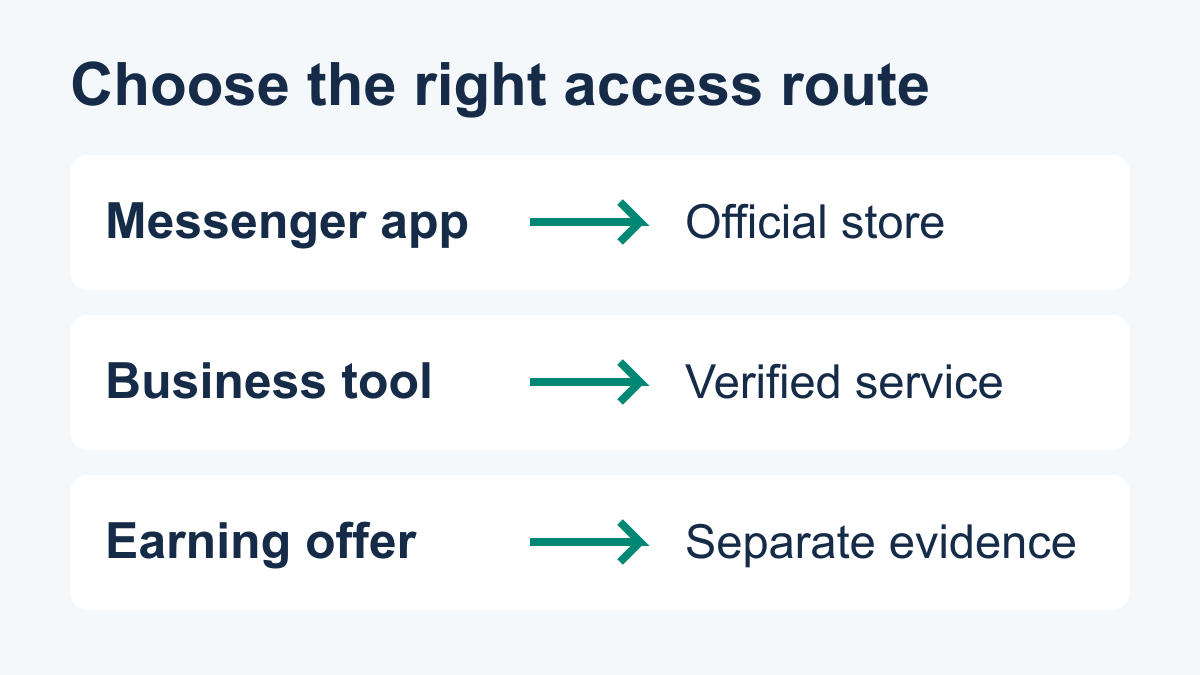
Before you download anything, identify whether you need Meta’s Messenger app, access to a business messaging service, or information about an earning offer. These are different tasks with different evidence. This guide helps you choose the correct route and prepare a business connection without treating a download link as proof of payment or product capability.
If you want to know how to download Messenger Bot, start with the name of the publisher and the job you want to complete. A messaging app lets you use a messaging account; a business tool needs its own documented access and connection process. Neither an app icon nor an account balance establishes that a separate earning offer will pay you. The steps below distinguish those routes rather than sending every reader to the same installer.
This guide does not authenticate a third-party earning app, certify a payout, or provide a verified native installer for the Messenger Bot business service. For the file-download, APK and earning-offer branch, use the separate earning-app download and installation checks. Here, the practical goal is to find the right access route and understand what a business connection would require before granting access or expecting automated replies.

Explanatory route map—not a product screenshot or verification of an earning offer.
Choose the product before you choose a download
Write one sentence describing your goal. “I want to read my messages” is different from “I want customers to reach my business Page” or “Someone offered me rewards for completing tasks.” This small distinction prevents a familiar mistake: following instructions for a similarly named product and expecting it to solve a different problem.
| Your immediate goal | What to identify | What this does not establish |
|---|---|---|
| Use Meta’s Messenger app | The official Messenger listing and its publisher | A subscription to a separate business tool or an earning arrangement |
| Manage business conversations | The service, its documented access route and the intended business account | That installing a consumer app connects or activates that service |
| Check an earning offer | The actual operator, requested work and payment terms | That a Messenger conversation or download verifies the payer |
| Use an AI assistant | The particular assistant and its available functions in your account | Automatic handling of your business Page’s customer messages |
| Add chat to a website | The specific website-chat product and supported integration | That a generic website script connects a Messenger Page |
Keep that sentence beside the instructions you are following. If the guide switches from downloading an app to adding website code, stop and check whether it has changed products. You should not have to infer a relationship from a shared word such as “bot,” a similar logo, or a paragraph promising AI features.
For a business, record the desired outcome in customer terms: route a question to the right person, present approved opening hours, or collect the details needed for a callback. Those are examples of needs to check against a tool’s current capabilities, not a claim that any named tool supports all of them. Select a connection method only after the service confirms that it can support your chosen task.
Verify the access route before choosing a device
For Meta’s consumer messaging app, the Google Play listing and Apple App Store listing identify the publisher as Meta Platforms, Inc. Check that publisher and the device compatibility information in the store rather than relying on an image copied into a message. These listings are for Messenger; they are not proof of a separate product named in an earning promotion.
For a business messaging service, begin with the service’s verified website and current help material. Confirm whether the documented route is browser access, an officially listed application, or another supported method. This article does not supply a native Messenger Bot installer or assert that one is unavailable. If the current product documentation does not establish an installation route, ask for that route instead of treating a blog post or homepage link as a downloadable file.
Record three details before continuing: the publisher or service name, the destination address, and which account the destination expects. A store account used to obtain an app is not automatically the business workspace account you need later. Likewise, a Facebook authorization screen and a business tool’s own sign-in screen have different purposes; do not copy passwords from one into another because a tutorial groups them together.
A useful support request is specific: “I am trying to access this service on this device; which current page documents its supported route?” It is more useful than asking for any link containing the words “Messenger bot.” Avoid sending account passwords or private conversation screenshots with that request.
The result of this check should be one documented destination and one clear purpose. If you cannot identify both, do not substitute an unrelated download, a search advertisement or a different brand’s login page.

Check the publisher, destination and account before following installation instructions.
Separate installation, account access and business connection
These are three checkpoints, not one long download process. Installation places an application on a supported device. Account access lets the intended person enter the correct service. A business connection gives a particular tool the documented access it needs for a particular business account. Completing an earlier checkpoint does not demonstrate that the next one is complete.
For Android, Google’s download instructions describe choosing an item in Google Play, selecting Install or its price, and following the displayed instructions. Google also describes using compatibility filters for associated devices. For iPhone or iPad, Apple’s installation instructions describe finding an app in the App Store and using its price or Get button. Follow the actual store’s current instructions, not an earning article’s substitute installer.
After obtaining the intended app, confirm that it is the right product before entering any account information. If you already have it, reopening the correct app may be all that your immediate task requires. Do not reinstall simply because a business connection has not appeared; first identify which checkpoint failed.
- Installation question: Is the intended application available for this device through the publisher’s documented route?
- Account question: Are you entering the correct service with the account that should have access?
- Connection question: Has that service documented how to connect the intended business account and shown the result?
A browser-based service should be handled according to its own current access instructions. Do not invent a mobile-app requirement for it. Conversely, the existence of a website does not prove that an unrelated mobile download is supported. Keep the device choice and the connection choice separate until the exact service documents how they fit together.
Prepare a business connection without guessing the menus
For a Page-based Messenger connection, identify the correct Facebook Page and the person authorized to connect it before searching for a setup button. Meta’s published Messenger Platform collection describes a Facebook Page and an app with messaging permission as prerequisites for its developer examples. That platform requirement is not evidence that every business tool exposes the same menus or supports the same features.
If you use a managed service, follow its current documented connection flow. Do not create a separate developer application, paste technical access details into a chat, or copy another tool’s setup sequence unless the actual service requires and documents that work. A business owner’s task is to confirm the right account and authorized scope, not to guess at developer configuration.
Prepare this short connection-readiness note with the person responsible for the Page:
- Name the intended Page. Use its visible name and public address in your private setup note so that similarly named Pages are not confused. Do not publish private account identifiers.
- Identify the authorized person. Confirm that they can perform the tasks required by the documented connection flow. If the correct Page is missing, resolve the access question rather than selecting a different Page to get past the screen.
- Read the requested access. Compare it with the service’s documented purpose. If the request or destination differs from what was explained, pause and ask the service to clarify the difference.
- Choose one limited test. Define the question, the approved answer or handoff, and the person who will review the result. Do not start with an imported contact list or a broad customer campaign.
- Record the visible connection result. Keep the service name, Page, date and customer-safe status wording in your private note. A completed sign-in alone is not the same observation as a successful connection.
For example, a shop could plan a test about opening hours using already approved wording. That is a proposed test, not an account of a Messenger Bot deployment. If the available tool cannot show how the request reaches the intended Page or how staff regain control, leave the connection unexpanded and ask for the missing documentation.
A completed connection checklist is not proof that every automation feature is available. It gives your team a precise starting point: the intended Page, the person allowed to connect it and one limited test to review before expanding the workflow.

A connection-readiness plan; exact steps depend on the service and permissions actually available.
Review one customer question before expanding the workflow
A useful first check has an expected result that a person can recognize. “Make the bot smarter” is not testable. “Show the approved Saturday opening hours when an authorized tester asks about Saturday” is a narrower requirement. Write the expected answer before the test so that a plausible but incorrect answer does not become the acceptance standard.
Use a simple review sheet. Include the exact test question, the approved information, the intended account or Page, the observed answer, and what staff should do when the answer is unavailable. Keep customer names, order records and other personal information out of a basic setup test. Use fictional examples labeled as examples rather than copying a real customer’s private conversation.
| Review check | What the reviewer should compare | What to do if it does not match |
|---|---|---|
| Correct destination | The test reached the intended business account | Resolve the account or connection mismatch before another test |
| Approved information | The answer matches the business’s reviewed wording | Correct the source or configuration through the supported process |
| Unanswered question | The response does not invent information outside the approved scope | Use the documented human-review or fallback route |
| Staff control | The team can identify who handles an unresolved inquiry | Define ownership before expanding the workflow |
Do not judge success solely from a green indicator or one attractive reply. Check the complete narrow task you planned. An opening-hours answer does not verify pricing advice, refunds, appointment changes or permission to follow up with everyone who has ever messaged the Page. Each additional task needs its own confirmed support and review.
When you need product-specific directions, Browse Our Tutorials and compare the relevant instructions with what is actually available in your account. If the documented step is missing, record that precise difference for support instead of clicking through unrelated menus.
Check what “free” covers before relying on it
A free download, a trial, a free registration and a paying work offer describe different arrangements. Apple explains that an app with a Get button is free to download, while some free apps offer paid features or subscriptions. The current Messenger listings also display in-app purchases. Neither observation establishes the price or terms of a separate business service.
For a business tool, ask what you can access without payment, whether a trial ends automatically, which channels and functions are included, and what happens to an unfinished setup when the trial ends. Check current written terms before providing billing information. This guide does not assign a current free plan, price, trial duration or included AI feature to Messenger Bot without that exact current evidence.
Put each cost question against the task you actually need. Paying for software access is not the same as receiving payment for work, and a paid upgrade should not be treated as proof that an earning balance can be withdrawn. If someone describes a fee as necessary to unlock promised earnings, evaluate the offer and payer separately rather than treating it as an ordinary installation step.
For business budgeting, use the existing software cost and quote worksheet. It separates setup, recurring charges and later-period assumptions. Keep that cost exercise separate from this page’s access-route and connection checks.
Keep personal AI and website chat separate from a Page connection
Seeing an AI assistant in a messaging app does not demonstrate that it is connected to your business’s customer conversations. Meta’s March 2025 assistant announcement described personal and group-chat uses across its apps. The current Apple Messenger listing says Meta AI is available in selected languages and countries. These sources do not establish a particular business service’s AI connection or promise availability for every reader.
If your goal is to draft an answer for staff to review, describe that separately from an automatically delivered customer reply. Ask which information is used, who reviews the draft, and what prevents an unsupported statement from being treated as approved business information. Do not assume that a consumer assistant button performs those functions for a Page.
A website chat box is another distinct entry point. Before adding code, identify the actual chat product, the supported website integration and the destination of a visitor’s message. A generic instruction to paste a script cannot establish that the message reaches Messenger, the intended business account, or the staff member responsible for it.
Keep one line in your setup note for each intended channel. For example: “Customers start on our website; staff review inquiries in the documented destination.” Treat the line as a requirement to verify, not a description of an already working feature. Do not add an unrelated widget just because a Messenger installation guide mentions one.
Find the failed checkpoint instead of repeating the installation
When something does not work, describe what you can actually observe. “The store does not show this app for my device,” “I can sign in but cannot see the intended Page,” and “The Page connects but the planned test does not reach the reviewed destination” are different problems. Repeating every installation step hides that distinction and can introduce a second account or another tool.
For a store problem, compare the listing and supported device information with the device you are using. For an account problem, confirm the service and intended account through its documented support route. For a connection problem, provide a redacted description of the exact step and visible result. Do not send passwords, recovery codes or private customer conversations to prove that you are stuck.
A concise support note can contain these fields:
- The product and official instructions you intended to follow.
- The device and the checkpoint that failed: installation, account access, connection or limited test.
- The exact customer-safe error wording, with personal information removed.
- The result you expected and the result you actually observed.
- The next question: which supported step resolves this specific mismatch?
Do not turn the support conversation into a new earning verification exercise. A working login or a responsive support contact does not prove a payer, a withdrawal promise or future income. Keep the evidence appropriate to the question you are trying to answer.
Once the access route, account, connection and limited test are clear, decide whether the service fits the business task. Check Current Pricing for the terms offered today, and confirm the needed features before committing. There is no benefit in downloading another similarly named application when the real question is whether the documented service supports your workflow.
Frequently asked questions about downloading and connecting a Messenger bot
Do I download a Messenger bot or connect a business service?
First identify the product. Meta’s Messenger app has official store listings. A business messaging service needs its own documented access and connection route, which may differ from an app installation. Do not treat downloading the consumer app as proof that a separate business service is connected or active.
Is Meta’s Messenger app the same as an earning app?
No. The official Messenger listings identify Meta Platforms, Inc. and describe a messaging app. A separate earning offer requires evidence about its operator, requested work and payment terms. An app listing, Messenger conversation or successful sign-in does not verify that separate offer or a payout.
Can I use the same setup instructions on every device?
No universal device sequence is established here. Use the publisher’s current listing or service instructions for your supported device. Keep installation, account access and business connection separate. If a service documents browser access, do not invent a native-app requirement; if it documents an app, use its verified route.
Why can I sign in but not see the business Page I need?
A sign-in does not establish access to every Page or a completed connection. Check that you are using the intended service and account, that the person connecting it has the required access, and that the current documented connection flow supports the intended Page. Report the precise mismatch without sharing passwords or private identifiers.
Does opening Meta AI automatically enable business replies?
No business connection is established by opening a personal assistant. Confirm the actual service, supported business account, information sources and review or delivery behavior separately. Do not infer that a consumer AI feature can manage your Page’s inquiries or send approved customer replies for a separate business tool.
 English
 Tagalog
 简体中文
 العربية
 हिन्दी
 Português do Brasil
 Español de México
 Français
 বাংলা
 香港中文
 繁體中文
 Nederlands
 Deutsch
 Bahasa Indonesia
 日本語
 한국어
 Polski
 Русский
 Español
 Tiếng Việt