
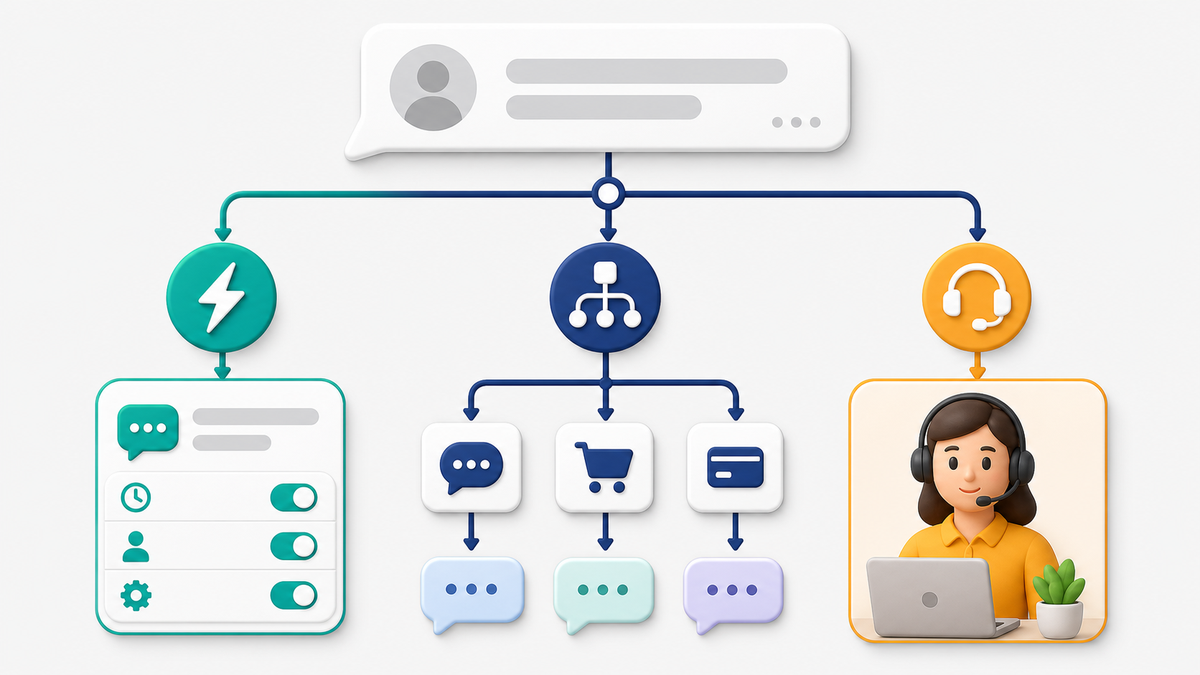
A Facebook Messenger auto reply should do one useful job immediately: confirm that a customer reached the right business and show them what happens next. The free tools connected to a Facebook Page can handle that first response. When the conversation needs qualification, routing, follow-up, or a reliable human handoff, a structured workflow becomes the better fit.
This guide separates those jobs so you do not buy a larger tool for a one-message problem—or expect one instant reply to run an entire customer conversation. You will see how to set up the native response, what to check when it does not send, when keyword automation helps, and how to plan a workflow that keeps a person in control.
What a Facebook Messenger Auto Reply Can—and Cannot—Do
An instant reply is the first message a Page sends automatically after someone starts a conversation. It is useful for acknowledgement, expectations, and a short next step. For example, a service business might confirm receipt, state its normal response window, and ask the customer to share a location or preferred appointment day.
That is different from an away response. An away response tells people that the team is not currently available. It is also different from a keyword automation, which reacts to a recognized word or phrase, and from a multi-step workflow that can branch based on answers.
| Reply type | Best use | What it should not be asked to do |
|---|---|---|
| Instant reply | Confirm receipt and give one clear next step | Run a long qualification interview |
| Away response | Set expectations outside staffed hours | Pretend that a person is available |
| Keyword response | Route a common request such as pricing, hours, or booking | Guess the intent of every free-form message |
| Structured workflow | Collect a few answers, branch safely, and hand off with context | Replace judgment for sensitive or unusual requests |
Meta describes instant replies as a Page’s first automatic response. Its help guidance also notes that an instant reply may not be sent when the Page is set to Away, and that these replies do not count toward the Page’s response rate or response time. Those details matter when you test: a visible automation can still appear “broken” if the Page status conflicts with it.
The practical rule is simple: use the smallest reply type that solves the customer’s immediate problem. A short, accurate response is more helpful than a long automated message that makes the customer search for the important sentence.
Choose the Right Level of Automation Before You Build
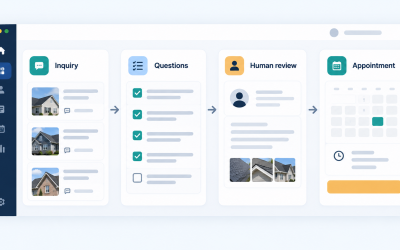
Start with the customer’s next decision, not the number of automation features available. If every new conversation needs the same acknowledgement, begin with an instant reply. If people routinely ask one of four predictable questions, add keyword routes. If answers change what should happen next, use a visual workflow with review and handoff points.
Three questions usually reveal the correct level:
- Does the same response help almost everyone? Use a native instant reply.
- Can the request be identified from a clear keyword or button choice? Use a keyword route or short menu.
- Does the business need to collect details, remember answers, or move the person to a team member? Use a structured workflow.
Map one successful conversation before adding branches
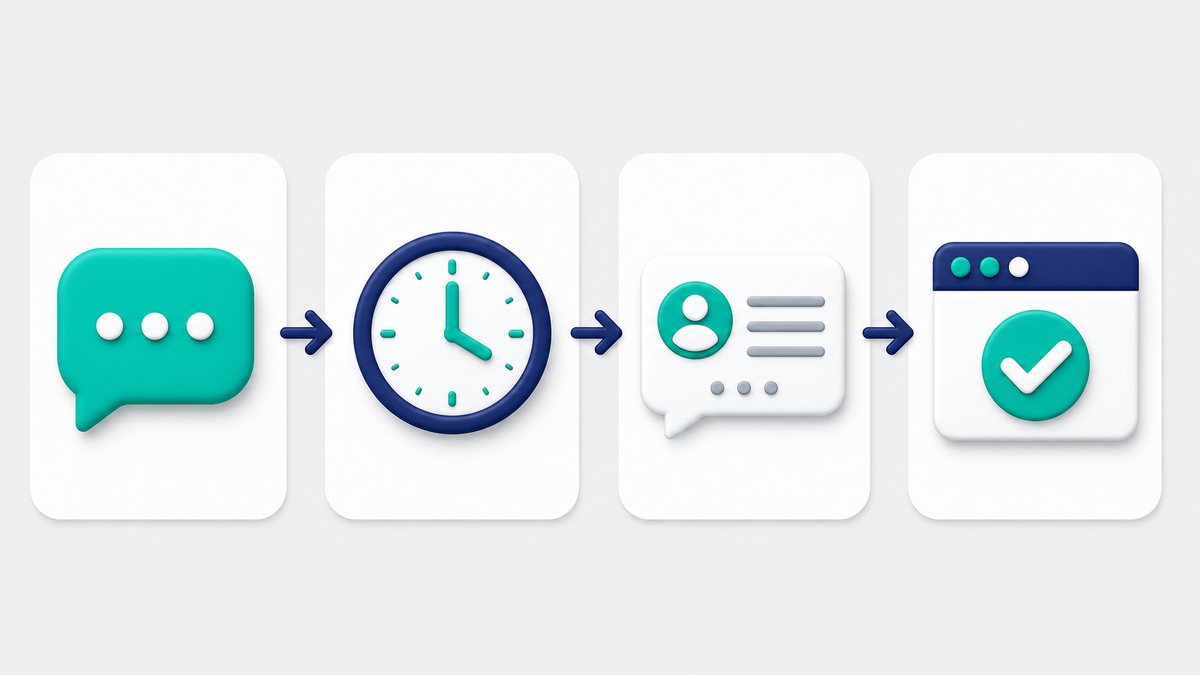
Write the shortest successful conversation on one page. Start with the customer’s first message, then list the minimum information the business needs to take the next useful action. Mark which response can be automatic, which answer changes the route, and where a person must make a decision. This gives the team a testable workflow instead of a collection of disconnected replies.
For each automated step, add a plain-language fallback. If the customer does not choose one of the offered topics, the workflow can say, “Tell us what you need in your own words, or reply PERSON for help.” If a required answer is missing, ask once more and then offer handoff. Repeating the same prompt indefinitely makes the system look broken and hides a valid customer request.
Also decide what ends the automation. A booking confirmation, secure form handoff, or transfer to a team member is a clear ending. Sending another promotional message is not. When the workflow has achieved its immediate job, stop and let the customer choose the next interaction.
A local service business may need only an instant reply plus a booking link. A multi-location company may need location routing before a person responds. An online store may need order-status, returns, and product-question paths. Those are different systems even though all three begin with a Messenger conversation.
If you expect the automation to grow, sketch the future handoff now. Record what the team needs to see when a conversation reaches a person: the customer’s question, selected topic, contact details they chose to provide, and the last automated step. A workflow is not complete if the customer must repeat everything.
How to Set Up an Instant Reply in Meta Business Suite
You need Facebook access or task access that allows you to manage Page messages. Interface labels can move, but the current route is generally through the Page’s Meta Business Suite inbox and its Automations area.
- Open the correct Facebook Page and enter Meta Business Suite.
- Open Inbox, then find Automations.
- Select the instant-reply option and choose Messenger as the channel when a channel choice appears.
- Turn the automation on, select the Page, and write the response.
- Save the change, confirm the Page is not unintentionally set to Away, and test from an account that is not acting as the Page.
Meta Business Suite can bring Page conversations and supported connected channels into one inbox. Depending on the Page and connected assets, the inbox can also expose tools such as labels, notes, away status, and keyword-based automations. Availability and labels can differ by account, so use Meta’s current help screens as the source of truth rather than an old screenshot.
Do not begin the message with a paragraph about the business. Begin with reassurance and the next action. A good first response can be as short as:
Thanks for messaging Riverside Home Services. We usually reply during business hours. To help us route your request, send your ZIP code and choose one topic: estimate, scheduling, or an existing appointment.
That response identifies the business, sets an expectation, and collects only the information needed for the next step. It does not claim that a person is already reading the conversation.
Test the real customer path
Use a personal test account or another approved test profile, not the Page identity. Start a brand-new conversation where possible. Check the mobile Messenger experience as well as the desktop inbox. Save a screenshot of the received reply and the time sent. If your team operates across time zones, test both staffed and away periods.
Testing should answer five questions: Did the response arrive? Did it arrive only once? Was the wording accurate? Did the link open? Could the customer reach a person without getting trapped in a loop?
Write a First Response That Moves the Conversation Forward
The strongest auto reply is specific enough to be useful and restrained enough to stay true. It should not promise a five-minute response if the team cannot meet that promise. It should not say “we are online” when nobody is monitoring the inbox. It should not ask for sensitive details that belong in a protected form or a human conversation.
Use this four-part structure:
- Audience: confirm which business or team received the message.
- Outcome: explain what the customer can accomplish here.
- Reassurance: state a realistic response window or explain how the request will be routed.
- Action: ask for one detail or offer a small set of choices.
Keep the first message easy to scan. A customer on a phone should understand it without opening a long block of text. Use line breaks and, when the interface supports them, clear buttons or brief choices. Avoid a menu with ten options; the goal is to reduce uncertainty, not recreate a phone tree.
Examples for common business situations
Appointment request: “Thanks for contacting Green Street Dental. We can help with a new appointment or a change to an existing one. Reply NEW or CHANGE, and our team will follow up during office hours.”
Local service estimate: “Thanks for messaging Northside Roofing. To route your estimate request, send the property ZIP code and tell us whether this is repair, replacement, or inspection.”
Online order question: “Thanks for contacting Harbor Goods. Choose ORDER, RETURN, or PRODUCT so we can send your message to the right team. Please do not send payment information in Messenger.”
Each example states the next move without pretending the automation has solved the request. That distinction protects trust and makes the eventual human response easier.
Why Facebook Automated Responses May Not Be Working
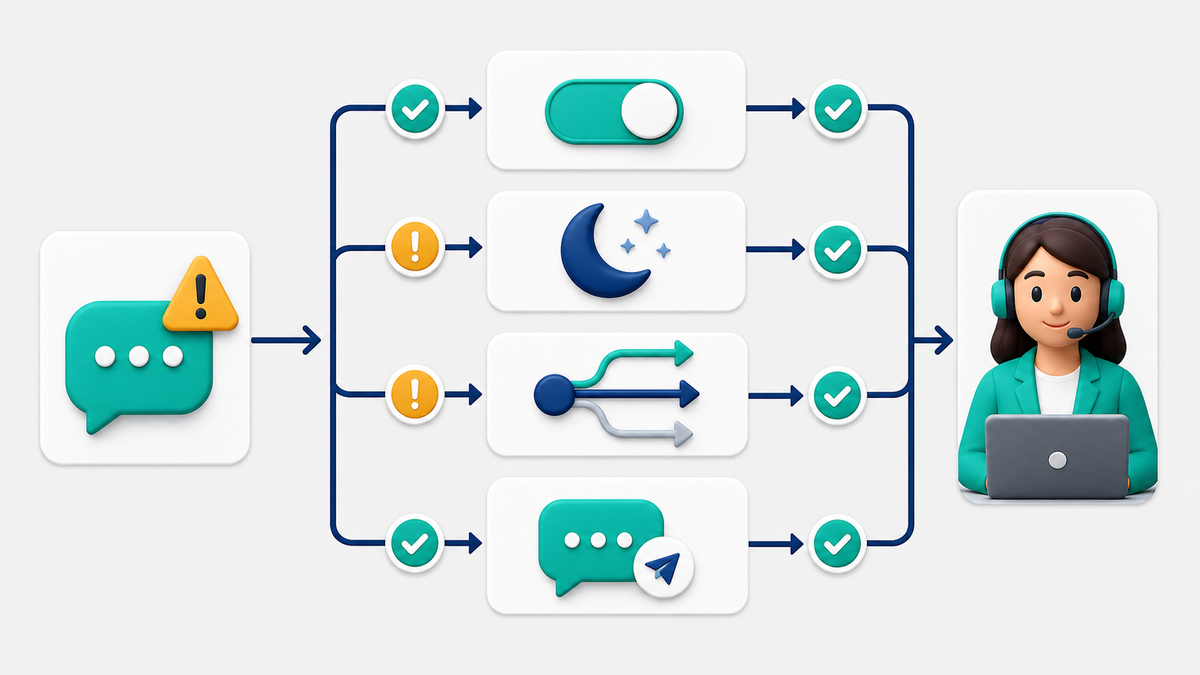
When an automatic reply does not send, troubleshoot from the smallest possible cause outward. Do not rebuild the entire workflow first. Confirm the target Page, the automation switch, the Page’s availability state, the test conditions, and the routing logic in that order.
The wrong Page or channel is selected
Teams that manage several Pages can edit the right automation in the wrong workspace. Confirm the Page name and connected Messenger channel before changing the message. If the inbox includes other connected channels, verify that Messenger is selected for this reply.
The automation is saved but not active
Open the automation and check both the main on/off control and any channel-specific control. Save again after editing. Then leave the screen and return to make sure the setting persisted.
The Page is set to Away
Meta’s instant-reply guidance says instant replies are not sent when the Page’s messaging status is Away. Review the away schedule and current status. Decide whether the customer should receive an away response instead. Do not turn off a useful away message merely to force the instant reply; make the two states intentional.
The test is not a new conversation
An instant reply is designed for the beginning of a conversation, not every message in an existing thread. Testing repeatedly from the same account can produce confusing results. Use a fresh test account or reset the test conditions when possible, and document the exact state you used.
A keyword or branch does not match
Keyword routes fail when they expect a phrase that customers do not naturally type. Test capitalization, plural forms, common misspellings, and extra words. Prefer buttons or a short menu when precise matching would be frustrating. Add a fallback that offers help or transfers the conversation instead of silently ending the workflow.
Permissions or connected assets changed
A Page role change, disconnected account, or expired connection can interrupt a workflow. Confirm that the current operator still has the access needed to manage messages and that the Page remains connected to the selected workspace. Reconnect only through the approved account flow; do not share personal credentials between team members.
The reply works, but the link or next step fails
A delivered message is not a successful workflow if its booking link is broken or its next button goes nowhere. Open every link from a phone, test every branch, and confirm that a human can see the conversation with enough context to continue.
When a Keyword Automation or Flow Builder Is the Better Fit
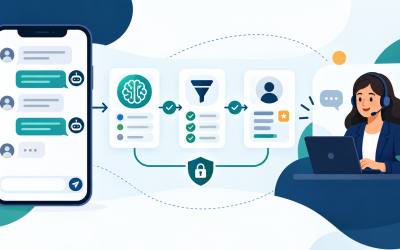
Native instant replies are best for one consistent first response. Move to a structured workflow when the customer’s answer changes the next question, when several people share the inbox, or when the business needs a clear handoff trail.
A visual workflow can help a business:
- separate sales, service, and account questions;
- collect a small set of qualification details;
- offer business-hour and after-hours paths;
- route conversations by topic, location, or urgency;
- prepare an approved reply draft for team review;
- preserve the customer’s answers for the human responder.
For guided implementation examples, Browse Our Tutorials. The flow builder is most useful when every branch has a defined purpose and a safe ending. “More steps” is not the same as “better automation.”
Use AI assistance as a drafting aid, not an invisible decision-maker
AI-assisted replies can help a team draft a consistent answer from approved business knowledge. Keep review control for pricing exceptions, complaints, medical or legal questions, account changes, and any request with material consequences. When an automated or AI-assisted experience requires disclosure, make it clear that the customer is interacting with automation and provide a practical path to a person.
Messenger Bot supports reviewable workflows and, on eligible plans, BYOK (Bring Your Own Key) for AI-assisted drafts. That lets the team retain model choice and approval control. See the Messenger Bot features to compare the workflow capabilities with the needs you mapped above.
For questions that begin on a personal listing, use the Marketplace reply and Page-messaging boundary guide before adding automation. Keep listing replies human-reviewed and move only eligible business conversations into supported Page workflows.
Design Human Handoff Before You Add More Automation
Human handoff is not an emergency escape hatch. It is a planned stage of the customer experience. Decide when it should happen, who owns it, what context is passed, and what the customer sees while waiting.
Common handoff triggers include:
- the customer explicitly asks for a person;
- two attempts do not identify the request;
- the message includes a complaint, cancellation, or sensitive issue;
- a price, policy, or eligibility exception needs judgment;
- the workflow has collected the details a team member needs to finish the job.
The handoff message should be honest: “I’m sending this to our team with the details you shared. A person will reply during our staffed hours.” Avoid language that implies immediate attention unless the inbox is actually monitored.
Give the responder a compact summary: selected topic, relevant answer set, customer’s preferred contact method, and the last automated message. Do not copy unnecessary personal information into notes. The goal is continuity with the least data required.
Understand Cost Without Chasing an Old “$12 Fee”
A fixed dollar figure in an old search result is not a reliable buying guide. Platform prices, free allowances, contact definitions, channels, and add-ons can change. The useful question is not “Which tool costs exactly $12?” It is “What will this workflow cost at our actual volume, with the channels and review controls we need?”
Compare the current offer shown inside the vendor’s official pricing page or account checkout. Record the date and check:
- which channels are included;
- how contacts, conversations, or usage are counted;
- whether team seats are included;
- which workflows or integrations require a higher plan;
- whether AI usage is included or billed separately;
- what happens when limits are reached;
- how the trial, renewal, cancellation, and refund terms work.
Free native tools can be enough for a straightforward first response. A paid workflow becomes easier to justify when it saves staff time, captures more qualified details, reduces missed handoffs, or supports several Pages and team members. Check Current Pricing for today’s plan limits and trial terms rather than relying on a number preserved in an old article title.
Three Practical Facebook Messenger Auto Reply Workflows
Local service lead routing
The instant reply confirms receipt and asks for ZIP code plus service type. A short workflow separates estimate requests from existing-job questions. Estimate requests collect the preferred day; existing-job questions go directly to the service team. Both paths show the staffed response window and allow a human request.
Appointment intake
The first response offers NEW, CHANGE, or QUESTION. A new appointment path asks for the service category and preferred day, not sensitive health information. Changes go to the scheduling team. General questions can receive an approved answer or be handed off. The team sees the selected path before responding.
Product and order support
The first response separates product questions, order status, and returns. Product questions can route to a small approved knowledge set. Order and return paths direct the customer to the appropriate secure account or support step rather than asking for payment details in chat. Unrecognized requests go to a person.
These workflows are intentionally short. Each collects only what changes the next action. If a branch does not change routing or improve the human response, remove it.
Launch Checklist for a Reliable Automatic Reply
- Confirm the correct Page, channel, and operator access.
- Choose instant reply, away response, keyword route, or workflow based on the actual job.
- Name the business and state a realistic response expectation.
- Ask for one useful detail or offer a short set of choices.
- Do not request passwords, payment details, or unnecessary sensitive information.
- Check the Page’s Away status and schedule.
- Test from a separate account on mobile and desktop.
- Test every link, button, keyword, fallback, and handoff.
- Make the path to a person visible and functional.
- Save evidence of the test and assign an owner for future reviews.
Review the reply after any change to hours, services, prices, staffing, or connected Page access. A small monthly check is usually faster than discovering a stale promise after a customer complains.
When the native reply is no longer enough, map one real customer path and build it in a reviewable workflow. Start with Step-by-Step Tutorials, then See Our Plans before connecting more Pages or adding AI-assisted drafts.
Frequently Asked Questions
Can I set up a Facebook Messenger auto reply for free?
Yes. A Facebook Page can use native tools for a basic instant reply and away response. Availability and interface labels can vary, so check the Page’s current Meta Business Suite Inbox and Automations area.
Why is my Facebook instant reply not sending?
Check that you selected the correct Page and Messenger channel, the automation is active, the Page is not set to Away, your test represents a new conversation, and your current account still has message-management access.
Is an instant reply the same as a chatbot?
No. An instant reply normally sends one first response. A chatbot or structured workflow can ask questions, branch based on answers, route the conversation, and prepare a human handoff.
Should an automatic reply tell people it is automated?
Be clear whenever the experience could otherwise make someone believe a person is responding. AI-assisted or automated Page chats may require disclosure, and customers should have a practical way to request human help.
Do I need a paid tool for Messenger automation?
Not for a basic first response. Consider a paid workflow when you need branching, qualification, team routing, review controls, multiple connected assets, or better handoff context. Compare current plan terms instead of relying on an old fixed-price claim.
 English
  Tagalog
  简体中文
简体中文  العربية
  हिन्दी
  Português do Brasil
  Español de México
  Français
  বাংলা
বাংলা  香港中文
香港中文  繁體中文
繁體中文  Nederlands
  Deutsch
  Bahasa Indonesia
  日本語
日本語  한국어
한국어  Polski
  Русский
  Español
  Tiếng Việt