
Früher bedeutete der Aufbau eines Chatbots eine von zwei schlechten Optionen: einen Entwickler einstellen oder sich mit einer starren automatischen Antwort zufriedengeben, die wie eine Sackgasse wirkte. Im Jahr 2026 ist dieser Kompromiss größtenteils verschwunden. Die besten No-Code-Builder bieten jetzt visuelle Flusseditoren, Live-Vorschauen, Drag-and-Drop-Trigger, Lead-Erfassung, menschliche Übergabe und genügend KI-Unterstützung, um die wiederkehrende Arbeit zu erledigen, ohne jedes Gespräch in ein Chaos zu verwandeln.
Wenn Sie ein kleines Unternehmen, eine Agentur, einen E-Commerce-Shop, eine Coaching-Praxis oder ein lokales Dienstleistungsunternehmen betreiben, ist der Geschäftsnutzen leicht zu verstehen. Ein Chatbot beantwortet die gleichen fünf bis zehn Fragen, die Ihr Team die ganze Woche über bearbeitet, erfasst Leads nach Feierabend, leitet Käufer zum richtigen Angebot und gibt Kunden eine sofortige Antwort anstelle eines stillen Posteingangs. Das ist wichtig, denn das Support-Volumen steigt schnell an. Öffentliche Fallstudien landen immer wieder im gleichen Bereich: Sobald Teams Routinefragen gut automatisieren, ist ein Rückgang der Support-Tickets um 30% bis 40% realistisch. Eine Zapier-Kundenstory, die im April 2024 veröffentlicht wurde, berichtete von einer Reduzierung um 40%, was genau der Grund ist, warum No-Code-Chatbot-Builder von einem “netten Extra” zu einem “Kernbetriebswerkzeug” übergehen.”
Die andere Verschiebung ist Geschwindigkeit. Sie benötigen keinen vollständigen KI-Stack, um etwas Nützliches zu starten. Ein einfacher FAQ-Bot für Messenger oder Ihre Website kann in 10 bis 15 Minuten live sein, wenn Sie diszipliniert bleiben und zuerst eine Aufgabe lösen. Wenn Ihr Hauptziel die Automatisierung von Messenger ist, ist MessengerBot der schnellste Ort, um zu beginnen, da die Plattform um die Verbindung zur Facebook-Seite, Vorlagen, Flussgestaltung und Übergabefunktionen herum aufgebaut ist, anstatt Sie am ersten Tag durch ein breites Multikanal-Setup zu zwingen. Wenn Sie sehen möchten, wo die bezahlten Grenzen und fortgeschrittenen Automatisierungen beginnen, MessengerBot-Preise anzeigen bevor Sie bauen, damit Sie wissen, worauf Sie hinarbeiten.
Warum 2026 das einfachste Jahr ist, um einen Chatbot zu starten
Der große Grund ist die Reife. Vor ein paar Jahren waren die meisten No-Code-Bots glorifizierte Schlüsselwortabgleichsysteme. Sie konnten Hallo sagen, einen Link senden und brachen den Moment, in dem ein Kunde etwas anders formulierte. So sehen die aktuellen Builder nicht aus. Die besseren Plattformen kombinieren jetzt drei Dinge an einem Ort: einen visuellen Builder für strukturierte Flüsse, Kanalverbindungen für Messenger, Instagram, Website-Widgets oder WhatsApp und KI-Funktionen, die FAQs oder Unterstützungsinhalte aufnehmen können, ohne dass ein Entwickler jede Antwort von Hand verdrahten muss.
Das verändert die Wirtschaftlichkeit für kleine Teams. Sie können mit einem schmalen Bot beginnen, der die Auftragsverfolgung, die Geschäftszeiten, die Rückerstattungsrichtlinien, die Terminbuchung oder die Qualifizierung von Leads übernimmt, und dann nur dort Tiefe hinzufügen, wo es sich als nützlich erweist. Sie kaufen nicht mehr Software, nur um modern auszusehen. Sie kaufen Reaktionsgeschwindigkeit, Konsistenz und weniger menschliche Zeit, die mit dem Kopieren und Einfügen von Antworten verbracht wird.
Hier verdienen Chatbots tatsächlich ihren Platz:
- Kundenservice: Beantworten Sie Fragen zu Versand, Betriebszeiten, Preisen, Rückgabebedingungen, Problemen beim Kontozugriff und übergeben Sie komplexe Fälle.
- Lead-Erfassung: Stellen Sie drei bis fünf Qualifikationsfragen, sammeln Sie die Zustimmung zur E-Mail oder Telefonnummer und leiten Sie qualifizierte Interessenten in ein CRM oder einen Buchungsworkflow.
- Vertriebssupport: Empfehlen Sie ein Produkt, zeigen Sie einen Preisweg, stellen Sie ein Formular für eine Demoanfrage bereit oder holen Sie verlassene Warenkörbe zurück.
- Nachtsupport: Halten Sie die Konversion in Bewegung, wenn Ihr Team offline ist, anstatt jede Nachricht bis zum Morgen liegen zu lassen.
- Team-Effizienz: Geben Sie menschlichen Agenten die Gespräche, die Urteilsvermögen und Empathie erfordern, nicht die, die ein Menü in dreißig Sekunden bewältigen kann.
Eine praktische Anmerkung, bevor Sie ein Tool auswählen: Keiner der ernsthaften Chatbot-Bauer ist wirklich “Keine Anmeldung erforderlich.” Solche Tools gibt es für Demos, nicht für die Produktion. Wenn Sie Flows speichern, Kanäle verbinden, Berechtigungen verwalten und Live-Gespräche veröffentlichen möchten, benötigen Sie ein Konto. Der eigentliche Unterschied liegt nicht darin, ob eine Anmeldung erforderlich ist. Es geht darum, wie schnell die Plattform Sie von der Anmeldung zu einem funktionierenden Gespräch bringt.
Wenn Ihr unmittelbares Interesse WhatsApp und nicht einem allgemeinen Chatbot-Stack gilt, lesen Sie unseren Leitfaden über den kostenlosen Aufbau eines WhatsApp-Chatbots. Dieser Artikel zielt auf einen anderen Einrichtungsweg ab und vermeidet es, den Messenger-Workflow mit den WhatsApp-Regeln von Meta zu vermischen.
Die 5 No-Code-Chatbot-Bauer, die sich zuerst lohnen zu vergleichen
Ich würde keine Zeit damit verschwenden, fünfzehn Tools zu vergleichen, wenn fünf fast jeden Anwendungsfall für kleine Unternehmen abdecken. Die folgende Tabelle konzentriert sich auf die öffentlichen Einstiegspreise und die Kanalpassung Stand 9. April 2026. Die Preise ändern sich oft, insbesondere bei jährlichen Rabatten und nutzungsbasierten Abrechnungen, also betrachten Sie die Zahlen als Ausgangspunkte, nicht als lebenslange Garantien.
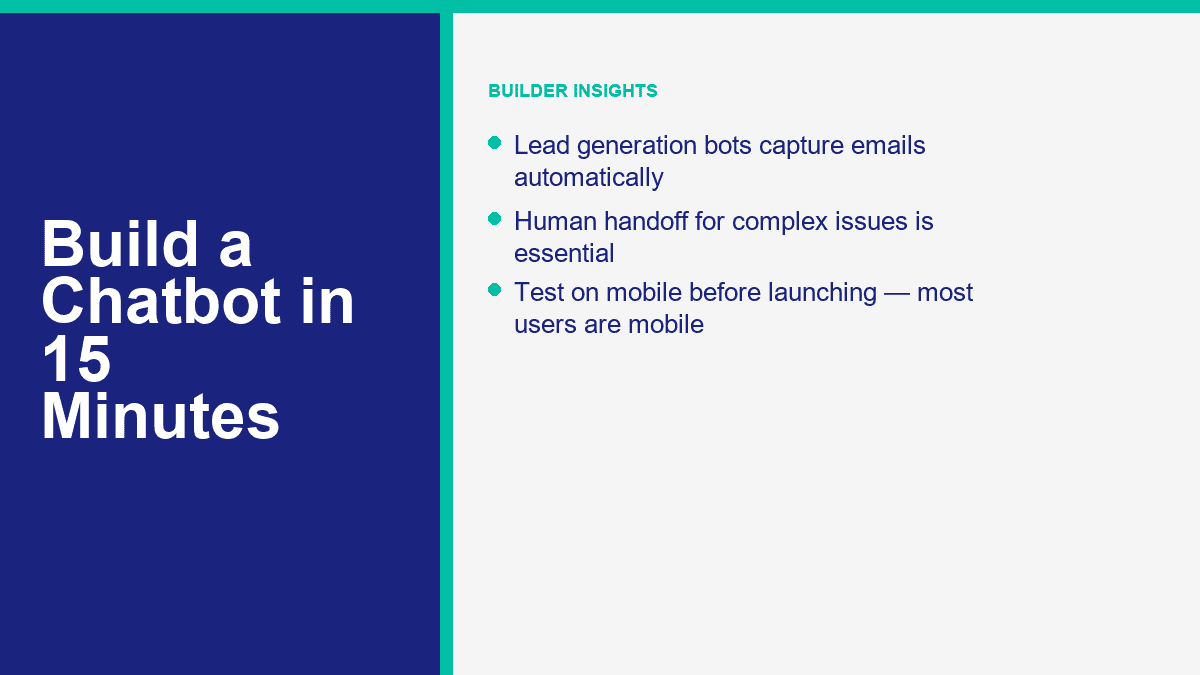
| Tool | Am besten für | Einstiegspreis | Kostenloses Angebot oder Testversion | Hauptkanäle | Notizen zu KI und Automatisierung |
|---|---|---|---|---|---|
| MessengerBot.app | Facebook Messenger-first Unternehmen, die visuelle Abläufe, Vorlagen und integrierte Wachstumstools wünschen | Premium ab $19,99 pro 30 Tage zum aktuellen Aktionspreis | Kostenlose Testversion verfügbar | Facebook Messenger, Website-Chat, E-Mail, SMS, Instagram in höheren Tarifen | Visueller Flow-Builder, persistentes Menü, JSON API + Zapier, Webformulare, Kommentarautomatisierung, E-Commerce-Tools |
| ManyChat | Ersteller und Vermarkter, die sich auf Instagram und Messenger mit sauberen Automatisierungen konzentrieren | Essential ab $17 pro Monat monatlich oder $14 pro Monat jährlich | Kostenloser Plan mit 25 aktiven Kontakten und bis zu 4 aktiven Automatisierungen | Instagram, Facebook Messenger, TikTok, Telegram; WhatsApp in bezahlten Tarifen | Starke Wachstumsautomatisierungen, Lead-Erfassung, Tags, Google Sheets-Synchronisierung, KI bei Pro und höher |
| Chatfuel | Unternehmen, die KI-intensive soziale Nachrichten mit einem einfachen kommerziellen Paket wünschen | $69 pro Monat | 7-tägiges kostenloses Testangebot | Facebook, WhatsApp, Instagram, TikTok, Website-Widget | Einzelplan-Modell, KI-Geschäftsassistent, integriertes CRM, Buchung und soziale Automatisierung |
| Tidio | Website-Support-Teams, die Live-Chat und Chatbot-Automatisierung in einem Posteingang wünschen | Starter $24,17 pro Monat, Wachstum ab $49,17 pro Monat | Kostenloser Plan und 7-tägige Testversion der kostenpflichtigen Funktionen | Website-Widget, Messenger, Instagram, WhatsApp, E-Mail | Lyro KI-Agent, Ticketing, Flows, starke menschliche Übernahme, gut geeignet für den E-Commerce-Support |
| Landbot | Konversationelle Landingpages und Website-Trichter, die ein visuelleres Gefühl benötigen | Starter ab $45 pro Monat oder $36 pro Monat jährlich | Sandbox für immer kostenlos mit 100 Chats pro Monat | Website, Facebook Messenger, WhatsApp, API | Starke Web-Gespräche, KI-Chats in kostenpflichtigen Plänen enthalten, besonders gut für Lead-Gen-Landingflows |
Hier ist die kurze Version, nachdem Sie die Marketingseiten entfernt haben:
- MessengerBot.app ist die beste Wahl, wenn Ihr Hauptkanal Facebook Messenger ist und Sie einen Builder möchten, der bereits Seiten, Postbacks, Menüs und Facebook-spezifische Automatisierung versteht.
- ManyChat ist immer noch die einfachste Empfehlung für Creator und Marken, die in Instagram-DMs leben, mit Messenger als zweiten starken Kanal.
- Chatfuel ist ansprechend, wenn Sie einen stärker KI-zentrierten Ansatz wünschen und ein einfaches Einheitsangebot bevorzugen, anstatt Kontaktmathematik über viele Stufen.
- Tidio gewinnt, wenn das Website-Widget genauso wichtig ist wie der Bot selbst. Es ist ebenso sehr ein Supportdesk wie ein Chatbot-Builder.
- Landbot ist am stärksten, wenn Sie möchten, dass der Chatbot wie ein Conversion-Trichter auf einer Landingpage agiert, nicht nur als Support-Antworter.
Für ein Messenger-first-Geschäft würde ich mit MessengerBot beginnen, bevor ich eine breitere Plattform anpacke. Der Grund ist einfach: Der Einrichtungsprozess ist direkt, der Visual Flow Builder ist praktisch, und die Plattform bündelt die Kernkomponenten, die kleine Teams normalerweise später hinzufügen, einschließlich Webformulare, persistente Menüs, Kommentarautomatisierung, API-Zugriff und Zapier-Unterstützung. Wenn Sie bewerten, ob die höheren Stufen für Ihren Anwendungsfall lohnenswert sind, ist der schnellste Weg, dies zu beurteilen, die enthaltenen Limits und Integrationen zu vergleichen mit MessengerBot Pro Funktionen.
Wie Sie Ihren ersten Messenger-Chatbot mit MessengerBot in einer kurzen Sitzung erstellen
Ein grundlegender FAQ-Bot in MessengerBot kann wirklich in 10 bis 15 Minuten erstellt werden, wenn Sie die erste Version kompakt halten. Ihr Ziel ist es nicht, beim ersten Versuch einen perfekten KI-Concierge zu schaffen. Ihr Ziel ist es, einen Bot zu starten, der die häufigsten Fragen beantwortet, die Kunden bereits stellen, den Menschen offensichtliche Optionen bietet und alles Unordentliche an eine Person übergibt.
Bevor Sie beginnen, stellen Sie sicher, dass Sie diese drei Dinge bereit haben:
- Eine Facebook-Seite für das Unternehmen. Bots verbinden sich mit Seiten, nicht mit persönlichen Profilen.
- Admin-Zugriff auf diese Seite in Facebook.
- Eine kurze Liste Ihrer häufigsten Fragen, wie Preise, Öffnungszeiten, Buchungen, Versand oder Support-Kontakt.
Beginnen Sie am Anmeldebildschirm und importieren Sie die richtige Facebook-Seite
Der dokumentierte Verbindungsfluss von MessengerBot beginnt bei start.messengerbot.app. Wenn die Anmeldeseite geladen wird, können Sie sich mit Ihren bestehenden Anmeldeinformationen anmelden oder ein Konto erstellen, wenn dies Ihr erster Versuch ist. Der wichtige Teil kommt nach der Anmeldung: Das Dashboard öffnet sich mit einer linken Navigationsleiste, und die Option, die Sie möchten, ist Konto importieren.
Klicken Konto importieren, dann wählen Sie Mit Facebook anmelden. Facebook öffnet das Standardberechtigungsfenster. Fahren Sie mit dem richtigen Facebook-Benutzerprofil fort, insbesondere wenn Sie mehr als ein Unternehmen verwalten. Sobald Sie die Anmeldung genehmigen, zeigt MessengerBot eine Liste von Seiten an, die mit diesem Facebook-Konto verbunden sind. Überprüfen Sie die Kästchen neben der Seite oder den Seiten, die Sie importieren möchten, und klicken Sie dann auf Weiter.
Der nächste Bildschirm ist der Ort, an dem die Benutzer ihre eigenen Support-Tickets erstellen. MessengerBot fragt nach managementbezogenen Berechtigungen. Aktivieren Sie die Schieberegler für die angeforderten Berechtigungen. Wenn Sie diese überspringen, könnte der Import zwar funktionieren, während wichtige Automatisierungsfunktionen später stillschweigend fehlschlagen. Klicken Sie danach auf Fertig, und bestätigen Sie mit OK.
An diesem Punkt ist die Seite importiert, aber eine zusätzliche Aktion ist noch wichtig. Klicken Sie in der Zeile der importierten Seite auf den Stecker-Icon neben dem Seitennamen und bestätigen Sie den Dialog. Diese Aktion aktiviert die Verbindung. Wenn die Seite importiert wird, aber der Schritt mit dem Stecker-Icon übersprungen wird, könnte der Bot so aussehen, als wäre er verbunden, während Messenger tatsächlich keine Nachrichten in die Plattform leitet.
Wenn Ihre Seite nicht in der Importliste angezeigt wird, ist normalerweise eines dieser Dinge wahr:
- Sie haben sich mit dem falschen Facebook-Konto angemeldet.
- Sie haben auf der Seite Editorzugriff, nicht Administratorzugriff.
- Sie haben während des Importablaufs eine erforderliche Facebook-Berechtigung verweigert.
Öffnen Sie den Visual Flow Builder und verbinden Sie den ersten Gesprächspfad
Mit der verbundenen Seite gehen Sie zurück zur linken Seitenleiste und klicken Sie Visueller Flow-Builder. Klicken Sie dann auf Neuen Flow erstellen, wählen Sie die Facebook-Seite aus dem Dropdown-Menü und klicken Sie auf OK. Der Builder öffnet sich in einem Canvas-Editor mit einem Dock-Menü. Dieses Dock-Menü ist die schwebende Toolbox, die Komponenten wie enthält Text, Bild, Allgemeine Vorlage, Karussell, Benutzereingabe-Flow, Schaltfläche, Schnellantwort, Auslöser, und Neuer Postback.
Der Bildschirm ist leicht zu lesen, sobald Sie wissen, wonach Sie suchen. Der zentrale Bereich ist Ihr Editor. Das Dock-Menü ist der Ort, an dem Sie Komponenten ziehen. Ein Bot-Flow starten Knoten ist bereits im Editor als Referenzpunkt vorhanden. Für einen ersten FAQ-Bot erstellen Sie den kleinsten möglichen nützlichen Flow:
- Ziehen Sie eine Auslöser Komponente in den Editor und verbinden Sie sie mit Bot-Flow starten oder einen Neuer Postback.
- Doppelklicken Sie auf den Auslöser component to open the right-side settings panel.
- Add one or more keywords separated by commas, such as
hours, price, support, booking. - Klicken OK.
- Ziehen Sie eine Text component onto the canvas and connect it to the flow.
- Doppelklicken Sie auf den Text component and type your welcome or answer message.
A solid first message looks something like this: “Hi, thanks for messaging Greenfield Dental. I can help with appointments, opening hours, insurance, or speaking to the front desk.” That is short, specific, and obviously useful. The mistake most first-time builders make is writing a paragraph that tries to explain everything. Do not do that. Keep it short enough to scan on a phone without scrolling.
MessengerBot also lets you add delay and typing-state behavior inside the component settings. Use that lightly. A tiny typing pause can feel natural. A three-second delay on every answer just makes the bot feel slow.
Add quick replies, buttons, and fallback paths without making the flow messy
Once the welcome text is in place, give users 3 to 5 obvious options. In MessengerBot, the cleanest way to do that is usually Schnellantwort for FAQ-style choices or Schaltfläche when you want an action such as opening a web form or triggering a postback.
For a local service business, your first bot can use quick replies like these:
- Book appointment
- Öffnungszeiten
- Preise
- Talk to a person
Double-click the component you add and fill the labels clearly. “Learn More” is weak. “Talk to Support” is clear. “See Pricing” is clear. The platform documentation also highlights an important limitation that is easy to miss: from a text node, you can chain with either Weiter oder Schnelle Antworten, but not both at the same time. If a branch refuses to behave the way you expect, check that first. It is a common setup mistake.
For the “Pricing” or “Book appointment” paths, add a second Text node or a Benutzereingabe-Flow if you want to collect data such as email, phone, or preferred date. For “Talk to a person,” do not get clever. Route it to a plain handoff message with operating hours and the best contact path. A real customer service bot gets more trust when the human escape hatch is obvious.
If you want to capture lead data directly inside the conversation, MessengerBot’s platform also includes a web form builder, email and phone opt-in collection, Google Sheets support, and JSON API plus Zapier connectivity. That means a “Request a quote” path can move from Messenger into a CRM or spreadsheet without custom code. If you want deeper walkthroughs for those pieces after the first build, Durchsuchen Sie unsere Tutorials.
Turn on Get Started settings and a persistent menu so the bot feels complete
A bot with a good flow but no entry setup still feels half-finished. This is where MessengerBot’s Bot-Einstellungen matter. In the bot settings area, the documented options include Ersteinstellungen, Allgemeine Einstellungen, Einstellungen für die Aktionsschaltfläche, Einstellungen für das persistente Menü, und Einstellungen für Sequenznachrichten.
For a first launch, spend five extra minutes on two things:
- Get Started settings: Turn on the Get Started button, write a short welcome message, and add ice breaker questions if they fit your audience.
- Persistent menu settings: Create a simple menu for core actions such as FAQs, pricing, book now, or human support.
MessengerBot’s own documentation describes the persistent menu flow as a locale-based setup. You select Einstellungen für das persistente Menü, choose a locale, then add menu title and web URL details before submitting. For most businesses, one locale and three menu items is enough. More than that turns the menu into a junk drawer.
This is also the point where you should add your after-hours logic. A customer messaging at 11:40 p.m. does not need a fake live experience. They need a clear note that says when your team is back, whether the bot can help right now, and how to leave the information you need.
Test on an actual phone before you call the bot finished
Always test the flow inside the real Messenger app, not only inside a desktop preview. Send the keywords yourself. Tap every quick reply. Trigger the fallback. Try a vague message like “I need help with my order.” Try a human handoff request. Make sure the message blocks are readable on a phone screen and do not stack into a wall of text.
Here is the launch checklist I use for a first Messenger FAQ bot:
- The correct Facebook Page is imported and the plug icon connection is enabled.
- The Get Started button launches the right welcome flow.
- There are only 3 to 5 main menu choices.
- Every branch ends in either an answer, a form, or a human route.
- The fallback message explains what to do next instead of saying “I did not understand.”
- The whole conversation feels readable on mobile.
- The bot is saved and tested from the real Page message entry point.
If you get stuck on Meta permissions, webhooks, or deeper Page setup, our article on creating a Facebook developer chatbot is the better place to debug the platform side rather than the no-code workflow.
How to Turn a Basic FAQ Bot into a Customer Service Bot People Actually Use
Most customer service bots fail for one reason: the builder started with what the company wanted to say, not what customers actually ask. The fix is boring, but it works. Pull your last few weeks of support tickets, DMs, inbox messages, or live chat transcripts and list the top ten questions by frequency. Do not invent a clever hierarchy first. Start with raw demand.
A useful customer service bot usually covers these buckets:
- Order status or delivery timing
- Returns and refunds
- Business hours and location
- Pricing and packages
- Account access or login help
- Appointment booking or rescheduling
- Speaking to a human
Then map one response flow per bucket. Keep each flow narrow. If the customer asks for store hours, the bot should answer store hours and optionally offer the next best action such as directions, booking, or phone support. It should not suddenly dump a promotion, ask for three fields, and show five unrelated buttons.
Human handoff is the non-negotiable part. Chatbots are good at repetitive questions, simple classification, and basic next-step routing. They are not good at angry customers, exceptions, billing disputes, or nuance-heavy service recovery. So put the human option where people can see it. “Talk to support” should be one tap away, not hidden after three loops.
Also set expectations around time. If your team replies 9 a.m. to 5 p.m. Monday through Friday, say that. If away messages are active after hours, say that. A bot that pretends to be live while nobody is there damages trust faster than no bot at all.
For ecommerce teams, one practical pattern works especially well: let the bot answer easy questions instantly, collect order number or email if needed, then pass that context to an agent instead of making the customer repeat it. That is the point where automation starts to feel helpful instead of defensive.
How to Build a Lead Generation Chatbot Without Making It Feel Like a Form
Lead generation bots work best when they feel like guided qualification, not a survey trap. The simplest model is this: greet, state the use case, ask three to five smart questions, collect contact details with clear consent, then route the lead into the next action. That next action might be a calendar link, a quote request, a sales rep handoff, or an automated follow-up sequence.
A clean lead-gen sequence usually looks like this:
- Identify intent: “Are you looking for pricing, a demo, or a custom quote?”
- Qualify lightly: business size, use case, timeline, or budget range.
- Collect contact info: email, phone, or both.
- Confirm consent: tell them what happens next and how follow-up works.
- Route: send to CRM, spreadsheet, booking page, or sales handoff.
What you should not do is ask eight questions before proving the bot is helpful. If someone wants a quote, do not demand company size, department count, annual revenue, preferred stack, and office location before giving them anything useful. Earn the right to ask for data.
This is where MessengerBot’s built-in form and integration features matter. The platform’s current pricing page lists web view form builder tools, email and phone opt-in collection, Google Sheets integration, and JSON API plus Zapier support. That is enough for most SMB lead funnels. A clean setup is:
- Use Messenger to start the conversation.
- Qualify with quick replies or a user input flow.
- Capture email and phone with explicit opt-in language.
- Push the lead to Google Sheets, Zapier, or your CRM.
- Trigger a follow-up sequence or notify sales.
For US and UK businesses, compliance is the part people skip until it hurts. If you are collecting email or phone numbers, say what the customer is agreeing to receive. If SMS is involved, make the opt-in explicit. If you plan follow-up sequences, tell them. A short consent line is better than pretending the issue does not exist.
One example. If you are a home services company, your chatbot can ask:
- What service do you need?
- Is this for home or business?
- What ZIP or postcode are you in?
- What is the best email or phone number for a quote?
That is enough to pre-qualify without exhausting the lead. Once the data is captured, automation can do the rest: send a confirmation, alert the right salesperson, tag the contact by service type, and place them into a follow-up path. If you need multi-step automations, additional seats, broader channel support, or more aggressive routing, that is the point where MessengerBot Pro Funktionen start to matter.
The Chatbot Mistakes That Waste Time, Leads, and Goodwill
Most chatbot problems are self-inflicted. Not technical. Just sloppy design.
- Too many menu options: If the first screen has eight choices, most people will stop reading. Keep the main menu to 3 to 5 options.
- No human handoff: Customers tolerate automation until they need judgment. After that, blocking a human feels hostile.
- Mobile-unfriendly copy: Messenger and site chat are phone-first channels. Long paragraphs and stacked buttons get ugly fast.
- Testing only on desktop: What feels clean on a wide screen often looks cramped on a phone.
- Trying to sound too clever: Cute bot personality is fine. Confusing people is not.
- Set and forget: Your FAQs, pricing, promotions, and support pain points change. Review the bot monthly.
The simplest rule is this: each screen should move the customer forward. Answer something. Narrow something. Collect something useful. Or route them to a person. If a screen does none of those, it probably does not belong in the flow.
When a Free Chatbot Plan Stops Being the Cheap Option
Free plans are good for one thing: proving the workflow. They are rarely good for running a serious support or lead-gen channel for long. ManyChat’s free plan, for example, is genuinely useful for testing, but it caps you at 25 active contacts and four live automations. Landbot’s Sandbox gives you 100 chats a month. Tidio’s free plan gets you started, but quotas arrive quickly once support volume becomes real. Chatfuel skips the permanent free plan and pushes you into a 7-day trial plus a paid subscription. MessengerBot leans on trial and paid tiers rather than a forever-free business plan.
That does not make free plans bad. It just means you should use them for the right phase. The free phase is for validating:
- Will customers use this entry point?
- Which questions show up most often?
- Does the bot reduce repetitive work?
- Can you capture leads cleanly?
- Do you need website chat, Messenger, or both?
You have probably outgrown the free tier when any of these show up:
- Your contact or conversation limits reset before the month ends.
- You need integrations instead of manual exports.
- You need multiple teammates in the inbox.
- You want branding removed.
- You need AI handling, sequences, CRM sync, or advanced routing.
- You want the bot on more than one serious channel.
For a small business, the paid upgrade is usually easy to justify once the bot prevents even a few lost leads or saves a few hours of support time each month. A $20 to $50 monthly tool that captures one extra customer inquiry or removes a few repetitive tickets is not expensive. A free bot that breaks the customer journey because it hit a quota is expensive in a quieter way.
MessengerBot’s current public pricing positions the platform like this: Premium is the low-friction starting point, Pro expands Page and widget capacity, and Agentur is for teams handling multiple accounts or a large book of clients. The platform also bundles extras that many tools charge around separately, including website chat, templates, API or Zapier connectivity, and ecommerce-oriented features. If you want the current limits, entry discounts, and plan breakdown in one place, MessengerBot-Preise anzeigen.
What to Do After the First Bot Goes Live
Once the first version is live, the next move is not rebuilding from scratch. It is optimization. Look at which buttons people tap, where they stop replying, which messages trigger human handoff, and what phrases still escape your flow. Tighten those spots one by one. That is how a 15-minute starter bot turns into a genuinely useful business asset over the next month.
If you want more build patterns and platform-specific walkthroughs, Durchsuchen Sie unsere Tutorials. If you are comparing limits, integrations, and monthly cost before expanding the bot, MessengerBot-Preise anzeigen. And if your next step is more advanced automation, multi-channel routing, or larger-scale campaigns, review MessengerBot Pro Funktionen before you map the next version.
Häufig gestellte Fragen
Kann ich einen Chatbot erstellen, ohne zu wissen, wie man programmiert?
Yes. That is the whole point of modern no-code builders. Tools like MessengerBot, ManyChat, Tidio, Chatfuel, and Landbot let you connect channels, drag components into a flow, write responses, add forms, and publish without touching code. You only need code if you want custom backend logic or highly specialized integrations.
Wie lange dauert es, einen Chatbot von Grund auf zu erstellen?
A basic FAQ or lead-capture chatbot can be built in about 10 to 15 minutes if your questions and responses are already prepared. A better first version, with testing, handoff logic, and mobile cleanup, usually takes 30 to 60 minutes. More advanced bots with CRM routing, AI answers, and follow-up sequences take longer.
Was ist der beste kostenlose Chatbot-Baukasten für kleine Unternehmen?
It depends on the channel. ManyChat has one of the most usable true free tiers for Messenger and Instagram testing. Tidio is strong if your main need is website chat plus a lightweight bot. Landbot’s Sandbox works well for early website funnel experiments. If Facebook Messenger is the main channel and you want the fastest path into a production-grade flow, MessengerBot is often the better long-term fit even though it is more trial-and-paid oriented than free-forever.
Wie viel kostet es, einen Chatbot für meine Website zu erstellen?
For a no-code website chatbot, the realistic starting range is usually $0 to about $50 per month depending on the tool and your traffic. Free plans are enough for testing. Paid plans become worth it once you need more visitors, more contacts, more automations, AI features, or team access. A custom-built chatbot costs much more because development and maintenance are part of the bill.
Kann ein Chatbot wirklich Kundenservicemitarbeiter ersetzen?
No, and that should not be the goal. A good chatbot replaces repetitive ticket handling, not human judgment. It can answer common questions instantly, collect context, and route people to the right place. Human agents are still better at exceptions, emotional conversations, account disputes, and anything that needs flexibility.



 Deutsch
  English
  Tagalog
  简体中文
简体中文  العربية
  हिन्दी
  Português do Brasil
  Español de México
  Français
  বাংলা
বাংলা  香港中文
香港中文  繁體中文
繁體中文  Nederlands
  Bahasa Indonesia
  日本語
日本語  한국어
한국어  Polski
  Русский
  Español
  Tiếng Việt