
Building a chatbot used to mean one of two bad options: hire a developer, or settle for a stiff auto-reply that felt like a dead end. In 2026, that tradeoff is mostly gone. The best no-code builders now give you visual flow editors, live previews, drag-and-drop triggers, lead capture, human handoff, and enough AI assistance to handle the repetitive work without turning every conversation into a mess.
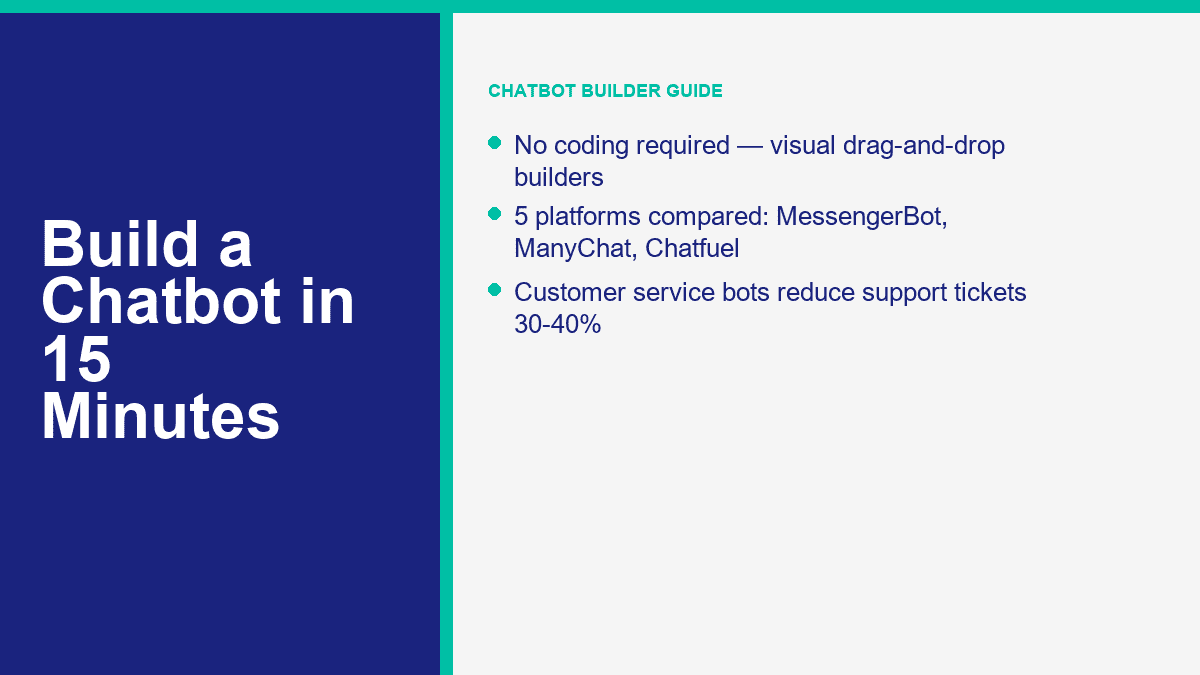
If you run a small business, agency, ecommerce store, coaching practice, or local service company, the business case is easy to understand. A chatbot answers the same five to ten questions your team handles all week, captures leads after hours, routes buyers to the right offer, and gives customers an instant response instead of a silent inbox. That matters because support volume compounds fast. Public case studies keep landing in the same range: once teams automate routine questions well, a 30% to 40% drop in support tickets is realistic. A Zapier customer story published in April 2024 reported a 40% reduction, which is exactly why no-code chatbot builders keep moving from “nice extra” to “core ops tool.”
另一個轉變是速度。您不需要完整的 AI 堆疊來啟動有用的東西。如果您保持紀律並先解決一個任務,基本的 Messenger 或網站 FAQ 機器人可以在 10 到 15 分鐘內上線。如果您的主要目標是 Messenger 自動化,MessengerBot 是最快的起點,因為該平台圍繞 Facebook 頁面連接、模板、流程構建和交接功能構建,而不是強迫您在第一天就進行廣泛的多通道設置。如果您想查看付費限制和高級自動化的起點,, 查看 MessengerBot 價格 在您構建之前,以便了解您的工作目標。.
為什麼 2026 年是啟動聊天機器人最容易的一年
主要原因是成熟度。幾年前,大多數無代碼機器人只是被美化的關鍵字匹配器。它們可以打招呼、發送鏈接,並在客戶以不同方式表達時崩潰。這不是當前構建者的樣子。現在更好的平台將三個功能結合在一個地方:用於結構化流程的可視化構建器、Messenger、Instagram、網站小部件或 WhatsApp 的通道連接,以及可以吸收 FAQ 或支持內容的 AI 功能,而無需開發人員手動連接每個回應。.
That changes the economics for small teams. You can start with a narrow bot that handles order tracking, business hours, refund policy, appointment booking, or lead qualification, then add depth only where it proves useful. You are no longer buying software just to look modern. You are buying response speed, consistency, and less human time spent copy-pasting answers.
這裡是聊天機器人實際發揮作用的地方:
- 客戶服務: 回答運送問題、營業時間、定價、退貨政策、帳戶訪問問題,並轉交複雜的案例。.
- 潛在客戶捕獲: 詢問三到五個資格問題,收集電子郵件或電話同意,然後將合格的潛在客戶路由到 CRM 或預訂工作流程。.
- 銷售支持: 推薦產品、顯示定價路徑、提供演示請求表單,或恢復放棄的購物車。.
- 非工作時間覆蓋: 在您的團隊離線時保持轉換進行,而不是讓每條消息等到早上。.
- 團隊效率: 將需要判斷和同理心的對話交給人類代理,而不是讓菜單在三十秒內處理的對話。.
在您選擇工具之前有一個實用的提示:沒有任何嚴肅的聊天機器人建構者是真正的「無需註冊」。這種工具存在於演示中,而不是生產中。如果您想保存流程、連接通道、管理權限並發布實時對話,您需要一個帳戶。真正的區別在於註冊是否存在,而是平台從註冊到工作對話的速度。.
If your immediate interest is WhatsApp rather than a general chatbot stack, read our guide on building a WhatsApp chatbot for free. That article targets a different setup path and avoids mixing the Messenger workflow with Meta’s WhatsApp rules.
The 5 No-Code Chatbot Builders Worth Comparing First
I would not waste time comparing fifteen tools when five cover almost every small-business use case. The table below focuses on public entry pricing and channel fit as of April 9, 2026. Pricing moves often, especially on annual discounts and contact-based billing, so treat the numbers as starting points, not lifetime guarantees.
| 工具 | 最佳適用於 | 起始價格 | 免費層或試用 | Main channels | AI and automation notes |
|---|---|---|---|---|---|
| MessengerBot.app | Facebook Messenger-first businesses that want visual flows, templates, and built-in growth tools | Premium from $19.99 per 30 days on current promo pricing | Free trial available | Facebook Messenger, website chat, email, SMS, Instagram on higher tiers | Visual Flow Builder, persistent menu, JSON API + Zapier, web forms, comment automation, ecommerce tools |
| ManyChat | Creators and marketers focused on Instagram and Messenger with clean automations | Essential from $17 per month monthly or $14 per month annual | Free plan with 25 active contacts and up to 4 live automations | Instagram, Facebook Messenger, TikTok, Telegram; WhatsApp on paid tiers | Strong growth automations, lead capture, tags, Google Sheets sync, AI on Pro and above |
| Chatfuel | Businesses that want AI-heavy social messaging with a simple commercial package | $69 per month | 7 天免費試用 | Facebook, WhatsApp, Instagram, TikTok, website widget | Single-plan model, AI business assistant, built-in CRM, booking, and social automation |
| Tidio | Website support teams that want live chat and chatbot automation in one inbox | Starter $24.17 per month, Growth from $49.17 per month | Free plan and 7-day trial of paid features | Website widget, Messenger, Instagram, WhatsApp, email | Lyro AI agent, ticketing, flows, strong human takeover, good fit for ecommerce support |
| Landbot | Conversational landing pages and website funnels that need a more visual feel | Starter from $45 per month or $36 per month annual | Sandbox free forever with 100 chats per month | Website, Facebook Messenger, WhatsApp, API | Strong web conversations, AI chats included on paid plans, especially good for lead-gen landing flows |
Here is the short version after you strip away the marketing pages:
- MessengerBot.app is the best fit if your main channel is Facebook Messenger and you want a builder that already understands Pages, postbacks, menus, and Facebook-specific automation.
- ManyChat is still the easiest recommendation for creators and brands living inside Instagram DMs, with Messenger as a second strong channel.
- Chatfuel is appealing if you want a more AI-centered approach and like a simple one-plan offer instead of contact math across many tiers.
- Tidio wins when the website widget matters as much as the bot itself. It is as much a support desk as a chatbot builder.
- Landbot is strongest when you want the chatbot to act like a conversion funnel on a landing page, not just a support responder.
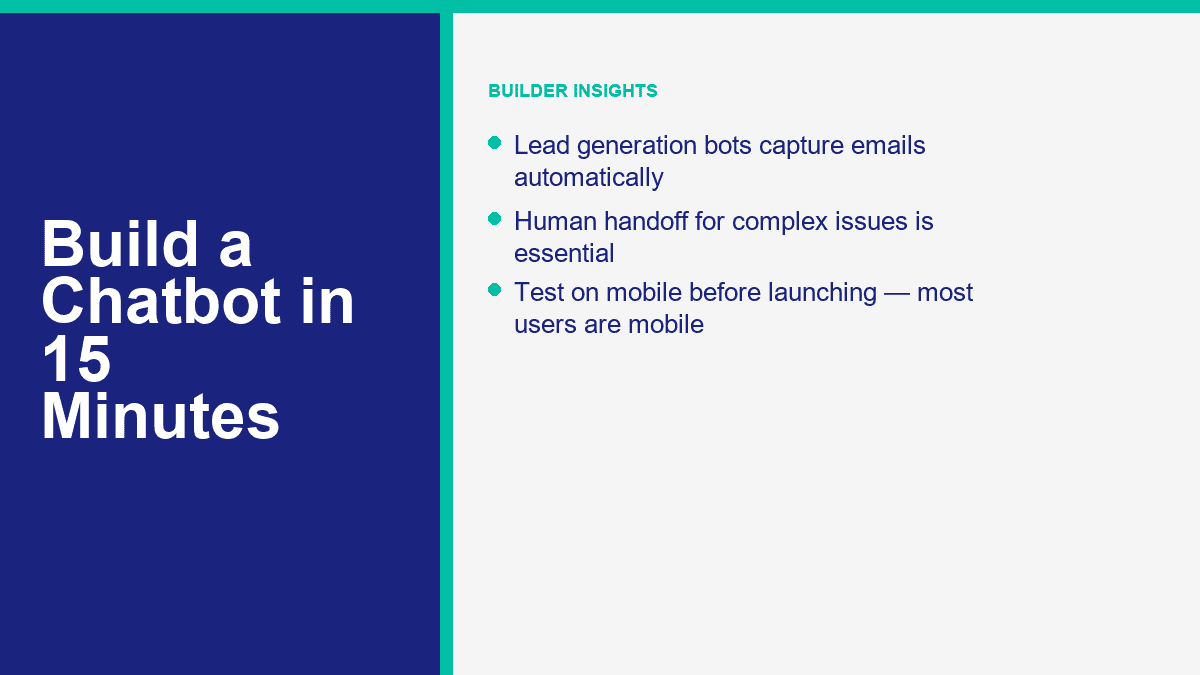
For a Messenger-first business, I would start with MessengerBot before I touched a broader platform. The reason is simple: the setup flow is direct, the Visual Flow Builder is practical, and the platform bundles core pieces small teams usually add later anyway, including web forms, persistent menus, comment automation, API access, and Zapier support. If you are evaluating whether the higher tiers are worth it for your use case, the quickest way to judge that is to compare the included limits and integrations against MessengerBot Pro 功能.
How to Build Your First Messenger Chatbot with MessengerBot in One Short Session
A basic FAQ bot in MessengerBot really can be built in 10 to 15 minutes if you keep the first version tight. Your goal is not to create a perfect AI concierge on the first pass. Your goal is to launch a bot that handles the top questions customers already ask, gives people obvious choices, and hands off anything messy to a person.
Before you start, make sure you have these three things ready:
- A Facebook Page for the business. Bots connect to Pages, not personal profiles.
- Admin access to that Page in Facebook.
- A short list of your top questions, such as pricing, hours, booking, shipping, or support contact.
Start at the login screen and import the right Facebook Page
MessengerBot’s documented connection flow starts at start.messengerbot.app. When the login page loads, you can sign in with your existing credentials or create an account if this is your first run. The important part comes after login: the dashboard opens with a left navigation sidebar, and the option you want is 導入帳戶.
點擊 導入帳戶, 然後選擇 使用 Facebook 登錄. Facebook opens the standard permission window. Continue with the correct Facebook user profile, especially if you manage more than one business. Once you approve the login, MessengerBot shows a list of Pages connected to that Facebook account. Check the boxes next to the Page or Pages you want to import, then click 下一步.
The next screen is where people create their own support tickets. MessengerBot asks for management-related permissions. Turn on the sliders for the permissions it requests. If you skip them, the import might appear to work while key automation features quietly fail later. After that, click 完成, then confirm with 確定.
At this point, the Page is imported, but one extra action still matters. On the imported Page row, click the 插頭圖示 next to the Page name, then confirm the dialog. That action enables the connection. If the Page is imported but the plug icon step is skipped, the bot may sit there looking connected while Messenger never actually routes messages into the platform.
If your Page does not show up in the import list, one of these is usually true:
- You logged into the wrong Facebook account.
- You have editor access, not admin access, on the Page.
- You denied a required Facebook permission during the import flow.
Open the Visual Flow Builder and wire the first conversation path
With the Page connected, go back to the left sidebar and click 視覺流程建構器. Then click 創建新流程, pick the Facebook Page from the dropdown, and click 確定. The builder opens into a canvas editor with a dock menu. That dock menu is the floating toolbox that contains components like 文字, 圖片, 通用模板, 輪播, 用戶輸入流程, 按鈕, 快速回覆, 觸發器, 以及 新的回傳.
The screen is easy to read once you know what you are looking at. The center area is your editor. The dock menu is where you drag components from. A 開始機器人流程 node is already present on the editor as a reference point. For a first FAQ bot, build the smallest possible useful flow:
- Drag a 觸發器 component onto the editor and connect it to 開始機器人流程 還是 新的回傳.
- Double-click the 觸發器 component to open the right-side settings panel.
- Add one or more keywords separated by commas, such as
hours, price, support, booking. - 點擊 確定.
- Drag a 文字 component onto the canvas and connect it to the flow.
- Double-click the 文字 component and type your welcome or answer message.
A solid first message looks something like this: “Hi, thanks for messaging Greenfield Dental. I can help with appointments, opening hours, insurance, or speaking to the front desk.” That is short, specific, and obviously useful. The mistake most first-time builders make is writing a paragraph that tries to explain everything. Do not do that. Keep it short enough to scan on a phone without scrolling.
MessengerBot also lets you add delay and typing-state behavior inside the component settings. Use that lightly. A tiny typing pause can feel natural. A three-second delay on every answer just makes the bot feel slow.
Add quick replies, buttons, and fallback paths without making the flow messy
Once the welcome text is in place, give users 3 to 5 obvious options. In MessengerBot, the cleanest way to do that is usually 快速回覆 for FAQ-style choices or 按鈕 when you want an action such as opening a web form or triggering a postback.
For a local service business, your first bot can use quick replies like these:
- Book appointment
- 營業時間
- 定價
- Talk to a person
Double-click the component you add and fill the labels clearly. “Learn More” is weak. “Talk to Support” is clear. “See Pricing” is clear. The platform documentation also highlights an important limitation that is easy to miss: from a text node, you can chain with either 下一步 或 快速回覆, but not both at the same time. If a branch refuses to behave the way you expect, check that first. It is a common setup mistake.
For the “Pricing” or “Book appointment” paths, add a second 文字 node or a 用戶輸入流程 if you want to collect data such as email, phone, or preferred date. For “Talk to a person,” do not get clever. Route it to a plain handoff message with operating hours and the best contact path. A real customer service bot gets more trust when the human escape hatch is obvious.
If you want to capture lead data directly inside the conversation, MessengerBot’s platform also includes a web form builder, email and phone opt-in collection, Google Sheets support, and JSON API plus Zapier connectivity. That means a “Request a quote” path can move from Messenger into a CRM or spreadsheet without custom code. If you want deeper walkthroughs for those pieces after the first build, 瀏覽我們的教程.
Turn on Get Started settings and a persistent menu so the bot feels complete
A bot with a good flow but no entry setup still feels half-finished. This is where MessengerBot’s 機器人設定 matter. In the bot settings area, the documented options include 開始設定, 一般設定, 動作按鈕設定, 持久菜單設定, 以及 序列訊息設定.
For a first launch, spend five extra minutes on two things:
- Get Started settings: Turn on the Get Started button, write a short welcome message, and add ice breaker questions if they fit your audience.
- Persistent menu settings: Create a simple menu for core actions such as FAQs, pricing, book now, or human support.
MessengerBot’s own documentation describes the persistent menu flow as a locale-based setup. You select 持久菜單設定, choose a locale, then add menu title and web URL details before submitting. For most businesses, one locale and three menu items is enough. More than that turns the menu into a junk drawer.
This is also the point where you should add your after-hours logic. A customer messaging at 11:40 p.m. does not need a fake live experience. They need a clear note that says when your team is back, whether the bot can help right now, and how to leave the information you need.
Test on an actual phone before you call the bot finished
Always test the flow inside the real Messenger app, not only inside a desktop preview. Send the keywords yourself. Tap every quick reply. Trigger the fallback. Try a vague message like “I need help with my order.” Try a human handoff request. Make sure the message blocks are readable on a phone screen and do not stack into a wall of text.
Here is the launch checklist I use for a first Messenger FAQ bot:
- The correct Facebook Page is imported and the plug icon connection is enabled.
- The Get Started button launches the right welcome flow.
- There are only 3 to 5 main menu choices.
- Every branch ends in either an answer, a form, or a human route.
- The fallback message explains what to do next instead of saying “I did not understand.”
- The whole conversation feels readable on mobile.
- The bot is saved and tested from the real Page message entry point.
If you get stuck on Meta permissions, webhooks, or deeper Page setup, our article on creating a Facebook developer chatbot is the better place to debug the platform side rather than the no-code workflow.
How to Turn a Basic FAQ Bot into a Customer Service Bot People Actually Use
Most customer service bots fail for one reason: the builder started with what the company wanted to say, not what customers actually ask. The fix is boring, but it works. Pull your last few weeks of support tickets, DMs, inbox messages, or live chat transcripts and list the top ten questions by frequency. Do not invent a clever hierarchy first. Start with raw demand.
A useful customer service bot usually covers these buckets:
- Order status or delivery timing
- Returns and refunds
- Business hours and location
- Pricing and packages
- Account access or login help
- Appointment booking or rescheduling
- Speaking to a human
Then map one response flow per bucket. Keep each flow narrow. If the customer asks for store hours, the bot should answer store hours and optionally offer the next best action such as directions, booking, or phone support. It should not suddenly dump a promotion, ask for three fields, and show five unrelated buttons.
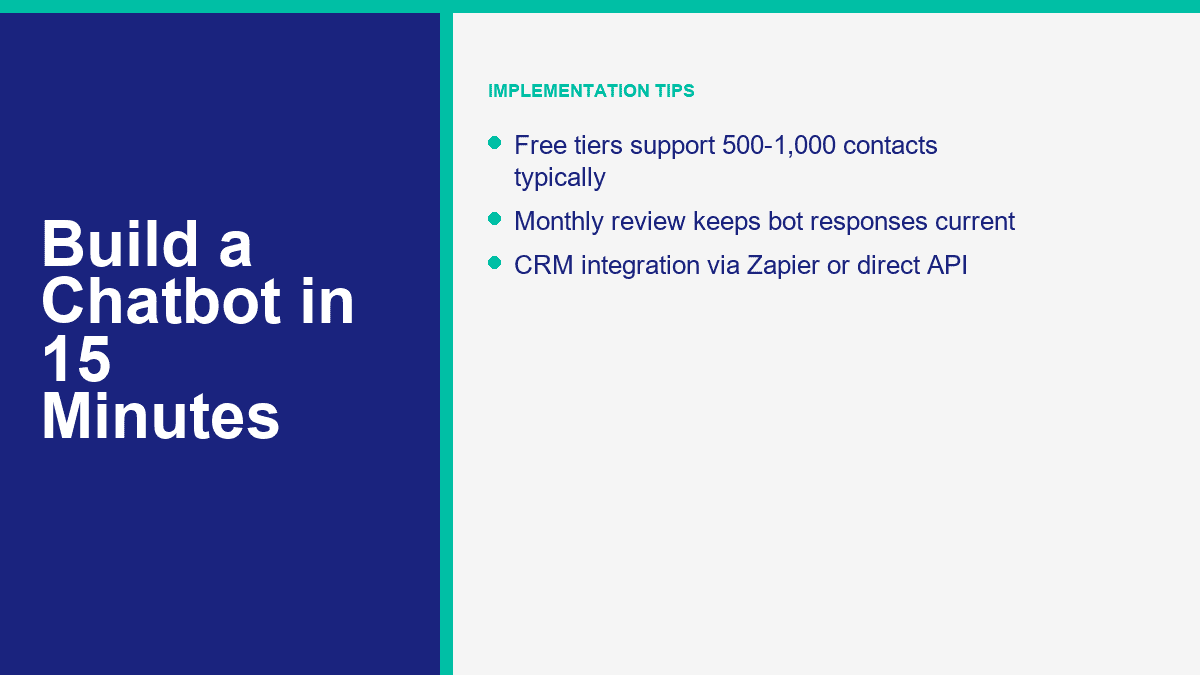
Human handoff is the non-negotiable part. Chatbots are good at repetitive questions, simple classification, and basic next-step routing. They are not good at angry customers, exceptions, billing disputes, or nuance-heavy service recovery. So put the human option where people can see it. “Talk to support” should be one tap away, not hidden after three loops.
Also set expectations around time. If your team replies 9 a.m. to 5 p.m. Monday through Friday, say that. If away messages are active after hours, say that. A bot that pretends to be live while nobody is there damages trust faster than no bot at all.
For ecommerce teams, one practical pattern works especially well: let the bot answer easy questions instantly, collect order number or email if needed, then pass that context to an agent instead of making the customer repeat it. That is the point where automation starts to feel helpful instead of defensive.
How to Build a Lead Generation Chatbot Without Making It Feel Like a Form
Lead generation bots work best when they feel like guided qualification, not a survey trap. The simplest model is this: greet, state the use case, ask three to five smart questions, collect contact details with clear consent, then route the lead into the next action. That next action might be a calendar link, a quote request, a sales rep handoff, or an automated follow-up sequence.
A clean lead-gen sequence usually looks like this:
- Identify intent: “Are you looking for pricing, a demo, or a custom quote?”
- Qualify lightly: business size, use case, timeline, or budget range.
- Collect contact info: email, phone, or both.
- Confirm consent: tell them what happens next and how follow-up works.
- Route: send to CRM, spreadsheet, booking page, or sales handoff.
What you should not do is ask eight questions before proving the bot is helpful. If someone wants a quote, do not demand company size, department count, annual revenue, preferred stack, and office location before giving them anything useful. Earn the right to ask for data.
This is where MessengerBot’s built-in form and integration features matter. The platform’s current pricing page lists web view form builder tools, email and phone opt-in collection, Google Sheets integration, and JSON API plus Zapier support. That is enough for most SMB lead funnels. A clean setup is:
- Use Messenger to start the conversation.
- Qualify with quick replies or a user input flow.
- Capture email and phone with explicit opt-in language.
- Push the lead to Google Sheets, Zapier, or your CRM.
- Trigger a follow-up sequence or notify sales.
For US and UK businesses, compliance is the part people skip until it hurts. If you are collecting email or phone numbers, say what the customer is agreeing to receive. If SMS is involved, make the opt-in explicit. If you plan follow-up sequences, tell them. A short consent line is better than pretending the issue does not exist.
One example. If you are a home services company, your chatbot can ask:
- What service do you need?
- Is this for home or business?
- What ZIP or postcode are you in?
- What is the best email or phone number for a quote?
That is enough to pre-qualify without exhausting the lead. Once the data is captured, automation can do the rest: send a confirmation, alert the right salesperson, tag the contact by service type, and place them into a follow-up path. If you need multi-step automations, additional seats, broader channel support, or more aggressive routing, that is the point where MessengerBot Pro 功能 start to matter.
The Chatbot Mistakes That Waste Time, Leads, and Goodwill
Most chatbot problems are self-inflicted. Not technical. Just sloppy design.
- Too many menu options: If the first screen has eight choices, most people will stop reading. Keep the main menu to 3 to 5 options.
- No human handoff: Customers tolerate automation until they need judgment. After that, blocking a human feels hostile.
- Mobile-unfriendly copy: Messenger and site chat are phone-first channels. Long paragraphs and stacked buttons get ugly fast.
- Testing only on desktop: What feels clean on a wide screen often looks cramped on a phone.
- Trying to sound too clever: Cute bot personality is fine. Confusing people is not.
- Set and forget: Your FAQs, pricing, promotions, and support pain points change. Review the bot monthly.
The simplest rule is this: each screen should move the customer forward. Answer something. Narrow something. Collect something useful. Or route them to a person. If a screen does none of those, it probably does not belong in the flow.
When a Free Chatbot Plan Stops Being the Cheap Option
Free plans are good for one thing: proving the workflow. They are rarely good for running a serious support or lead-gen channel for long. ManyChat’s free plan, for example, is genuinely useful for testing, but it caps you at 25 active contacts and four live automations. Landbot’s Sandbox gives you 100 chats a month. Tidio’s free plan gets you started, but quotas arrive quickly once support volume becomes real. Chatfuel skips the permanent free plan and pushes you into a 7-day trial plus a paid subscription. MessengerBot leans on trial and paid tiers rather than a forever-free business plan.
That does not make free plans bad. It just means you should use them for the right phase. The free phase is for validating:
- Will customers use this entry point?
- Which questions show up most often?
- Does the bot reduce repetitive work?
- Can you capture leads cleanly?
- Do you need website chat, Messenger, or both?
You have probably outgrown the free tier when any of these show up:
- Your contact or conversation limits reset before the month ends.
- You need integrations instead of manual exports.
- You need multiple teammates in the inbox.
- You want branding removed.
- You need AI handling, sequences, CRM sync, or advanced routing.
- You want the bot on more than one serious channel.
For a small business, the paid upgrade is usually easy to justify once the bot prevents even a few lost leads or saves a few hours of support time each month. A $20 to $50 monthly tool that captures one extra customer inquiry or removes a few repetitive tickets is not expensive. A free bot that breaks the customer journey because it hit a quota is expensive in a quieter way.
MessengerBot’s current public pricing positions the platform like this: 高級版 is the low-friction starting point, 專業版 expands Page and widget capacity, and 代理商 is for teams handling multiple accounts or a large book of clients. The platform also bundles extras that many tools charge around separately, including website chat, templates, API or Zapier connectivity, and ecommerce-oriented features. If you want the current limits, entry discounts, and plan breakdown in one place, 查看 MessengerBot 價格.
What to Do After the First Bot Goes Live
Once the first version is live, the next move is not rebuilding from scratch. It is optimization. Look at which buttons people tap, where they stop replying, which messages trigger human handoff, and what phrases still escape your flow. Tighten those spots one by one. That is how a 15-minute starter bot turns into a genuinely useful business asset over the next month.
If you want more build patterns and platform-specific walkthroughs, 瀏覽我們的教程. If you are comparing limits, integrations, and monthly cost before expanding the bot, 查看 MessengerBot 價格. And if your next step is more advanced automation, multi-channel routing, or larger-scale campaigns, review MessengerBot Pro 功能 before you map the next version.
常見問題
我可以在不懂編程的情況下建立聊天機器人嗎?
Yes. That is the whole point of modern no-code builders. Tools like MessengerBot, ManyChat, Tidio, Chatfuel, and Landbot let you connect channels, drag components into a flow, write responses, add forms, and publish without touching code. You only need code if you want custom backend logic or highly specialized integrations.
從零開始建立聊天機器人需要多長時間?
A basic FAQ or lead-capture chatbot can be built in about 10 to 15 minutes if your questions and responses are already prepared. A better first version, with testing, handoff logic, and mobile cleanup, usually takes 30 to 60 minutes. More advanced bots with CRM routing, AI answers, and follow-up sequences take longer.
對於小型企業來說,最好的免費聊天機器人建構工具是什麼?
It depends on the channel. ManyChat has one of the most usable true free tiers for Messenger and Instagram testing. Tidio is strong if your main need is website chat plus a lightweight bot. Landbot’s Sandbox works well for early website funnel experiments. If Facebook Messenger is the main channel and you want the fastest path into a production-grade flow, MessengerBot is often the better long-term fit even though it is more trial-and-paid oriented than free-forever.
為我的網站建立一個聊天機器人需要多少費用?
For a no-code website chatbot, the realistic starting range is usually $0 to about $50 per month depending on the tool and your traffic. Free plans are enough for testing. Paid plans become worth it once you need more visitors, more contacts, more automations, AI features, or team access. A custom-built chatbot costs much more because development and maintenance are part of the bill.
聊天機器人真的能取代客服人員嗎?
No, and that should not be the goal. A good chatbot replaces repetitive ticket handling, not human judgment. It can answer common questions instantly, collect context, and route people to the right place. Human agents are still better at exceptions, emotional conversations, account disputes, and anything that needs flexibility.



 繁體中文
繁體中文  English
  Tagalog
  简体中文
简体中文  العربية
  हिन्दी
  Português do Brasil
  Español de México
  Français
  বাংলা
বাংলা  香港中文
香港中文  Nederlands
  Deutsch
  Bahasa Indonesia
  日本語
日本語  한국어
한국어  Polski
  Русский
  Español
  Tiếng Việt