
Construir un chatbot solía significar una de dos malas opciones: contratar a un desarrollador o conformarse con una respuesta automática rígida que se sentía como un callejón sin salida. En 2026, esa compensación ha desaparecido en su mayoría. Los mejores creadores sin código ahora te ofrecen editores de flujo visual, vistas previas en vivo, disparadores de arrastrar y soltar, captura de leads, transferencia humana y suficiente asistencia de IA para manejar el trabajo repetitivo sin convertir cada conversación en un desastre.
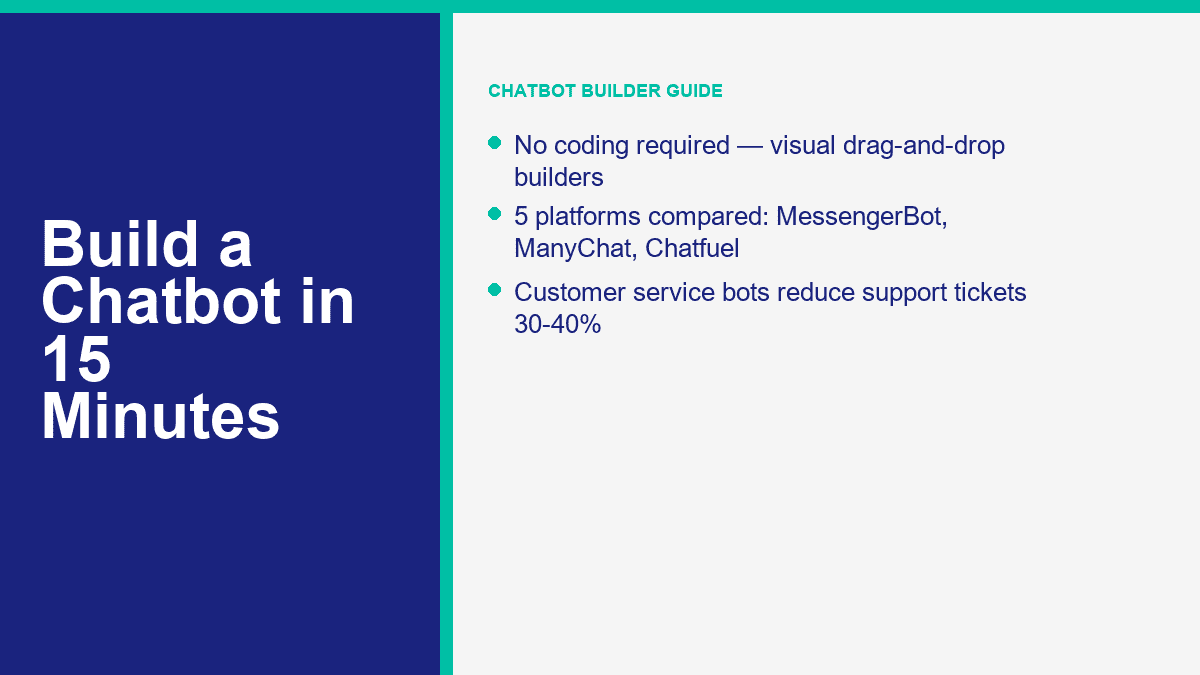
Si tienes un pequeño negocio, agencia, tienda de comercio electrónico, práctica de coaching o empresa de servicios local, el caso comercial es fácil de entender. Un chatbot responde las mismas cinco a diez preguntas que tu equipo maneja toda la semana, captura leads fuera del horario laboral, dirige a los compradores a la oferta correcta y brinda a los clientes una respuesta instantánea en lugar de un buzón de entrada silencioso. Eso importa porque el volumen de soporte se acumula rápidamente. Los estudios de caso públicos siguen aterrizando en el mismo rango: una vez que los equipos automatizan bien las preguntas rutinarias, una disminución del 30% al 40% en los tickets de soporte es realista. Una historia de cliente de Zapier publicada en abril de 2024 informó una reducción del 40%, que es exactamente por qué los creadores de chatbots sin código siguen pasando de “un buen extra” a “una herramienta operativa central.”
El otro aspecto es la velocidad. No necesitas un conjunto completo de IA para lanzar algo útil. Un bot básico de preguntas frecuentes para Messenger o tu sitio web puede estar en funcionamiento en 10 a 15 minutos si te mantienes disciplinado y resuelves un trabajo primero. Si tu objetivo principal es la automatización de Messenger, MessengerBot es el lugar más rápido para comenzar porque la plataforma está construida en torno a la conexión de la página de Facebook, plantillas, creación de flujos y características de traspaso en lugar de obligarte a pasar por una configuración multicanal amplia desde el primer día. Si deseas ver dónde comienzan los límites de pago y las automatizaciones avanzadas, Ver precios de MessengerBot antes de construir para que sepas hacia dónde estás trabajando.
Por qué 2026 es el año más fácil para lanzar un chatbot
La gran razón es la madurez. Hace unos años, la mayoría de los bots sin código eran glorificadores de coincidencias de palabras clave. Podían decir hola, enviar un enlace y romperse en el momento en que un cliente expresaba algo de manera diferente. Eso no es lo que parecen los creadores actuales. Las mejores plataformas ahora combinan tres cosas en un solo lugar: un constructor visual para flujos estructurados, conexiones de canal para Messenger, Instagram, widgets de sitios web o WhatsApp, y características de IA que pueden absorber preguntas frecuentes o contenido de soporte sin necesidad de que un desarrollador conecte cada respuesta a mano.
Eso cambia la economía para equipos pequeños. Puedes comenzar con un bot limitado que maneje el seguimiento de pedidos, horarios de atención, política de reembolsos, reservas de citas o calificación de leads, y luego agregar profundidad solo donde resulte útil. Ya no estás comprando software solo para lucir moderno. Estás comprando velocidad de respuesta, consistencia y menos tiempo humano gastado en copiar y pegar respuestas.
Aquí es donde los chatbots realmente ganan su lugar:
- Servicio al cliente: Responder preguntas sobre envíos, horarios de operación, precios, políticas de devolución, problemas de acceso a cuentas y pasar casos complejos.
- Captura de leads: Hacer de tres a cinco preguntas de calificación, recoger el consentimiento de correo electrónico o teléfono, y luego dirigir a los prospectos calificados a un CRM o flujo de trabajo de reservas.
- Soporte de ventas: Recomendar un producto, mostrar una ruta de precios, presentar un formulario de solicitud de demostración o recuperar carritos abandonados.
- Cobertura fuera de horario: Mantener la conversión en movimiento cuando tu equipo está desconectado en lugar de dejar que cada mensaje se quede hasta la mañana.
- Eficiencia del equipo: Dar a los agentes humanos las conversaciones que necesitan juicio y empatía, no las que un menú puede manejar en treinta segundos.
Una nota práctica antes de elegir una herramienta: ninguna de las constructoras de chatbots serias es realmente “no se requiere registro”. Ese tipo de herramienta existe para demostraciones, no para producción. Si deseas guardar flujos, conectar canales, gestionar permisos y publicar conversaciones en vivo, necesitas una cuenta. El verdadero diferenciador no es si existe registro. Es cuán rápido la plataforma te lleva desde el registro hasta una conversación funcional.
Si tu interés inmediato es WhatsApp en lugar de un stack de chatbots general, lee nuestra guía sobre cómo construir un chatbot de WhatsApp gratis. Ese artículo se centra en un camino de configuración diferente y evita mezclar el flujo de trabajo de Messenger con las reglas de WhatsApp de Meta.
Los 5 constructores de chatbots sin código que vale la pena comparar primero
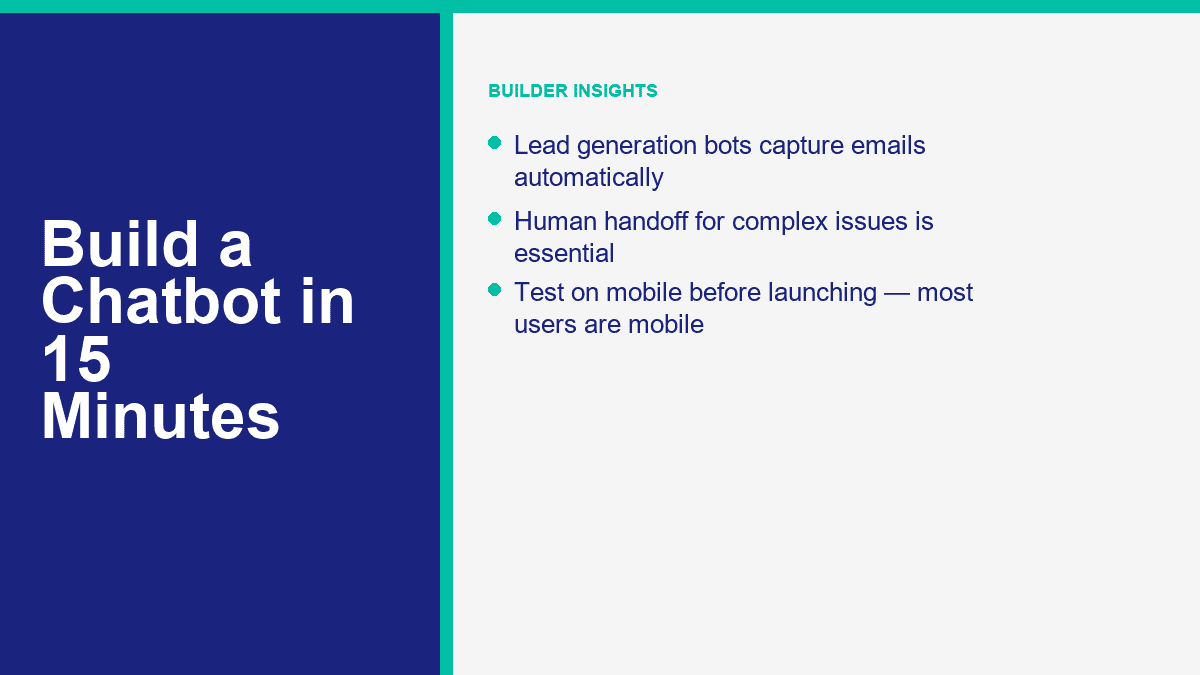
No perdería tiempo comparando quince herramientas cuando cinco cubren casi todos los casos de uso de pequeñas empresas. La tabla a continuación se centra en los precios de entrada públicos y la adecuación de canales a partir del 9 de abril de 2026. Los precios cambian a menudo, especialmente en descuentos anuales y facturación basada en contactos, así que trata los números como puntos de partida, no como garantías de por vida.
| Herramienta | Mejor para | Precio inicial | Nivel gratuito o prueba | Canales principales | Notas de IA y automatización |
|---|---|---|---|---|---|
| MessengerBot.app | Negocios que priorizan Facebook Messenger y que desean flujos visuales, plantillas y herramientas de crecimiento integradas | Premium desde $19.99 por 30 días con el precio promocional actual | Prueba gratuita disponible | Facebook Messenger, chat en el sitio web, correo electrónico, SMS, Instagram en niveles superiores | Constructor de Flujos Visuales, menú persistente, API JSON + Zapier, formularios web, automatización de comentarios, herramientas de comercio electrónico |
| ManyChat | Creadores y marketers enfocados en Instagram y Messenger con automatizaciones limpias | Esencial desde $17 por mes o $14 por mes anual | Plan gratuito con 25 contactos activos y hasta 4 automatizaciones en vivo | Instagram, Facebook Messenger, TikTok, Telegram; WhatsApp en niveles de pago | Automatizaciones de crecimiento fuerte, captura de leads, etiquetas, sincronización con Google Sheets, IA en Pro y superior |
| Chatfuel | Empresas que quieren mensajería social con alta carga de IA y un paquete comercial simple | $69 por mes | prueba gratuita de 7 días | Facebook, WhatsApp, Instagram, TikTok, widget del sitio web | Modelo de plan único, asistente de negocios de IA, CRM integrado, reservas y automatización social |
| Tidio | Equipos de soporte del sitio web que quieren chat en vivo y automatización de chatbot en una sola bandeja de entrada | Starter $24.17 por mes, Growth desde $49.17 por mes | Plan gratuito y prueba de 7 días de funciones de pago | Widget del sitio web, Messenger, Instagram, WhatsApp, correo electrónico | Agente de IA Lyro, tickets, flujos, fuerte toma de control humano, buena opción para soporte de comercio electrónico |
| Landbot | Páginas de aterrizaje conversacionales y embudos de sitio web que necesitan una sensación más visual | Plan inicial desde $45 al mes o $36 al mes anual | Sandbox gratis para siempre con 100 chats por mes | Sitio web, Facebook Messenger, WhatsApp, API | Fuertes conversaciones web, chats de IA incluidos en planes de pago, especialmente buenos para flujos de aterrizaje de generación de leads |
Aquí está la versión corta después de quitar las páginas de marketing:
- MessengerBot.app es la mejor opción si tu canal principal es Facebook Messenger y quieres un constructor que ya entienda Páginas, postbacks, menús y automatización específica de Facebook.
- ManyChat sigue siendo la recomendación más fácil para creadores y marcas que viven dentro de los DMs de Instagram, con Messenger como un segundo canal fuerte.
- Chatfuel es atractivo si deseas un enfoque más centrado en IA y prefieres una oferta simple de un solo plan en lugar de matemáticas de contacto a través de muchos niveles.
- Tidio gana cuando el widget del sitio web importa tanto como el bot mismo. Es tanto un escritorio de soporte como un constructor de chatbots.
- Landbot es más fuerte cuando quieres que el chatbot actúe como un embudo de conversión en una página de destino, no solo como un respondedor de soporte.
Para un negocio centrado en Messenger, comenzaría con MessengerBot antes de tocar una plataforma más amplia. La razón es simple: el flujo de configuración es directo, el Constructor de Flujos Visuales es práctico y la plataforma agrupa piezas clave que los equipos pequeños suelen añadir más tarde, incluyendo formularios web, menús persistentes, automatización de comentarios, acceso a la API y soporte de Zapier. Si estás evaluando si los niveles más altos valen la pena para tu caso de uso, la forma más rápida de juzgar eso es comparar los límites e integraciones incluidos con Características de MessengerBot Pro.
Cómo construir tu primer chatbot de Messenger con MessengerBot en una breve sesión
Un bot básico de preguntas frecuentes en MessengerBot realmente se puede construir en 10 a 15 minutos si mantienes la primera versión ajustada. Tu objetivo no es crear un conserje de IA perfecto en el primer intento. Tu objetivo es lanzar un bot que maneje las preguntas principales que los clientes ya hacen, ofrezca opciones obvias y pase cualquier cosa complicada a una persona.
Antes de comenzar, asegúrate de tener estas tres cosas listas:
- Una página de Facebook para el negocio. Los bots se conectan a páginas, no a perfiles personales.
- Acceso de administrador a esa página en Facebook.
- Una lista corta de tus preguntas principales, como precios, horarios, reservas, envío o contacto de soporte.
Comienza en la pantalla de inicio de sesión e importa la página de Facebook correcta
El flujo de conexión documentado de MessengerBot comienza en start.messengerbot.app. Cuando se carga la página de inicio de sesión, puedes iniciar sesión con tus credenciales existentes o crear una cuenta si es tu primera vez. La parte importante viene después de iniciar sesión: el panel se abre con una barra de navegación lateral izquierda, y la opción que deseas es Importar cuenta.
Haz clic Importar cuenta, luego elija Iniciar sesión con Facebook. Facebook abre la ventana estándar de permisos. Continúa con el perfil de usuario de Facebook correcto, especialmente si gestionas más de un negocio. Una vez que apruebes el inicio de sesión, MessengerBot muestra una lista de Páginas conectadas a esa cuenta de Facebook. Marca las casillas junto a la Página o Páginas que deseas importar, luego haz clic en Siguiente.
La siguiente pantalla es donde las personas crean sus propios tickets de soporte. MessengerBot solicita permisos relacionados con la gestión. Activa los controles deslizantes para los permisos que solicita. Si los omites, la importación puede parecer que funciona mientras que características clave de automatización fallan silenciosamente más tarde. Después de eso, haz clic en Listo, luego confirma con OK.
En este punto, la Página está importada, pero aún importa una acción adicional. En la fila de la Página importada, haz clic en el icono de enchufe junto al nombre de la Página, luego confirma el diálogo. Esa acción habilita la conexión. Si la Página está importada pero se omite el paso del ícono de enchufe, el bot puede parecer conectado mientras que Messenger nunca en realidad enruta mensajes a la plataforma.
Si tu Página no aparece en la lista de importación, una de estas afirmaciones suele ser cierta:
- Iniciaste sesión en la cuenta de Facebook incorrecta.
- Tienes acceso de editor, no acceso de administrador, en la Página.
- Negaste un permiso requerido de Facebook durante el flujo de importación.
Open the Visual Flow Builder and wire the first conversation path
With the Page connected, go back to the left sidebar and click Constructor de Flujos Visuales. Then click Crear nuevo flujo, pick the Facebook Page from the dropdown, and click OK. The builder opens into a canvas editor with a dock menu. That dock menu is the floating toolbox that contains components like Texto, Imagen, Plantilla Genérica, Carrusel, Flujo de Entrada del Usuario, Botón, Respuesta Rápida, Activar, y Nuevo Postback.
The screen is easy to read once you know what you are looking at. The center area is your editor. The dock menu is where you drag components from. A Iniciar flujo de bot node is already present on the editor as a reference point. For a first FAQ bot, build the smallest possible useful flow:
- Drag a Activar component onto the editor and connect it to Iniciar flujo de bot o un Nuevo Postback.
- Double-click the Activar component to open the right-side settings panel.
- Add one or more keywords separated by commas, such as
hours, price, support, booking. - Haz clic OK.
- Drag a Texto component onto the canvas and connect it to the flow.
- Double-click the Texto component and type your welcome or answer message.
A solid first message looks something like this: “Hi, thanks for messaging Greenfield Dental. I can help with appointments, opening hours, insurance, or speaking to the front desk.” That is short, specific, and obviously useful. The mistake most first-time builders make is writing a paragraph that tries to explain everything. Do not do that. Keep it short enough to scan on a phone without scrolling.
MessengerBot also lets you add delay and typing-state behavior inside the component settings. Use that lightly. A tiny typing pause can feel natural. A three-second delay on every answer just makes the bot feel slow.
Add quick replies, buttons, and fallback paths without making the flow messy
Once the welcome text is in place, give users 3 to 5 obvious options. In MessengerBot, the cleanest way to do that is usually Respuesta Rápida for FAQ-style choices or Botón when you want an action such as opening a web form or triggering a postback.
For a local service business, your first bot can use quick replies like these:
- Book appointment
- Horarios de atención
- Precios
- Talk to a person
Double-click the component you add and fill the labels clearly. “Learn More” is weak. “Talk to Support” is clear. “See Pricing” is clear. The platform documentation also highlights an important limitation that is easy to miss: from a text node, you can chain with either Siguiente o Respuestas Rápidas, but not both at the same time. If a branch refuses to behave the way you expect, check that first. It is a common setup mistake.
For the “Pricing” or “Book appointment” paths, add a second Texto node or a Flujo de Entrada del Usuario if you want to collect data such as email, phone, or preferred date. For “Talk to a person,” do not get clever. Route it to a plain handoff message with operating hours and the best contact path. A real customer service bot gets more trust when the human escape hatch is obvious.
If you want to capture lead data directly inside the conversation, MessengerBot’s platform also includes a web form builder, email and phone opt-in collection, Google Sheets support, and JSON API plus Zapier connectivity. That means a “Request a quote” path can move from Messenger into a CRM or spreadsheet without custom code. If you want deeper walkthroughs for those pieces after the first build, Explora nuestros tutoriales.
Turn on Get Started settings and a persistent menu so the bot feels complete
A bot with a good flow but no entry setup still feels half-finished. This is where MessengerBot’s Configuración del bot matter. In the bot settings area, the documented options include Configuraciones para comenzar, Configuraciones generales, Configuraciones del botón de acción, Configuraciones del menú persistente, y Configuraciones del mensaje de secuencia.
For a first launch, spend five extra minutes on two things:
- Get Started settings: Turn on the Get Started button, write a short welcome message, and add ice breaker questions if they fit your audience.
- Persistent menu settings: Create a simple menu for core actions such as FAQs, pricing, book now, or human support.
MessengerBot’s own documentation describes the persistent menu flow as a locale-based setup. You select Configuraciones del menú persistente, choose a locale, then add menu title and web URL details before submitting. For most businesses, one locale and three menu items is enough. More than that turns the menu into a junk drawer.
This is also the point where you should add your after-hours logic. A customer messaging at 11:40 p.m. does not need a fake live experience. They need a clear note that says when your team is back, whether the bot can help right now, and how to leave the information you need.
Test on an actual phone before you call the bot finished
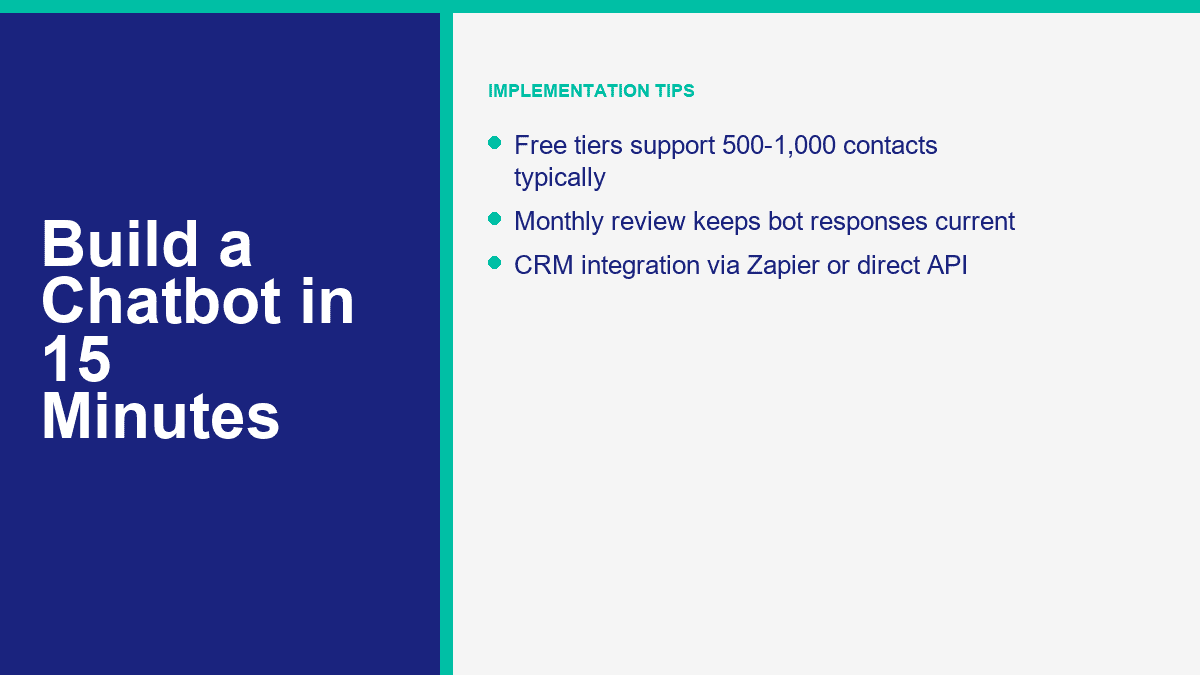
Always test the flow inside the real Messenger app, not only inside a desktop preview. Send the keywords yourself. Tap every quick reply. Trigger the fallback. Try a vague message like “I need help with my order.” Try a human handoff request. Make sure the message blocks are readable on a phone screen and do not stack into a wall of text.
Here is the launch checklist I use for a first Messenger FAQ bot:
- The correct Facebook Page is imported and the plug icon connection is enabled.
- The Get Started button launches the right welcome flow.
- There are only 3 to 5 main menu choices.
- Every branch ends in either an answer, a form, or a human route.
- The fallback message explains what to do next instead of saying “I did not understand.”
- The whole conversation feels readable on mobile.
- The bot is saved and tested from the real Page message entry point.
If you get stuck on Meta permissions, webhooks, or deeper Page setup, our article on creating a Facebook developer chatbot is the better place to debug the platform side rather than the no-code workflow.
How to Turn a Basic FAQ Bot into a Customer Service Bot People Actually Use
Most customer service bots fail for one reason: the builder started with what the company wanted to say, not what customers actually ask. The fix is boring, but it works. Pull your last few weeks of support tickets, DMs, inbox messages, or live chat transcripts and list the top ten questions by frequency. Do not invent a clever hierarchy first. Start with raw demand.
A useful customer service bot usually covers these buckets:
- Order status or delivery timing
- Returns and refunds
- Business hours and location
- Pricing and packages
- Account access or login help
- Appointment booking or rescheduling
- Speaking to a human
Then map one response flow per bucket. Keep each flow narrow. If the customer asks for store hours, the bot should answer store hours and optionally offer the next best action such as directions, booking, or phone support. It should not suddenly dump a promotion, ask for three fields, and show five unrelated buttons.
Human handoff is the non-negotiable part. Chatbots are good at repetitive questions, simple classification, and basic next-step routing. They are not good at angry customers, exceptions, billing disputes, or nuance-heavy service recovery. So put the human option where people can see it. “Talk to support” should be one tap away, not hidden after three loops.
Also set expectations around time. If your team replies 9 a.m. to 5 p.m. Monday through Friday, say that. If away messages are active after hours, say that. A bot that pretends to be live while nobody is there damages trust faster than no bot at all.
For ecommerce teams, one practical pattern works especially well: let the bot answer easy questions instantly, collect order number or email if needed, then pass that context to an agent instead of making the customer repeat it. That is the point where automation starts to feel helpful instead of defensive.
How to Build a Lead Generation Chatbot Without Making It Feel Like a Form
Lead generation bots work best when they feel like guided qualification, not a survey trap. The simplest model is this: greet, state the use case, ask three to five smart questions, collect contact details with clear consent, then route the lead into the next action. That next action might be a calendar link, a quote request, a sales rep handoff, or an automated follow-up sequence.
A clean lead-gen sequence usually looks like this:
- Identify intent: “Are you looking for pricing, a demo, or a custom quote?”
- Qualify lightly: business size, use case, timeline, or budget range.
- Collect contact info: email, phone, or both.
- Confirm consent: tell them what happens next and how follow-up works.
- Route: send to CRM, spreadsheet, booking page, or sales handoff.
What you should not do is ask eight questions before proving the bot is helpful. If someone wants a quote, do not demand company size, department count, annual revenue, preferred stack, and office location before giving them anything useful. Earn the right to ask for data.
This is where MessengerBot’s built-in form and integration features matter. The platform’s current pricing page lists web view form builder tools, email and phone opt-in collection, Google Sheets integration, and JSON API plus Zapier support. That is enough for most SMB lead funnels. A clean setup is:
- Use Messenger to start the conversation.
- Qualify with quick replies or a user input flow.
- Capture email and phone with explicit opt-in language.
- Push the lead to Google Sheets, Zapier, or your CRM.
- Trigger a follow-up sequence or notify sales.
For US and UK businesses, compliance is the part people skip until it hurts. If you are collecting email or phone numbers, say what the customer is agreeing to receive. If SMS is involved, make the opt-in explicit. If you plan follow-up sequences, tell them. A short consent line is better than pretending the issue does not exist.
One example. If you are a home services company, your chatbot can ask:
- What service do you need?
- Is this for home or business?
- What ZIP or postcode are you in?
- What is the best email or phone number for a quote?
That is enough to pre-qualify without exhausting the lead. Once the data is captured, automation can do the rest: send a confirmation, alert the right salesperson, tag the contact by service type, and place them into a follow-up path. If you need multi-step automations, additional seats, broader channel support, or more aggressive routing, that is the point where Características de MessengerBot Pro start to matter.
The Chatbot Mistakes That Waste Time, Leads, and Goodwill
Most chatbot problems are self-inflicted. Not technical. Just sloppy design.
- Too many menu options: If the first screen has eight choices, most people will stop reading. Keep the main menu to 3 to 5 options.
- No human handoff: Customers tolerate automation until they need judgment. After that, blocking a human feels hostile.
- Mobile-unfriendly copy: Messenger and site chat are phone-first channels. Long paragraphs and stacked buttons get ugly fast.
- Testing only on desktop: What feels clean on a wide screen often looks cramped on a phone.
- Trying to sound too clever: Cute bot personality is fine. Confusing people is not.
- Set and forget: Your FAQs, pricing, promotions, and support pain points change. Review the bot monthly.
The simplest rule is this: each screen should move the customer forward. Answer something. Narrow something. Collect something useful. Or route them to a person. If a screen does none of those, it probably does not belong in the flow.
When a Free Chatbot Plan Stops Being the Cheap Option
Free plans are good for one thing: proving the workflow. They are rarely good for running a serious support or lead-gen channel for long. ManyChat’s free plan, for example, is genuinely useful for testing, but it caps you at 25 active contacts and four live automations. Landbot’s Sandbox gives you 100 chats a month. Tidio’s free plan gets you started, but quotas arrive quickly once support volume becomes real. Chatfuel skips the permanent free plan and pushes you into a 7-day trial plus a paid subscription. MessengerBot leans on trial and paid tiers rather than a forever-free business plan.
That does not make free plans bad. It just means you should use them for the right phase. The free phase is for validating:
- Will customers use this entry point?
- Which questions show up most often?
- Does the bot reduce repetitive work?
- Can you capture leads cleanly?
- Do you need website chat, Messenger, or both?
You have probably outgrown the free tier when any of these show up:
- Your contact or conversation limits reset before the month ends.
- You need integrations instead of manual exports.
- You need multiple teammates in the inbox.
- You want branding removed.
- You need AI handling, sequences, CRM sync, or advanced routing.
- You want the bot on more than one serious channel.
For a small business, the paid upgrade is usually easy to justify once the bot prevents even a few lost leads or saves a few hours of support time each month. A $20 to $50 monthly tool that captures one extra customer inquiry or removes a few repetitive tickets is not expensive. A free bot that breaks the customer journey because it hit a quota is expensive in a quieter way.
MessengerBot’s current public pricing positions the platform like this: Premium is the low-friction starting point, Pro expands Page and widget capacity, and Agencia is for teams handling multiple accounts or a large book of clients. The platform also bundles extras that many tools charge around separately, including website chat, templates, API or Zapier connectivity, and ecommerce-oriented features. If you want the current limits, entry discounts, and plan breakdown in one place, Ver precios de MessengerBot.
What to Do After the First Bot Goes Live
Once the first version is live, the next move is not rebuilding from scratch. It is optimization. Look at which buttons people tap, where they stop replying, which messages trigger human handoff, and what phrases still escape your flow. Tighten those spots one by one. That is how a 15-minute starter bot turns into a genuinely useful business asset over the next month.
If you want more build patterns and platform-specific walkthroughs, Explora nuestros tutoriales. If you are comparing limits, integrations, and monthly cost before expanding the bot, Ver precios de MessengerBot. And if your next step is more advanced automation, multi-channel routing, or larger-scale campaigns, review Características de MessengerBot Pro before you map the next version.
Preguntas Frecuentes
¿Puedo construir un chatbot sin saber programar?
Yes. That is the whole point of modern no-code builders. Tools like MessengerBot, ManyChat, Tidio, Chatfuel, and Landbot let you connect channels, drag components into a flow, write responses, add forms, and publish without touching code. You only need code if you want custom backend logic or highly specialized integrations.
¿Cuánto tiempo se tarda en construir un chatbot desde cero?
A basic FAQ or lead-capture chatbot can be built in about 10 to 15 minutes if your questions and responses are already prepared. A better first version, with testing, handoff logic, and mobile cleanup, usually takes 30 to 60 minutes. More advanced bots with CRM routing, AI answers, and follow-up sequences take longer.
¿Cuál es el mejor creador de chatbots gratuito para pequeñas empresas?
It depends on the channel. ManyChat has one of the most usable true free tiers for Messenger and Instagram testing. Tidio is strong if your main need is website chat plus a lightweight bot. Landbot’s Sandbox works well for early website funnel experiments. If Facebook Messenger is the main channel and you want the fastest path into a production-grade flow, MessengerBot is often the better long-term fit even though it is more trial-and-paid oriented than free-forever.
¿Cuánto cuesta construir un chatbot para mi sitio web?
For a no-code website chatbot, the realistic starting range is usually $0 to about $50 per month depending on the tool and your traffic. Free plans are enough for testing. Paid plans become worth it once you need more visitors, more contacts, more automations, AI features, or team access. A custom-built chatbot costs much more because development and maintenance are part of the bill.
¿Puede un chatbot realmente reemplazar a los agentes de servicio al cliente?
No, and that should not be the goal. A good chatbot replaces repetitive ticket handling, not human judgment. It can answer common questions instantly, collect context, and route people to the right place. Human agents are still better at exceptions, emotional conversations, account disputes, and anything that needs flexibility.



 Español
  English
  Tagalog
  简体中文
简体中文  العربية
  हिन्दी
  Português do Brasil
  Español de México
  Français
  বাংলা
বাংলা  香港中文
香港中文  繁體中文
繁體中文  Nederlands
  Deutsch
  Bahasa Indonesia
  日本語
日本語  한국어
한국어  Polski
  Русский
  Tiếng Việt