Facebook and Instagram follow-up
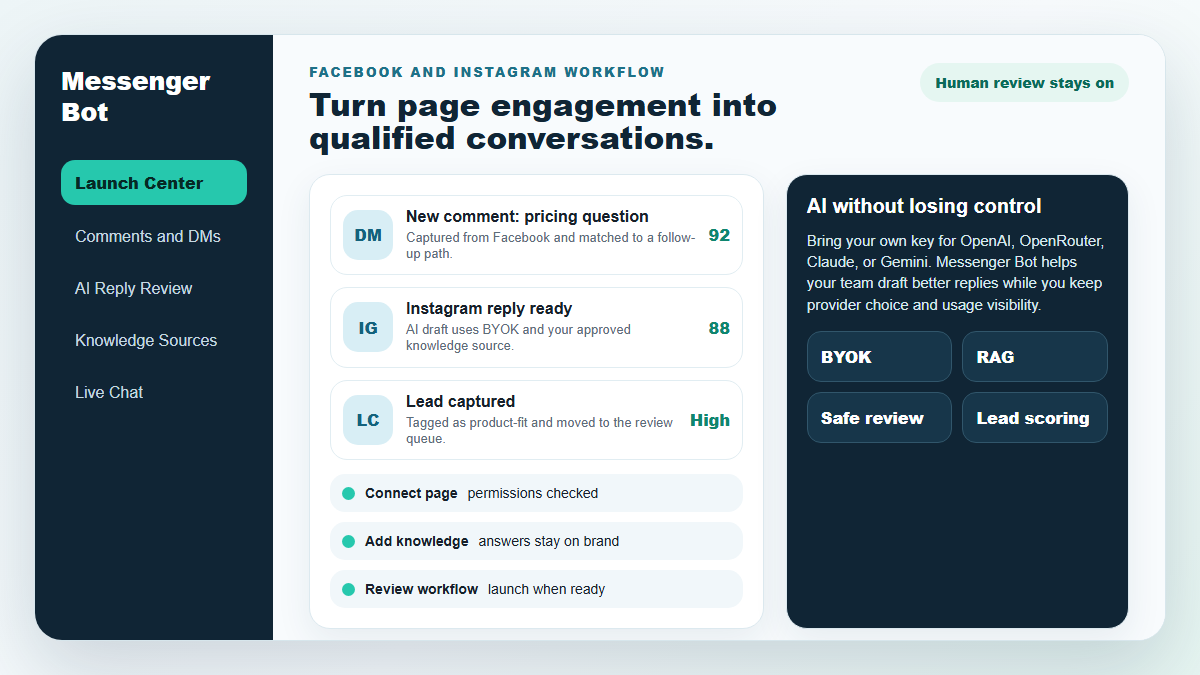
Turn more comments and DMs into conversations your team can close.
Start with one proven workflow, capture higher-intent leads, and use BYOK (Bring Your Own Key) AI drafts with human review before anything reaches a customer.
- Comment and DM capture
- BYOK AI reply drafts
- Human review controls
메신저 봇
우리 AI는 사용자가 말하는 내용에 따라 자동으로 지능적으로 댓글이나 메시지에 응답합니다!
응답을 시작하고 자동화된 댓글과 DM을 보내세요. 몇 번의 클릭만으로 미리 만들어진 템플릿을 사용하여 Facebook, Instagram 또는 어떤 사이트에서든!
사용자의 행동에 따라 참여하는 자동화된 흐름을 만들어 더 많은 판매를 얻으세요.
옵트인 받기 $0.25 미만으로 메신저 마케팅 리드 마그넷으로!
다국어 지원 및 디자인
모든 장치에서 놀랍습니다
사용자가 선택한 언어로 완벽한 응답을 제공합니다! 사용자의 응답에 관계없이, 메신저 봇 완벽하게 만들어 드립니다!
100% Facebook 준수
Messenger 봇은 Facebook의 정기적인 검토를 거치며 100% 준수 및 승인된 Facebook 애플리케이션입니다.
모든 주요 브라우저와 호환됨
Chrome, Firefox, Edge 및 Safari와 잘 작동합니다! Messenger Bot을 사용하기 위해 다운로드할 플러그인이나 앱이 필요 없으며, 모든 것이 클라우드에 100%로 있습니다.
모든 장치에 완벽함
Messenger Bot은 모바일, 데스크톱 및 태블릿을 포함한 모든 장치에서 멋지게 보이도록 설계되었습니다!
포괄적
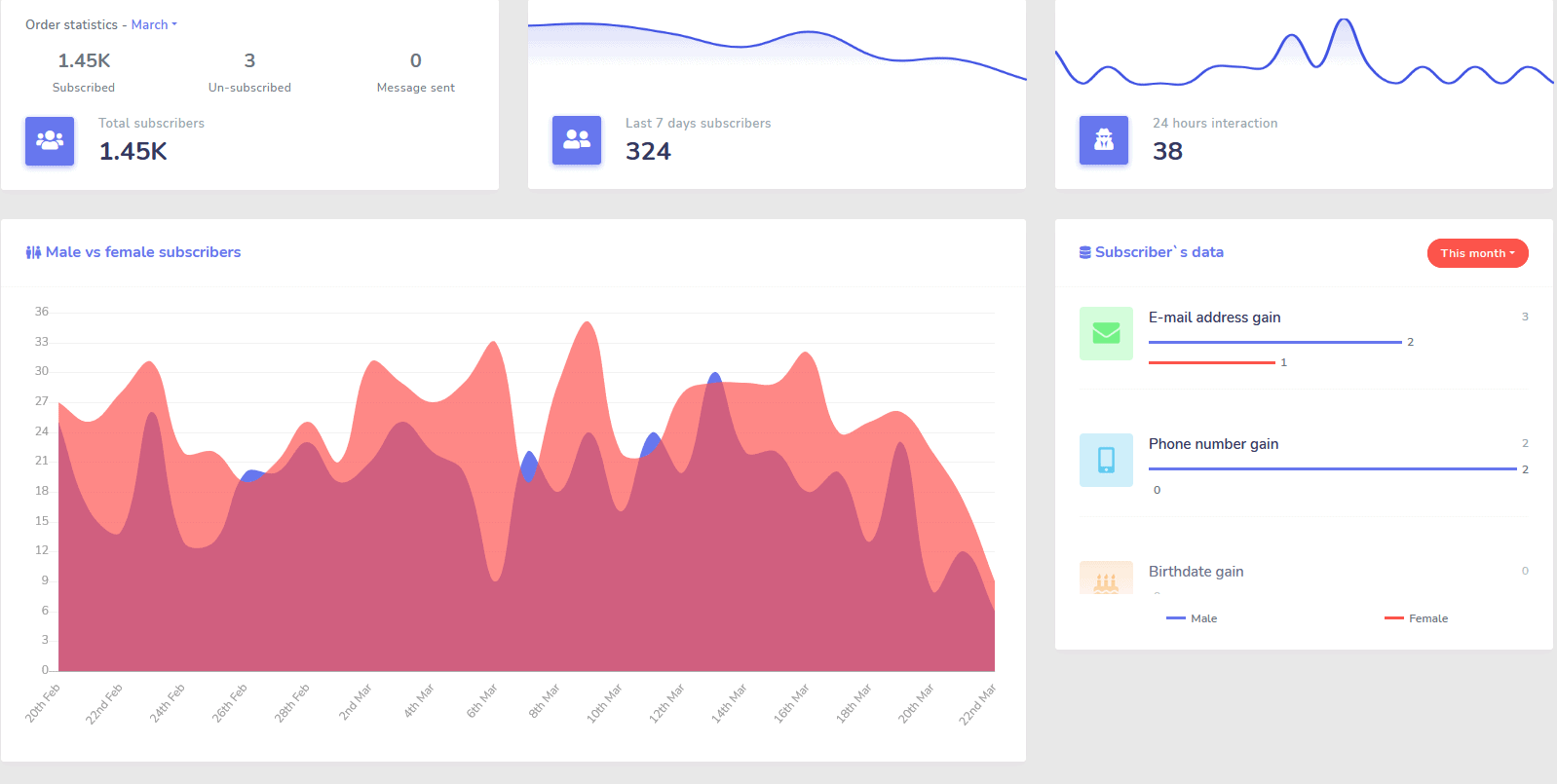
분석
가장 성과가 좋은 채널을 쉽게 식별하고 구독자, 성과 및 성과가 가장 좋은/나쁜 지점에 대한 명확한 개요를 얻으세요.
대시보드에서 구독자, 마지막 댓글 및 기타 캠페인을 쉽게 추적하세요.
급격히 낮추기
리드 및 판매당 비용
와 함께 메신저 봇 24/7 동안 이용 가능하며 사용자에게 필요한 정보를 즉시 제공함으로써 리드 및 판매당 비용을 낮출 수 있습니다!
또한 Messenger Bot을 사용하여 Facebook Interests API를 깊이 탐색하고 다른 광고주에게는 드러나지 않은 잠재고객을 발견하세요!
이 숨겨진 잠재고객을 Facebook Ads로 타겟팅함으로써 즉시 리드당 비용과 판매당 비용을 기하급수적으로 낮출 수 있습니다.
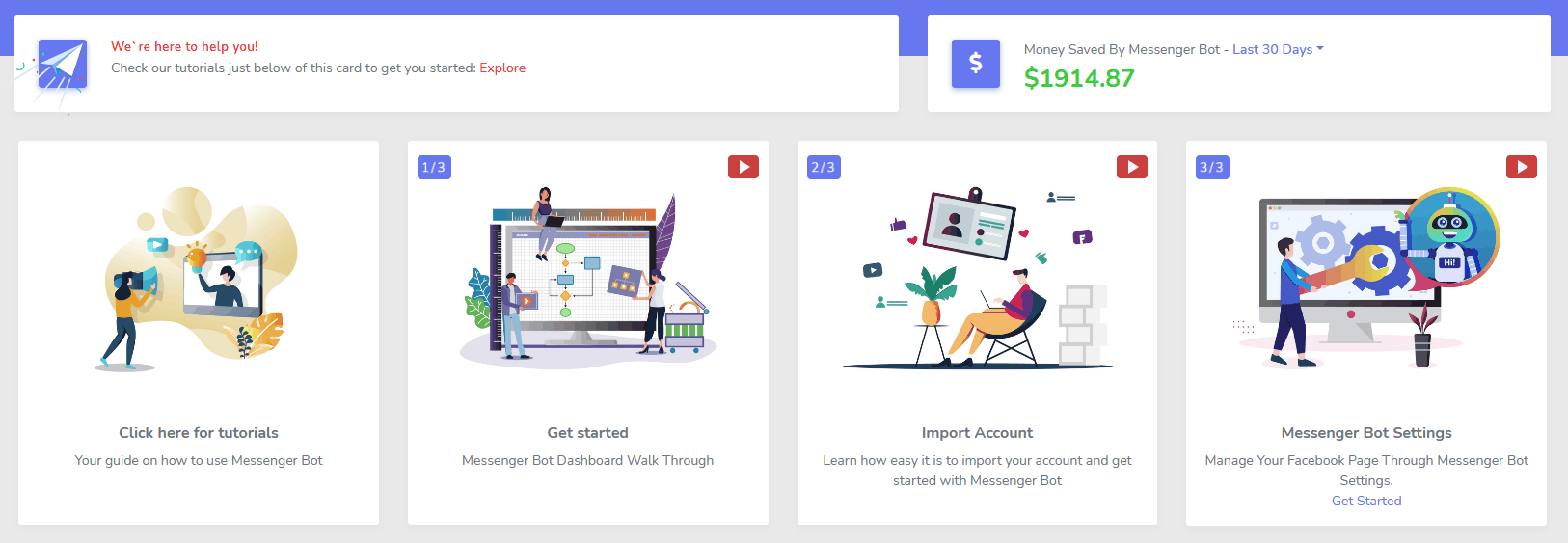
메신저
전자상거래 스토어
자신만의 맞춤형 전자상거래 스토어로 메신저와 다른 곳에서 직접 판매를 시작하세요!
수익의 100%를 유지하고, 0% 수익 공유 및 PayPal, Stripe, RazorPay와 같은 여러 결제 프로세서를 선택할 수 있습니다!
포함됨 모두 우리의 메신저 봇 구독.
무제한
시퀀스 메시지 및 대량 발송
오늘 주문하시면 한정된 시간 동안 무제한 시퀀스 메시징 캠페인과 대량 메시지 발송을 받으세요!
설정한 시간 지연에 따라 원하는 메시지를 사용자에게 전송하는 시퀀스 메시징으로 항상 제시간에 도착하세요.
대량 메시지 발송으로 적절한 시간에 고객에게 도달하세요.
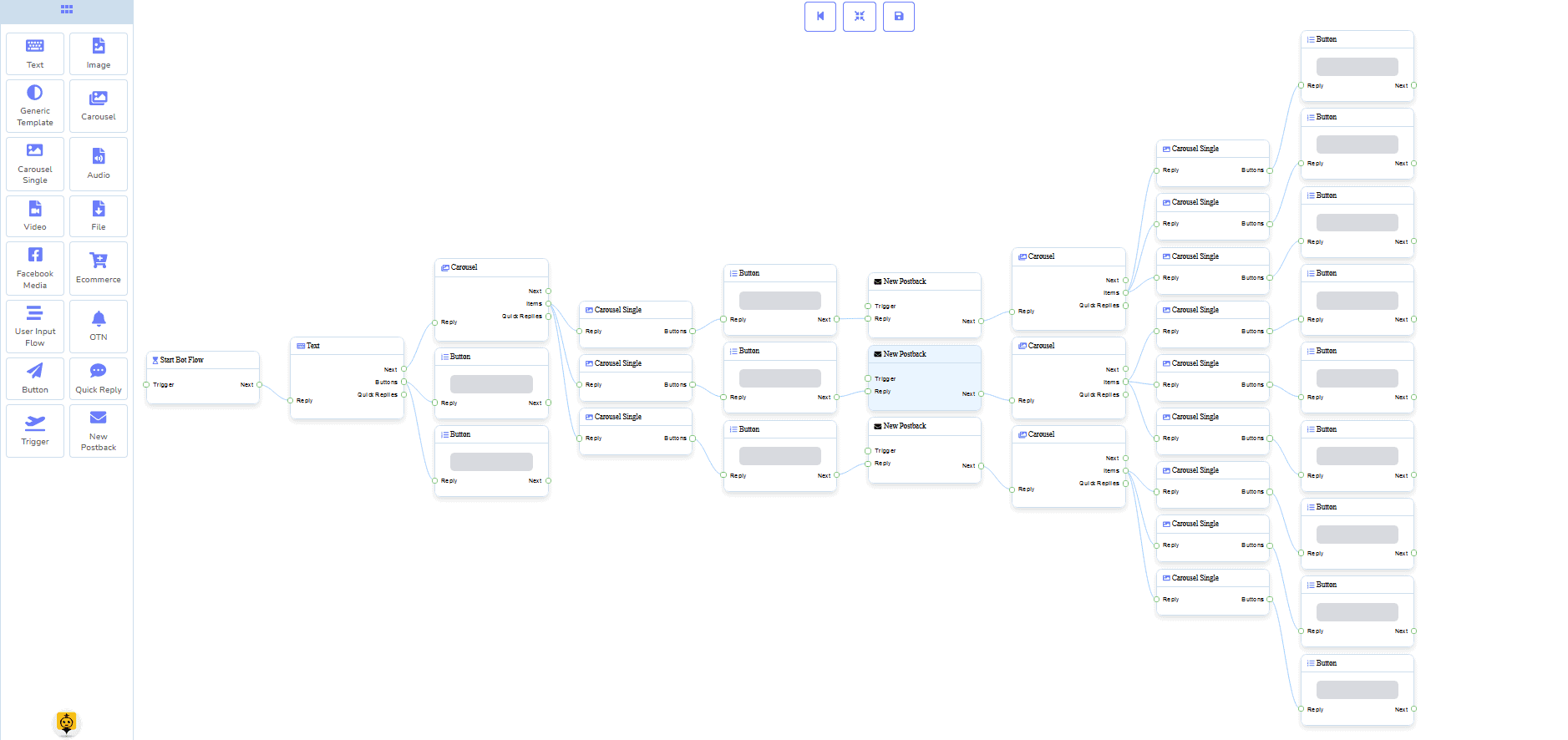
0 코드 흐름 빌더
+ 귀하를 위해 완료됨 템플릿
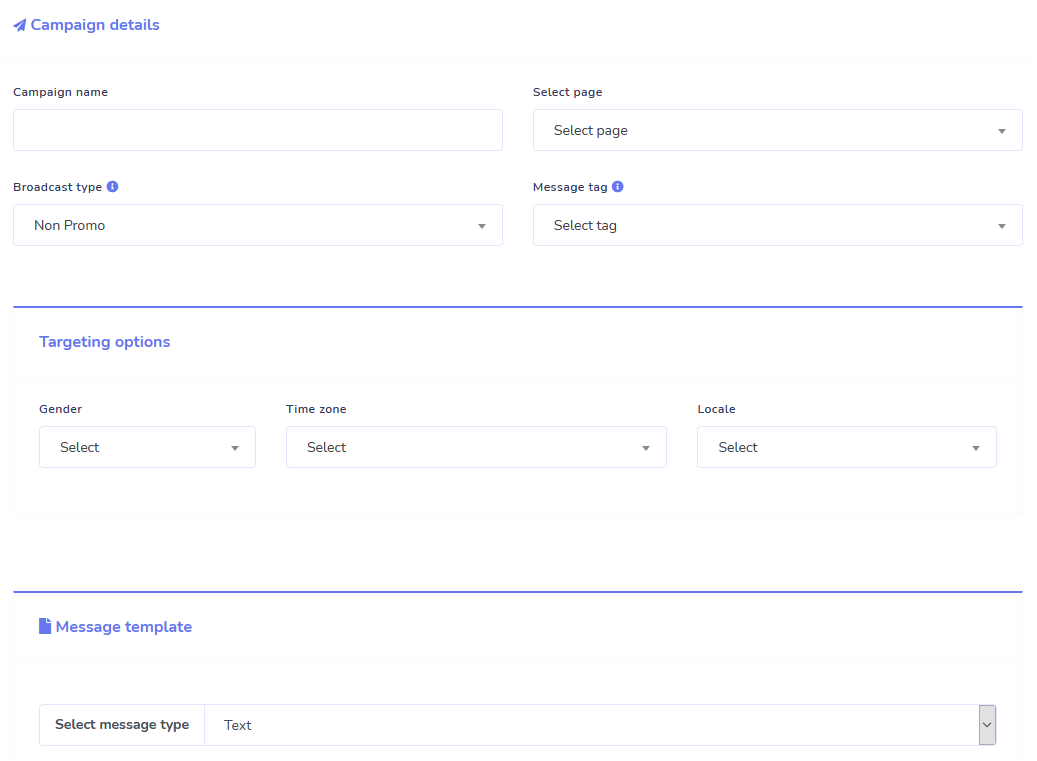
몇 번의 클릭으로 준비된 템플릿으로 라이브 방송을 시작하세요!
코딩 없이 0코드로 자동화된 작업 흐름을 만들어보세요!
아직도 너무 기술적이신가요? 저희 고객 지원팀이 대기 중이며 당신을 위해 구축하는 데 도움을 드릴 준비가 되어 있습니다!
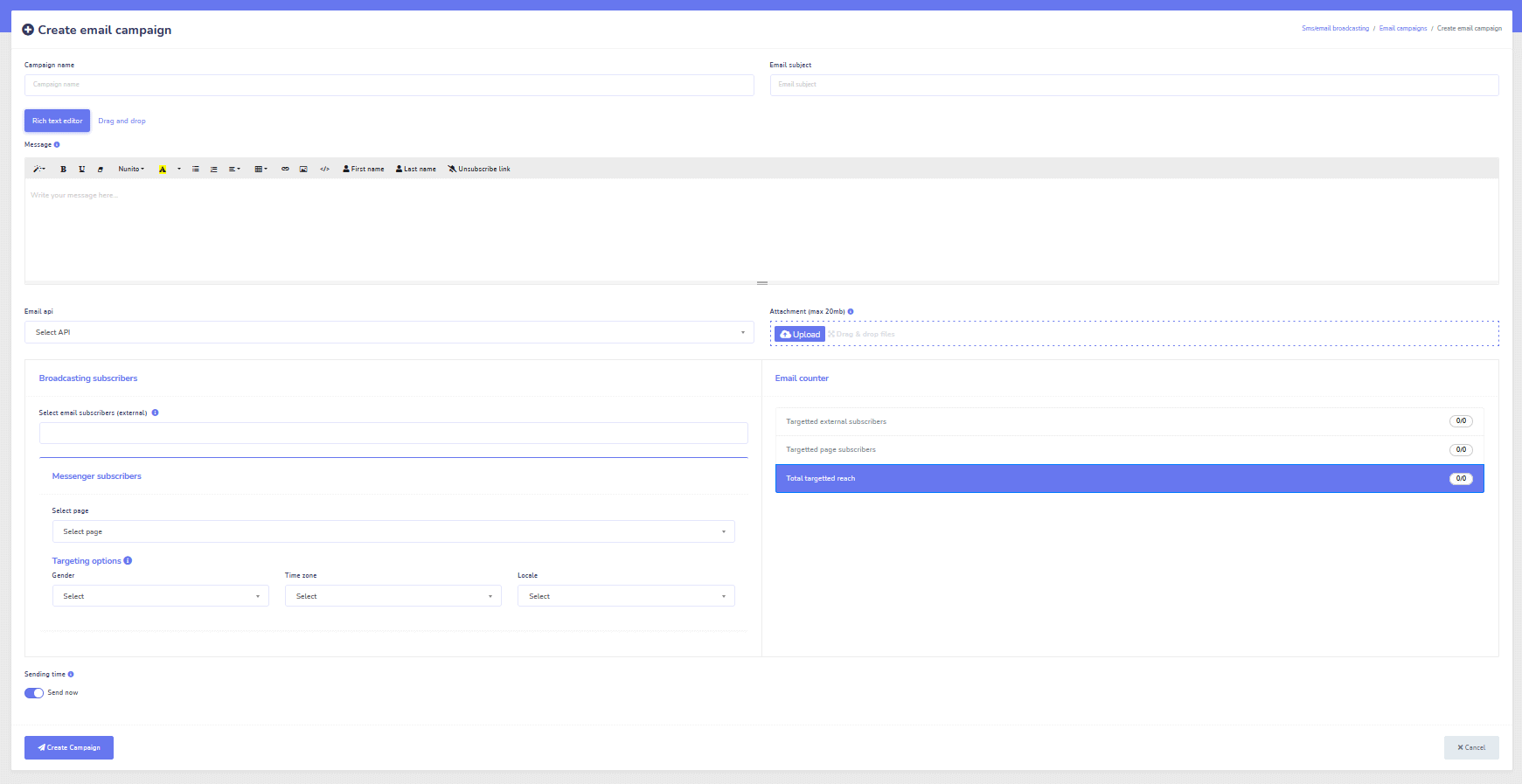
이메일
자동 응답기, 방송, 시퀀스, 구독 및 템플릿
모든 이메일에 자동으로 응답하세요!
이메일 방송 및 드립 캠페인을 전송하세요.
구독자 목록을 만들고 저희 비주얼 빌더로 이메일 캠페인 템플릿을 생성하세요!
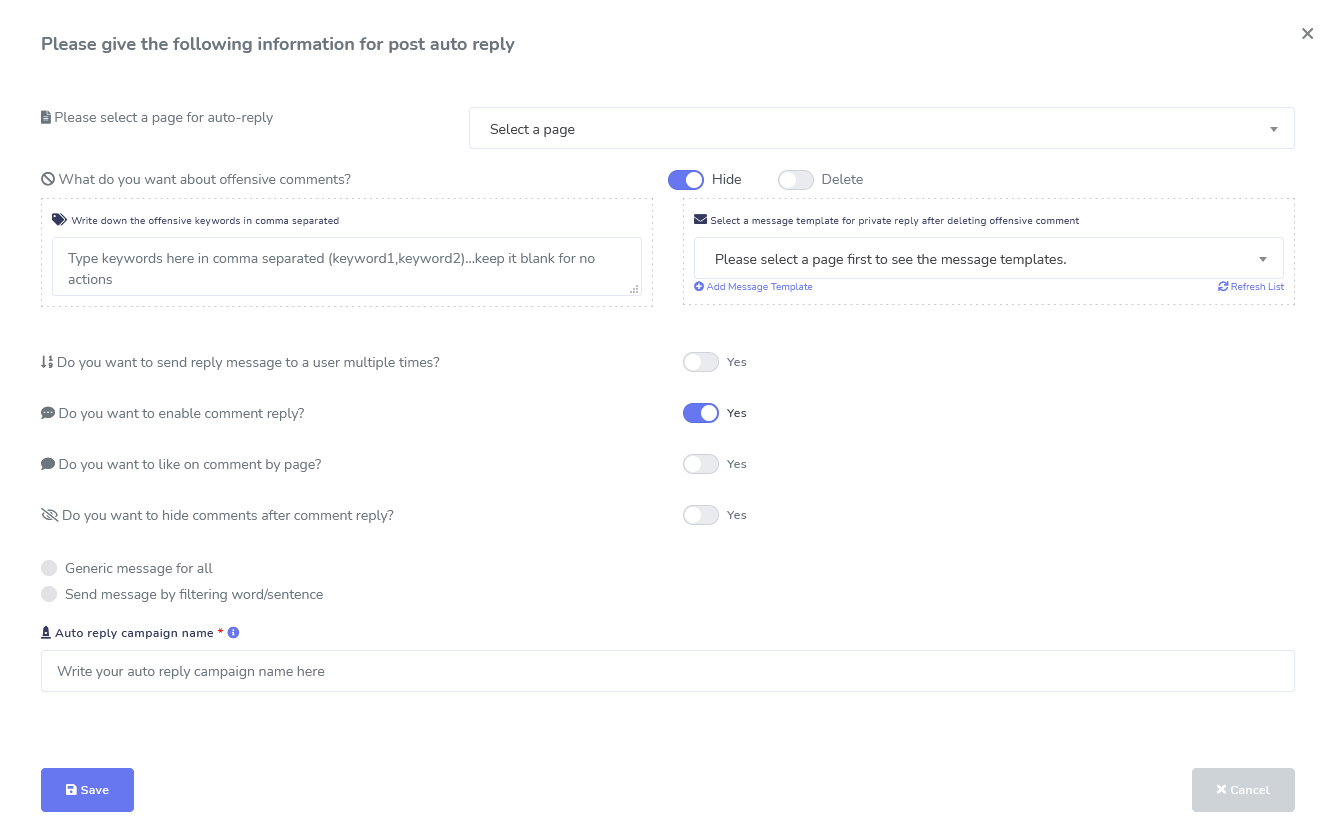
페이스북 & 인스타그램
댓글 관리, 자동화, 게시물 및 답글 도구
게시물 작성, 게시물 예약, 게시물 관리, 자동으로 게시물에 답글을 달고 후속 메시지를 보내는 데 도움을 주기 위해 설계된 전체 Facebook 자동화 기능 모음!
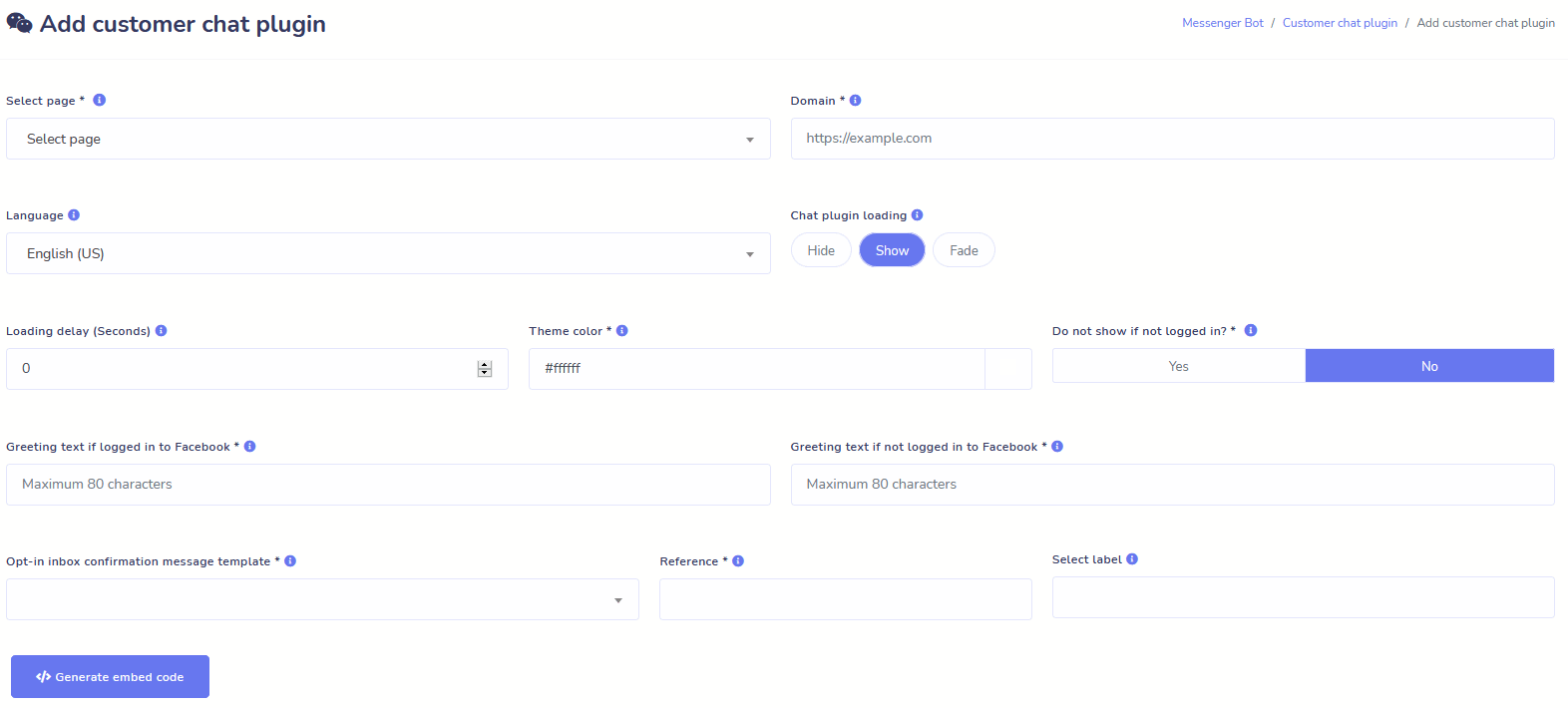
실시간 또는 자동화된
웹사이트 채팅
채팅을 자동화하고 요청하는 방문객에게 실시간 인간 도움을 제공하세요.
사용자가 필요로 하는 정보를 즉시 얻을 수 있도록 하고 귀하의 비즈니스가 번창하는 모습을 지켜보세요!
사용자가 원하는 경험을 몇 번의 클릭만으로 제공하세요.
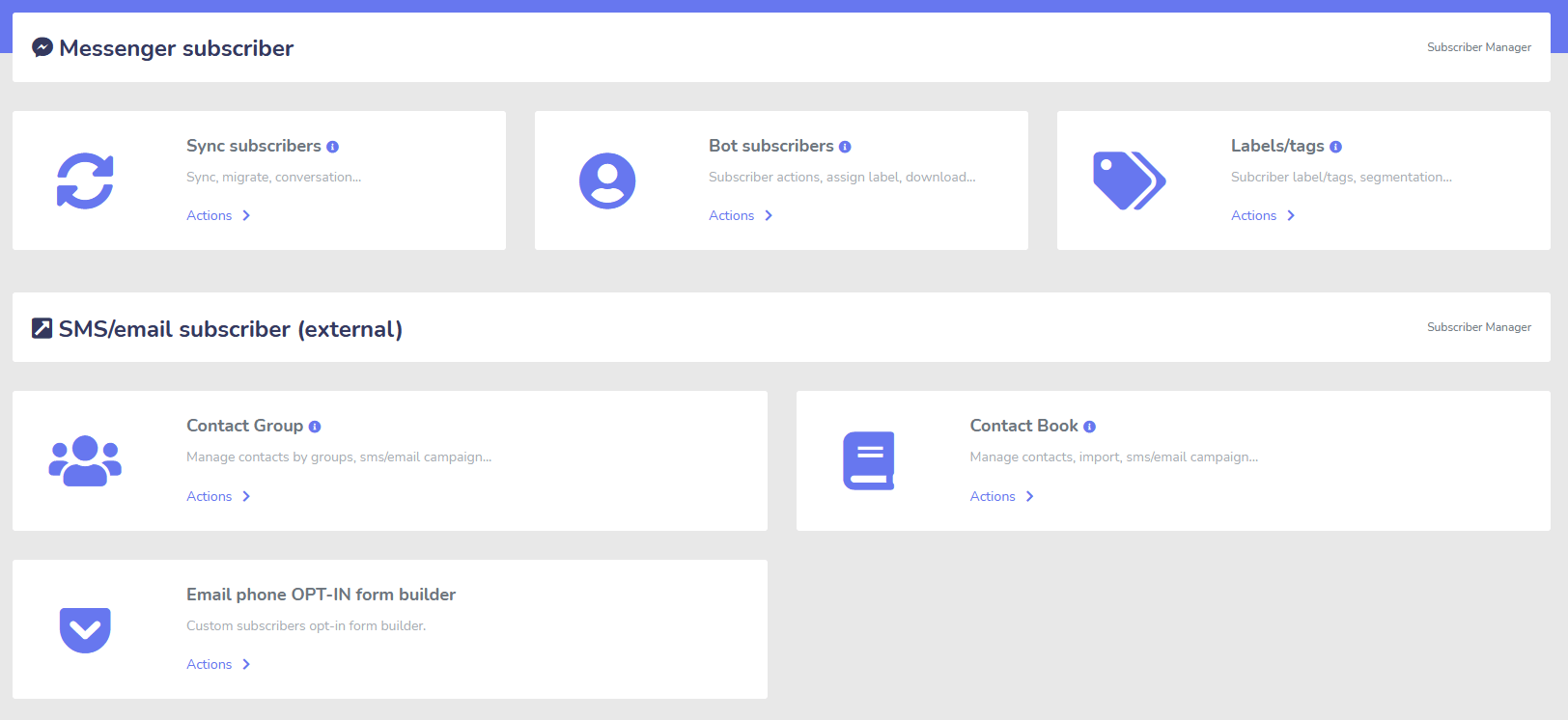
구독자
빌더, 가져오기, 관리자 및 동기화
ManyChat, ChatFuel 또는 다른 곳에서 이동 중이신가요? 구독자를 Messenger Bot에 쉽게 동기화하세요!
M.Me 링크, 메신저 옵트인 등을 통해 구독자 목록을 쉽게 구축하세요!
구독자 관리 기능을 통해 구독자의 동기화, 봇 구독자 보기, 레이블 보기 및 다양한 연락처 그룹에서 메시징/이메일 활동을 관리할 수 있습니다.
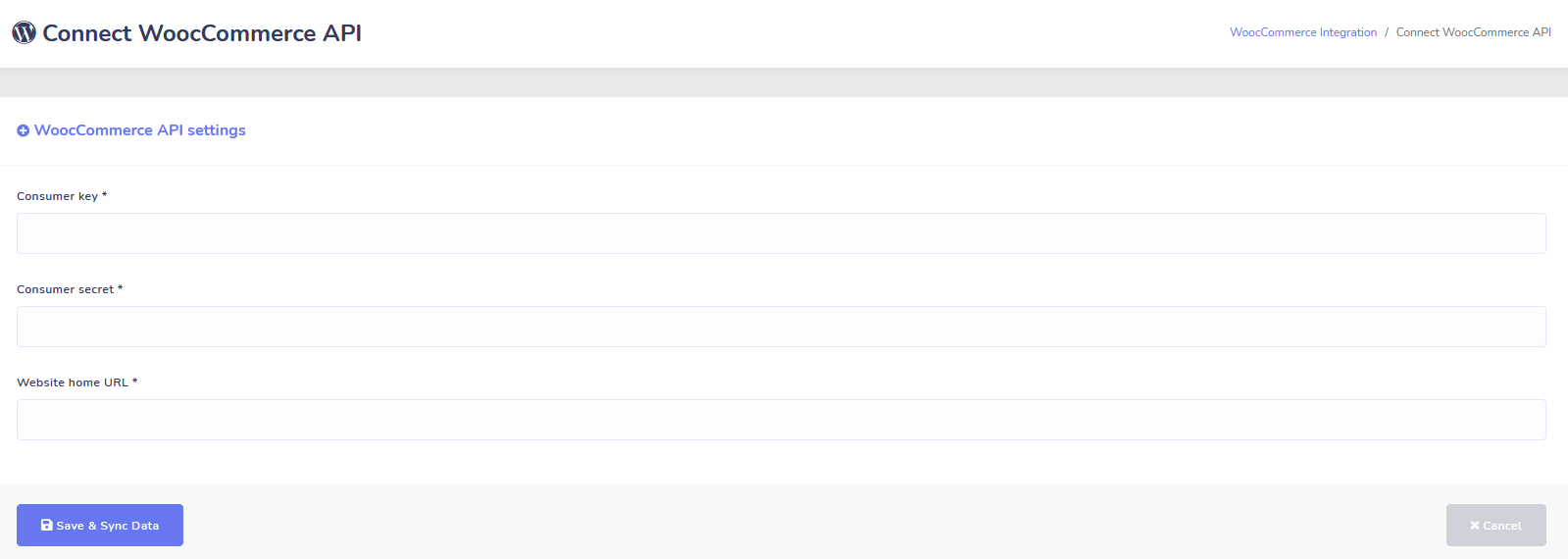
우커머스
동기화 및 장바구니 포기 복구
1회 클릭으로 우커머스 스토어 동기화.
장바구니를 포기한 사용자를 복구하여 더 많은 판매를 올리세요!
쇼피파이 + 윅스 통합 곧 출시!
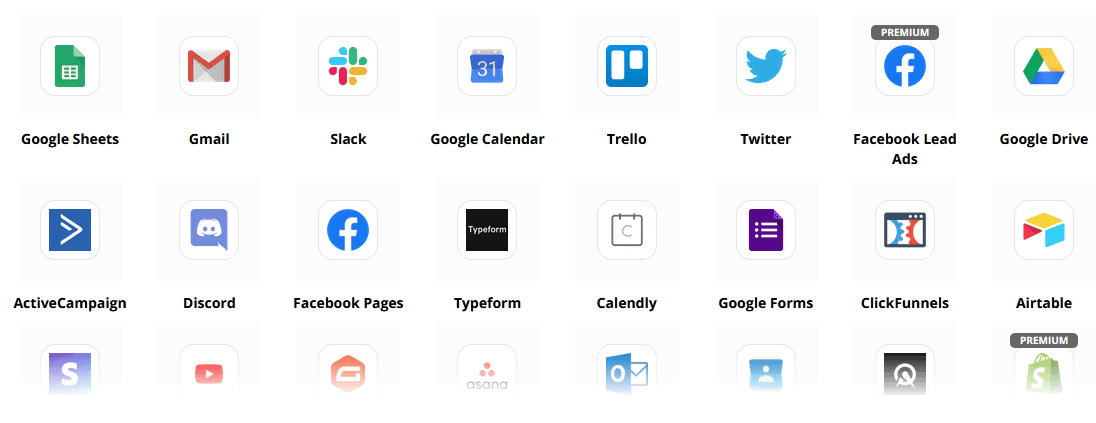
자피어 + JSON API + 구글 시트
통합
자피어 통합을 통해 3,000개 이상의 앱에 플러그인하거나 JSON API를 사용하여 맞춤형 기능을 만드세요!
구글 시트로 구독자 데이터를 자동으로 전송.
플러스
더 많은 기능!
대시보드 내에서 이미지를 만들고 게시물을 작성하기 위해 내장된 이미지 편집기를 활용하세요.
RSS 피드에서 자동으로 게시하세요!
자신만의 지속적인 메신저 메뉴를 만드세요.
그리고 더 많은 기능이 있습니다.….

메신저 봇이 사용되는 다른 방법은 다음과 같습니다.
메신저 봇은 여러 가지 방법으로 사용되고 있습니다. 사람들이 현재 우리를 어떻게 사용하고 있는지에 대한 간단한 목록입니다.
고객 지원
고객의 행동과 행동에 따라 원하는 목적지로 지능적으로 라우팅합니다.
고객으로부터 정보 수집
고객에게 필요한 모든 중요한 정보를 얻기.
자주 묻는 질문
사용자에게 필요한 답변을 즉시 제공하면서 동시에 지원 직원의 부담을 덜어줍니다.
전자상거래
새로운 또는 기존 매장에서 Messenger로 직접 판매하세요!
리드 생성
사용자와 상호작용하고 자동으로 리드를 생성하세요!
완전히 사용자 정의 가능한 양식
Messenger와 웹사이트에서 완전히 사용자 정의 가능하고 대화형 양식을 만드세요!
부동산
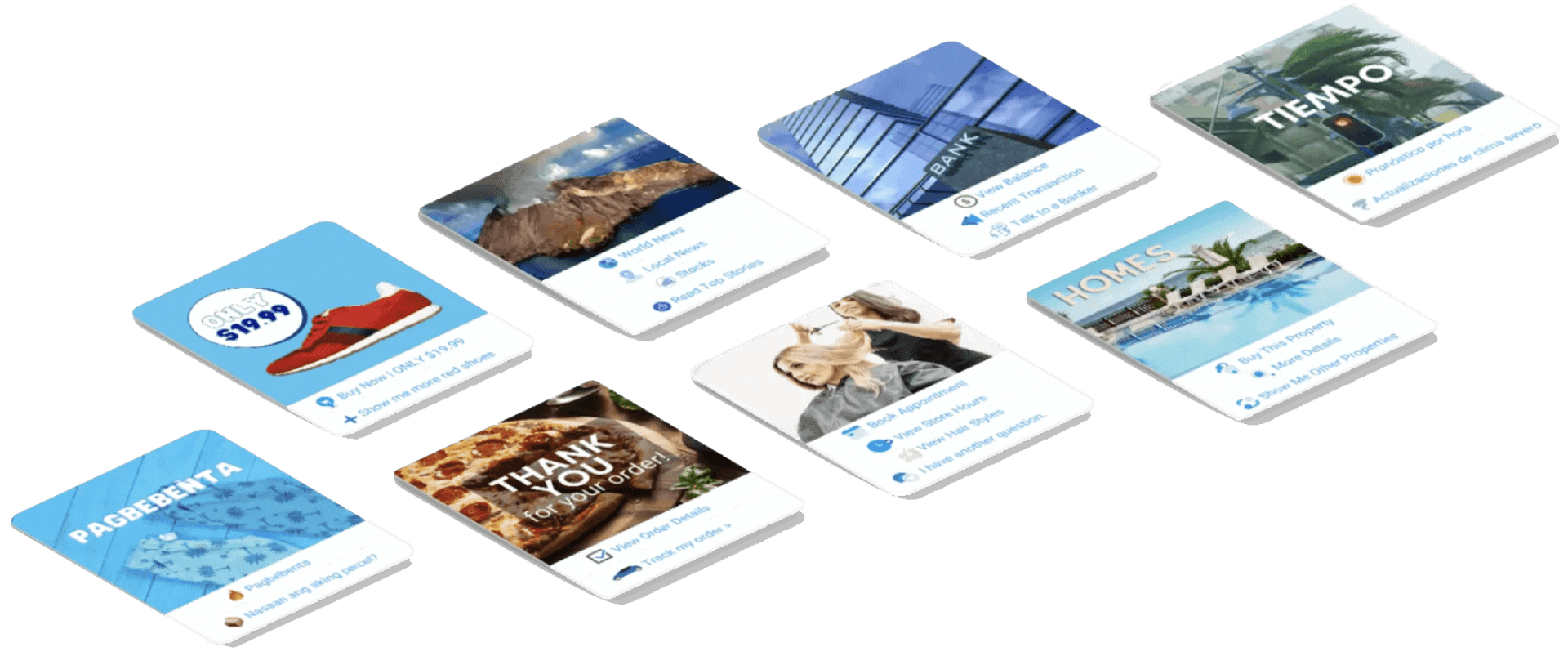
24/7 자동으로 속성을 보여주고 자격을 갖춘 리드를 생성하세요.
레스토랑
프로모션을 진행하고 예약 및 결제를 받으세요!
Travel & Tours
더 많은 여행 및 관광 예약을 받고, 당신의 독특한 외출을 선보이세요.
자동차 대리점
메신저와 당신의 사이트를 통해 자동차를 보여주고 판매하세요!
피드백 및 설문조사
완전히 사용자 정의 가능한 자동화된 설문조사 및 피드백 양식을 만드세요!
보험
정책을 제시하고 선택하는 데 도움을 주며, 견적을 제공하고 약속을 설정하세요.
저렴한 가격 한정 기간 동안
지금 행동하여 가격 인상 전에 Messenger Bot에 대한 특별 제안을 확보하세요!
와 함께 메신저 봇, 더 이상 사용하지 않을 다른 서비스의 지원, 판매 및 구독 비용을 절약할 수 있습니다!
보기 메신저 봇 작동 중!
40,000명 이상의 사용자
24/7 지원
100% 만족

40,000명 이상의 사용자들이 사용하고 신뢰합니다
Messenger Bot을 완전한 마케팅 솔루션으로 사용하는 4만 명 이상의 사업자들과 함께하세요!
Practical follow-up resources
Turn more customer conversations into clear next steps.
Use these practical guides to strengthen response speed, lead qualification, and follow-up while your team keeps ownership of every customer decision.
- missed-call text-back guide — Keep high-intent callers moving with a clear, consent-aware follow-up path.
- lead-scoring workflow — Give your team a practical way to prioritize better-fit opportunities.
- speed-to-lead guide — Shorten the gap between a new inquiry and a useful first response.
Pick the right starting point
Choose the Messenger Bot plan that matches the conversations you want to win.
Start with the workflow you need now, then upgrade when your page, team, or client load grows.
Starter
$29 /mo
For one focused page getting its first automated comment and DM follow-up live.
- Launch a guided lead-capture workflow.
- Reply faster without adding another daily dashboard.
- Keep setup simple while you prove the channel.
프로
$99 /mo
For growing businesses that want BYOK (Bring Your Own Key), business knowledge, and better lead sorting.
- Use AI-assisted drafts with human review.
- Qualify replies before your team spends time on them.
- Keep follow-up consistent across busy launches.
에이전시
$299 /mo
For teams managing multiple brands, clients, assets, and approval workflows.
- Organize client conversations by page and priority.
- Give teams cleaner review paths before replies go out.
- Scale repeatable workflows without adding extra manual work.
A payment card keeps trials focused. You stay in control of the plan before billing starts.
자주 묻는 질문들
페이스북 메신저 봇이란 무엇인가요?
페이스북 메신저 봇은 메신저 경험뿐만 아니라 웹사이트의 채팅 경험을 향상시키기 위해 활용할 수 있는 자동화된 챗봇입니다.
Messenger Bot이 내 비즈니스에 어떤 도움이 될까요?
Messenger Bot은 새로운 사용자를 자동으로 환영하고, 특정 키워드나 구문에 응답하며, 콘텐츠를 전파하고, 리드를 생성하고, 판매를 촉진하는 등 다양한 기능을 제공합니다!
왜 Messenger Bot이 필요할까요?
매일이 지날수록 목표 청중에 도달하는 것이 점점 더 어려워집니다. 많은 전통적인 마케팅 방법들이 예전처럼 같은 결과를 제공하지 않는다는 사실은 분명합니다.
우리의 Facebook Messenger 봇은 실시간 인터랙티브 메시징과 채팅 캠페인 시퀀스를 통해 80% 이상의 오픈율을 달성할 수 있도록 도와줍니다.
Facebook Messenger 봇을 어떻게 만들까요?
먼저, Facebook 계정과 이를 관리할 수 있는 관리 권한이 있는 Facebook 페이지가 필요합니다.
그 후, 거래를 구매하거나 무료 체험에 가입한 다음 "계정 가져오기"를 선택합니다.
그 다음, 우리의 비주얼 플로우 빌더를 사용하여 몇 분 안에 봇을 생성하고 배포하세요. 이제 언제든지 고객과 실제 대화를 시작할 수 있습니다.
체험판이 있나요?
네, 구매 전에 신용카드 없이 무료 체험을 받을 수 있습니다. 여기.
이 제안은 언제 만료되나요?
이 제안은 곧 만료되므로, 최고의 할인을 원하신다면 지금 주문하셔야 합니다.
진정한 변화를 만들 준비가 되셨나요? 함께 만들어 봅시다!
Messenger Bot을 제한 없이 알아보고, 마음에 드실 때부터 본격적으로 사용해 보세요. 우리는 당신을 기다리고 있습니다.
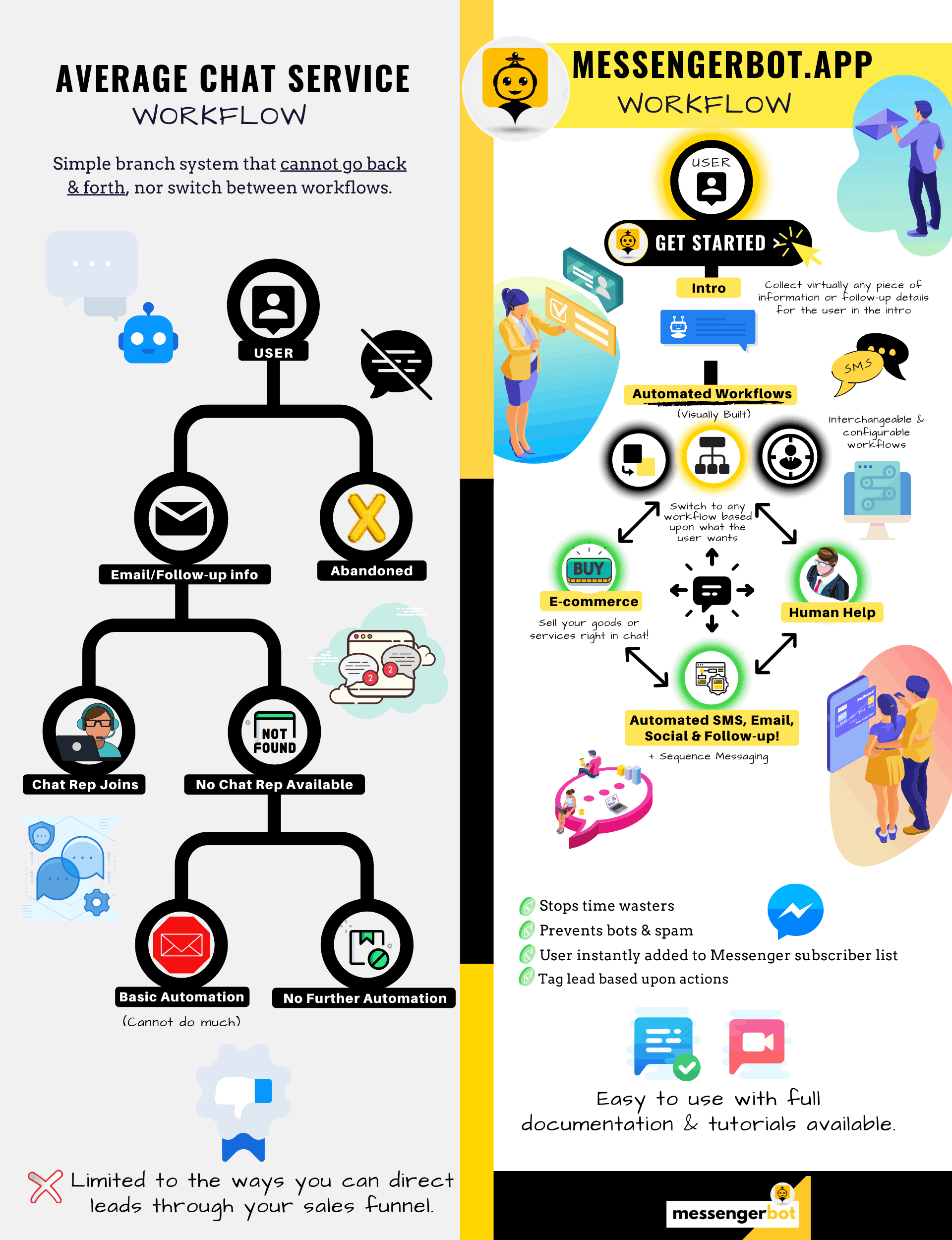
Messenger Bot은 단순한 채팅 봇 그 이상입니다!
이제 복잡한 대화를 자동으로 나눌 수 있습니다!
Messenger Bot이 필요한 이유
비즈니스의 매출을 증가시키기 위해
마케터들에게 Facebook Messenger는 현재 Facebook 페이지와 비즈니스의 현재 및 잠재 구독자에게 다가가는 새로운 효과적인 방법이 되고 있습니다. Messenger 봇을 사용하면 하루 중 언제든지 손가락 하나 까딱하지 않고 정보를 전파할 수 있습니다.
가장 강력한 봇 앱 중 하나인 Messenger Bot은 이 새로운 산업에서 빠르게 선두주자가 되었습니다. 우리의 마케팅 소프트웨어는 대기업과 중소기업 모두에게 마케팅을 쉽게 만들어주는 많은 기능을 가지고 있습니다. Facebook Messenger 챗봇을 사용하면 이제 24/7 채팅에 응답하고, 타겟 오디언스에게 대량으로 메시지를 전송하며, Facebook 페이지에 동영상과 사진을 게시할 수 있습니다. 비즈니스에 필요하다면, Messenger Bot이 확실히 해결해 드립니다! 우리의 독특한 방식으로, 다른 곳에서는 볼 수 없는 높은 수준의 챗봇 서비스를 제공할 수 있습니다.
시작하기 전에 우리의 환상적인 앱이 제공하는 모든 서비스와 기능을 살펴보겠습니다. 이 인상적인 소프트웨어는 코딩이 필요 없는 가장 이상적인 Facebook Messenger 마케팅 도구가 될 것입니다.
페이스북 챗봇이란 무엇인가요?
페이스북 메신저 봇 앱이나 페이스북에 대해 막연하게 알고 있다면, 챗봇 이것이 어떻게 귀하의 비즈니스를 다음 단계로 끌어올릴 수 있는지 이해해야 합니다. 이 소프트웨어는 자연어 처리를 사용하여 사용자가 원하는 것을 이해하고 인공지능을 통해 사람들과 상호작용하며 페이스북 메신저를 통해 메시지를 자동으로 전송하도록 설계되었습니다. 구현되면, 그것은 질문을 이해하고 그 질문에 올바르게 답변할 수 있습니다. 챗봇은 고객 경험을 향상시킬 수 있는 가상 비서와 같습니다.

회사를 위해 페이스북 메신저 봇을 사용하는 데는 전략적 이점이 있습니다. 만약 귀하가 유명한 이름이 되고 싶다면, 메신저를 사용하는 것은 귀하의 회사와 사명을 수십억 명의 사람들과 연결하는 스마트한 방법입니다. 페이스북 메신저는 세계에서 가장 많이 사용되는 앱 중 상위 5위 안에 comfortably 있습니다. 이런 상황에서 비즈니스 필요에 메신저를 사용하지 않는 이유는 무엇인가요? 고객들은 이 앱이 전 세계의 비즈니스에 편리하고 빠르게 연락할 수 있는 방법을 제공하기 때문에 이를 높이 평가합니다. 회사는 적극적인 고객 서비스를 제공하는 동시에 성장하고 노출을 증가시킬 수 있습니다. 챗봇이 있으면 24/7 고객 지원에 대해 걱정할 필요가 없습니다.
Facebook 봇이 제공할 수 있는 또 다른 장점은 리드 생성입니다. Facebook Messenger 챗봇을 통해 잠재 고객에게 더 쉽게 접근할 수 있습니다. 봇 앱이 잠재 고객에게 연락할 때, 자연어 처리를 사용하여 그 사람의 필요와 욕구를 파악하기 위한 기본 질문을 할 수 있습니다. 이 앱은 고객 지원팀이나 영업팀으로 잠재 고객을 안내하여 판매를 성사시킬 수 있습니다. 보시다시피, Messenger Bot은 코딩 없이도 이 모든 것을 수행할 수 있습니다. Messenger Bot을 시작하세요!
대량 메시지
그리고 Facebook 봇
Facebook 페이지가 있을 때, 구독자와 잠재 고객에게 메시지를 전파하고 싶을 때가 있습니다. Messenger Bot에는 바로 그 목적을 달성하기 위한 대량 메시지 기능이 있습니다. 대량 메시징을 하는 이유는 무엇일까요? 첫째, 빠르게 전달될 수 있습니다. Messenger Bot에서 이 기능을 활용하면, 귀하의 커뮤니케이션은 몇 초 만에 누구에게나 도달할 수 있습니다. 이 앱을 사용하면 수천 명에게 대량 메시지를 보낼 수 있으며, 의도한 대로 전달될 것이라는 확신을 가질 수 있습니다. 귀하의 리드는 귀하와 대화하고 상호작용할 수 있으며, 이는 그들이 질문에 대한 정확하고 이해하기 쉬운 답변을 받을 때 신뢰를 구축하는 데 도움이 됩니다. Messenger Bot의 이 뛰어난 기능은 고객 기반을 유지하는 데 도움을 주며, 이는 비즈니스 성장의 기초 중 하나입니다. 우리는 모든 구독자에게 도달할 수 있는 대량 메시지 기능을 처음으로 보유하게 된 것을 자랑스럽게 생각합니다.
추가 자동 기능,
Facebook Messenger 챗봇 포함

-
자동 댓글 좋아요
이 기능은 귀하의 페이지와 게시물 아래에서 찾은 구독자 댓글에 좋아요를 누를 수 있는 능력을 제공합니다. 이러한 참여는 다른 사람들이 귀하의 회사가 고객과 잠재 고객의 의견을 소중히 여기는 회사임을 알게 되면서 귀하의 페이지에서 활동을 증가시킬 수 있습니다. 이는 귀하가 원하는 주목을 받는 데 도움을 줍니다. 많은 댓글에 좋아요를 추가하는 것은 고객이 귀하의 비즈니스에 지속적으로 참여하고 있다는 것을 볼 때 고객 기반을 유지하는 데도 도움이 됩니다.
-
자동 댓글 비공식 답변
Messenger Bot의 자동 댓글 비공식 답변에도 동일한 이점이 적용됩니다. 누군가 귀하의 비즈니스에 대해 댓글을 달거나 질문을 하기 위해 개인적으로 연락을 할 상황이 발생할 것입니다. 우리의 앱은 귀하가 필요한 응답으로 하루 중 언제든지 이러한 메시지에 답변할 수 있도록 합니다. 답변은 귀하의 사양에 따라 설계되며, 필요에 따라 메시지가 변경될 수 있습니다.
Facebook 게시<!–
메시지 봇과 함께
우리의 메시지 봇은 Facebook 페이지와 그룹에 텍스트를 게시할 수 있을 뿐만 아니라 사진, 비디오 및 링크를 자동으로 게시하고 공유할 수도 있습니다. Messenger Bot이 할 수 없는 것은 없습니다! 이 기능을 사용하면 원하는 유형의 미디어를 언제든지 배포할 수 있습니다. 텍스트와 시각적 도구를 혼합하여 사용하면 구독자를 다시 참여시키고 동시에 새로운 구독자를 얻을 수 있습니다.
참여 증가
메신저 마케팅으로
우리의 Facebook Messenger 봇은 구독자와 고객으로부터 더 나은 참여를 받을 수 있도록 도와줍니다. 연구에 따르면 높은 참여를 유지할 때 판매를 증가시킬 가능성이 더 높습니다. Messenger Bot의 다양한 기능을 사용하여 이 성공을 달성할 수 있습니다. 이미지 및 기타 시각적 콘텐츠의 자동 배포는 고객 기반이 당신이 전하고자 하는 것에 관심을 가지도록 유지할 수 있습니다. 이는 고객이 당신의 비즈니스에 대해 가지게 된 신뢰를 중심으로 한 관계를 형성할 수 있습니다. 우리는 이 참여가 얼마나 중요한지를 챗봇 세계의 누구보다 잘 이해하고 있습니다. 우리를 사용하면 거의 즉시 결과를 볼 수 있습니다.

개인화된 콘텐츠
FB Messenger Bot에서
우리 소프트웨어는 고객의 모든 댓글과 우려 사항에 대해 개인화된 응답을 제공할 수 있습니다. 구독자로서 온라인에서 회사와 맞춤형 경험을 할 때, 이는 고객으로서 그들의 생각과 존재에 대해 신경 쓰고 있다는 인식을 줄 수 있습니다. 판매 및 마케팅 배경이 있는 분들은 고객 만족이 성공적인 비즈니스 모델의 중요한 부분이라는 것을 알고 계실 것입니다. Messenger Bot에서는 고객이 충성도를 유지하는 데 필요한 이 귀중한 개인화를 만드는 데 도움을 드릴 수 있습니다.
큰 소셜 미디어 존재감
페이스북 메신저 마케팅과 함께
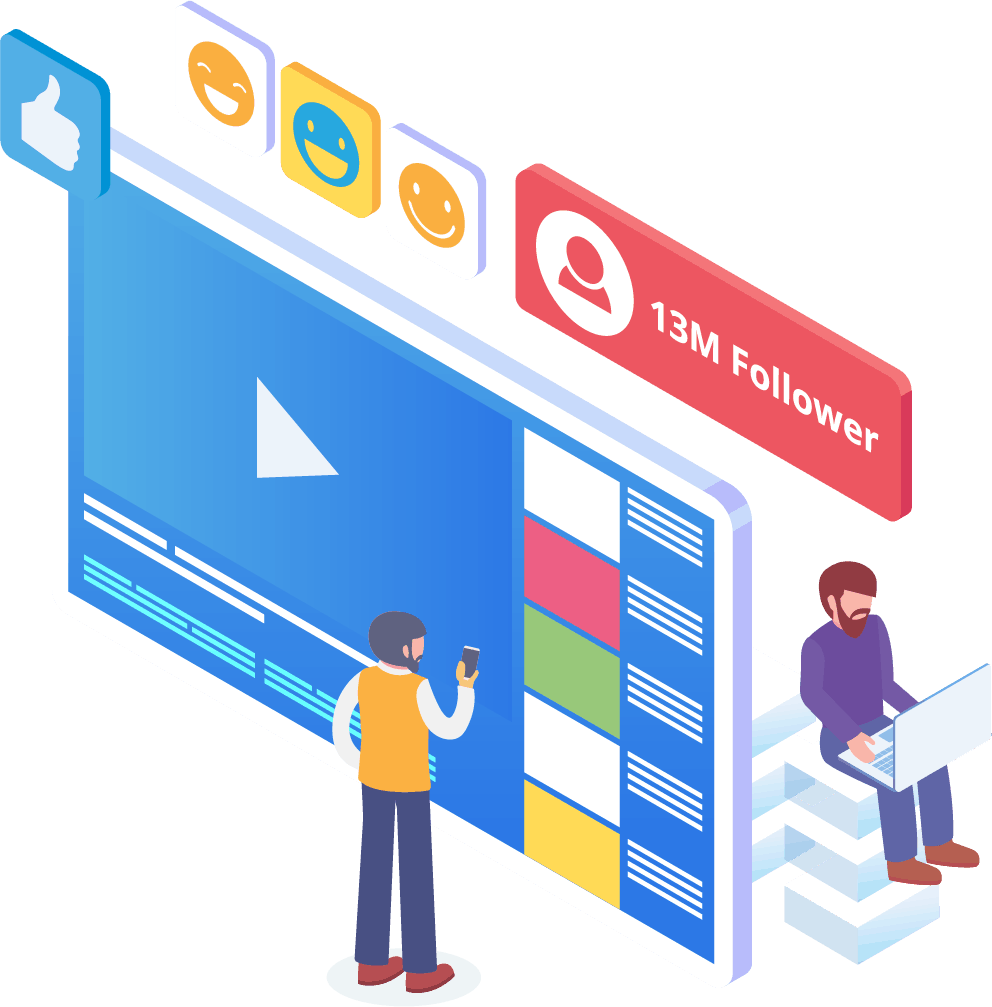
오늘날의 세상에서 기업은 경쟁에서 앞서기 위해 훌륭한 소셜 미디어 존재감이 필요합니다. 페이스북은 회사의 가시성을 높이고 수백 명의 신규 구독자와 잠재 고객을 페이지로 끌어오는 플랫폼으로 꾸준히 자리 잡아왔습니다. 이러한 페이스북 사용자와 상호작용하는 가장 좋은 방법 중 하나는 챗봇 앱을 사용하는 것입니다. 우리의 페이스북 메신저 챗봇은 페이지와 정기적으로 상호작용하는 사람들을 즐겁게 하고, 정보를 제공하며, 가르치는 데 도움을 줄 수 있습니다.
적절한 마케팅 전략은 회사의 성장을 촉진하기 위해 Facebook과 소셜 미디어의 사용을 요구해야 합니다. 우리의 앱을 사용하면 비즈니스 프로필을 이전에는 도달할 수 없었던 수준으로 끌어올릴 수 있는 완전하고 강력한 마케팅 계획을 수립할 수 있습니다. 우리의 메신저 챗봇 서비스는 Facebook을 위해 설계되었으며, 소셜 미디어 거인이 변화를 주면 적응할 수 있습니다. 메신저는 사용 방법을 알면 업계 리더로 만들어 줄 수 있는 대부분 활용되지 않은 소셜 미디어 도구입니다. 우리는 추측 게임을 없애고 비즈니스 목표를 한 걸음씩 달성할 수 있도록 도와드립니다.

분석하기
메신저 봇으로 데이터
앞서 언급했듯이, 우리의 앱은 Facebook 및 구독자 데이터를 분석하기 위한 보고서를 작성할 수 있습니다. 메신저 봇의 소프트웨어는 Facebook과 상호작용할 때 인간이 어떻게 작동하는지를 이해하도록 설계되었습니다. 우리가 비즈니스에 제공하는 분석은 전략적 판매 및 마케팅 프로토콜을 생성하고 회사를 성장시키기 위해 깊이 파고들 수 있게 해줍니다. 우리는 당신이 볼 수 있는 전체 그림을 제공하며, 그로부터 당신은 더 성공하기 위해 필요한 것을 추출할 수 있습니다.
이 심층 데이터 분석은 새로운 판매, 리드 및 고객을 생성할 수 있습니다. 기계 학습을 통해 특정 시간 동안 Facebook 페이지와 구독자 간의 모든 상호작용을 되돌아보면, 이제 기본 청중을 타겟으로 하는 콘텐츠를 생성할 수 있습니다. 우리는 새로운 관련 콘텐츠를 만들 때 필요하지 않은 추가 요소를 제거합니다. 당신의 초점은 있어야 할 곳에 유지됩니다.

메신저 봇으로 리드를 전환하세요
메신저 봇은 리드를 판매로 유도하는 데 도움을 줄 수 있습니다. 우리의 자동화 소프트웨어는 잠재 고객의 관심을 끌면서 프로세스를 시작합니다. 우리는 고객이 귀하의 비즈니스에 중요하다는 느낌을 받을 수 있도록 기본적이지만 개인적인 수준에서 잠재 고객과 소통할 수 있습니다. 이제 이러한 고객을 더 잘 타겟팅하고 초기 교류 후에도 그들과 연락을 유지할 수 있습니다.
빠른 응답 시간은 고객 경험과 전환에 필수적입니다. 더 빠른 응답 시간으로 잠재 고객의 만족도가 높아지며, 그들은 복잡함이나 번거로움 없이 실시간으로 답변을 받습니다. 간단한 경험은 유지율과 향후 판매를 개선합니다. 새로운 고객이 비즈니스와 접촉할 때 첫인상은 모든 것을 의미합니다. 메신저 봇을 사용하면 구독자와 대화할 때 발생할 수 있는 복잡함과 예기치 않은 문제를 없앨 수 있습니다. 챗봇은 간단한 작업을 위한 가상 비서이므로 비즈니스를 확장하는 데 더 집중할 수 있습니다.

페이스북 봇으로 시간을 절약하세요
메신저 봇이 귀하와 귀하의 비즈니스를 위한 모든 참여 작업을 수행하게 하십시오. 그렇게 하면 이제 귀하는 완전한 주의를 요구하는 다른 필수 작업에 집중할 수 있습니다. 우리의 혁신적인 앱을 통해 게시물을 잊거나 댓글이나 질문을 의도치 않게 무시하는 것에 대해 더 이상 걱정할 필요가 없습니다. 참여가 언제 들어오든 상관 없습니다. 우리의 소프트웨어는 필요할 때 응답하도록 설계되었습니다. 이 기능은 귀하와 귀하의 구독자를 위한 24/7 고객 지원을 의미합니다.
우리의 소프트웨어를 사용하면, 사용하기 쉬운 인터페이스에 필요한 내용을 입력하기만 하면 됩니다. 그러면 우리는 그 다음을 처리합니다. 귀하는 우리가 귀하를 위해 제공하는 완전한 캠페인을 갖게 됩니다. 우리는 귀하의 정보를 열망하는 눈과 귀에 전달하는 데 신뢰할 수 있습니다.
이점 활용하기
페이스북의 인기 활용하기
페이스북은 곧 속도를 늦추지 않을 것입니다. 전 세계에서 10억 명 이상의 사람들이 사용하는 이 널리 인기 있는 소셜 미디어 사이트는 메신저를 포함합니다. 앱 사용자들은 메신저를 사용하기 쉽기 때문에 즐깁니다. 그들은 원하는 곳에 가기 위해 여러 링크나 페이지를 클릭할 필요가 없습니다.
이 이점은 현장에서 고객과 소통하고자 하는 기업에 적합합니다. 메신저 봇은 페이스북 사용자에게 매력적인 동일한 용이성과 편리함을 제공합니다. 사용자가 소프트웨어와 상호작용할 때, 제품이나 회사에 대한 정보 있는 의견을 제공할 수 있는 간단하고 이해하기 쉬운 정보를 제공합니다. 이 고객 지원은 필요할 때 언제든지 대기 시간 없이 제공됩니다.
새로운 기회
풍부하다
우리의 봇 앱은 메신저 봇을 사용하지 않기로 선택한 다른 기업들이 가지지 못할 새로운 기회를 제공합니다. 메신저 앱은 여전히 디지털 마케팅에 대한 새로운 접근 방식으로 간주되므로, 우리가 제공하는 전략은 오래된 것이 아닙니다. 우리는 귀하의 비즈니스를 다른 기업과 차별화하기 위한 선진 기술을 제공합니다.
페이스북 메신저 챗봇을 통해 판매 및 마케팅에 있어 귀하에게 효과가 있는 것과 효과가 없는 것을 알게 될 것입니다. 우리의 자원을 사용하여 시간이 지남에 따라 접근 방식을 간소화하고 브랜드에 있어 최선을 다하고 있는지 확인할 수 있습니다. 우리의 챗봇을 사용하지 않는 경쟁자들은 대량에 있어 뚜렷한 불리함을 겪고 있습니다.

고객 서비스 개선
페이스북 챗봇과 함께
물론, 귀하는 이제 저희 앱을 통해 제공하는 고객 지원을 향상하고 개선할 것입니다. 저희 소프트웨어와 관련하여 모든 고객 지원 측면을 고려합니다. 기계 학습과 자연어 처리를 통해 고객을 만족시키고 빠른 구매 결정을 내리도록 유도할 수 있는 고품질 답변을 제공합니다. 즉각적인 응답 시간은 잠재 구매자가 다른 곳에서 제품을 구매하기 위해 귀하의 페이지를 떠나는 것을 방지합니다.
또한, 저희 메신저 챗봇이 고객에게 정보를 요청할 때, 이는 사전 자격 부여의 역할을 합니다. 누군가 귀하의 비즈니스에서 무언가를 구매하려고 할 때, 그 자발적인 정보를 사용하여 향후 캠페인 및 제품 출시를 더 잘 지원할 수 있습니다. 이제 그 간단한 세부 정보를 얻기 위해 몇 시간을 소비할 필요가 없습니다.

챗봇은 질문이 복잡해지거나 잠재 판매를 인수하고 싶을 때 실제 인간 운영자로 전환할 수 있는 옵션도 제공합니다. 메신저 봇을 사용하면 정말로 원하는 것을 모두 가질 수 있습니다! 이제 신속한 커뮤니케이션과 성장을 촉진하도록 설계된 자동화 도구를 갖춘 맞춤형 고객 지원을 이용할 수 있습니다.

브랜드 구축
인지도
몇 가지 간단한 행동만으로도 청중에게 귀하의 비즈니스에 대한 모든 것을 알릴 수 있습니다. 후속 질문에 답변할 수 있으며, 잠재 고객은 이제 귀하의 판매 퍼널로 더 깊이 안내될 수 있습니다.
모바일
최적화
많은 사람들이 모든 것을 위해 휴대폰을 사용하고 있는 만큼, 메신저 봇은 Facebook 메신저를 사용하여 판매 및 고객 유지의 잠재력을 인식합니다. 우리의 소프트웨어는 모바일 장치를 염두에 두고 제작되었습니다. 우리는 소프트웨어를 설계할 때 깔끔하고 직관적인 접근 방식을 선호했습니다. 그 결과 모바일 장치와 Facebook과 원활하게 작동하는 봇 시스템이 탄생했습니다.
완전 맞춤형
메신저 챗봇
메신저 봇은 사용자 정의가 가능하며 변화하는 비즈니스 요구에 적응할 수 있다는 점이 이전에 언급되었습니다. 이 기능은 변화하고 성장할 수 있는 여지가 있기 때문에 비즈니스에 가치가 있습니다. 우리는 귀사의 방향에 관계없이 함께 이동할 수 있는 완전한 기능을 갖춘 챗봇을 구축했습니다. 필요할 때 전략을 변경할 수 있으며, 우리는 중단 없이 그곳에 있을 것입니다.


사용하기 쉬움
메신저 봇
귀하의 시간이 소중하다는 것을 알고 있습니다. 우리 앱을 통해 새로운 마케팅 전략을 구현하고 싶을 때, 매일 그것에 대해 고민하고 싶지 않을 것입니다. 우리의 봇 서비스가 귀하를 지원합니다. 귀하가 필요로 하는 것을 알려주면 나머지는 우리가 처리할 수 있습니다. 단 몇 분 만에 참여를 증가시키고 고객을 유치할 수 있는 캠페인을 시작할 수 있습니다. 원하신다면 초기 구현에서 손가락 하나 까딱할 필요도 없습니다. 우리의 복잡한 기술은 귀하의 사용자 경험이 번거롭지 않고 쉽도록 보장합니다.
메신저 봇은 귀하와 귀하의 비즈니스가 마케팅 및 판매 측면에서 최대 잠재력에 도달하도록 돕기 위해 설계되었습니다. 우리의 혁신적인 앱을 통해 Facebook 가시성과 인기를 높일 수 있는 귀중한 정보를 추출할 수 있습니다. 구독자와의 새로운 연결은 귀하의 기반을 유지하고 새로운 고객을 유치하는 데 도움이 됩니다. 이와 같은 것은 없습니다! 오늘 저희를 시도해 보세요, 결과에 놀라실 것입니다. 코딩 없이 첫 번째 메신저 챗봇을 구축하세요.
진정한 변화를 만들 준비가 되셨나요? 함께 만들어 봅시다!
Messenger Bot을 제한 없이 알아보고, 마음에 드실 때부터 본격적으로 사용해 보세요. 우리는 당신을 기다리고 있습니다.
 한국어
한국어  English
  Tagalog
  简体中文
简体中文  العربية
  हिन्दी
  Português do Brasil
  Español de México
  Français
  বাংলা
বাংলা  香港中文
香港中文  繁體中文
繁體中文  Nederlands
  Deutsch
  Bahasa Indonesia
  日本語
日本語  Polski
  Русский
  Español
  Tiếng Việt